Configure weather zone
The Weather Zone screen is used to create, configure, and manage weather zones that group facilities for weather-driven volume analysis. Weather zones are primarily used in load profiling, forecasting, and usage calculations, where temperature-based inputs influence consumption patterns.
This screen allows users to define weather zone metadata, associate weather stations, and link facilities that participate in weather-sensitive calculations.
Prerequisites
Before working with the Weather Zone screen, ensure the following prerequisites are met:
- The user has the add or modify permissions for the Weather Zone screen.
- The required State is configured and active in nGenue.
- Facilities exist and are available for association.
- Weather station reference data is available, if applicable.
Procedure to create and manage a weather zone
Step 1: Navigate to the Weather Zone screen
- Log in to the nGenue application.
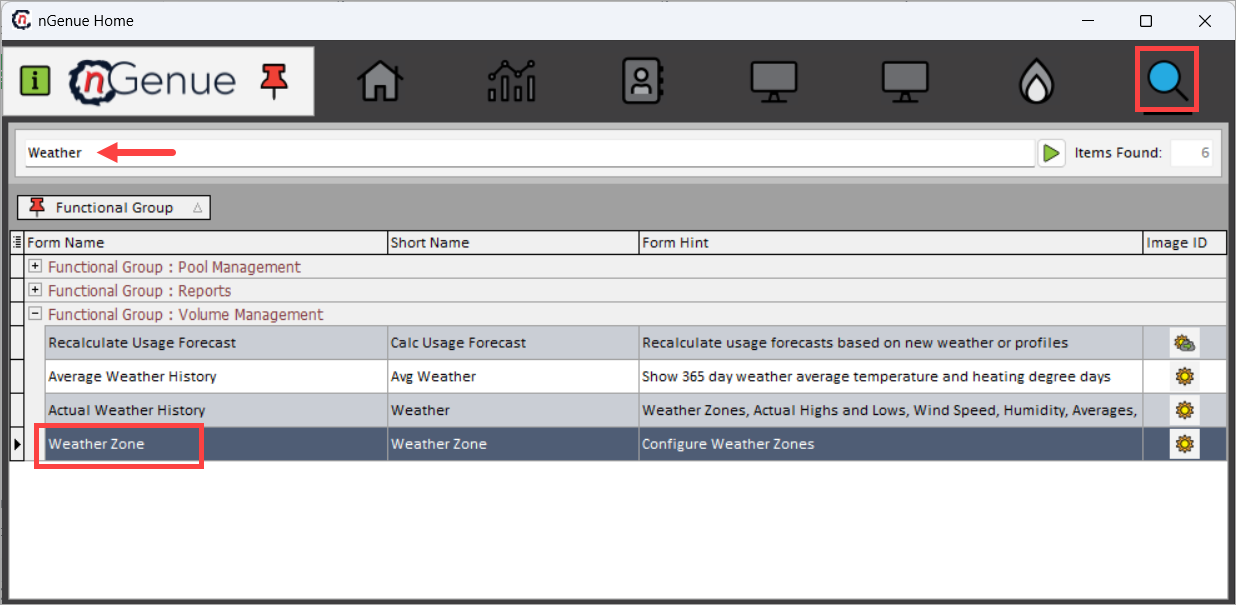
- Use the Search icon and enter Weather in the search bar.
-
Double-click Weather Zone to open the Weather Zone (Volume Management) screen.
-
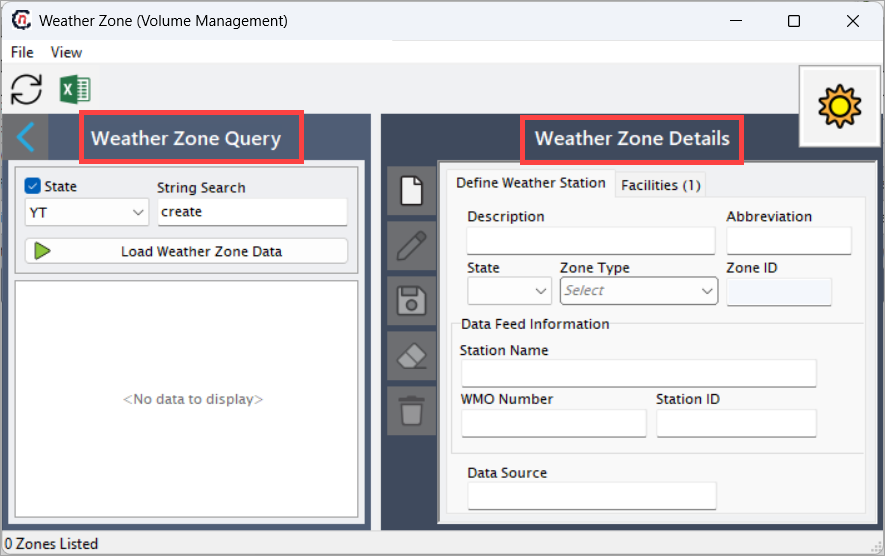
The screen is divided into two main sections:
- Weather Zone Query – Used to search and retrieve existing weather zones.
- Weather Zone Details – Used to create, view, and modify weather zone configuration.
Step 2: Search for existing weather zones
Use the Weather Zone Query section to locate existing weather zones.
| Fields | Description |
|---|---|
| State | Filters weather zones by the selected state. |
| String Search | Allows free-text search on weather zone descriptions or abbreviations. |
| Load Weather Zone Data | Retrieves weather zones matching the selected criteria. |
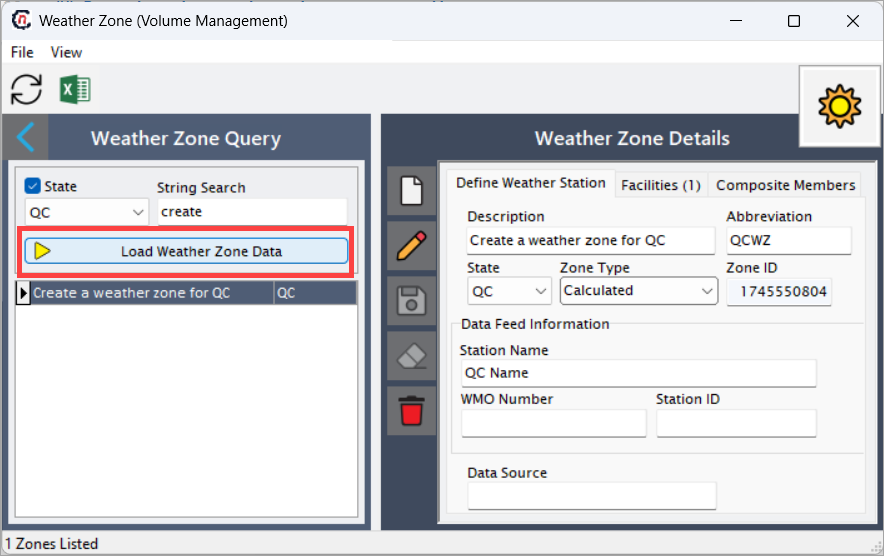
The results grid displays all matching weather zones. Selecting a row loads its details in the Weather Zone Details section.
Step 3: Define weather zone details
Create or update weather zone information within the Weather Zone Details section.
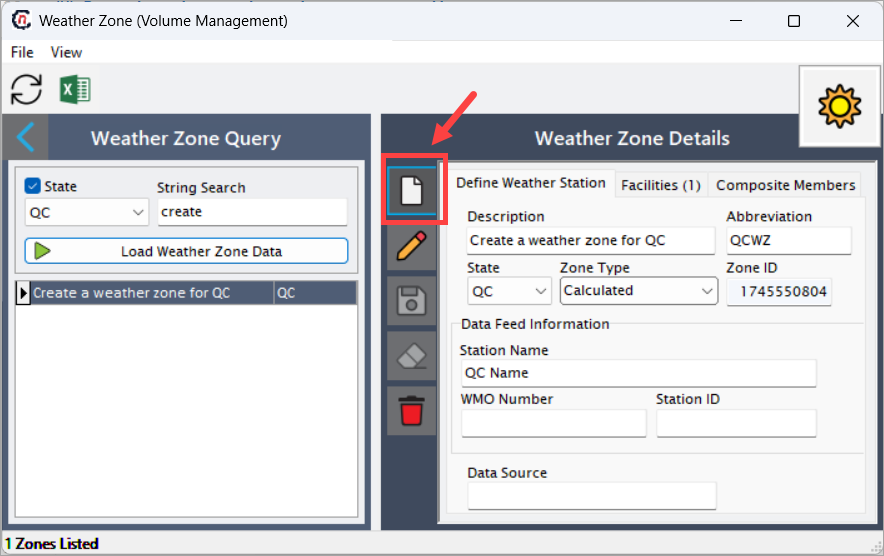
- Click the Add a Weather Zone Record button to create a new weather zone within the nGenue application.
-
Enter the required information in the Define Weather Station tab as described below.
Fields Description Description A descriptive name for the weather zone. This should clearly represent the geographic area, operational region, or grouping logic of the facilities included. Abbreviation Short code used to reference the weather zone across the system. State The state with which the weather zone is associated. This determines the geographic context of the zone. Zone Type Indicates how the weather zone is determined. A value of Calculated means the zone is derived based on configured rules or associations. Zone ID System-generated unique identifier for the weather zone. This value is read-only. Station Name Name of the weather station associated with the zone. WMO Number World Meteorological Organization (WMO) identifier used to uniquely identify the weather station. Station ID Internal or external identifier used to reference the weather station in data feeds. Data Source Identifies the source of weather data used for this zone (for example, vendor feeds or internal sources). -
Click Save.
Step 4: Associate facilities with the weather zone
The Facilities tab lists one or more facilities associated with the selected weather zone. Facility details are automatically fetched from the Facility > Profile tab.
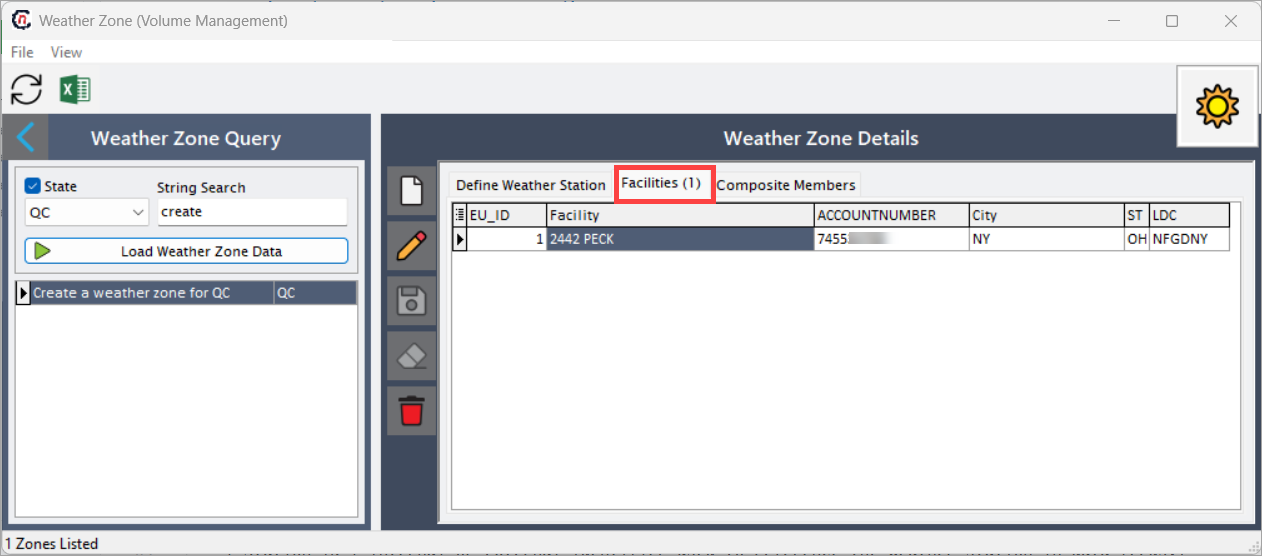
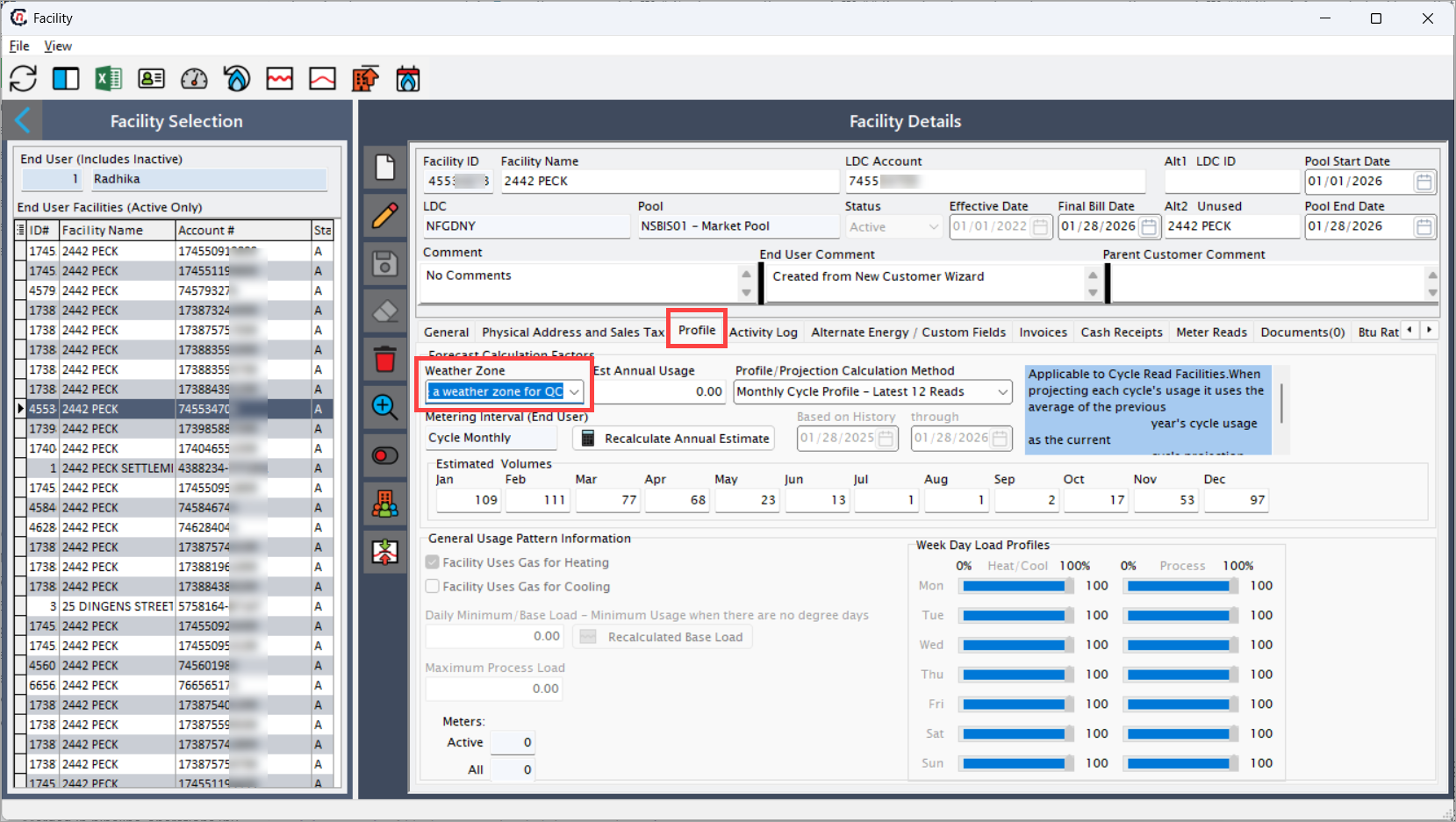
Associating facilities ensures that weather-driven calculations are applied consistently across all linked locations.
Note
- Each associated facility inherits weather-based calculations from the zone.
- Facility association directly impacts load profiling, forecasting, and usage calculations.
Step 5: Configure composite members (if applicable)
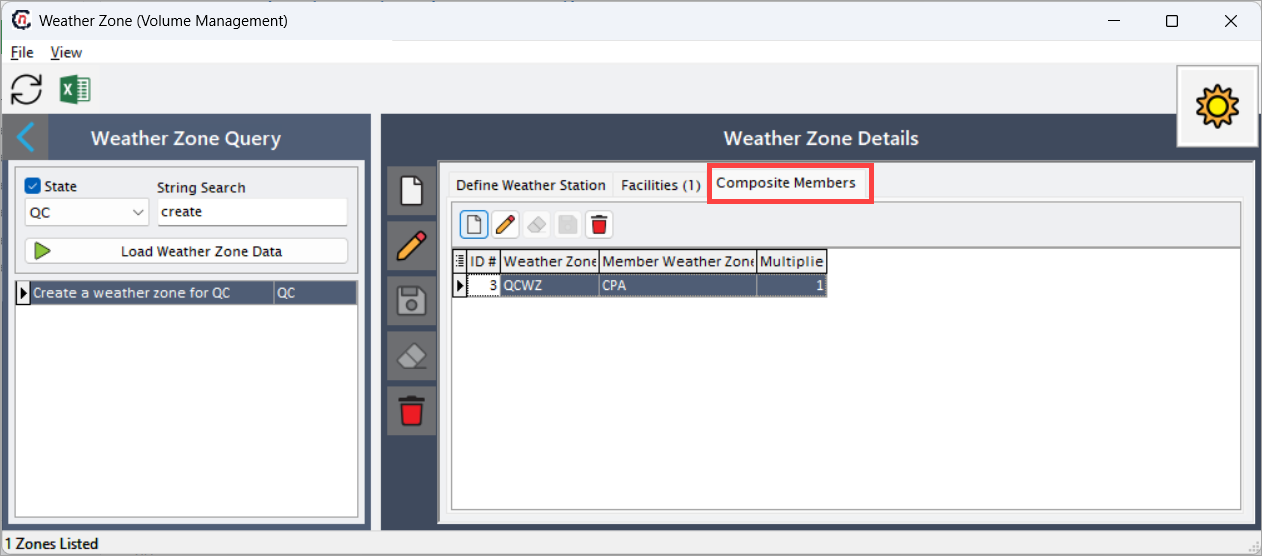
Use the Composite Members tab to define composite relationships between multiple weather zones. You can add a new composite member record from this tab.
- Composite weather zones combine multiple individual zones into a single logical grouping.
- This configuration is typically used for regional analysis, aggregated reporting, or consolidated forecasting scenarios where broader weather trends are required.
Key points
- Weather zones are critical inputs for temperature-based load profiling and forecasting.
- Facility association determines which usage calculations are influenced by weather data.
- Accurate weather station configuration ensures reliable downstream volume calculations.
- Changes to weather zones can impact forecasts, load profiles, and settlement outcomes.
Summary
The Weather Zone screen provides a structured way to define and manage weather-driven groupings of facilities. By configuring weather zones, associating accurate station data, and linking facilities, users ensure consistent and reliable weather-based volume calculations across forecasting, load profiling, and usage workflows within nGenue.