Print commissions
Commissions represent the fees or compensation paid to sales representatives, consultants, brokers, or agencies for executed retail, wholesale, or financial contracts. The Print commissions report is used to review, validate, audit, and distribute commission calculations for a selected period. This report supports commission settlements, internal approvals, dispute resolution, and payment processing by presenting calculated commissions based on finalized contract, pricing, and usage data.
Prerequisites
Before working on the Print commissions (Reports) screen, ensure the following prerequisites are met:
- Ensure the nGenue application is installed and use valid login credentials to log into the application.
- Configure the user permissions including User type, Security user, Security group, Security assign user, and Security assign permissions in their respective screens to enable access to the Print commissions (Reports) screen.
- Ensure commission calculations have been completed and underlying contract, pricing, and volume data is finalized for the reporting period.
Procedure to print commissions report
- Log in to the nGenue application.
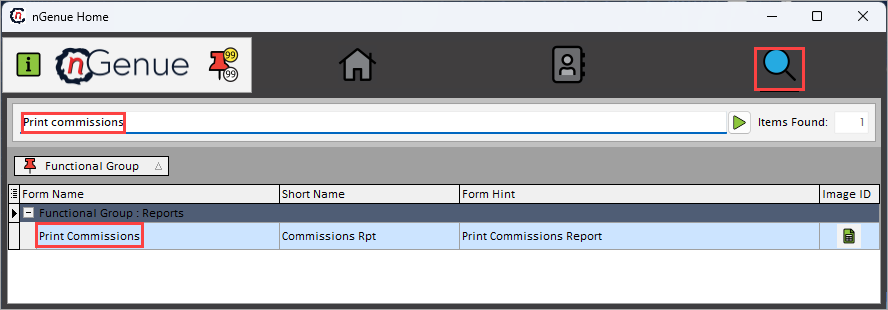
- Click the Search icon and enter Print commissions in the search bar.
-
Double-click the Print commissions from the search results to open respective screen.
-
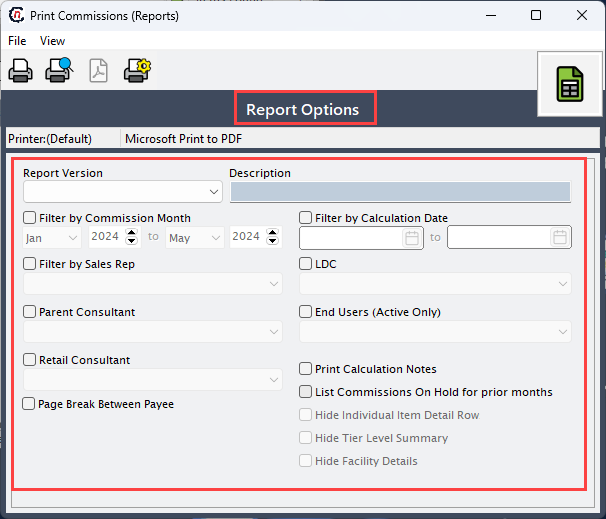
In Print commissions (Reports), Report options section allows to specify report filters, delivery period, and output preferences.
-
Complete the required fields available in the Report options section as listed in the table below:
Fields Description Report version Select the commission calculation version to be printed that allows to compare recalculated and adjusted commission runs. Description Provide description which can be used as a label for the commission run for identification and audit tracking. Filter by commission month Select the commission duration to include only commissions generated during that period. Filter by calculation date Select the calculation date to limit the report to commissions calculated on specified date range. Filter by sales rep Select the sales rep to include commissions earned by the chosen sales representative only in the report. LDC Select the LDC to restrict commission results to contracts associated with that specific LDC. Parent consultant Select the parent customer to filter commissions by the parent consultant responsible for the deal. Retail consultant Select the retail consultant to limit results to commissions assigned to a specific retail consultant. End users (Active only) Select the end user to includes only commissions tied to end users that were active during the reporting period. Page break between payee Select this checkbox to insert a page break between each commission payee to simplify printing and distribution. Print calculation notes Select this checkbox to include detailed calculation notes explaining how each commission amount was derived. List commissions on hold for prior months Select this checkbox to display commissions that were previously held and are now eligible or reviewed for release. Hide individual item detail row Select this checkbox to suppresses line-level transaction detail and displays summarized commission totals only. Hide tier level summary Select this checkbox to exclude tier-based commission breakdowns for the report output. Hide facility details Select this checkbox to remove facility-level detail from the report, showing commissions at a higher summary level. 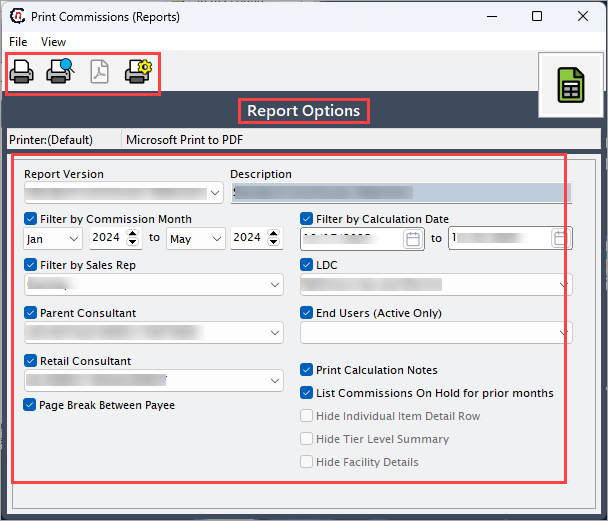
-
Select any of the printing options in the top header to configure printing, preview, print, as described in the table below:
Icons Icon name Description 
Print Click Print icon to print the commissions report. 
Print preview Click Print preview icon to review formatting and content of the report. 
Show report in PDF Click Show report in PDF icon to report in PDF format for emailing or archiving. 
Printer setup Click Printer setup icon to configure printing settings. -
Click Printer setup to configure print settings, specify the name, size, orientation, properties and network.
- Click Ok to save the configuration.
- Click Cancel to discard changes.
-
Click Print preview to review the commission report layout and verify totals and filters.
- Click Show report in PDF icon to display the report in pdf format.
- Click Print to generate the final commission report for physical distribution or for the records.
Summary
The print commissions report provides a controlled and auditable view of commission calculations across sales reps, consultants, and brokers. By using the report filters and display options, users can validate commission earnings, review historical holds, generate payment-ready documentation, and distribute commission statements accurately and efficiently.