Time zones
A Time zone in nGenue defines the geographical time offset used for processing system tasks, scheduling, reporting, and timestamp alignment. By configuring time zones, organizations ensure that all application activities reflect accurate local times, especially when operations span multiple regions.
The Time zones screen provides the following action icons for managing Time zones record:
| Icons | Description |
|---|---|
 |
Add a time zones record. |
 |
Edit current time zones. |
 |
Save changes to current time zones. |
 |
Cancel changes to time zones record. |
 |
Delete current time zones record. |
Prerequisites
Before working on the Time zones screen, ensure the following prerequisites are met:
- Ensure the nGenue application is installed and use valid login credentials to log into the application.
- User permissions: Must configure the security settings including User type, Security user, Security group, Security assign user, and Security assign permissions in their respective screens to ensure the required access and permissions for Time zones screen actions.
Procedure to Time zones
Step 1: Navigate to Time zones screen
- Log in to the nGenue application.
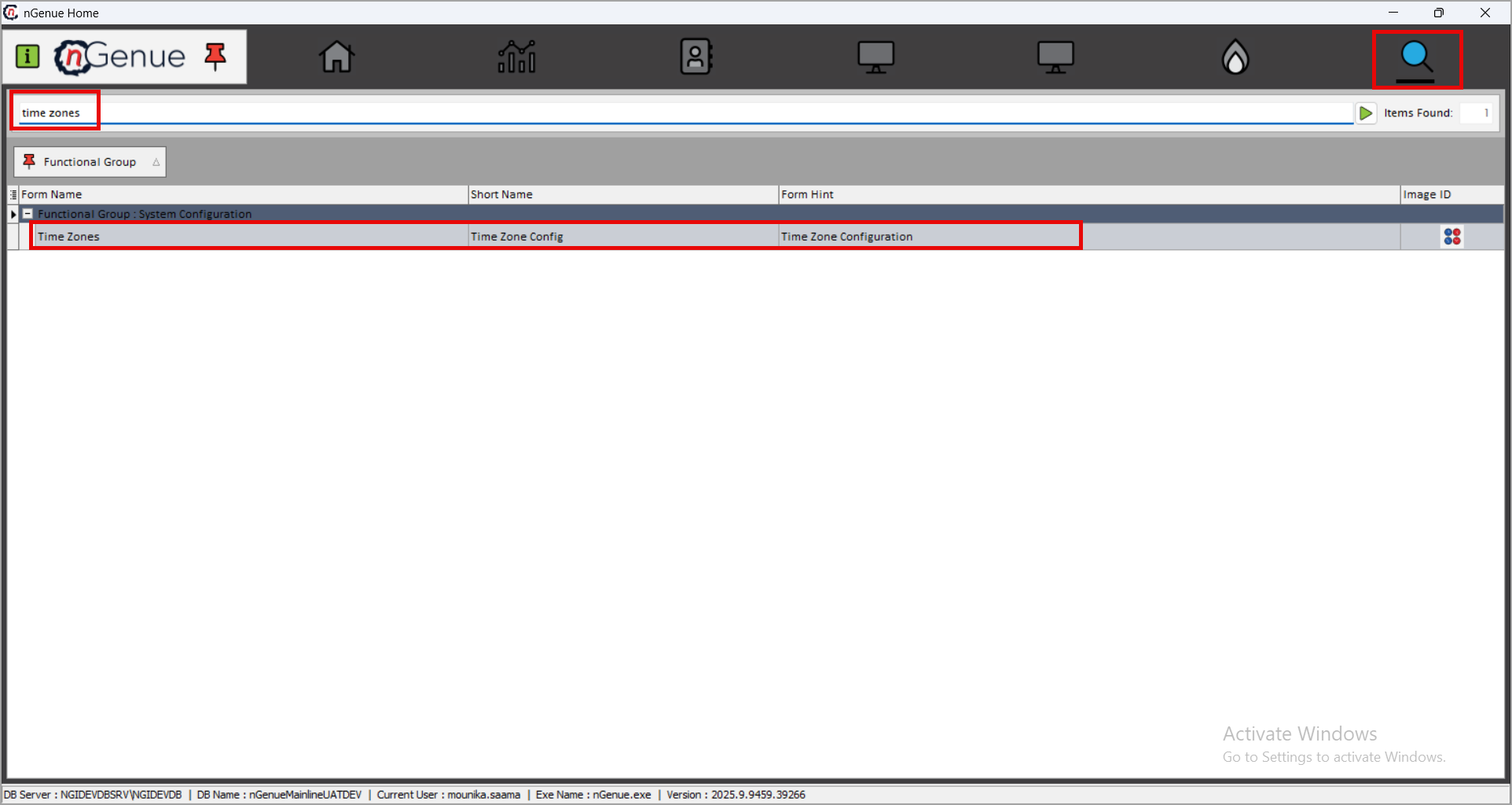
- Click the Search icon and enter time zones in the search bar.
-
Double-click the Time zones from the search results to open respective screen.
-
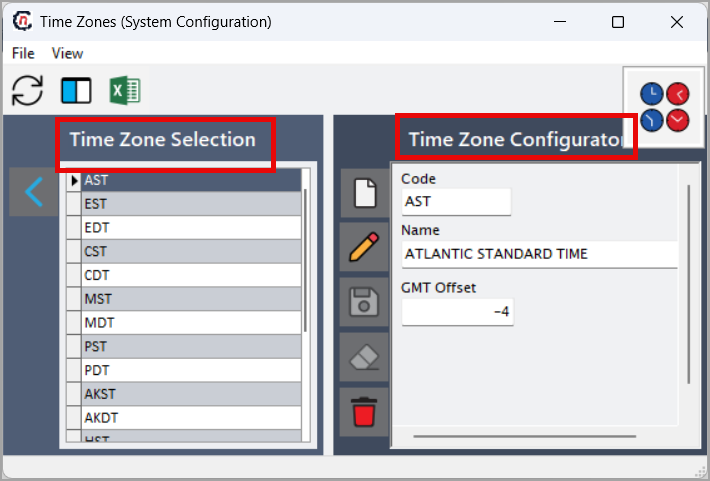
The Time zones screen is divided into two sections:
- Time zone selction: Displays the list of existing time zones.
-
Time zones configuration: Allows creation, editing, saving, and deleting of time zone records.
Step 2: Create a time zones
-
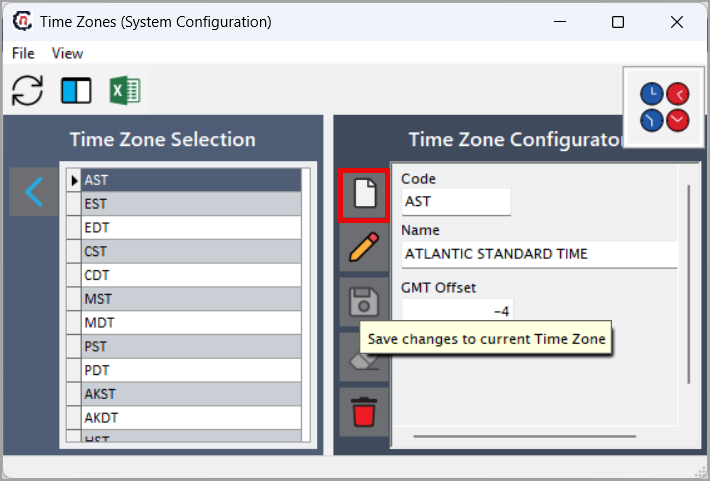
In the Time zones configuration section, click the Add a Time zones icon.
-
Enter the required details:
- Code: Enter a short identifier for the time zone.
- Name: Enter the descriptive name of the time zone.
- GMT offset: Enter the corresponding GMT/UTC offset.
-
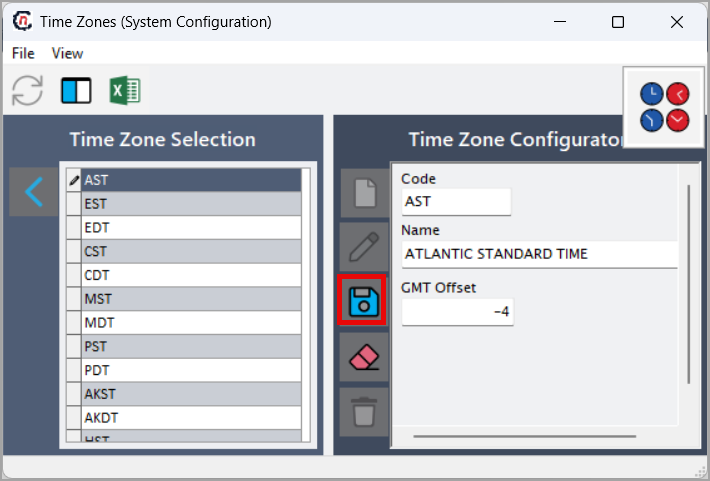
Click Save changes to current time zone to store the new time zones record.
Summary
The Time zones feature in nGenue allows organizations to define accurate time offsets for system activities, ensuring correct timestamps, scheduling, and reporting across all operational regions. Proper configuration of time zones helps maintain consistency and accuracy for time-dependent processes throughout the application.