Print aging detail
The aging detail report provides a detailed view of outstanding receivables, showing each invoice, its age, and related payment activity.
Prerequisites
Before working on Aging detail report screen, ensure the following prerequisites are met:
- User permissions: Configure the user permissions including User type, Security user, Security group, Security assign user, and Security assign permissions in their respective screens to enable access to the Cash receipts home page screen.
- LDC set up: Ensure the Local Distribution Company (LDC) is properly configured, to support invoice processing and cash receipt generation.
- End user and Facility set up: Ensure the End user is fully configured and their Facility is properly set up before generating an invoice or cash receipt.
- Legal entity setup: Additionally, ensure legal entity is configured in the Internal book structure screen to enable proper accounting and cash receipt creation.
- Invoice generation: Ensure that Invoices and corresponding Cash receipts are generated for the selected end user.
Procedure to print aging details
- Navigate to Cash receipts home page screen.
-
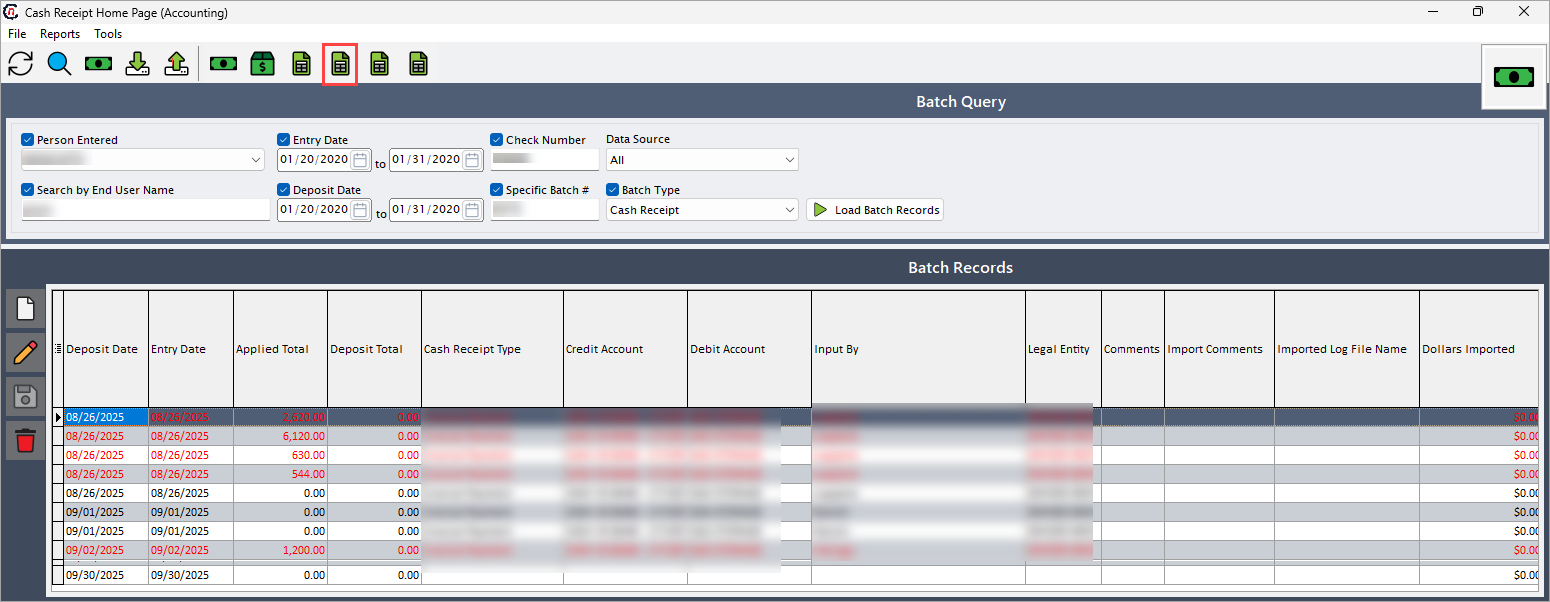
Click Print aging detail icon in the top header to open respective screen.
-
In the Aging detail report pop-up screen, first enable the checkbox to include corresponding field's information. The selected options will filter to produce related aging summary report accordingly.
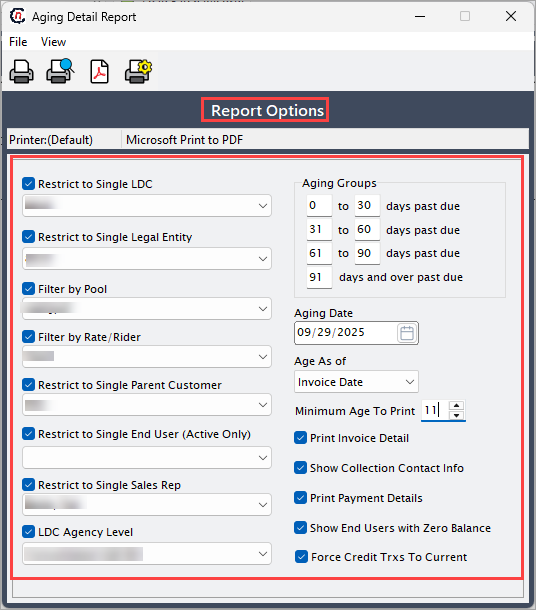
The table below provides lists the fields in the Report options section:
Fields Description Restrict to single LDC Select the associated LDC to filter the report, ensuring that only transactions related to the chosen LDC are included. Restrict to single legal entity Select the related legal entity to filter the report, ensuring that only transactions associated with the chosen entity are included. Filter by pool Select the pool associated with aging to limit the report to a specific group of accounts or facilities, ensuring only relevant transactions are included. Filter by rate/rider Select the rate or rider type to include only transactions associated with the chosen rate or rider in the aging report. Restrict to single parent customer Select the parent customer to include only transactions associated with that specific parent customer in the aging report. Restrict to single end user (active only) Select the active end user to include only currently active accounts in the aging report. Restrict to single sales rep Select the related sales representative to include only transactions associated with that representative in the aging report. LDC agency level Select the agency level for the LDC to include only transactions corresponding to that agency tier in the aging report. Aging groups Specify the age ranges to group receivables in the report, ensuring that outstanding balances are categorized by the length of time they have been overdue. Aging date Choose the date used to calculate the age of receivables, ensuring that all outstanding balances are measured relative to this date. Aging as of Specify the reference date for aging calculations. Minimum age to print Specify minimum age to include only invoices exceeding a certain age. Print invoice detail Select this option to include detailed invoice information in the aging report, providing a breakdown of individual transactions for each account. Show collection contact info Select this option to include contact details for collection purposes in the aging report, providing relevant information for follow-up on overdue receivables. Print payment details Select this option to include details of payments applied to invoices in the aging report, providing a clear view of outstanding balances and applied amounts. Show end users with zero balance Enable this option to display end users in the aging report even if their balance is zero, ensuring a complete view of all accounts. Force credit transactions to current Select this option to apply credit transactions to the current period in the aging report, ensuring that outstanding balances reflect all relevant adjustments. -
On the Aging detail report screen, select any of the printing options in the top header to configure printing, preview, print, as described in the table below:
Icons Icon name Description 
Printer set up Click Printer set up icon to configure printing settings. 
Print preview Click Print preview icon to view the aging detail report. 
Print Click Print icon to print the aging detail report.
Summary
The aging detail report offers a complete view of outstanding invoices, their age, and associated payment activity. It facilitates precise tracking of receivables, monitoring of payment status, and effective management of overdue accounts.