Calculating Cash Outs
The Calculate Cash Outs (Billing) screen allows users to calculate and process cash out charges based on contractual and actual consumption data. It aggregates usage variances and applies corresponding pricing to determine the total long or short cash out value for each pool or LDC.
Prerequisites
Before processing cash outs, ensure that the following prerequisites are met:
- The user have the add or modify permissions for the Calculate Cash Outs (Billing) screen.
- Each End User or Facility must be assigned a valid contract with a defined contractual volume.
- Actual usage readings for the processing period must be available in the system.
- Cash out rates (fixed or indexed) are defined in the price agreement tab for each pool or LDC.
- Optional markups and swing thresholds should be set if applicable to the contract.
- All meter readings and billing items are verified before cash out calculation.
Procedure to calculate Cash Outs
Step 1: Navigate to the Calculate Cash Outs screen
- Log in to the nGenue application.
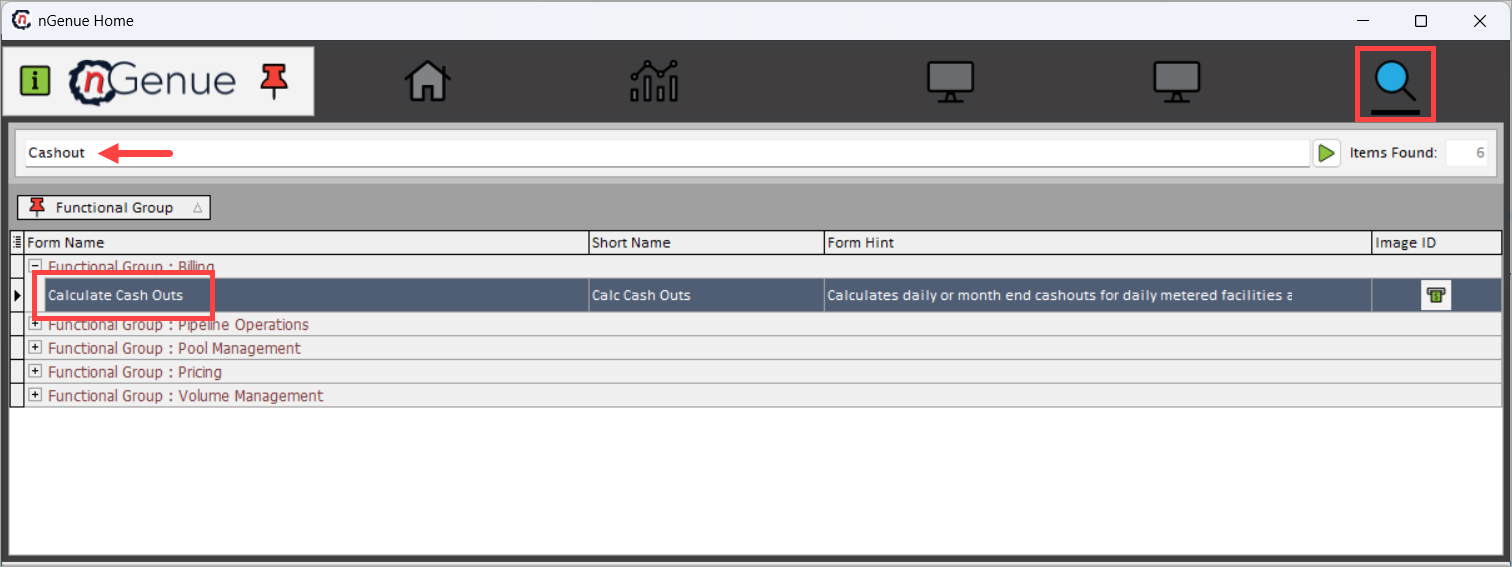
- Click Search and enter Cash outs in the search bar.
- Double-click Calculate Cash Outs to open the Calculate Cash Outs (billing) screen.
Step 2: Fill the key fields in the Calculate Cash Outs screen
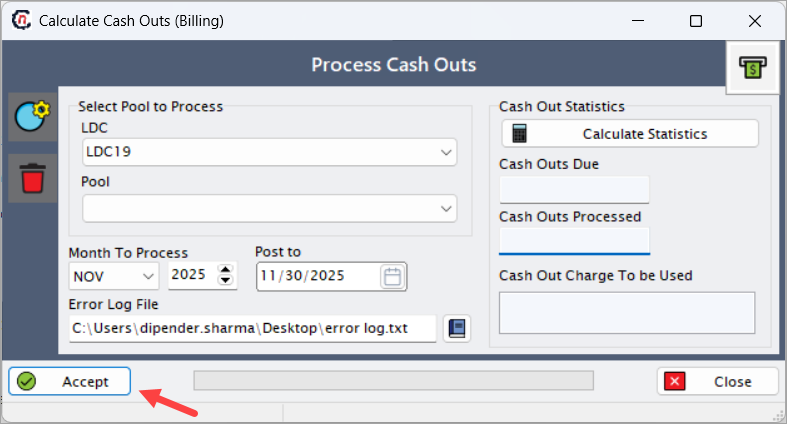
The Calculate Cash Outs (Billing) screen contains several important fields and options. Each field plays a specific role in defining how the cash outs will be calculated. A detailed description of each field is provided below:
| Fields | Description |
|---|---|
| LDC | Select the local distribution company for which cash outs will be calculated. The LDC determines the data source for contractual and usage volumes. |
| Pool | Select the pool associated with the LDC to restrict the cash out calculation to a specific group of end users. |
| Month to Process | Defines the month for which cash out data should be processed. The system retrieves all usage and contract data for the selected month. |
| Post to | Specifies the posting date to apply the calculated cash out transactions. Typically, this is the last date of the processing month. |
| Error Log File | Defines a local or shared directory path to capture error logs generated during cash out processing. Useful for reviewing failed records or calculation discrepancies. |
| Calculate Statistics | Executes a background calculation to generate cash out statistics such as total volumes, long/short variances, and charges due. Click Calculate Statistics to generate a summary of cash outs due. |
| Cash Outs Due | Displays the total number of cash outs pending processing for the selected month and pool. This value updates after clicking Calculate statistics. |
| Cash Outs Processed | Shows the total number of cash outs successfully processed and recorded into the system. |
| Cash Out Charge To Be Used | Displays the charge type (fixed or index-based) applied to calculate the cash out rate. The charge is determined from the pricing configuration associated with the selected LDC and pool. |
Once verified, click Accept to finalize cash out calculations.
Example scenario
A billing analyst at ABC Energy wants to calculate and post cash outs for October 2025 for the pool ABC GAS – RETAIL EAST under the ABC GAS LDC. The analyst performs the following steps:
- Opens the Calculate Cash Outs (Billing) screen.
- Selects ABC GAS as the LDC and ABC GAS – RETAIL EAST as the pool.
- Sets Month To Process = OCT 2025 and Post to = 10/31/2025.
- Provides a file path for the error log (e.g.,
C:\cash outLogs\Oct2025). - Clicks Calculate Statistics. The system displays Cash Outs Due = 8 and Cash Outs Processed = 0.
- Reviews the details and clicks Accept to finalize processing.
- Once the process completes, Cash Outs Processed = 8 confirms that all eligible records were successfully processed.
The system automatically applies pricing from the configured cash out rate schedule, calculates the Weighted Average Cost of Gas (WACOG), and records the resulting charges or credits in the billing ledger for inclusion in the next invoice cycle.