Managing miscellaneous daily charges
This article provides detailed instructions for using the Miscellaneous daily charges screen in nGenue. This screen allows billing analysts and finance teams to create, manage, and review billing entries that fall within the automated billing process.
These charges can include manual corrections, adjustments, ad-hoc fees, or informational entries that need to be reflected on customer invoices. By maintaining these records in a centralized interface, users can ensure billing completeness, financial transparency, and proper revenue recognition for all special-case scenarios.
Prerequisites
Before working with the Miscellaneous daily charges screen, ensure that the following prerequisites are met:
- The user have the add or modify permissions for the Miscellaneous daily charges screen.
- The relevant billing cycle is open for the desired delivery month.
- The End user, Facility, and LDC are active and properly configured in the system.
- All LDC charge definitions, tax configurations, and storage setups are completed.
- Any dependent data (such as meter reads or prior billing items) has been validated to ensure consistency before creating manual charges.
Procedure to manage miscellaneous daily charges
Step 1: Navigate to the Miscellaneous daily charges screen
- Log in to the nGenue application.
-
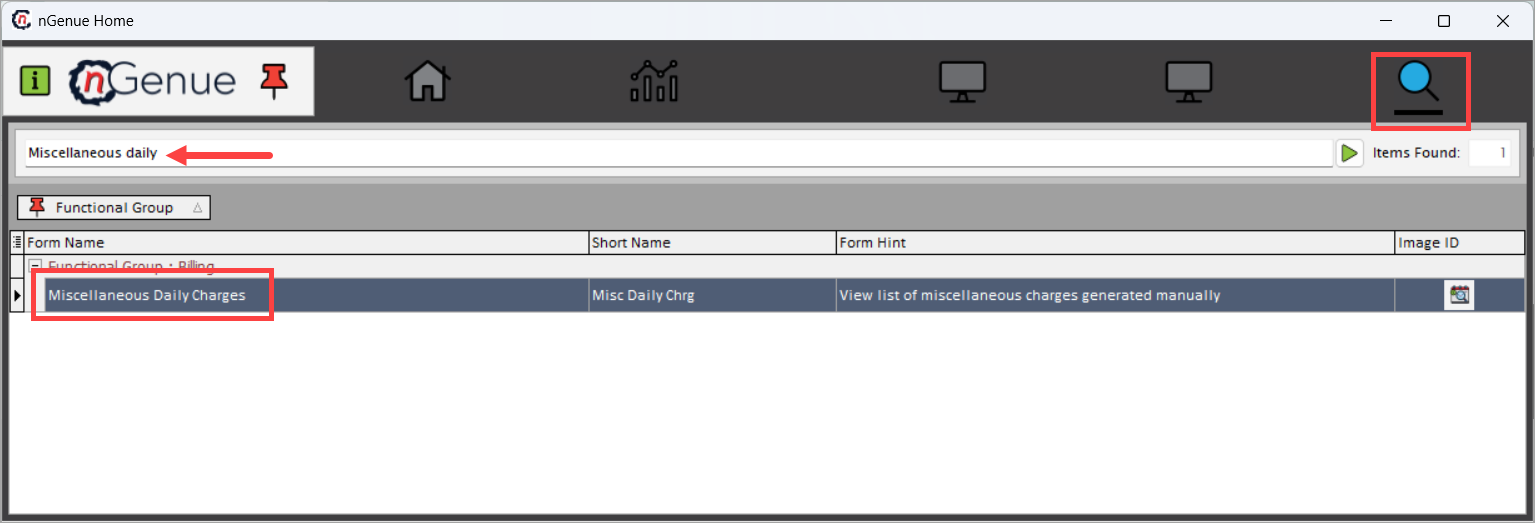
Click Search and enter Miscellaneous daily in the search bar.
-
Double-click Miscellaneous daily charges to open the Miscellaneous daily charges (billing) screen.
-
The screen is divided into two sections:
- Invoice charges query section
- Invoice charges records section
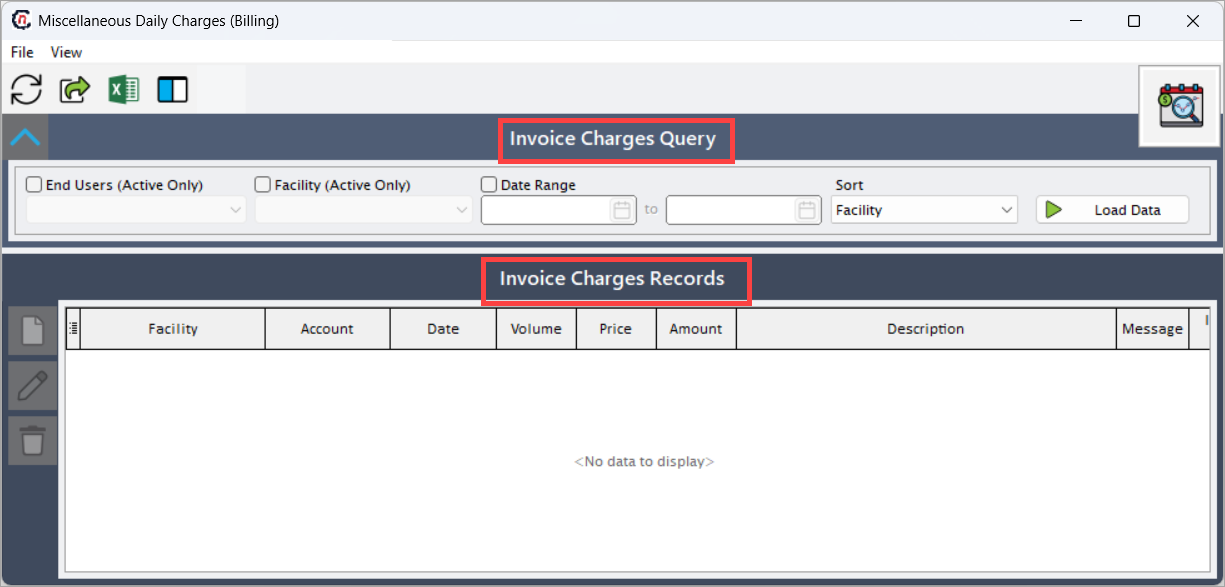
Invoice charges query section
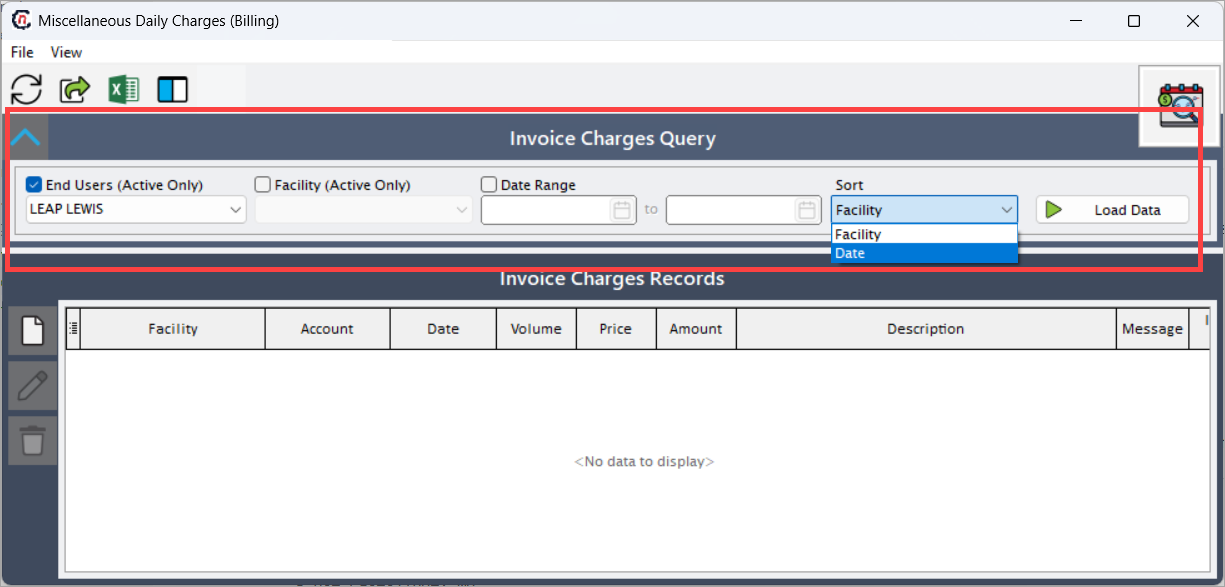
The Invoice charges query section allows users to retrieve existing miscellaneous charges for review, modification, or audit purposes.
Fields Description End user (active only) Displays charges linked to a particular end user. Useful when validating customer-specific adjustments. Facility (active only) Filters data for an active facility. Ensures charges are associated with operational facilities only. Date range Filters records by billing month and year to review charges specific to a billing cycle. Sort Sorts the results either by Facility or Date, allowing easier review of grouped data based on preferred analysis. Load data Executes the query to load miscellaneous daily charge records based on applied filters. Once filters are applied, click Load data to display matching entries in the Invoice charges records section.
Invoice charges records section
This section displays detailed records for review in a tabular grid. Each row represents a single miscellaneous daily charge entry and includes system references and human-readable fields needed for validation, reconciliation, and troubleshooting.
Analysts use this grid to verify the accuracy of each entry (for example, the facility and account mapping, the effective date, the volume/price calculation, the calculated amount, and any message-only flags) before charges are allowed to flow into invoice generation.
The table typically includes:
Fields Description Facility The facility name or street/location associated with the charge. Use this to confirm the physical site to which the charge applies. Account The customer account number associated with this charge. Useful to reconcile charges to customer billing records and payment history. Date The effective date of the charge. This determines the billing cycle and is validated against open/closed billing periods. Volume The measured quantity (for example, therms) associated with the charge when the charge is volume-based. If the charge is fixed, this is usually 0 or blank. Price The per-unit rate applied to the volume. When volume is provided, amount is calculated as Volume × Price.Amount The final monetary value of the line item. This is either entered directly for fixed charges or computed from Volume × Price.Description The line description or note that appears on the invoice. Should clearly explain the reason for the charge (for example, "manual correction", "daily imbalance adjustment"). Message A flag (Y/N) indicating whether the record is message-only. Message-only entries are informational and do not have a financial impact. Invoice item Indicates whether the record has been linked to an invoice item (non-zero means it is associated with an invoice). Use this to prevent updating items that are already invoiced. Facility_ID Internal system identifier for the facility. Useful for support and troubleshooting when multiple facilities have similar names. Misc_daily_charge_Id Internal unique identifier for the miscellaneous daily charge record. Use this for audit, logging, or direct database lookups. EU_ID Internal end-user identifier (customer ID). Useful to cross-reference the entry with the end user record. 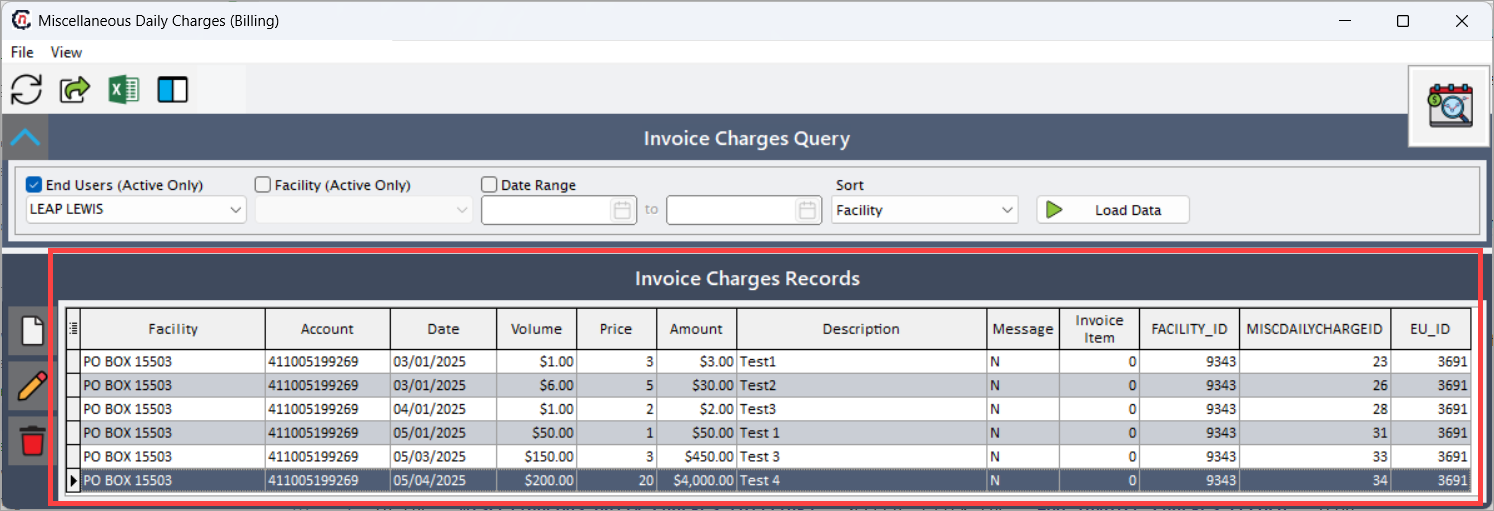
Step 2: Create a new miscellaneous daily charge
To add a new one-time charge or credit, perform the following steps:
- In the Miscellaneous daily charges (billing) screen, click Add invoice charges record.
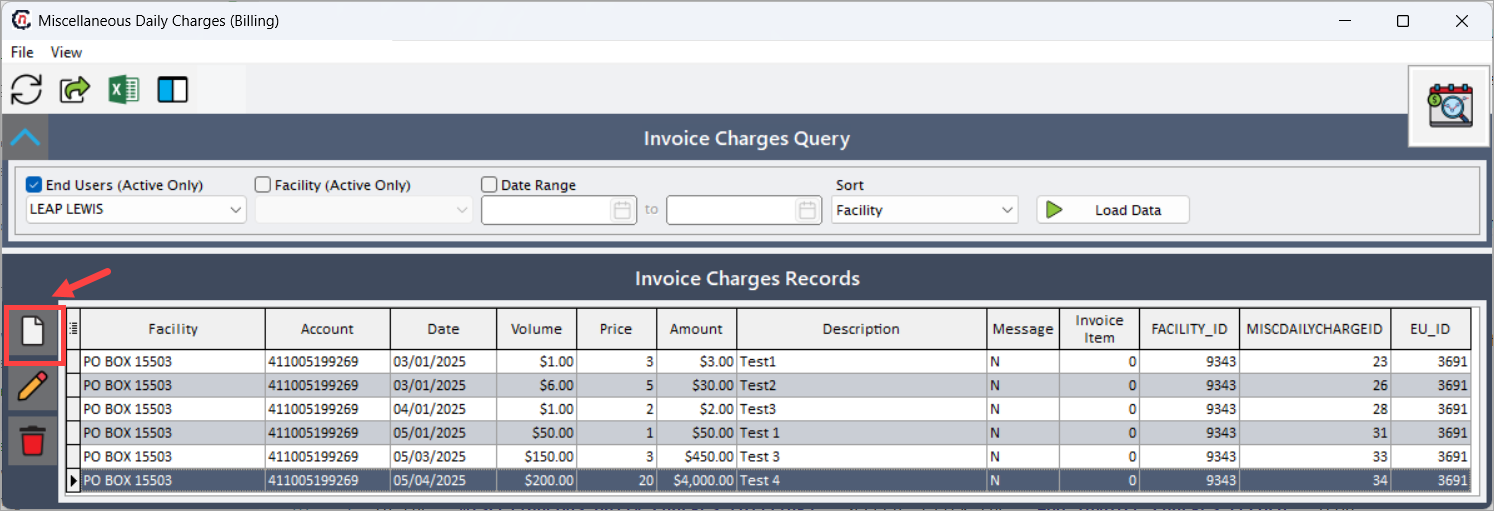
- The Add/Edit miscellaneous daily charge screen opens for input.
-
Fill in all the required fields as described below, then click Accept.
Fields Description End user (active only) Select the customer account receiving the charge. Facility (active only) Select the facility where the charge applies. Only active facilities are displayed. Date The effective date of the charge, typically within the open billing period. Message only (do not calculate amounts) Marks the entry as informational only (no financial impact). Useful for system messages or non-billable notes. Volume The quantity of gas (in therms) applicable for the charge. This field is used when the charge is volume-based. Price The rate per unit applied to the Volume entered. Amount This field defines the final financial impact of the charge. The total amount is automatically calculated as Volume × Price.Description Enter a clear description of the charge. This text appears on the customer invoice, improving clarity and transparency. Clearly specify the purpose, such as “manual correction,” “late adjustment,” or “credit refund.” 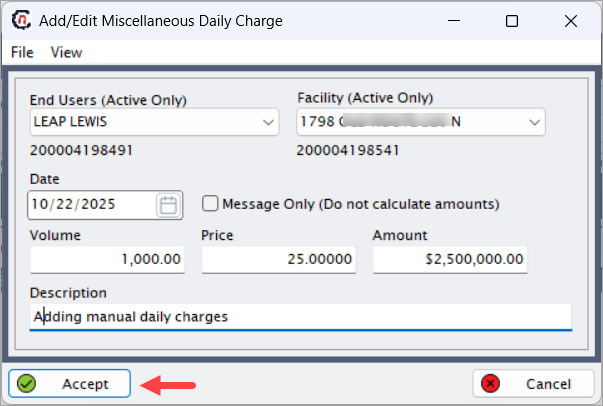
-
The entry now appears in the Invoice charges records section.
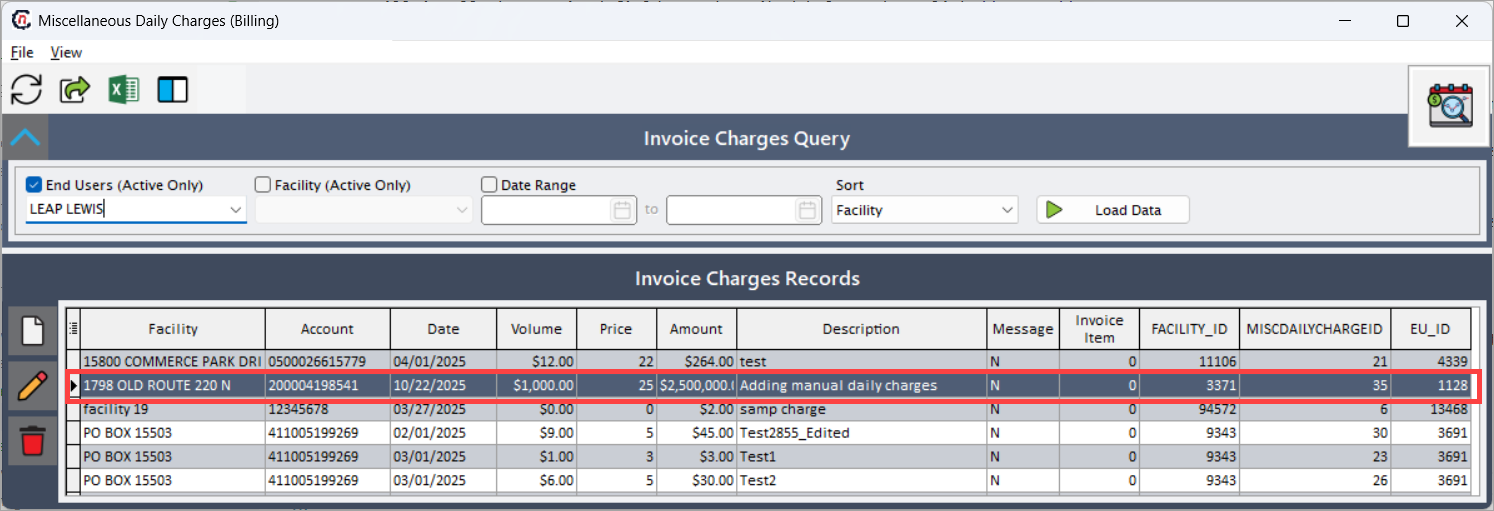
Step 3: Review and edit existing miscellaneous charges
After charges are created, analysts can review and modify them as needed.
- To edit an existing charge, select the record and click Edit (
 ).
). - Update any of the editable fields such as amount, description, or charge type.
- To remove a charge, select it and click Delete (
 ).
). - Use the Message only (do not calculate amounts) checkbox to convert a charge into an informational note if it was mistakenly added as financial.
- After making updates, click Accept to confirm the changes.
The system automatically validates changes to ensure data consistency and prevents duplicate or invalid entries.
Example scenario
A billing analyst, Sarah, needs to reconcile charges for the October 2025 billing cycle for the LDC facility ABC Gas. During her review, she discovers that a daily imbalance adjustment fee for one of the industrial customers was missed in the automated billing process.
To correct this, Sarah opens the Miscellaneous daily charges screen and follows these steps:
- Delivery month/year: October 2025
- Facility: ABC Gas
- Price:
$125.00 - Description: “Manual addition of daily adjustment charge for October 2025.”
After saving, the charge appears in the summary grid and will be automatically included in the next invoice generation. Sarah then verifies that the adjustment correctly reflects in the Review invoice item batch details screen before the billing cycle closes.
What’s next
After adding or reviewing miscellaneous daily charges:
- Proceed to Review invoice item batch details to confirm inclusion of the charge.
- Validate all entries through the Invoice generation process.
- Export the list of miscellaneous daily charges for audit or internal reporting.
- Review the Billing summary report to ensure the manual entries are properly accounted for in totals and revenue recognition.
Summary
The Miscellaneous daily charges screen in nGenue provides a flexible tool to manage all manual or exceptional billing entries that cannot be captured through standard billing automation.
Using this screen, users can:
- Add, review, or modify one-time billing entries efficiently.
- Ensure billing completeness and financial accuracy.
- Maintain full audit trails of manual adjustments and exceptions.
- Enhance transparency between automated and manually created financial transactions.
By accurately maintaining miscellaneous daily charges, billing teams ensure that every valid financial event is reflected correctly in customer invoices and organizational revenue records.