Prospect conversion to end user
The Prospect to End User conversion process transitions a potential customer (prospect) into an active end user within the system. This conversion allows the end user to participate in pricing, quoting, and billing workflows. It ensures that all relevant information, such as contact details, facilities, and pricing agreements, is properly carried over to the active profile.
When a quote under a prospect record is approved and ready for activation, users can convert the prospect to an end user directly from the Quote History section. Once converted, the end user gains access to standard workflows, including creating new quotes for renewals or new service requests.
Procedure to convert prospect to end user
Follow these steps to initiate the conversion:
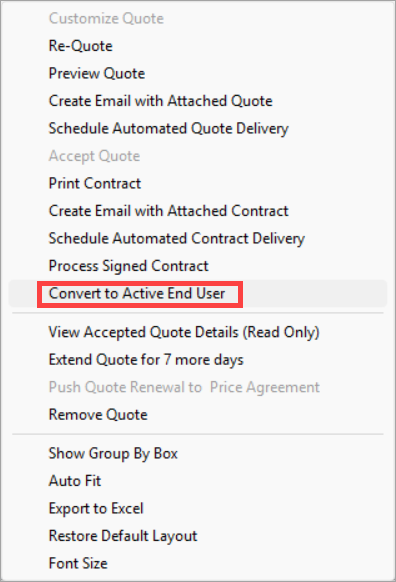
- Right-click on a selected quote in the Quote history section.
-
Select Convert to active end user from the context menu.
-
Once a prospect is converted to an end user and their status is updated to Converted to end user, they can follow the standard process to create a new quote whether for a renewal or a new purchase.
-
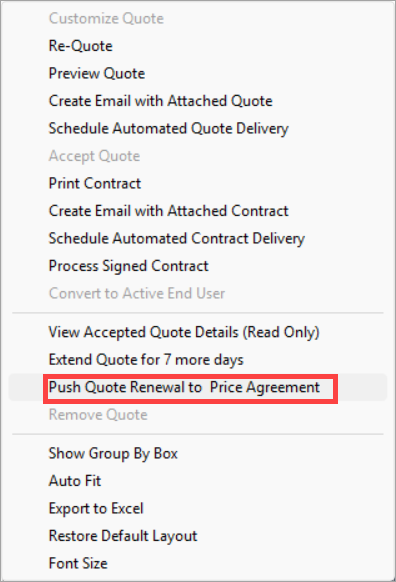
After the new quote is accepted, right-click on the quote and select Push quote renewal to price agreement to generate the price agreement for the renewal.
Note
- If a new facility is added, the system automatically triggers an enrollment request.
- Meter Cycle Reads (MRC) are required and must be valid for the full quote term. The quote cannot be accepted without valid MRCs.
-
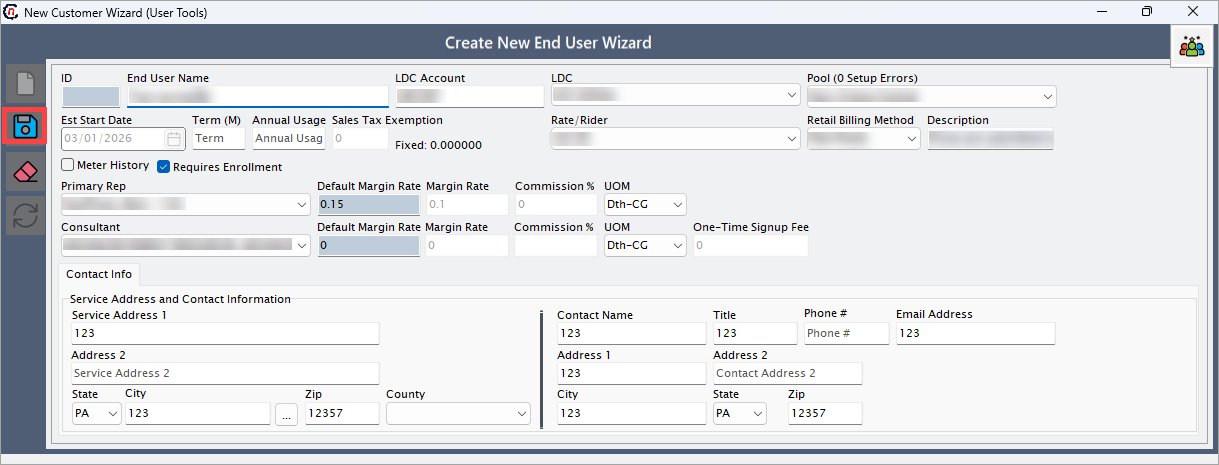
Ensure the system carries over all prospect details correctly.
-
Click the Save button.
-
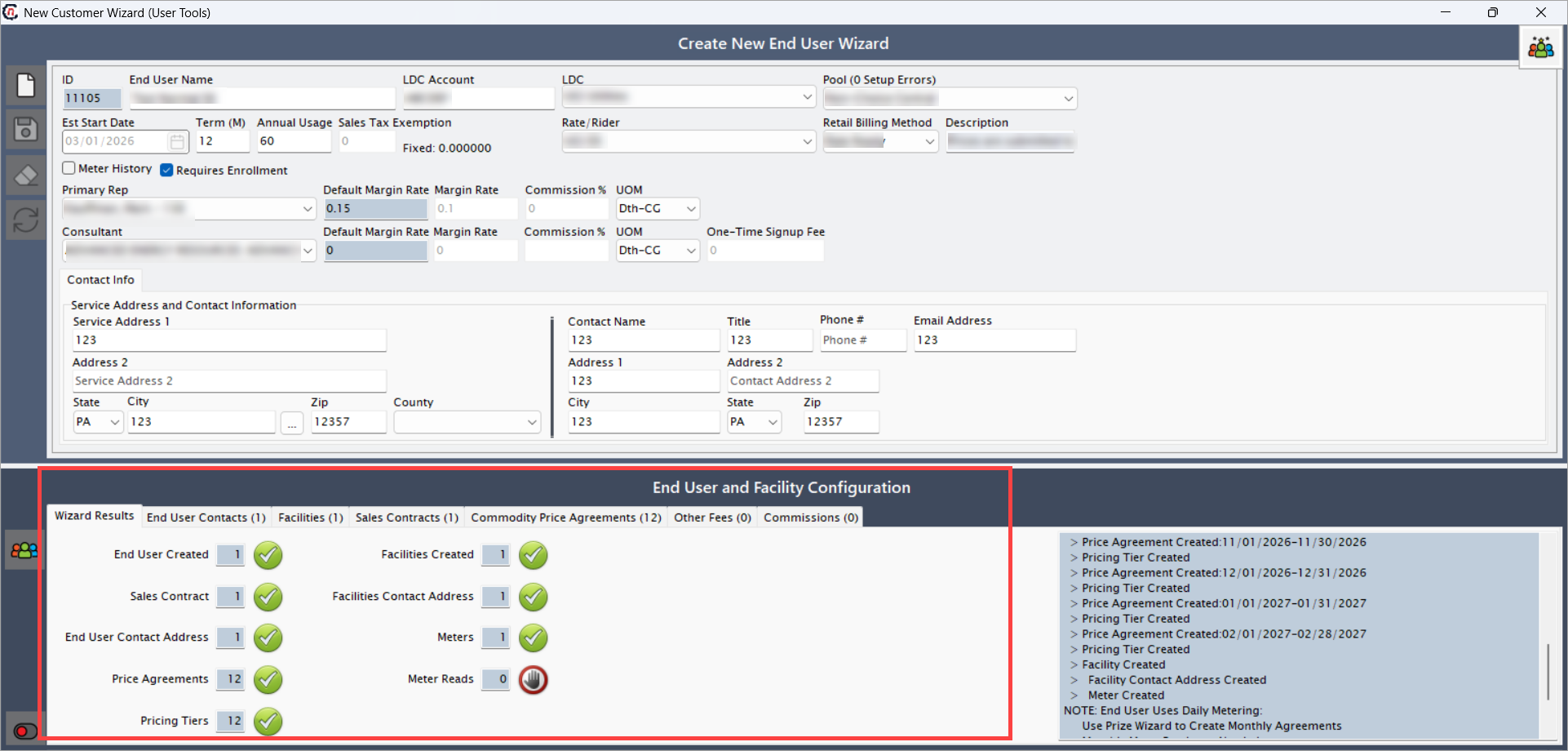
The system converts the prospect into an end user.
Activating end user and facility
Activate end user
To activate an end user, follow the steps below:
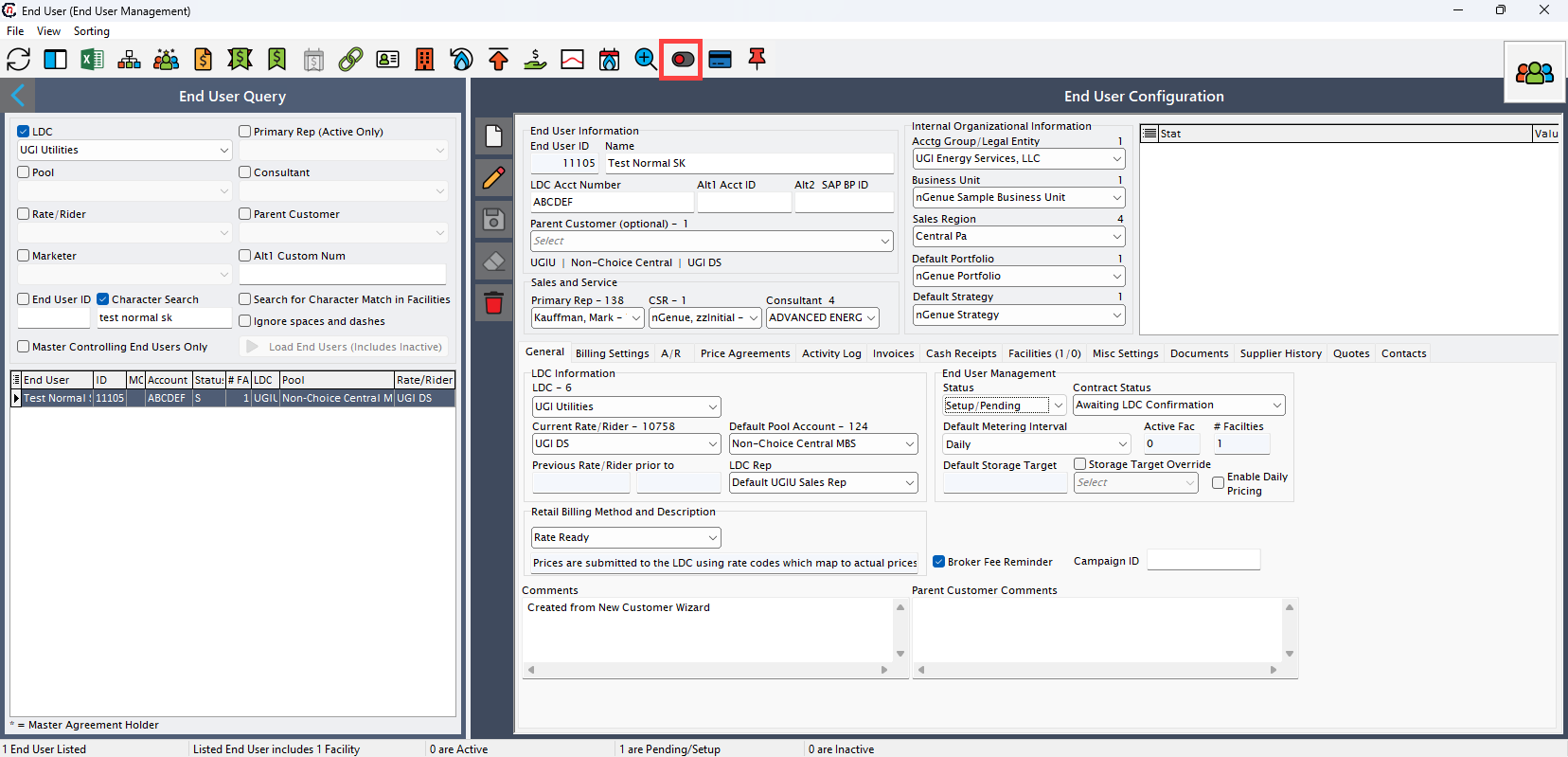
- Go to the End user screen.
-
Click the Activate end user icon.
-
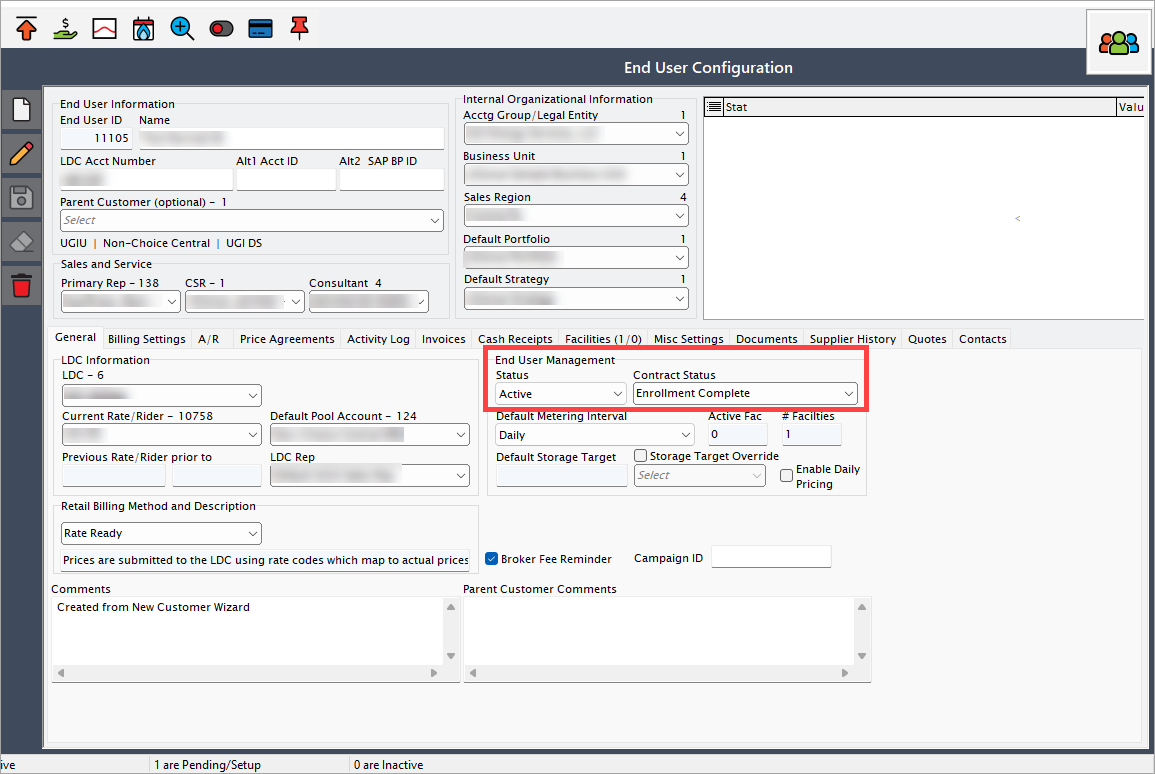
The system updates the end user status to Active.
-
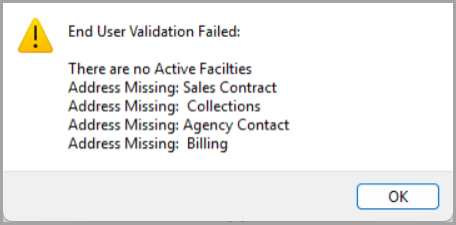
If any contact details or mandatory configurations are missing, a validation warning appears. Ensure all missing details are updated before proceeding.
Activate facility
To activate a facility, follow the steps below:
- Navigate to the Facility screen.
-
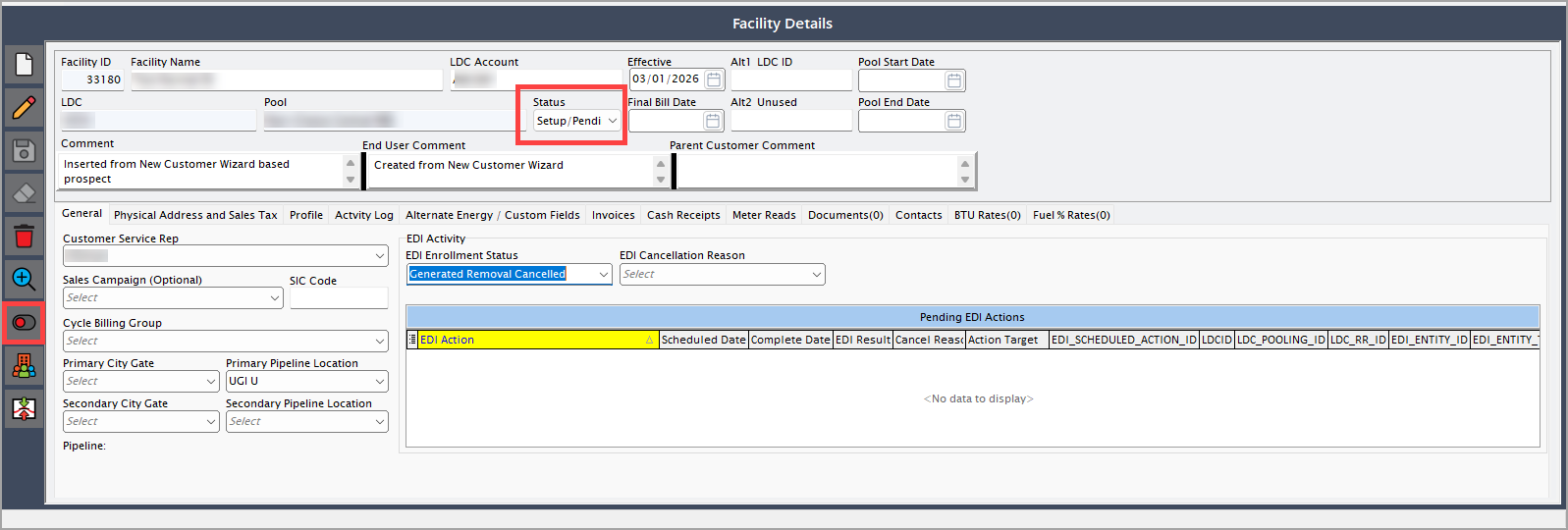
Click the Change facility status icon.
-
Enter the Effective date and click Accept.
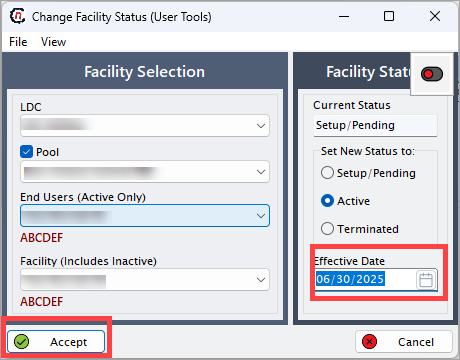
-
A warning message is displayed. Click Yes to proceed.
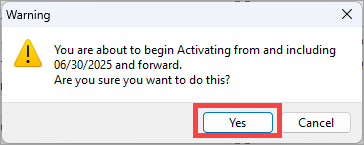
-
The facility status changes to Active.
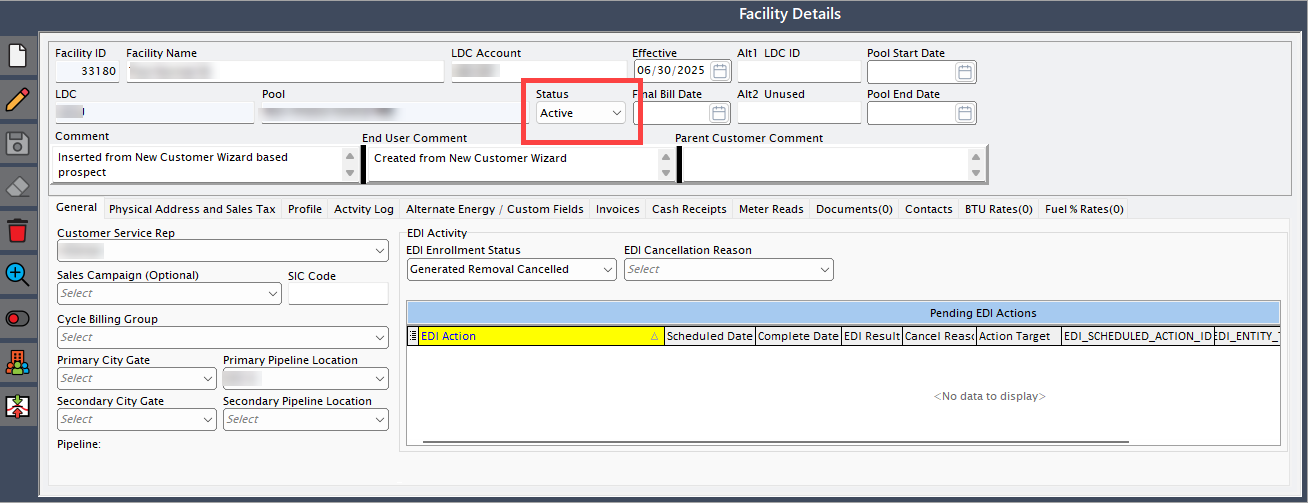
Confirm validated configurations
After the conversion, validate the following elements to ensure all configurations are complete:
- End user address: Confirm correct and valid address information.
- Facilities: Click File and uncheck Hide inactive facilities to review all associated facilities.
- Price agreements: Ensure pricing details are updated and agreements are reflected correctly.
- Tier structure: Verify correct tier association with the end user.
- Components: Check that all required components are assigned and listed.
- Computed price: Confirm that the computed price reflects accurate product and override values.