LDC pool balancing statement
The LDC Pool Balancing Statement screen provides a consolidated financial and volumetric balancing view for a selected Local Distribution Company (LDC) pool over a defined usage and delivery period. It summarizes gas usage, deliveries, cashouts, trades, and adjustments to determine the net pool balance for settlement and invoicing purposes.
This screen is primarily used by pool management, settlements, and billing teams to:
- Review pool-level gas usage and delivery alignment
- Validate beginning and ending pool balances
- Account for trades, cashouts, and operational adjustments
- Support pool invoice generation and settlement reconciliation
The LDC Pool Balancing Statement serves as a key reconciliation screen that bridges operational gas activity and financial settlement outcomes.
Prerequisites
Before using the LDC Pool Balancing Statement screen, ensure the following prerequisites are met:
- The user has the add or modify permissions for the LDC Pool Balancing Statement screen.
- The LDC is configured and active in nGenue.
- One or more LDC pools are defined for the LDC.
- Meter reads, gate deliveries, and burner tip deliveries are available for the selected period.
- Pool trades and cashouts (if applicable) have been recorded.
- The user has permission to view pool balancing and invoice data.
Procedure to review LDC pool balancing statement
Step 1: Navigate to the LDC Pool Balancing Statement screen
- Log in to the nGenue application.
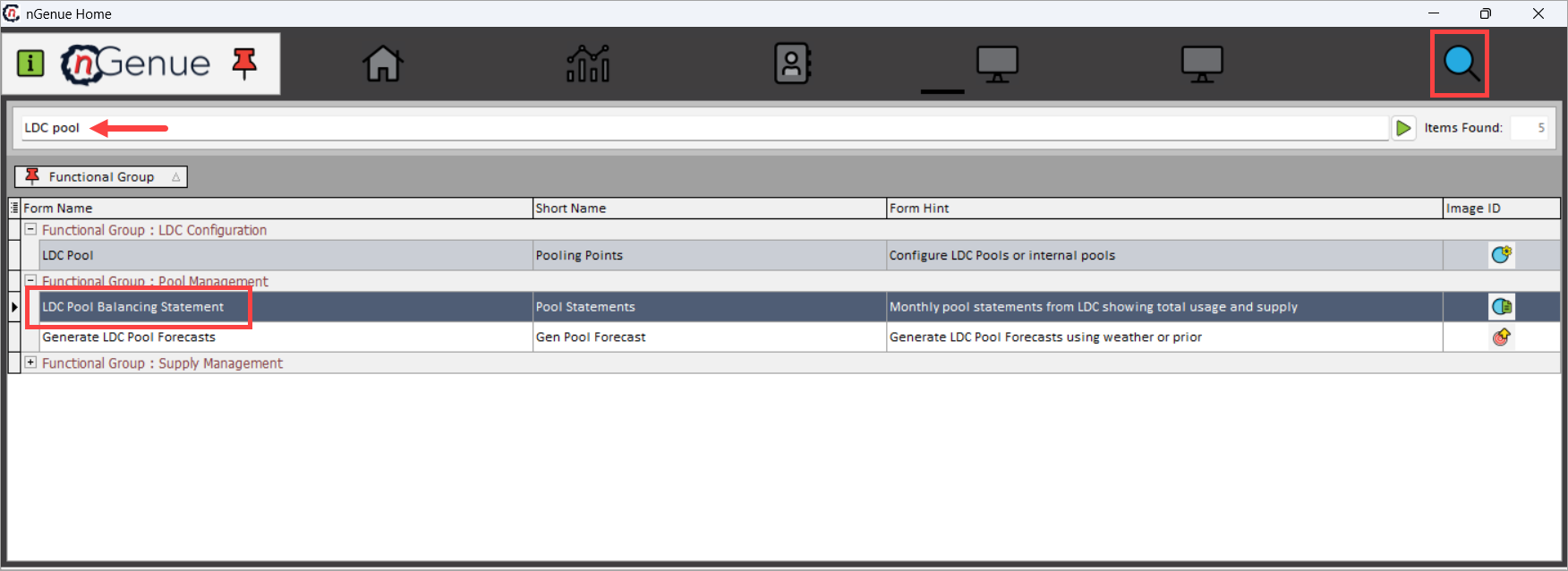
- Click the Search icon and enter LDC Pool in the search bar.
- Double-click LDC Pool Balancing Statement to open the LDC Pool Balancing Statement (Pool Management) screen.
-
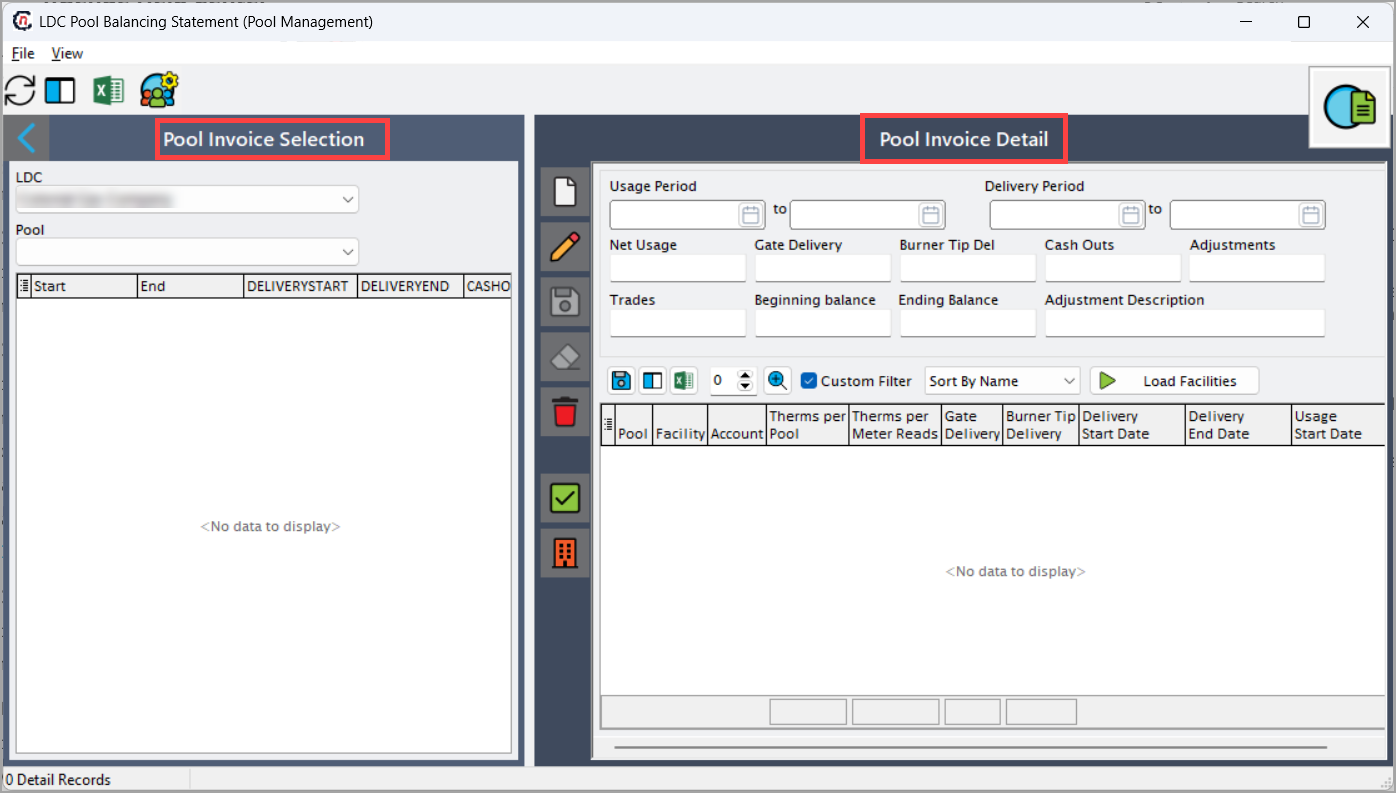
The screen is divided into two primary sections:
- Pool Invoice Selection: This section controls which pool statement is loaded.
- Pool Invoice Detail: This section provides a comprehensive summary of usage, delivery, and balance calculations for the selected pool and period.
Step 2: Select LDC and pool
-
The Pool Invoice Selection section controls which pool balancing statement is loaded.
Fields Description LDC Select the Local Distribution Company whose pool balances are being reviewed. Only pools associated with the selected LDC are available. Pool Select the specific pool for which balancing and settlement data is displayed. Each pool represents a logical grouping of customers and volumes. Start / End Display available usage and delivery periods for which pool balancing data exists. These periods typically align with billing or settlement cycles. 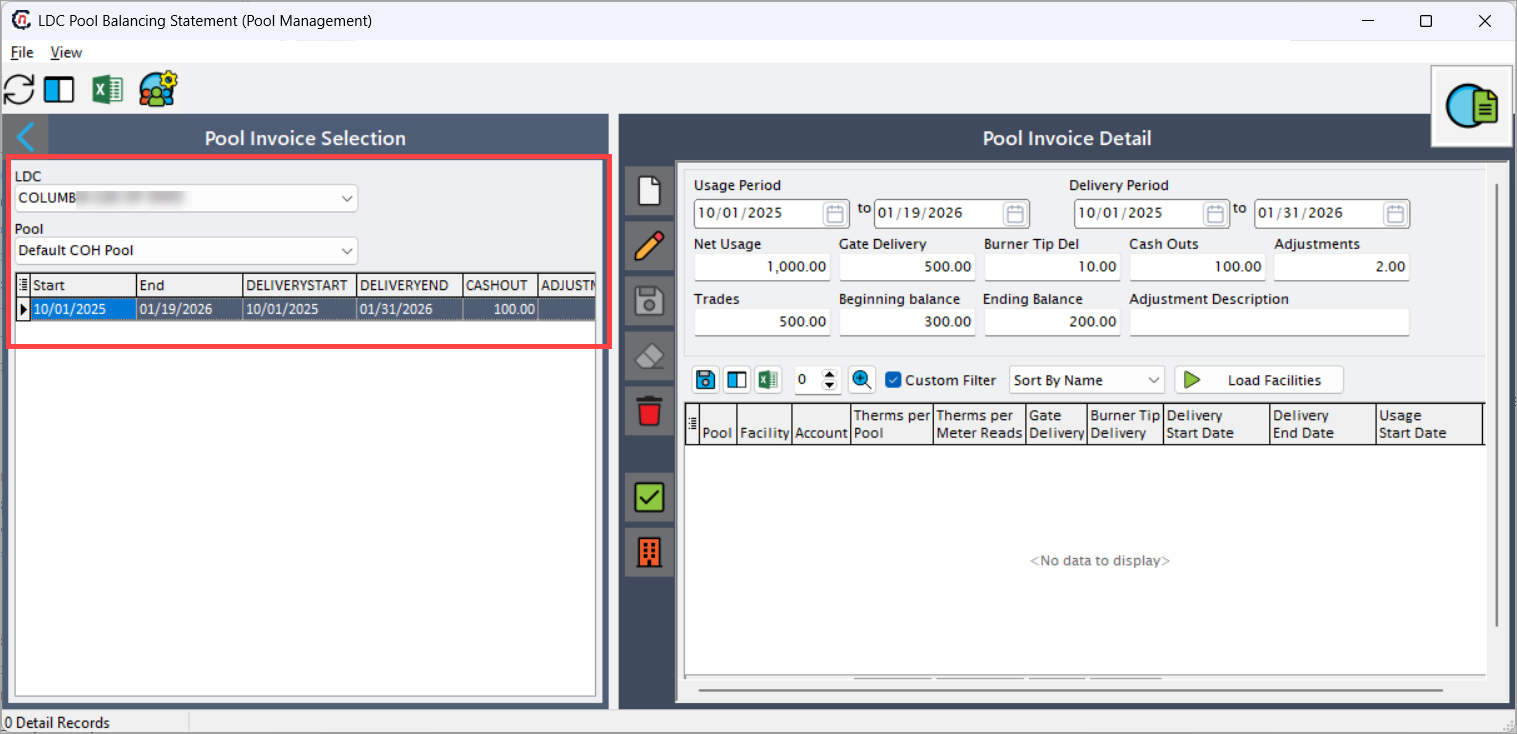
-
Selecting a record loads the corresponding balancing details into the Pool Invoice Detail section.
Step 3: Create a new LDP pool invoice record
The Pool Invoice Detail section provides a comprehensive summary of usage, delivery, and balance calculations for the selected pool and period.
To add a new LDC pol invoice record;
-
Click the Add a new LDC Pool Record (
 button.
 -
Fill in the fields as shown in the table below:
Fields Description Usage Period Enter the start and end dates over which customer usage should be calculated. Usage is typically derived from meter reads and allocation logic. Delivery Period Enter the start and end dates over which pipeline deliveries and operational activity should be applied. Delivery periods may differ from usage periods due to billing cutoffs. Net Usage Enter or review the total aggregated customer usage for the pool during the usage period. This represents the sum of all customer consumption assigned to the pool. Gate Delivery Enter the total volume delivered into the pool through pipeline receipt points or city gates. This is the primary supply source for the pool. Burner Tip Delivery Enter the total volume consumed for burner tip or operational usage. These volumes reduce gas available for pool consumption. Cash Outs Enter the net volume impact of pool cashouts due to imbalances. Cashouts represent financial settlement rather than physical balancing. Adjustments Enter any manual or system-generated volume adjustments applied to the pool balance. Adjustments are typically used to correct timing issues, data corrections, or regulatory exceptions. Trades Enter the net impact of pool-level gas trades. Beginning Balance Enter the pool balance carried forward from the previous settlement period. Ending Balance Review the calculated ending balance after all usage, deliveries, trades, and adjustments are applied. This value represents the final reconciled pool position and is used for settlement and invoicing. Adjustment Description Enter a clear explanation for any adjustments applied to the pool balance. -
The lower grid displays facility and account-level details contributing to the pool balance.
Fields Description Pool Identifies the pool to which the facility or account belongs. Facility Facility contributing usage or delivery volumes to the pool. Account Customer or account associated with the facility. Therms per Pool Allocation factor used to distribute usage or deliveries across the pool. Therms per Meter Reads Usage volume derived directly from meter readings before allocation. Gate Delivery Facility-level contribution to gate delivery volumes. Burner Tip Delivery Facility-level operational consumption. Delivery Start Date Start date used for delivery calculations. Delivery End Date End date used for delivery calculations. Usage Start Date Start date used for usage calculations. Usage End Date End date used for usage calculations. -
This grid provides full transparency into how pool-level totals are derived from underlying facility and account data.
- Click Save to record the changes.
Screen actions and icons
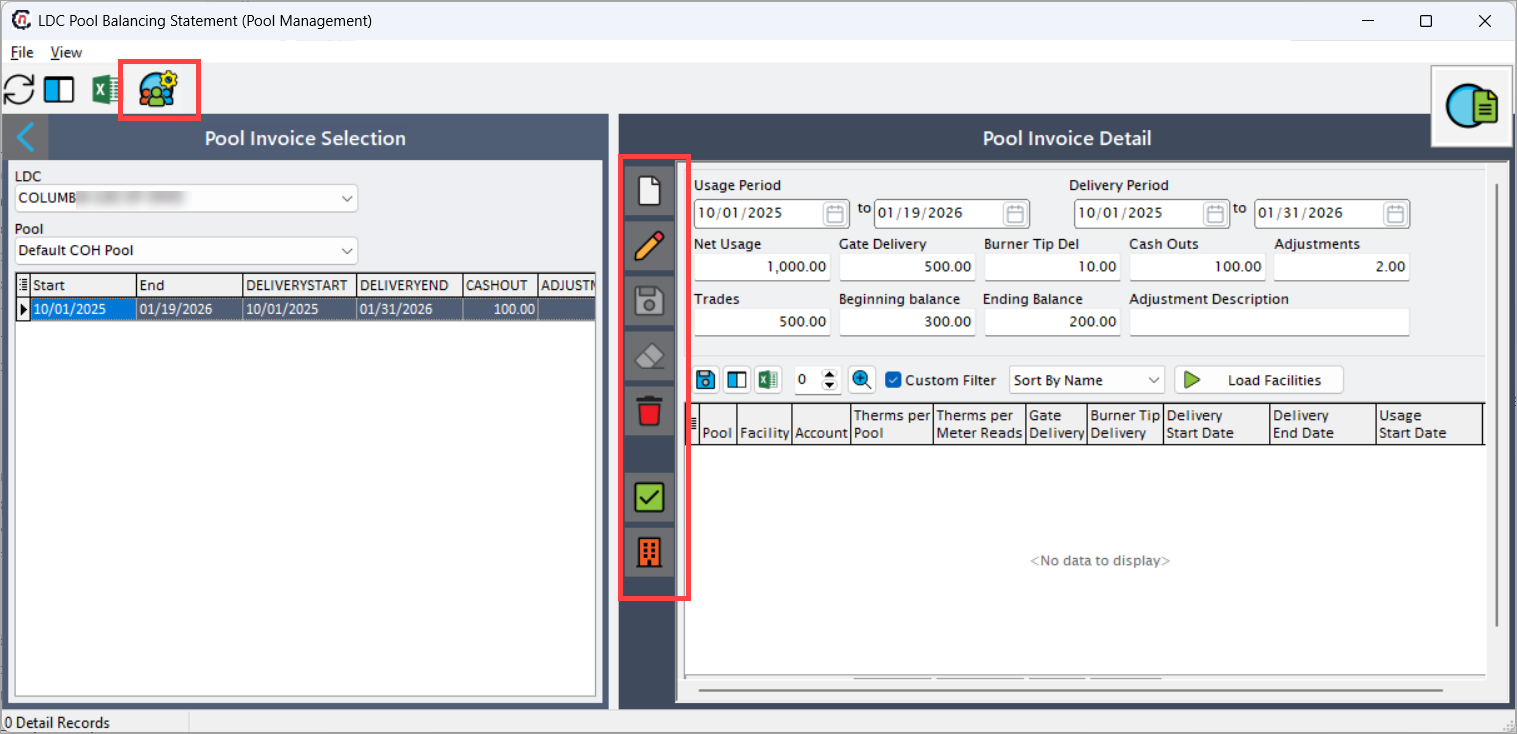
The LDC Pool Balancing Statement screen includes the following key action icons:
| Icons | Icons name | Description |
|---|---|---|
 |
Pool Balancing | Navigates to the Daily Pool Management screen for the selected LDC and pool, allowing detailed daily operational review. |
 |
Validate Pool Invoice | Validates the current pool invoice, confirming that balances, deliveries, and usage are aligned and ready for settlement. |
 |
Build Facility Detail for current Pool Invoice | Builds or refreshes facility- and account-level details for the selected pool invoice based on current data. |
 |
Edit changes to LDC Pool Invoice Record | Edit the pool invoice record. |
 |
Save changes to LDC Pool Invoice Record | Saves the pool invoice record and any updates made to balancing fields. |
 |
Cancel changes to LDC Pool Invoice Record | Cancel the changes made to the selected pool invoice record. |
 |
Delete | Deletes the selected pool invoice record (if required). |

Key points
- Pool balancing reconciles usage vs delivery at the pool level.
- Beginning and ending balances ensure continuity across billing periods.
- Trades, cashouts, and adjustments materially impact pool settlement.
- Facility-level detail ensures traceability and audit readiness.
- This screen supports invoice generation and settlement validation.
Summary
The LDC Pool Balancing Statement screen is a critical settlement and reconciliation screen that provides a complete view of gas usage, deliveries, and financial adjustments at the pool level. By consolidating operational and financial data into a single, auditable statement, it ensures accurate pool settlement, supports invoice generation, and enhances transparency across LDC pool management workflows.