Review commission setups
The Review commission setups screen provides a centralized interface to view, validate, and audit all commission configurations. Commission setups define how commissions are calculated for end users, sales representatives, and pools, including rates, overrides, and effective periods.
This screen allows to validate commission rules before or after calculation while ensuring commission settings aligned with contract and billing. It also confirm that changes to setups will correctly impact calculated commissions.
Prerequisites
Before working on the Review commission setups (commissions) screen, ensure the following prerequisites are met:
- Ensure the nGenue application is installed and use valid login credentials to log into the application.
- User permissions: Configure the user permissions including User type, Security user, Security group, Security assign user, and Security assign permissions in their respective screens to enable access to the View commission details (commissions) screen.
- Ensure the Local Distribution Company (LDC), Pool, End user, Sales rep from the LDC configuration screen, Retail consultant must be configured.
- Relevant Billing and Invoices must be generated.
- Ensure that Sales commission parameters and commission rules are properly configured. Additionally commissions must have been calculated.
Procedure to review commission setups
Step 1: Navigate to Review commission setups screen
- Log in to the nGenue application.
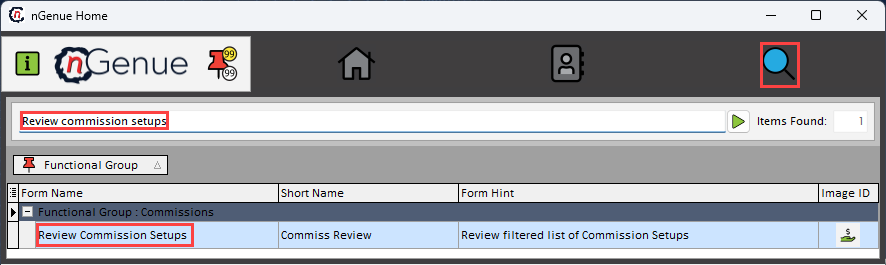
- Click the Search icon and enter Review commission setups in the search bar.
-
Double-click Review commission setups to open the respective screen.
-
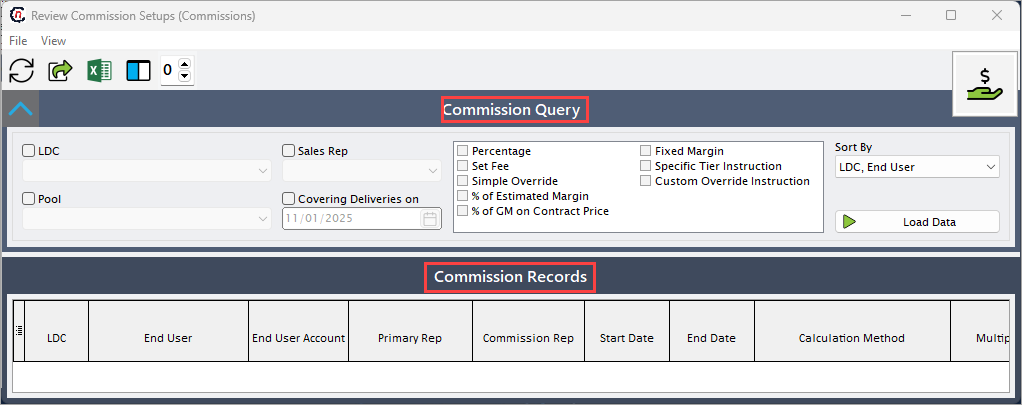
The Review commission setups (commissions) screen consists of two sections:
- Commission query: used to filter commission setup records for specific LDCs, pools, or representatives.
-
Commission records: displays commission setup details after executing the query.
Step 2: Load commission setups
-
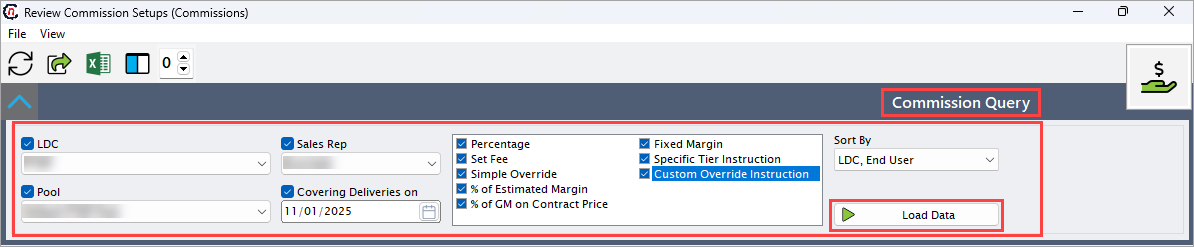
Enable and select the fields in the Commission query section before loading data:
Fields Description LDC Select the LDC to filter setup records linked to the chosen LDC will appear. Pool Select the pool to filter setups by pool to display configurations applicable to that pool. Sales rep Select the sales representative to view applicable commission setups. Covering deliveries on Specify the date to filter setups based on the deliveries covered by the commission. Percentage Select this checkbox to view commission setups calculated as a percentage. Set fee Select this checkbox to filter setups with fixed fee configurations. Simple override Select this checkbox to display setups where simple overrides are applied. % of estimated margin Select this checkbox to filter setups based on estimated margin percentage. % of GM on contract price Select this checkbox to filter setups based on gross margin applied to contract price. Fixed margin Select this checkbox to display setups with fixed margin configuration. Specific tier instruction Select this checkbox to filter setups with tier-based instructions. Custom override instruction Select this checkbox to filter setups with custom override logic. Sort by Specify the order in which setup records need to be displayed. -
Click Load data to load commission records.
Step 3: Review commission setup records
-
After completing the query, the Commission records section displays the commission details record
The table below lists the fields for each record provided in Commission records section:
Field Name Description LDC Specifies the LDC associated with the end user. End user Specifies the end user. End user account Specifies the account number for the end user. Primary rep Specifies the main representative assigned to the end user. Commission rep Specifies the representative eligible for commission on the account. Start date Specifies the date when the commission or setup becomes effective. End date Specifies the date when the commission or setup ends. Calculation method Indicates the formula or rule used to calculate the commission. Multiply rate times Indicates the metric or unit the rate is multiplied by. Rate Specifies the commission rate applied in calculations. Hold for non-payment Indicates whether commissions are withheld due to non-payment. Custom procedure Specifies the custom calculation applied during commission processing. COMMSETUPID It is unique identifier for the commission setup record. EU_ID It is identifier for the end user. LDCID It is a unique identifier for the LDC. LDC_pooling_ID Identifier linking the LDC to a pooling arrangement, if applicable. End user abbrev Abbreviated name or short code for the end user. Pool Specifies the pool to which the end user belongs. -
Select the commission setup record and double click it to open the record in the Sales commission screen for viewing or editing.

Summary
The Review commission setups screen allows users to audit, validate, and confirm commission configuration for all relevant parties. By reviewing these setups, users ensure that calculated commissions are accurate, adhere to business agreements, and are properly reflected in billing and settlement processes. This review is essential for transparency, compliance, and accurate reporting of commissions.