Reviewing retail price
The Retail price review screen in nGenue allows users to view, filter, and manage all retail price agreements configured in the system. It provides a centralized view of price agreements defined in the Price Agreement screen and enables authorized users to review, edit, or delete pricing records as required.
This functionality ensures that all retail pricing data remains accurate and consistent across agreements, tiers, and LDC configurations.
Follow the steps below after completing configurations for the Price Agreement and LDC Pricing Product screens.
Prerequisites
Before working on the Retail price review screen, ensure the following prerequisites are met:
- Ensure the nGenue application is installed and use valid login credentials to log into the application.
- User permissions: Configure security settings including User type, Security user, Security group, Security assign user, and Security assign permissions in their respective screens to ensure the required access and permissions for Retail price review actions.
- LDC: Create and configure the Local Distribution Company (LDC) in the application.
- LDC pool: Configure the LDC pool to organize and manage delivery points associated with specific LDCs.
- Price agreement: Create and manage price agreements that define pricing terms, volumes, and conditions between suppliers and end users.
- End user: Create and manage end user records to link customers with their corresponding price agreements.
- Facility: Add the facility in the system to associate it with the end user.
Procedure to review retail prices
Step 1: Navigate to the Retail price review screen
- Log in to the nGenue application.
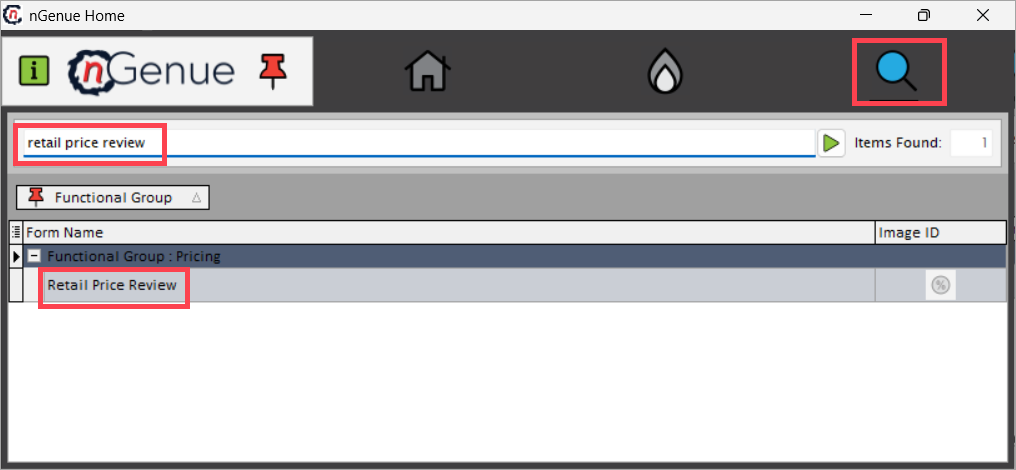
- Click the Search icon and enter retail price review in the search bar.
-
Double-click Retail price review to open the screen.
-
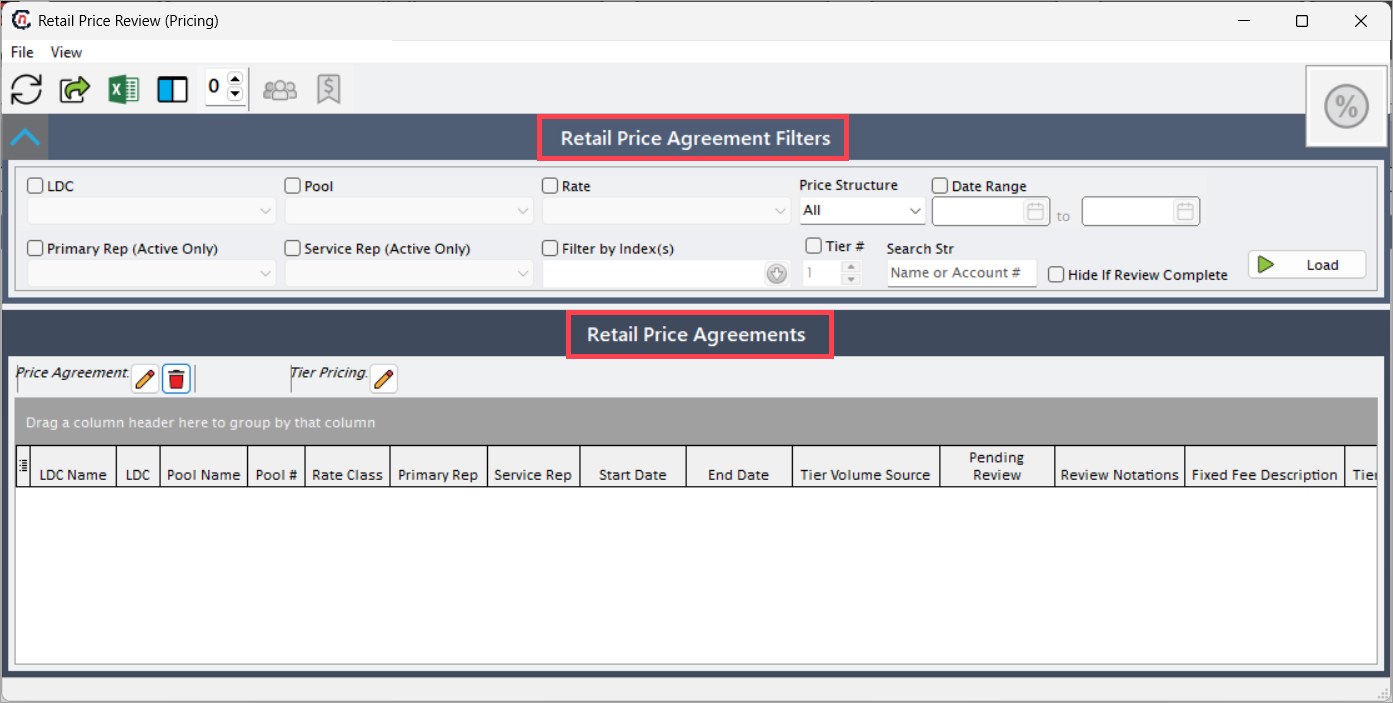
The screen is divided into two sections:
- Retail price agreement filters: Enables users to search and filter existing retail price agreements based on multiple parameters.
-
Retail price agreements: Displays filtered results in a structured grid. Selecting an end user automatically loads corresponding facility details.
Step 2: Load retail price agreements
-
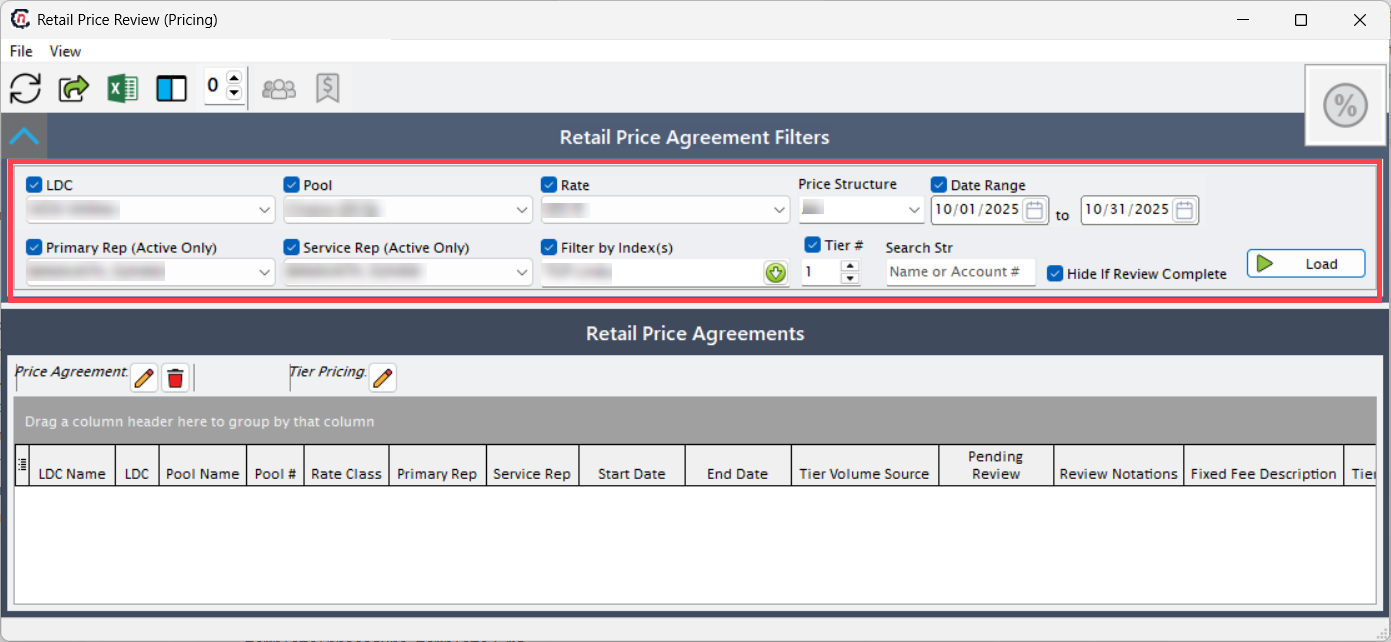
Use the available filters to narrow down results and display only relevant price agreements.
Fields Description LDC Filter price agreements by Local Distribution Company. Rate Filter end users by LDC rate rider. Pool Filter by LDC pool associated with the agreement. Service Rep (Active only) Retrieve records for a specific active service representative. Primary Rep (Active only) Filter by the assigned primary representative. Filter by index(s) Filter results based on associated commodity index or rate index. Price structure Filter by predefined price structures. Date range Define the period for which the price agreements should be displayed. Tier Filter based on tier configuration. Search string Enter a keyword or partial name to quickly locate specific agreements. Hide if review complete Exclude price agreements that have already been reviewed. -
Click Load to display the records matching the selected filters.
-
Once loaded, the following columns appear in the Retail price agreements section:
Columns Description LDC Name Displays the full name of the Local Distribution Company. Pool Name Shows the associated LDC pool name and number. Rate Class Lists the rate category applied to the agreement. Primary Rep Displays the primary representative responsible for the end user. Service Rep Displays the active service representative. Start Date / End Date Indicates the validity period of the price agreement. Tier Volume Source Displays the tier source linked to the agreement. Review / Review Notations Shows review status and notes for each record. Fixed Fee Description Displays details of any fixed fees applied. Tier # / Tier Description Shows the applicable pricing tier and its description. Price Type Identifies whether the agreement uses fixed, index, or blended pricing. End User Name / Account # Displays the customer and corresponding account number. Commodity Index / Simple Adder Displays associated index and adder details. Buyback / Simple Buyback Index Lists buyback rate and related index. Flat Monthly Amount Displays any flat monthly charge associated with the price. Price Status Shows the current approval or activation status of the price agreement. 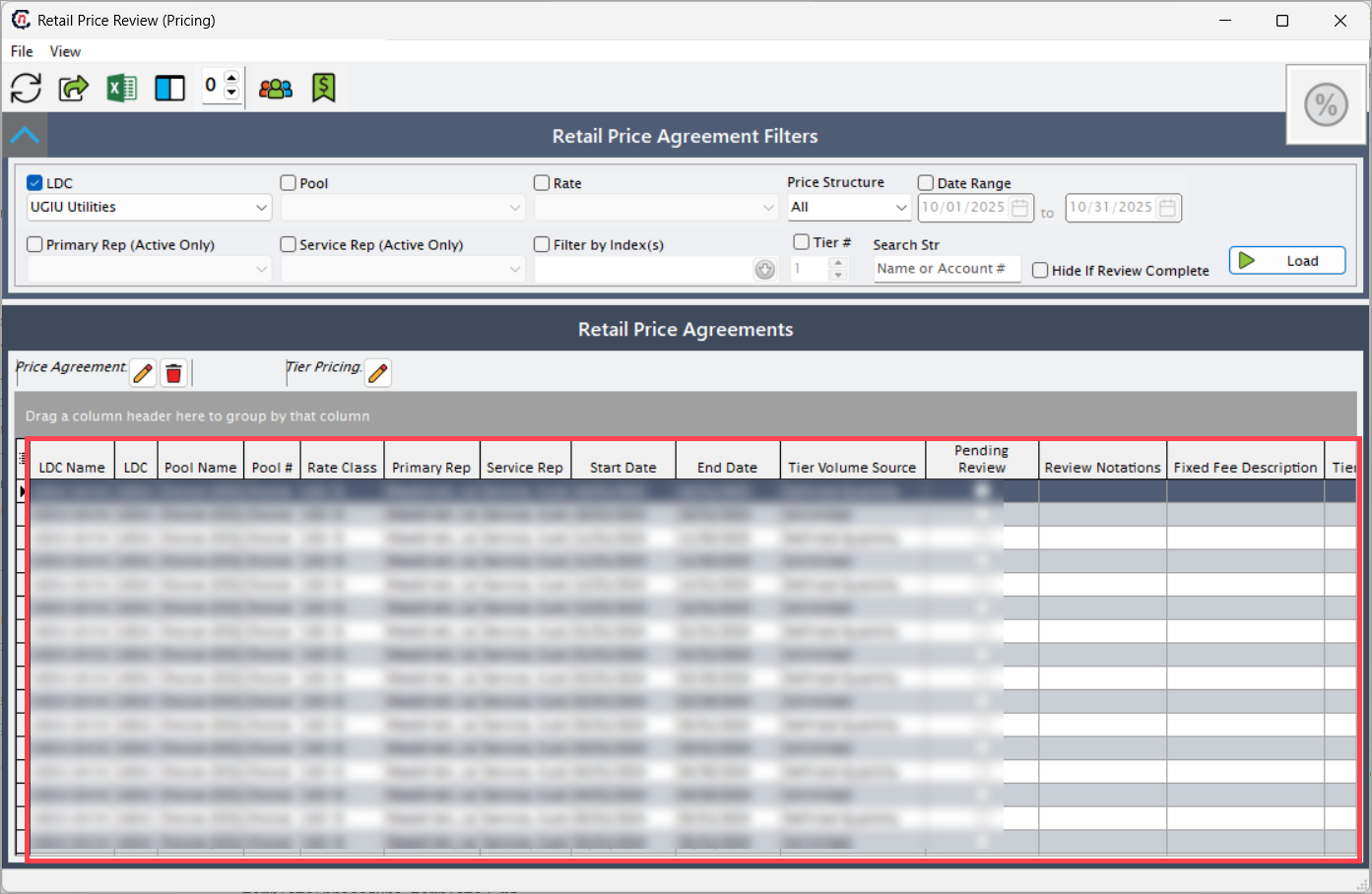
Step 3: Manage retail price agreements
-
Edit retail price agreement
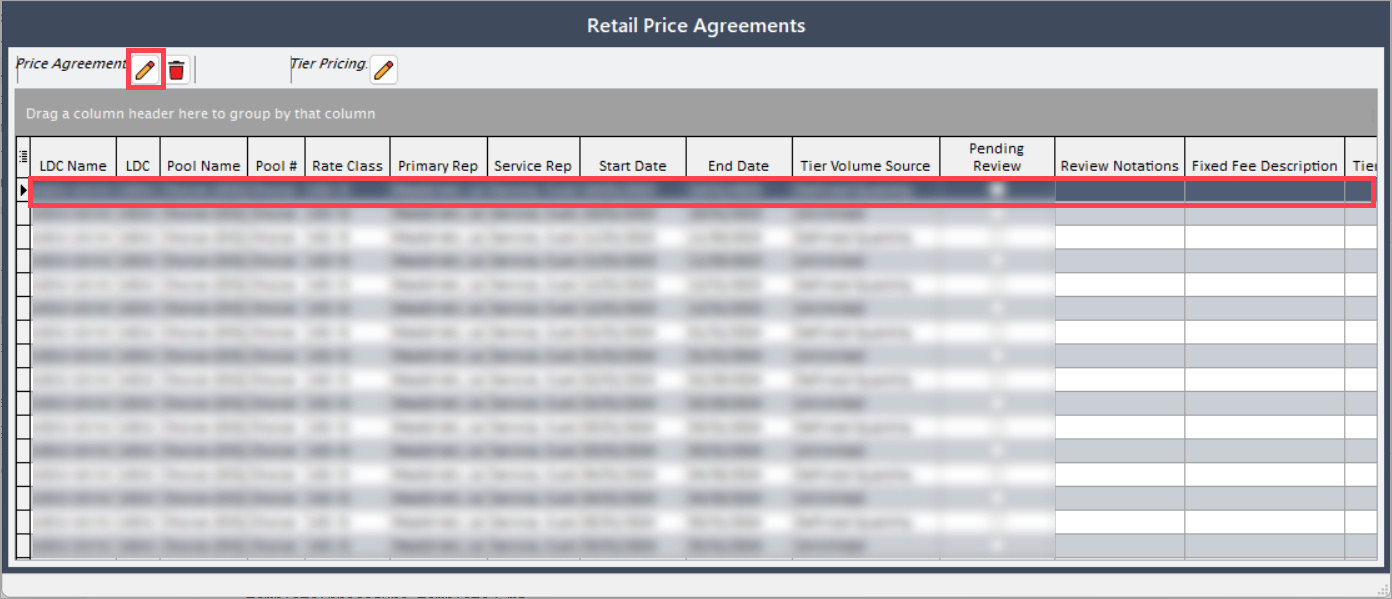
- Select a price agreement from the results grid.
- Click the Edit icon next to the record.
-
The system opens the Price agreement screen where you can modify relevant details such as rates, tiers, or index configurations.
-
Delete retail price agreement
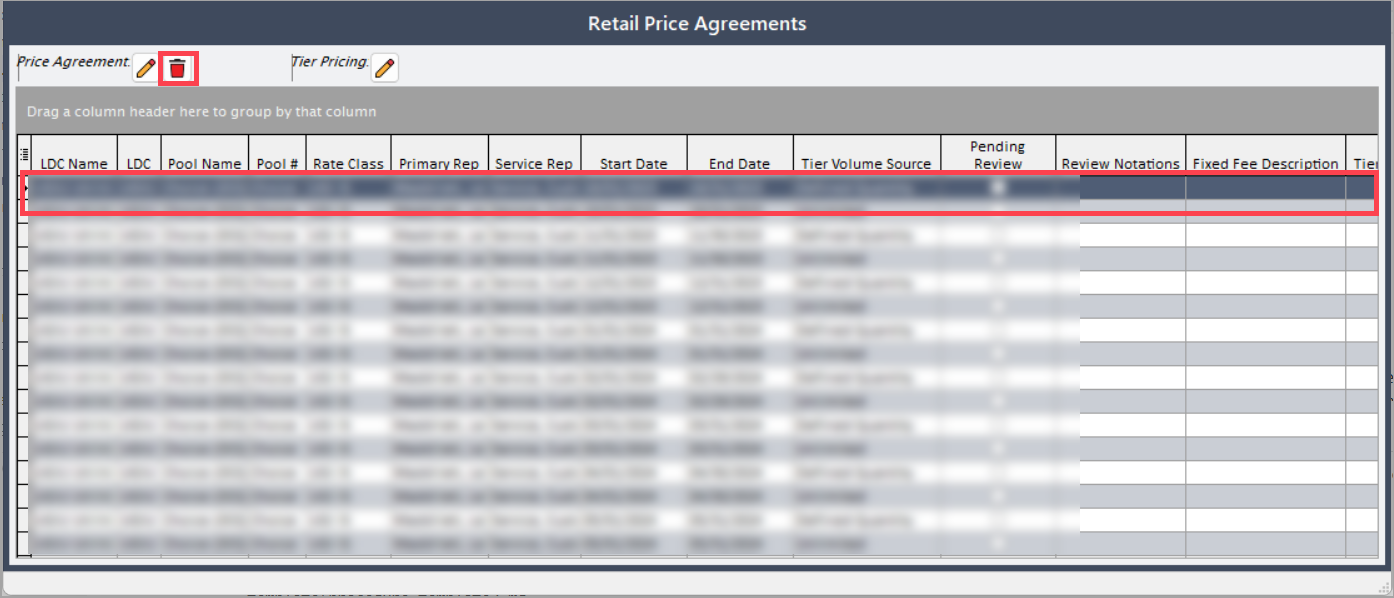
- Select the price agreement from the results grid.
-
Click the Delete icon to permanently remove the record from the system.
-
Edit tier pricing
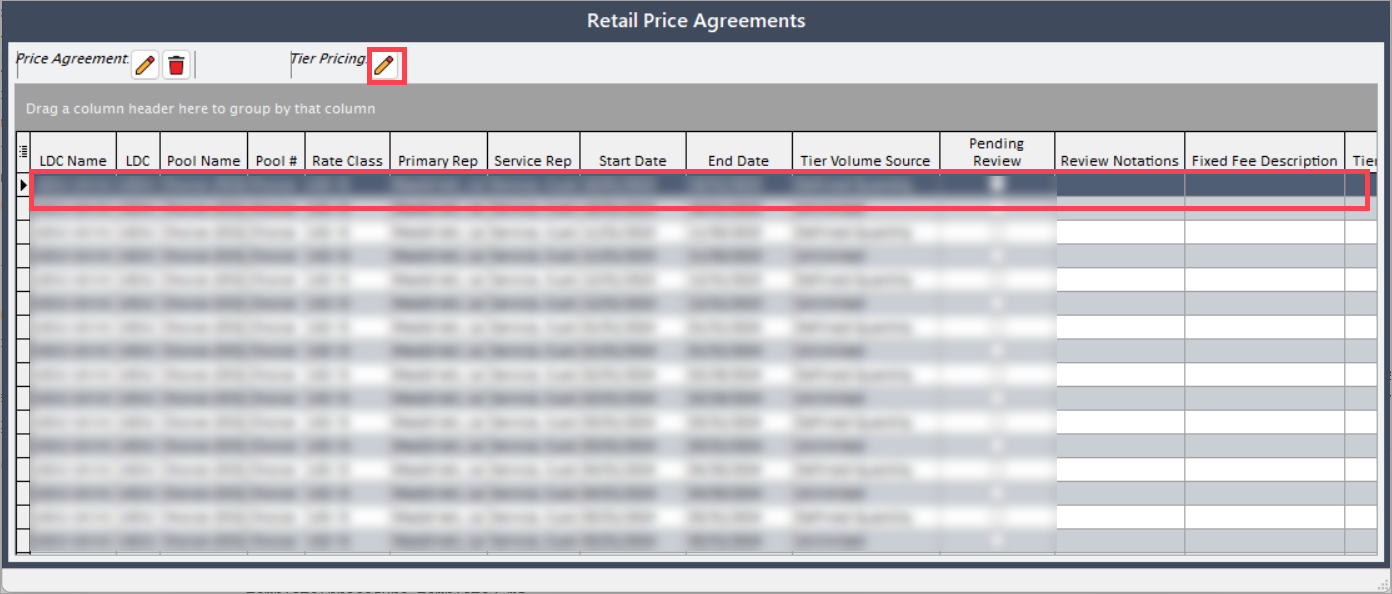
- Select the price agreement from the results grid.
- Click the Edit icon under the Tier column to open the Add/Edit market tier screen.
-
Modify the tier structure or pricing components as required and save the changes.
Summary
The Retail price review screen in nGenue provides a comprehensive interface to monitor and manage all retail price agreements within the system. It allows filtering by LDC, pool, index, or representative to simplify searches and ensures that users can review, modify, or remove outdated agreements efficiently.
Accurate management of retail price agreements ensures transparency, pricing integrity, and consistency across Price agreement, LDC pricing product, and End User configurations.