Configuring Physical Deal Blotter
The Physical Deal Blotter screen is used to create, manage, and book physical commodity deals between counterparties within the Deal Management module. It allows users to add physical buy or sell transactions to the blotter, review trade and pricing details, and book finalized deals with trade statuses such as Active or What-If.
The Physical Deal Blotter plays a key role in capturing day-to-day physical trades by standardizing the deal creation process through templates, volume types, and pricing structures.
The primary purposes of the Physical Deal Blotter configuration are to:
- Create and record physical buy/sell deals within a defined date range.
- Link each deal to a specific counterparty, strategy, and predefined template.
- Apply volume and pricing configurations such as daily or monthly pricing.
- Generate and book finalized trades with selected trade statuses.
- Provide visibility into both pending and booked physical trades.
Prerequisites
Before configuring deals in the Physical Deal Blotter, ensure the following prerequisites are met:
- The user have the add or modify permissions for the Physical Deal Blotter screen.
- Relevant counterparties and strategies are configured and active in the system.
- The physical deal templates (for example, buy or sell templates) are predefined in the Deal Management screen. While creating a deal template, ensure that the This deal is a template checkbox is selected.
- Locations and indices are properly set up and active.
- The volume type and pricing type combinations are consistent with the contract specifications.
- The effective start date and end date fall within an open trading calendar.
Procedure to configure physical deals
Step 1: Navigate to the Physical Deal Blotter screen
- Log in to the nGenue application.
-
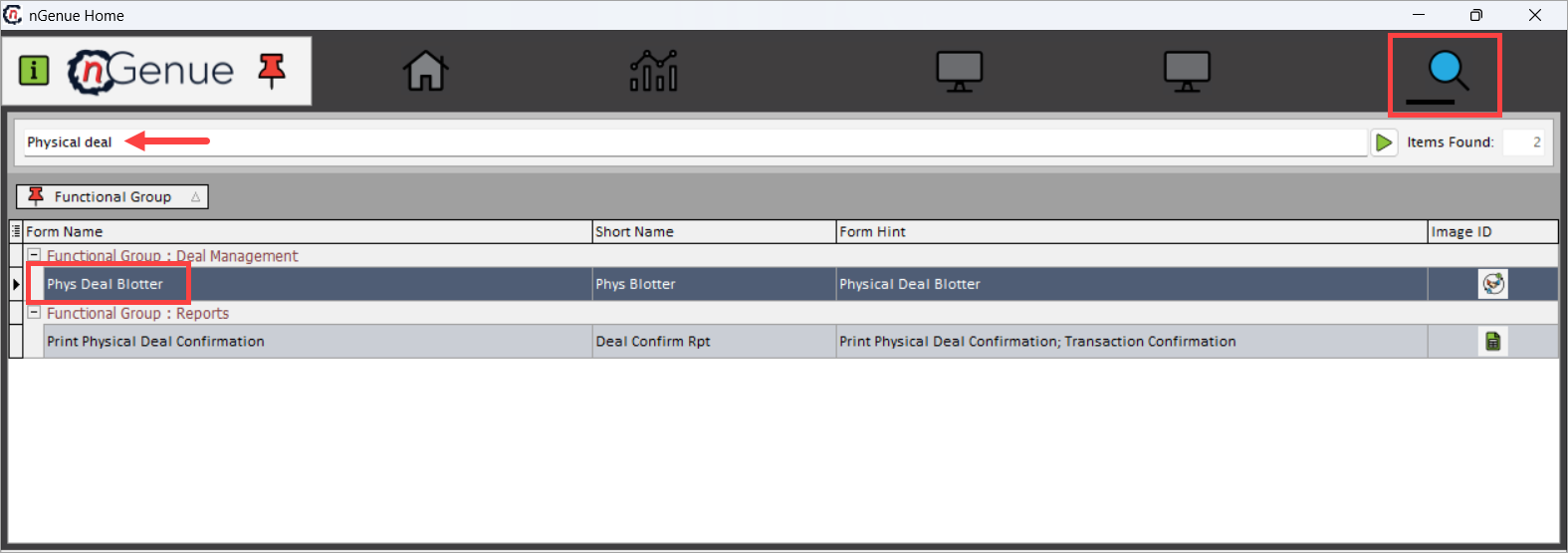
Click the Search icon and enter Physical deal.
-
Double-click Phys Deal Blotter to open the Physical Deal Blotter (Deal Management) screen.
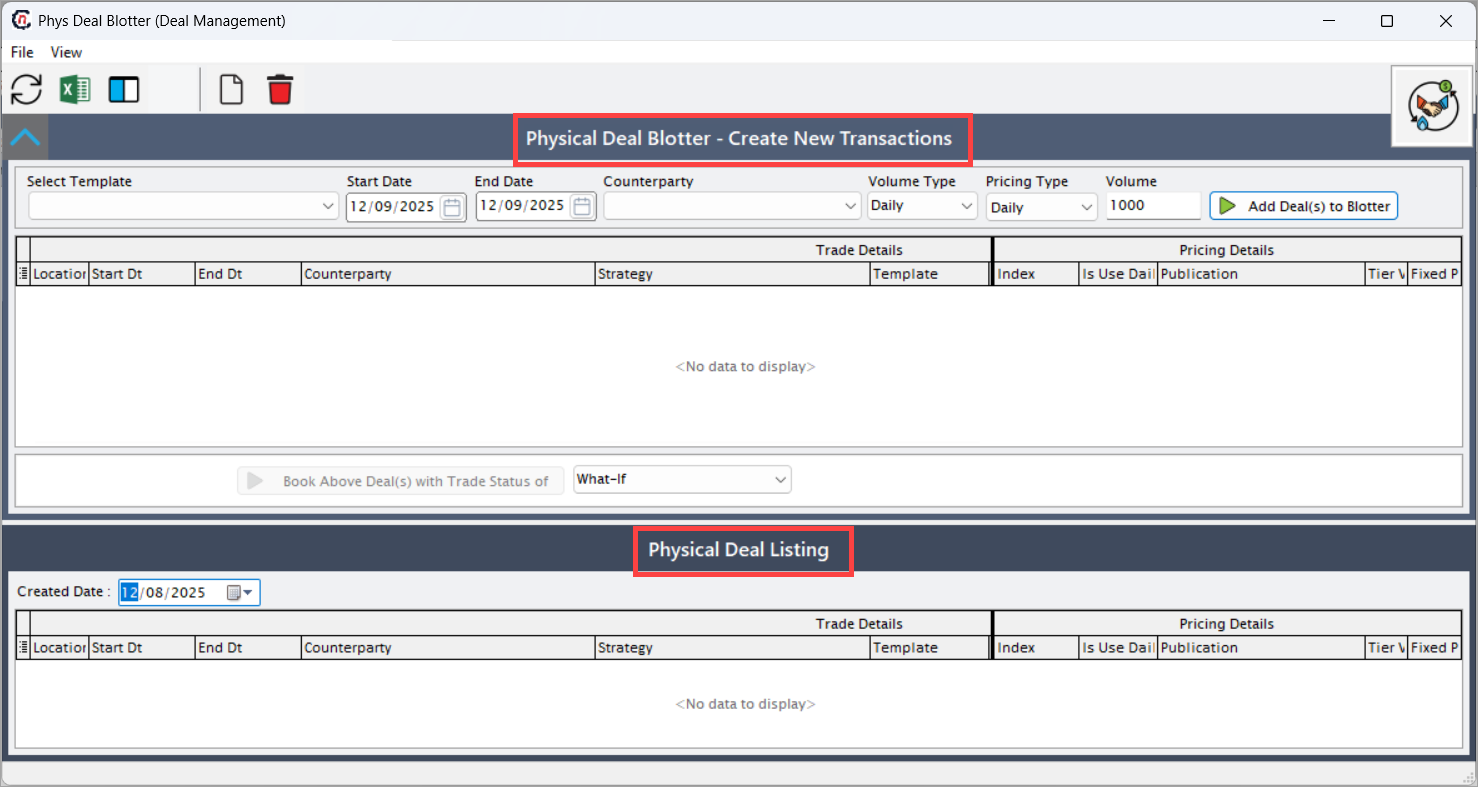
- The Physical Deal Blotter screen is divided into two main sections:
- Physical Deal Blotter – Create New Transactions: Used to define, add, and review pending physical deals before booking.
- Physical Deal Listing: Displays details of all booked physical deals filtered by the created date.
Step 2: Select a deal template and input details
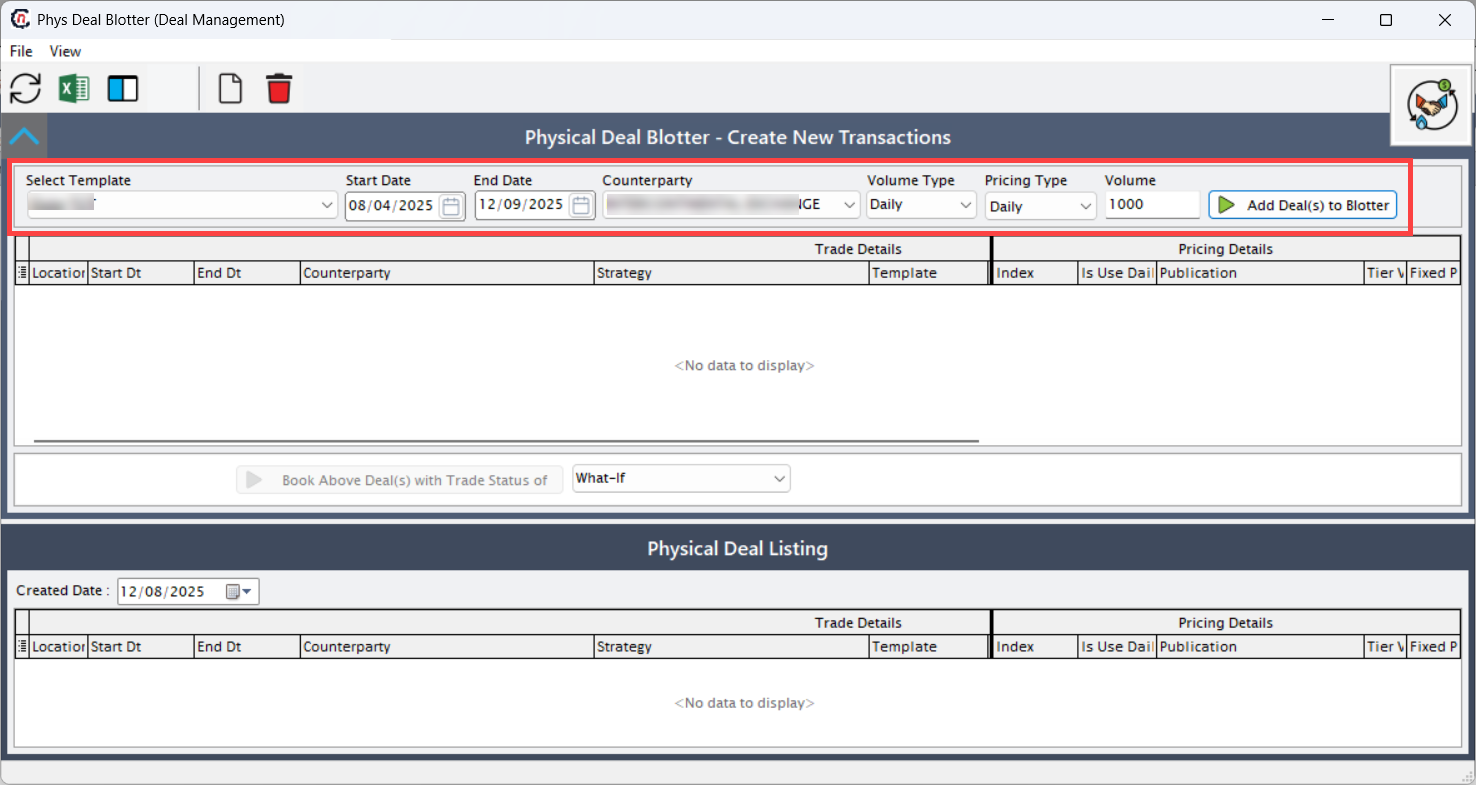
The Physical Deal Blotter – Create New Transactions section allows users to configure the new physical deal parameters.
| Fields | Description |
|---|---|
| Select Template | Displays all predefined physical deal templates created in the Deal Management screen. Templates define base deal characteristics such as deal type (buy/sell), pricing type, and period type. |
| Start Date | Defines the start date of the physical delivery or transaction period. Must align with the trading calendar. |
| End Date | Defines the end date of the transaction or delivery period. |
| Counterparty | Displays the list of active counterparties. The selected counterparty will be associated with the physical deal. |
| Volume Type | Determines how the deal volume will be applied. Options include: • Daily – The same volume is applied for each day in the deal period. • Monthly – The volume applies as an aggregated monthly value. |
| Pricing Type | Determines the pricing structure for the deal. Options include: • Daily – The price varies daily and may be indexed. • Monthly – The price remains constant for the entire month or contract period. |
| Volume | Specifies the transaction quantity or volume for the deal. |
| Add Deal(s) to Blotter | A command button that creates pending physical deal entries using the defined parameters. When clicked, the system populates the Trade Details grid with the generated entry. |
Step 3: Review pending deal entries
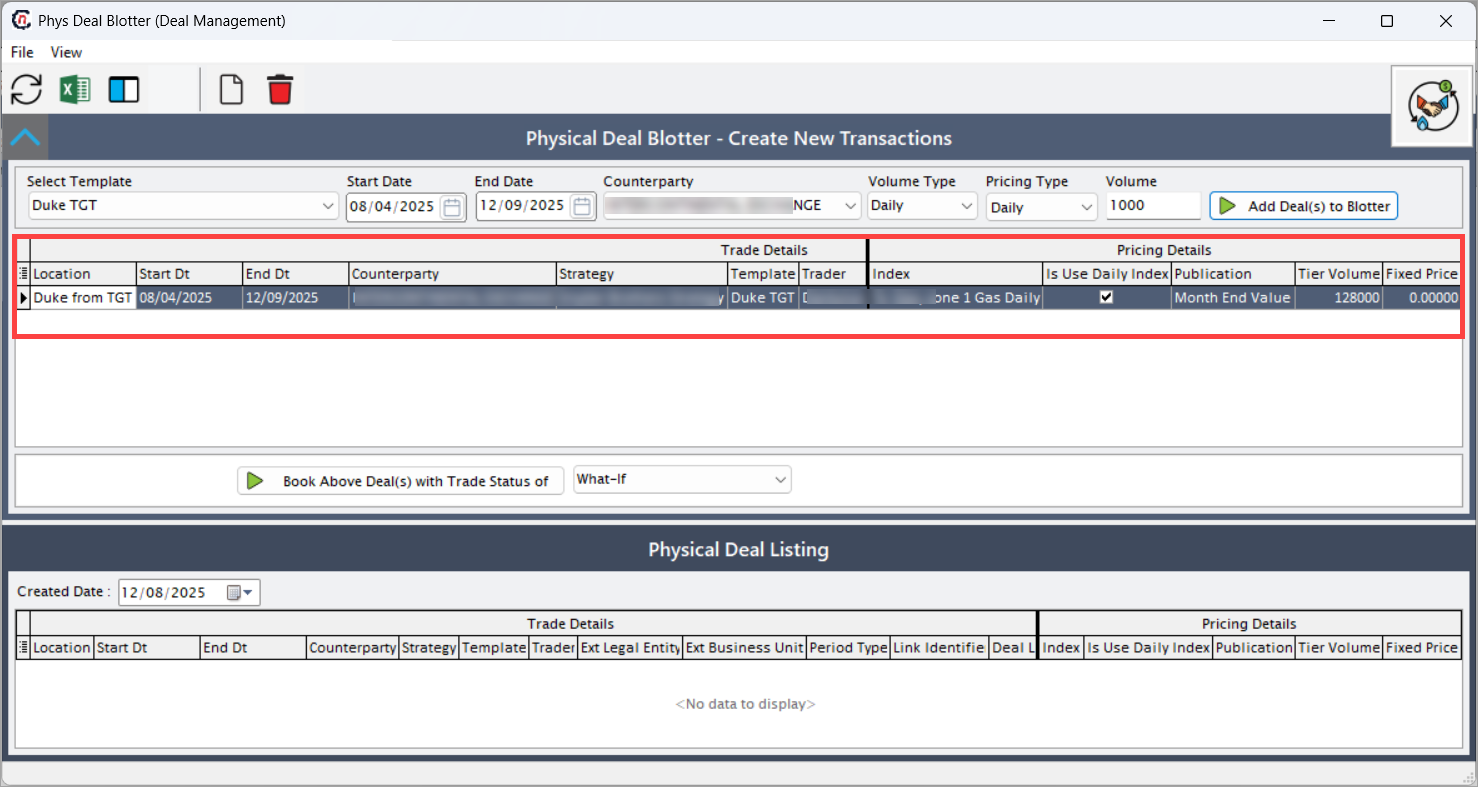
Once deals are added to the blotter, they appear in the Trade Details grid under Physical Deal Blotter – Create New Transactions.
| Fields | Description |
|---|---|
| Location | Displays the physical delivery or transaction location. |
| Start Dt | Indicates the start date of the physical transaction. |
| End Dt | Indicates the end date of the transaction. |
| Counterparty | Displays the counterparty associated with the deal. |
| Strategy | Displays the associated trading or hedging strategy. |
| Template | Displays the deal template used to create this transaction. |
| Trader | Displays the trader name responsible for executing the deal. |
| Ext Legal Entity | Displays the external legal entity linked to the deal. |
| Ext Business Unit | Displays the external business unit managing the transaction. |
| Volume Period | Indicates how the volume is applied, based on the selected Volume Type. Values include Daily or Monthly. |
| Group Identifier | Displays a system-generated identifier used to group related deals. |
| Deal Group Type | Displays the grouping type, such as Buy Group, Sell Group, or Hedge Group. |
| Index | Displays the market index or benchmark used for pricing floating or indexed deals. |
| Is Use Daily Index | A checkbox that, when selected, indicates that daily index pricing is applied to the deal. |
| Publication | Displays the publication or market data source used to derive index prices. Examples include exchange feeds or pricing agencies. |
| Tier Volume | Displays the volume quantity applied per pricing tier or delivery unit. |
| Fixed Price | Displays the fixed price assigned to the deal if the pricing type is fixed or monthly. |
Step 4: Book physical deals
After verifying the pending deals, they can be booked into the system.
- Review all the pending deal entries displayed in the blotter grid.
-
From the Book Above Deal(s) with Trade Status of dropdown, select the desired trade status.
- Active: Books the deal as a live transaction. Active deals are included in reporting, exposure, and valuation.
- What-If: Books the deal as a simulated or hypothetical transaction. What-If deals are used for forecasting or pricing analysis and do not impact real positions.
-
Click the Play (▶) button to book the deal(s).
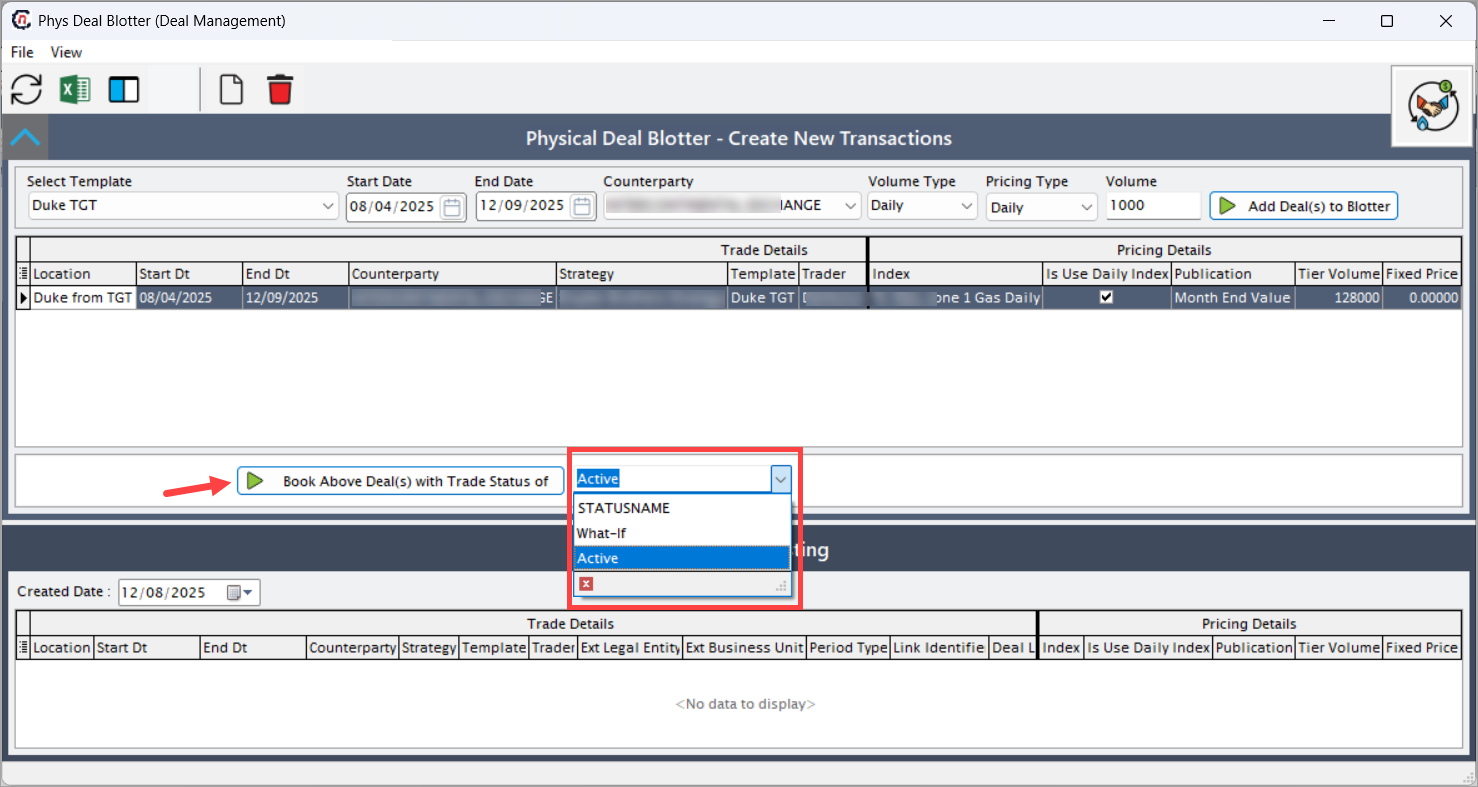
Once booked, the records move to the Physical Deal Listing section below.
Step 5: Review booked physical deals
The Physical Deal Listing section displays all booked physical deals filtered by Created Date. This section contains trade and pricing details for finalized deals.
| Fields | Description |
|---|---|
| Created Date | Displays the date when the deal was created or booked. |
| Location | Displays the physical delivery location of the transaction. |
| Start Dt | The effective start date of the physical transaction. |
| End Dt | The effective end date of the transaction. |
| Counterparty | Displays the counterparty associated with the booked deal. |
| Strategy | Displays the strategy applied to the deal. |
| Template | Displays the template name from which the deal was derived. |
| Trader | Displays the trader who executed the deal. |
| Ext Legal Entity | Displays the external legal entity mapped to the counterparty. |
| Ext Business Unit | Displays the external business unit managing the deal. |
| Period Type | Displays the deal period type (Daily, Monthly). |
| Link Identifier | Displays a system-generated unique link ID connecting related deals. |
| Deal Link Type ID | Identifies the linkage type between deals, such as Buy-Sell Pair, Swap Leg, or Mirror Deal. |
| Index | Displays the index name used for price reference. |
| Is Use Daily Index | Displays whether the daily index is applied (checked = Yes). |
| Publication | Displays the publication or data source used for index pricing. |
| Tier Volume | Displays the assigned tier-level volume for the transaction. |
| Fixed Price | Displays the price per unit for fixed or monthly-priced deals. |
If no data is found for the selected date, the message No data to display is shown.
Key points to remember
- The Volume Type and Pricing Type must align with the selected deal template.
- Ensure that date ranges do not overlap for the same location and counterparty.
- The Is Use Daily Index checkbox must be checked only for deals using daily indexed pricing.
- Verify that Publication and Index configurations are valid and active.
- Active deals are transferred automatically to valuation and invoicing modules, while What-If deals remain in simulation status.
- Tiered pricing and daily index pricing should be carefully validated before booking to ensure accurate cost and settlement calculations.
Summary
The Physical Deal Blotter screen provides a single interface to create, manage, and finalize physical commodity transactions efficiently. It ensures that all trade details such as location, counterparty, volume, and pricing are captured accurately before booking.
After configuration, the details from the Physical Deal Blotter screen are also reflected in the Mark to Market screen to facilitate mark-to-market value calculations.