Price method
A Price method in the nGenue system defines the logic, rules, and formulas used to calculate commodity prices. It specifies how prices are determined through fixed rates, indexed pricing, basis adjustments, adders, or combinations of these and directly influences downstream processes such as billing, settlements, forecasting, and reporting.
Configuring price method ensures consistent and accurate pricing across contracts, supply agreements, and settlements. It also enables the system to adapt when new pricing models, indexes, or structures are introduced, aligning deal pricing with commercial terms and market standards. Once established, price methods can be selected within price agreements, contracts, and billing setups. They dictate how quantities and rates are combined to calculate total charges, impacting both revenue recognition and settlement precision.
Prerequisites
Before working on the Price method configuration screen, ensure the following prerequisites are met:
- Ensure the nGenue application is installed and use valid login credentials to log into the application.
- Configure the user permissions including User type, Security user, Security group, Security assign user, and Security assign permissions in their respective screens to enable access to the Price method configuration screen.
- Ensure the Index curve definition, pricing tiers, rate schedules and basis definition are properly configured.
Procedure to configure price method
Step 1: Navigate to Price method screen
- Log in to the nGenue applicaton.
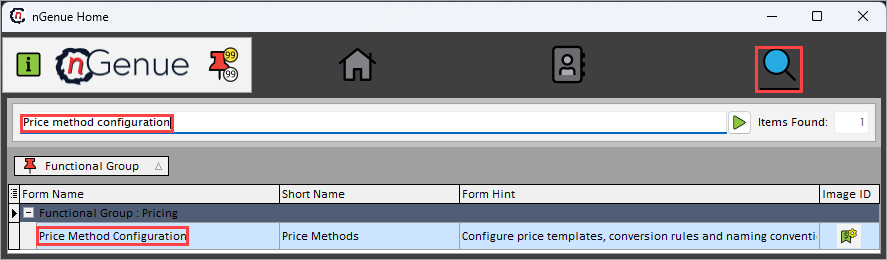
- Click the Search icon and enter Price method configuration in the search bar.
-
Double-click the Price method configuration from the search results to open respective screen.
-
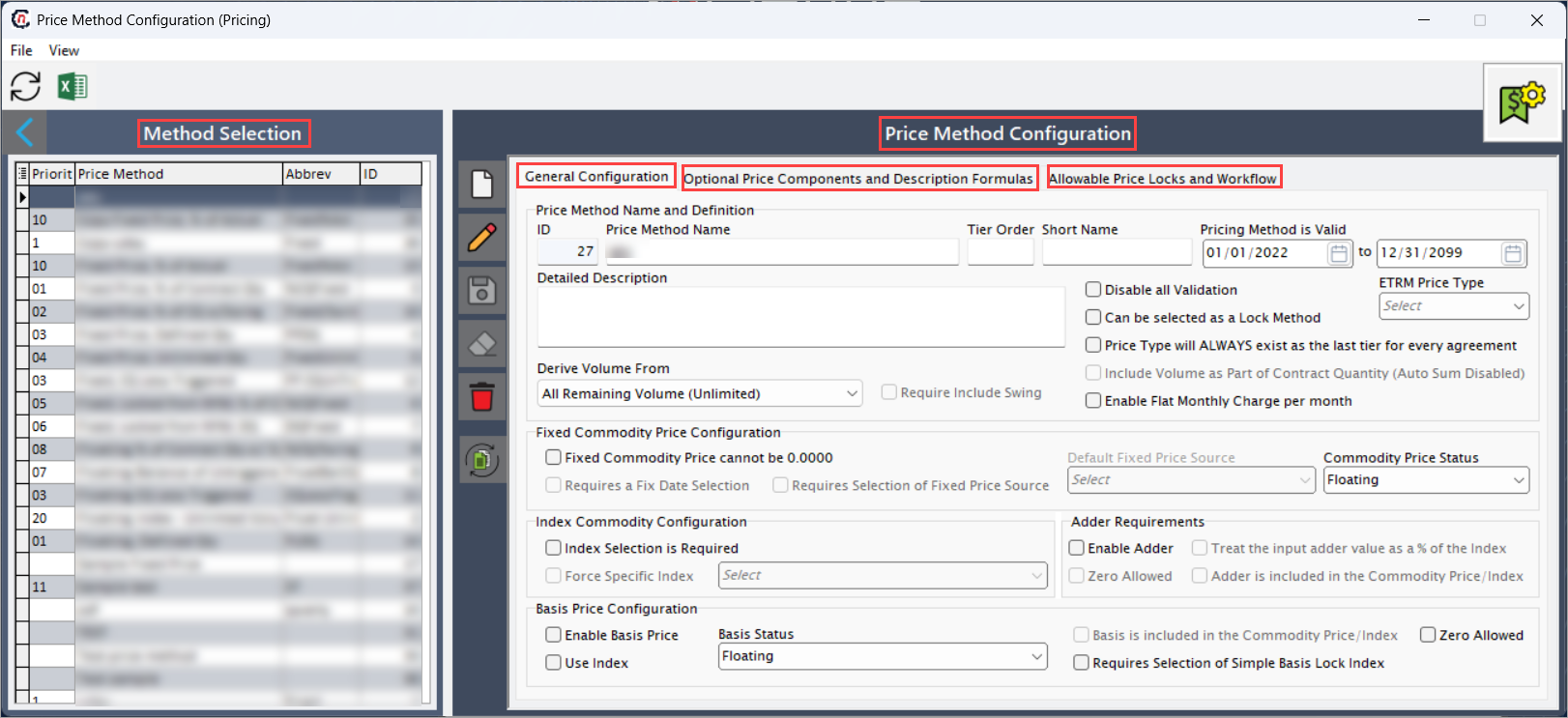
Price method configuration screen has two section:
- Method selection: This section displays the list of existing price methods.
-
Price method configuration: This section allows to define pricing parameters, formulas, and workflows.
- General configuration: This tab allows to define core settings that control how the price method behaves within pricing and settlement processes.
- Optional price components and description formulas: This tab allows to define additional pricing elements and calculation descriptions used in deriving final prices.
-
Allowable price locks and workflow: This tab helps to determine which pricing elements can be locked and outlines the approval process for managing price method changes.
Step 2: Adding a price method
The following table lists the icons available on the Price method configuration screen and their respective functions:
| Icons | Icon name | Description |
|---|---|---|
 |
Add a price method record | Create a new price method record. |
 |
Edit current price method | Modify the selected price method. |
 |
Save changes to current price method | Saves the modifications made to the current price method record. |
 |
Cancel changes to current price method | Discards unsaved changes made to the price method record. |
 |
Delete current price method record | Permanently removes the selected price method. |
 |
Duplicate current price method record | Creates a copy of the selected price method. |
Step 2.1: Configure price method
- Click the Add a price method record icon to create a new price method record.
-
Complete the required fields under the General configuration section:
Price method name definition
Fields Description ID A system-generated unique identifier assigned to each price method. It is non-editable field. Price method name Specify the name or title for the pricing method. This label is used across contracts, trade capture, and reporting. Tier order Specify the hierarchy or calculation order of pricing tiers. The order determines how multiple pricing levels are applied. This ensures that pricing components are computed in the correct order, particularly in tiered pricing or volume-based rate structures. Short name Specify the abbreviated name for quick reference. Pricing method is valid (to) Specify the date until which this pricing method remains valid. After this date, it becomes unavailable for new agreements. This prevents outdated methods from being used in current contracts. Detailed description Provide textual description that explains the pricing method, its purpose, and how it should be applied. ETRM price type Select the type of price category applied for Energy Trading and Risk Management (ETRM) integrations. This enables seamless mapping between internal methods and external trading systems. Derive volume from Select the source utilized for determining the calculation volume. Available options include All remaining volume (unlimited), Input defined volume, Cycle defined volume, Percentage of contract quantity, Percentage of actual usage, Un-Fixed contract quantity (Incl swing). Require include swing Select this checkbox to include swing volumes in pricing if applicable. When enabled, includes swing volumes variations between contracted and actual consumption within price calculations. Disable all validation Select this checkbox to temporarily suspend validation checks during pricing setup. Can be selected as a lock method Select this checkbox to allow this pricing method to serve as a lock type in price locking workflows and to fix prices based on this method. Price type will always exist as the last tier for every agreement Select this checkbox to ensure this price type automatically appears as the final tier in every agreement, regardless of other configurations. This guarantees that a default or fallback tier always exists, preventing calculation gaps in multi-tier pricing. Include volume as part of contract quantity (Auto sum disabled) Select this checkbox to manually include the method’s volume in the total contract quantity. Disabling auto-sum allows more precise control when handling non-standard or partial volume allocations. Enable flat monthly charge per month Select this checkbox to apply a constant monthly fee or rate, independent of commodity volume to ensure consistently billing each month. Fixed commodity price configuration
Fields Description Fixed commodity price cannot be 0.0000 Select this checkbox to prevent entry of a zero fixed price. This ensures valid commercial pricing and avoids data integrity issues in trade valuation or invoicing. Requires a fix date selection Select this checkbox to enforce the selection of a fixed price date. The fix date establishes the pricing point and ensures accurate linkage to the market context of that day. Requires selection of fixed price source Select this option to make it mandatory to specify a price source when setting a fixed price. This ensures all fixed-price records have a defined and valid source. Default fixed price source Set a default price source that the system will automatically populate for fixed pricing. Use this to reduce manual entry and standardize price setups. Commodity price status Select the current status of the commodity price such as Fixed, Floating, Basis status. Index commodity configuration
Fields Description Index selection is required Enable this to enforce to select a market index when creating or editing a price method. This ensures all indexed prices are linked to a valid reference. Force specific index Select this option to restrict to a specific index type. This helps maintain consistency by preventing selection of unauthorized or incorrect index types. Adder requirements
Fields Description Enable adder Select to checkbox to allow to add an adjustment (adder) to the base commodity price. This adjustment can represent premiums, discounts, or margins. Zero allowed Select this checkbox to allow an adder value of zero. This will help to complete entries even when no adjustment is needed. Treat the input adder value as a% of the index Enable this if the adder should be calculated as a percentage of the selected index rather than as a flat currency value. Adder is included in the commodity price/index Select this checkbox to include the adder in the total commodity price. The system will calculate the final price by adding the adder to the base index automatically. Basis price configuration
Fields Description Enable basis price Select this to include a basis differential in the price calculation. The basis adjusts the commodity price based on location, quality, or delivery terms. Use index Select this option to apply an index value to determine the basis price. This links the basis to a recognized market benchmark. Basis status Select this to display or update the current status of the basis record. The status helps track whether a basis value is Floating, Fixed, Basis status, Not used. Basis is included in the commodity price/index Select this if the system should include the basis differential in the total commodity price. When active, the reported price will reflect both the index and the basis value. 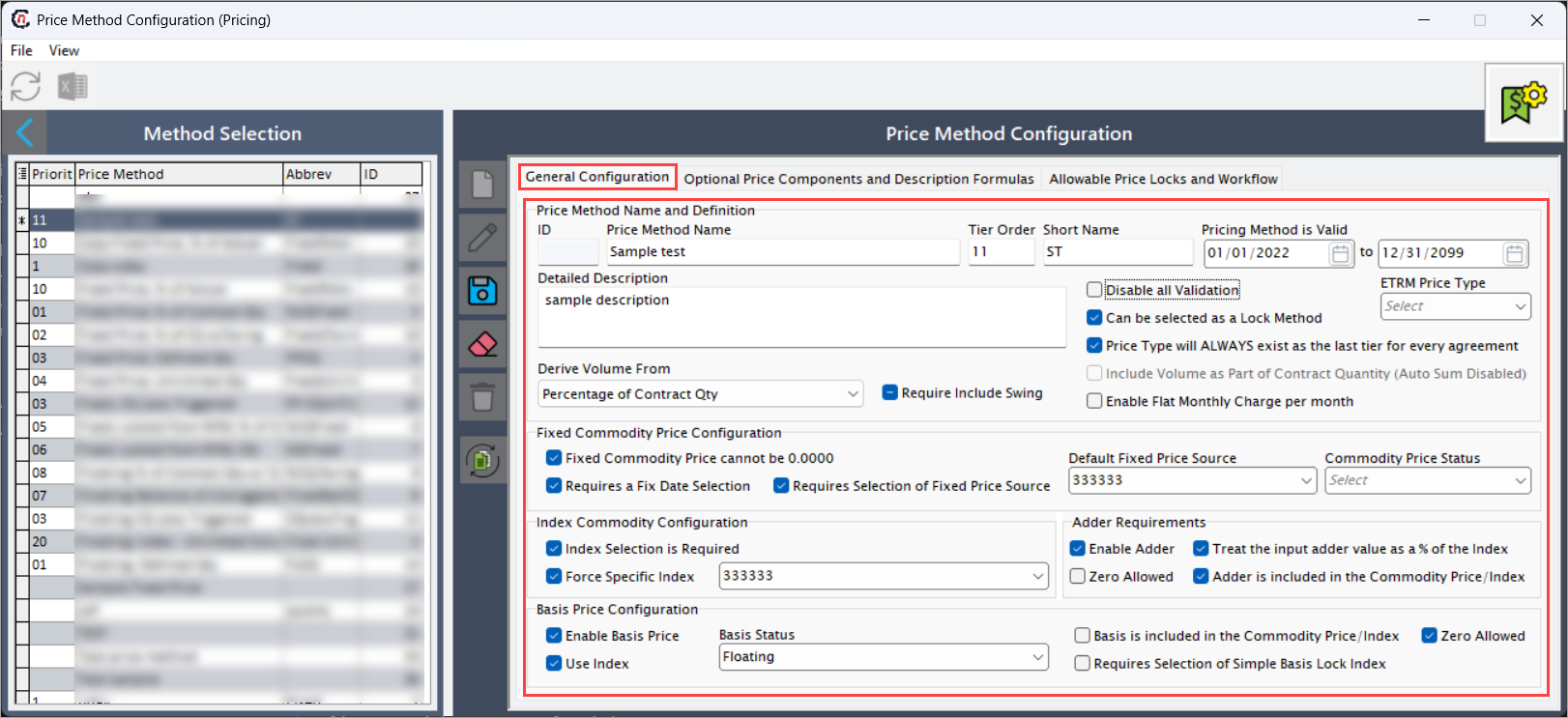
Step 2.2: Configure price components and formulas
-
Complete the required fields available in the Optional price components and description formulas section to define parameters related to price components and formulas.
Other charge(s) configuration
Fields Description Enable margin value Select this checkbox to add a margin field to the price method. The margin represents an additional amount (positive or negative) added to the base or index price to reflect costs or profit. When this option is enabled, a margin field becomes available in the price method to adjust the final contract price as needed. Enable broker fee Select this checkbox to include brokerage fee component within the price structure. Use this option to account for transaction or intermediary costs as part of the pricing method. Enable fuel value Select this field to activate the fuel component in the price method and calculate fuel-related costs or values associated with transportation, compression, or processing of natural gas. Enable optional value 1 and 2 Select this option to add two customizable charge components that can represent user-defined adjustments, surcharges, or credits within the price method. Margin is included in the commodity price/index Select this field to include the margin component in the total commodity price or index value. When selected, the margin becomes part of the overall traded gas price. Broker fee is included in the commodity price/index Select this field to include the broker or transaction fee in the total commodity price. When selected, the broker fee is embedded in the reported or settled gas price. Fuel is included in the commodity price/index Select this field to include the fuel component, such as gas used for compression or transportation, in the total commodity price or index calculation. Optional value 1 is included in the commodity price/index Select this field to include the first optional pricing component in the total commodity price. This ensures that any additional charges or credits under optional value 1 are reflected in the overall price calculation. Optional value 2 is included in the commodity price/index Select this field to include the second optional pricing component in the total commodity price. Default description Define the default label used to identify optional pricing components within the price method setup. Custom lookups
Fields Description Custom lookup 1-3 Specify optional references for linking to external data sources, lookup tables, or custom formulas. Leave the field blank if no external reference is required. Formulas
Tier description formula builder
Fields Description Tier description builder Enter tier-level details to define how tier names or descriptions appear in the price method or contract structure. Date format Specify the date pattern to be used within tier descriptions Decimals Specify the decimal precision in tier values. Save Click Saveto commit the configured formula. Push to tiers Click Push to tiers to apply the defined pricing formulas to all applicable pricing tiers. ETRM formula builder
Fields Description ETRM formula builder (right-click for help) Define pricing formulas for integration with the ETRM system. Right-click to access syntax help and function references. Use this formula builder to create or customize complex pricing and settlement logic compatible with ETRM integrations. Save Click Save to store the configured ETRM formula for data exchange or automated calculation processes. 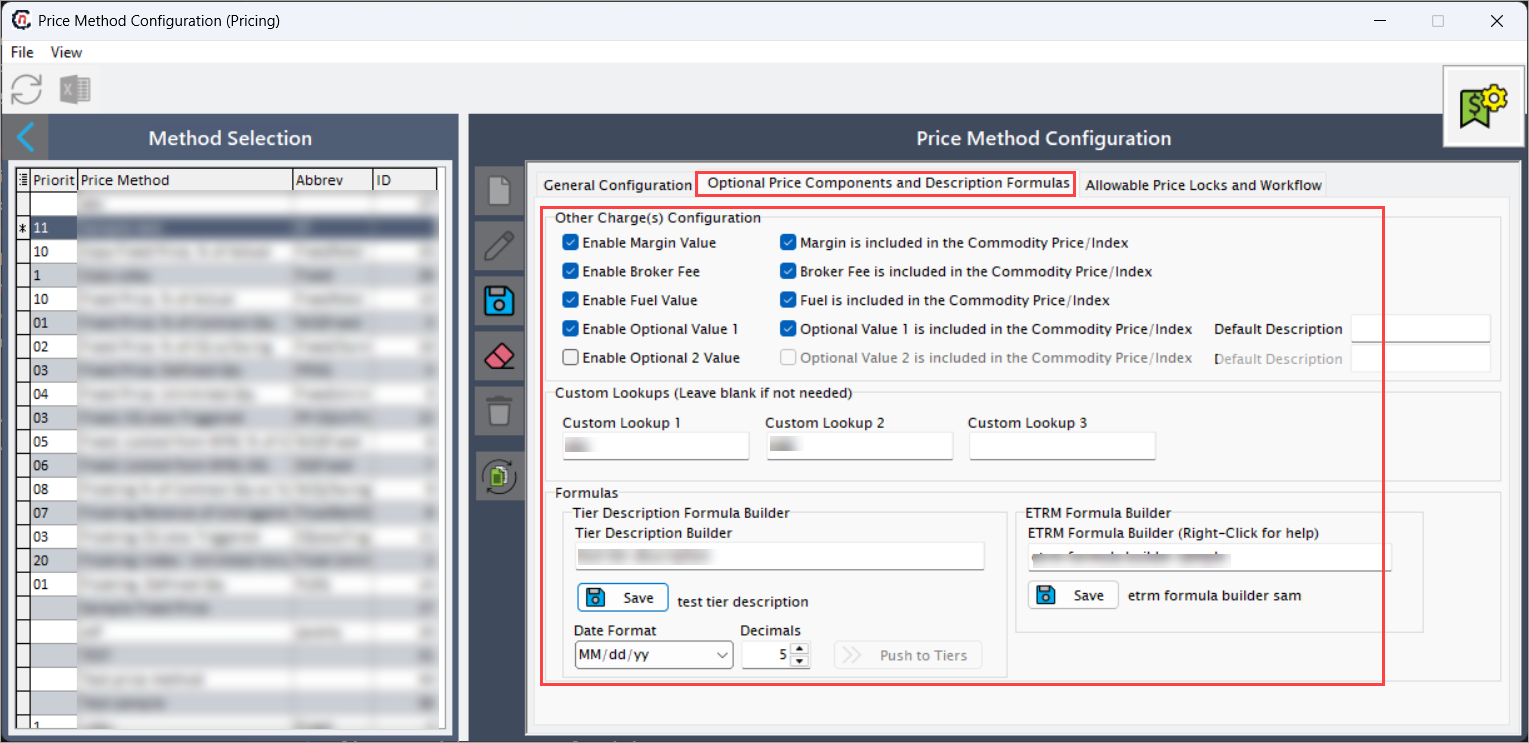
Step 2.3: Configure price locks and workflow
Price locks define how price methods behave when certain market or operational conditions trigger conversion between pricing types.
- When executing a specific price lock, existing price types are converted based on defined logic.
-
Configure conversion settings as follows:
- Can convert the following price type: Defines the source price type for conversion.
- When converted, it will convert to: Defines the resulting price type.
- Precedence when multiple tiers are eligible: Sets priority when multiple conversions are possible.
- Treatment of original basis values during conversions: Determines how basis values are retained or adjusted after conversion.
-
Click Add lock to valid workflow to register the lock rule. The table below describes each field associated with every line item in the price lock data.
Fields Description Price lock type Defines the method used to secure or “lock in” a specific price for a contract. This may include types such as fixed price, floating price, or index-based price, and determines how pricing changes are managed over time. Is allowed to convert price type Indicates whether the counterparty has the contractual right to switch from one price type to another. It specifies if price type conversion is permitted for the agreement. And will convert to Specifies the target price type or method that will be applied when a conversion is performed. It identifies the pricing model that replaces the current one after conversion. Basis treatment Defines the rule or method used to determine how the base or reference price is handled during calculation. This could include whether the basis is adjusted for time, quantity, or index variations, and how these adjustments affect the final pricing outcome. In the following order Describes the sequence in which price lock types, conversions, or basis treatments are applied. It defines the processing order the system follows when performing pricing calculations. 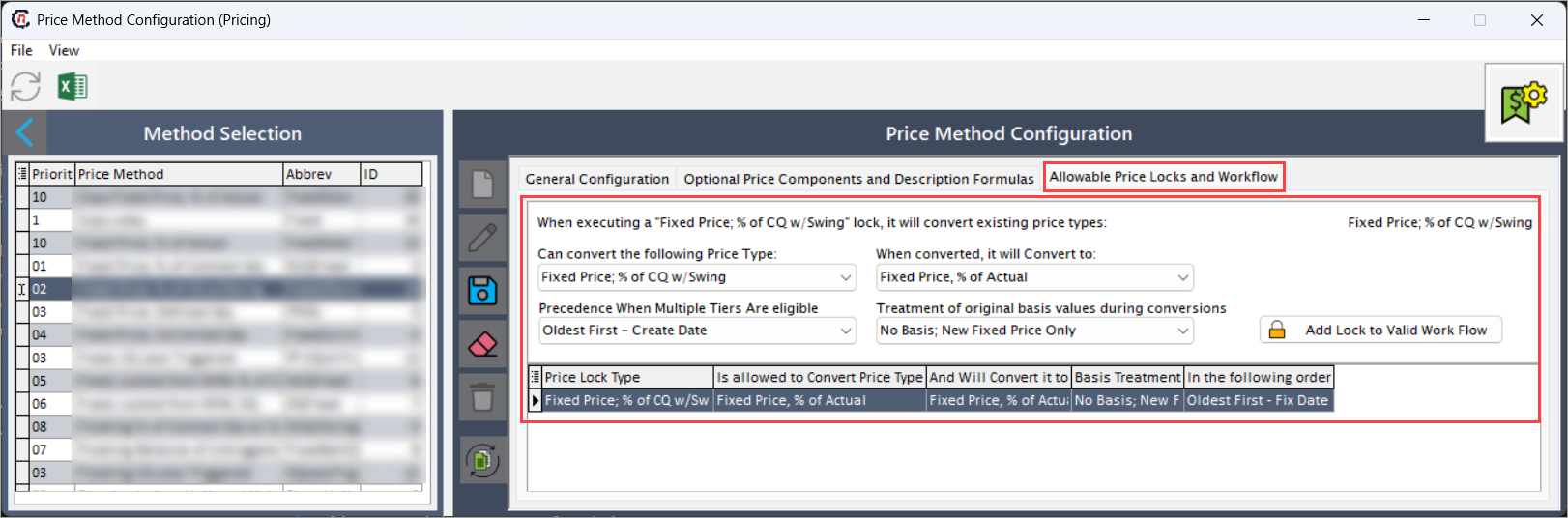
Step 2.4: Save the configuration
Click the Save changes to current price method icon to save the configuration or click the Cancel changes to current price method icon to discard the configuration.
Step 3: Manage a price method
Edit a price method record
- Select the price method from the Method selection section.
- Click the Edit a price method record icon to modify the configuration of a selected price method.
- Update the necessary changes in the Price method configuration section.
- Click the Save changes to current price method icon to apply the changes.
Delete a price method record
Click the Delete current price method record icon to remove a method no longer in use.
Duplicate price method record
Click the Duplicate this record icon to copy and reuse an existing method.
Summary
The price method configuration defines the rules and formulas used to calculate, adjust, and validate commodity prices within the system. It specifies how pricing inputs such as indexes, basis values, and adders are applied to derive final rates. A well-defined configuration ensures accurate pricing across contracts, settlements, and billing, while minimizing manual corrections and maintaining alignment with contractual pricing terms.