Configure parent wholesale brokers
A parent wholesale broker is a top-level broker entity used to organize and manage multiple wholesale brokers within the same overarching organization. It’s typically set up when wholesale or financial transactions require broker-fee calculations, fee distribution, payment routing, or consolidated reporting under a single parent entity. By configuring a parent broker, all connected brokers automatically inherit the correct organizational structure and can be managed in a consistent, centralized way.
Prerequisites
Before working on the Parent wholesale brokers screen, ensure the following prerequisites are met:
- Ensure the nGenue application is installed and use valid login credentials to log into the application.
- Configure the user permissions including User type, Security user, Security group, Security assign user, and Security assign permissions in their respective screens to enable access to the Parent wholesale brokers screen.
- Ensure that GL accounts are configured in the Chart of accounts.
- Ensure that broker fee handling must be enabled in the wholesale or financial deal workflow.
Procedure to configure parent wholesale brokers
Step 1: Navigate to Parent wholesale brokers screen
- Log in to the nGenue application.
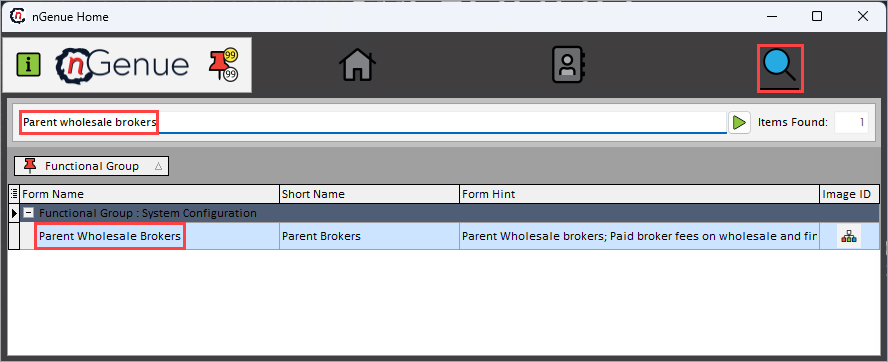
- Click the Search icon and enter Parent wholesale brokers in the search bar.
-
Double-click the Parent wholesale brokers from the search results to open respective screen.
-
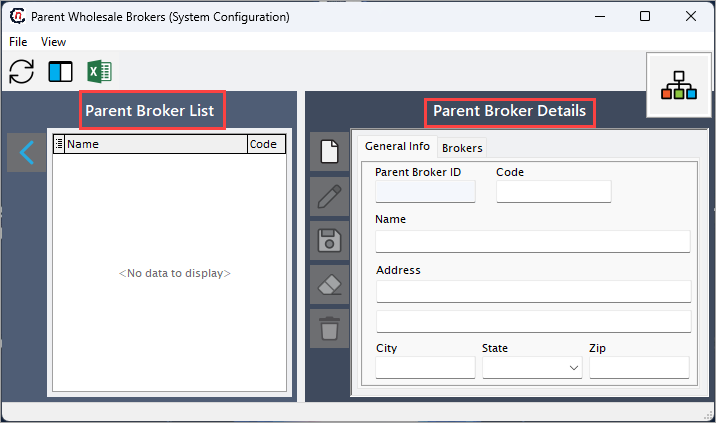
Parent wholesale brokers (System configuration) screen has two sections:
- Parent broker list: This section provides list of configured parent brokers.
-
Parent broker details: This section allows to define the general information, associated brokers details related to parent wholesale broker.
- General info: This tab allows to define parameters to configure a parent broker record.
-
Brokers: This tab displays wholesale brokers associated with the parent broker. Allows to view liked wholesale brokers and add or remove wholesale brokers through Wholesale brokers screen.
Step 2: Configure parent wholesale brokers
The following table lists the icons available on the Parent broker details section and their respective functions:
| Icons | Icon name | Description |
|---|---|---|
 |
Add a parent broker record | Opens a new record form to create a parent broker entry. |
 |
Edit current parent broker | Opens the selected record for editing. |
 |
Save changes to current parent broker | Saves the modifications made to the current record. |
 |
Cancel changes to current parent broker record | Discards unsaved changes made to the record. |
 |
Delete current parent broker record | Permanently removes the selected parent broker record. |
Step 2.1 : Add a parent wholesale brokers
- In the Parent broker details, click the Add a parent broker record icon to create a new contract language record.
- Complete required fields available in the Parent broker details section that are listed in the table below:
General Info
| Fields | Description |
|------------|------------|
| Parent broker ID | It is a unique system-generated identifier used to reference the parent broker. |
| Code | Specify the short code used internally to represent the parent broker in lists and reports. |
| Name | Specify the full legal or trading name of the parent broker. |
| Address | Specify the street address for the parent broker’s primary location. |
| City | Specify the city of the broker's address. |
| State | Specify the state of the address. |
| Zip | Specify the postal code for mailing and settlement documentation. |

*Brokers*
| Fields | Description |
|------------|------------|
| ID | Specifies the identifier for each wholesale broker assigned to this parent. |
| Business name | Specifies the legal business name of the wholesale broker. |
| Contact name | Provide the primary contact responsible for broker communications. |
| Bank | Specify the bank name used for broker fee settlement. |
| ABA | Specify the ABA routing number for electronic payments. |
| Account | Provide the bank account number used for broker settlements. |
| GL account default AP | Specify the default accounts payable ledger account for paying broker fees. |
| GL account default AR | Specify the default accounts receivable ledger account for broker receivables. |
| GL account default EXP | Specify the default expense ledger account for recording broker fees. |
| EFT account ID | Specify the ID of the EFT profile used for payments. |
| Terms type | Specify the payment term type used for fee settlement. |
| Term days | Specify the term duration to be applied when calculating payment due dates. |
| Settlement address | Provide the address used for settlement statements. |
| Confirmation address | Provide the address used for confirmation notices. |
| Default settlement recipient email | Specify the email for receiving settlement communications. |
| Default confirmation recipient email | Specify the email receiving confirmation letters. |

- Click Save changes to current parent broker to store the configuration.
Step 2.2 : Edit a parent broker
- Select a broker from the Parent broker list section and click the Edit a parent broker record icon to modify the selected parent broker.
- Update necessary details and click Save changes to current parent broker to apply changes.
Step 2.3 : Delete a parent broker
1.Select a broker from the Parent broker list section and click the Delete current parent broker record icon to permanently remove the parent broker record.
- Deletion may not be allowed if wholesale brokers or deals are still linked.
Summary
Parent wholesale brokers offer a structured method for organizing broker organizations and managing relationships with wholesale brokers. They enable multiple wholesale brokers to be grouped under a single master entity, ensuring consistent handling of broker fees, settlements, and communications across wholesale and financial transactions. Setting one up involves defining the parent broker’s profile and linking all associated wholesale brokers to it.