Terminate end user
The Terminate End User (User Tools) screen is used to change the lifecycle status of an end user, including terminating the end user and optionally terminating associated price agreements. This screen supports controlled end-user status transitions that directly impact billing, pricing, and downstream operational processes.
It is typically used when an end user is no longer active due to contract closure, service discontinuation, or account termination.
Prerequisites
Before using the Terminate End User screen, ensure the following prerequisites are met:
- The user has add or modify permissions for the Terminate End User screen.
- The LDC and Pool are configured and active, if applicable.
- The end user exists and is currently active.
- All dependent operational and billing considerations have been reviewed.
Procedure to terminate an end user
Step 1: Navigate to the Terminate End User screen
- Log in to the nGenue application.
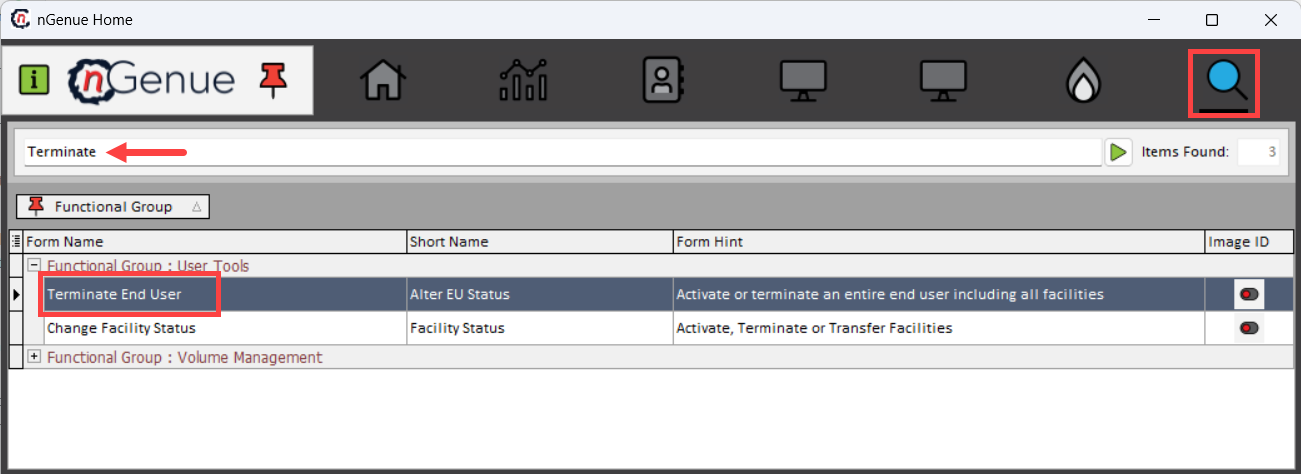
- Use the Search icon and enter Terminate.
- Double-click Terminate End User to open the Terminate End User (User Tools) screen.
-
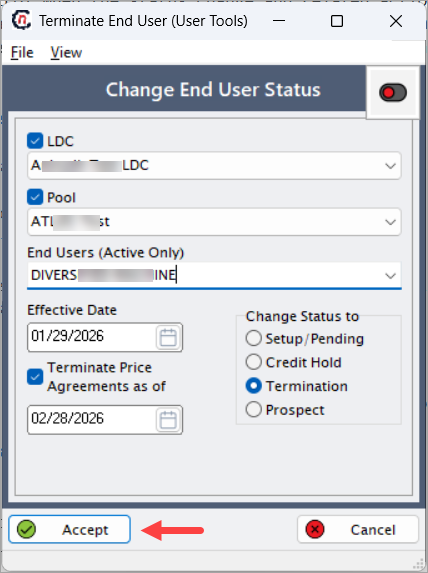
Use the top section of the screen, i.e., Change End User Status section, to define the scope of the status change.
Fields Description LDC Optionally filter end users by the selected Local Distribution Company. Pool Optionally filter end users by pool. End Users (Active Only) Select the active end user whose status needs to be changed. -
Specify the dates that control when the status change and related actions take effect. The options available are:
- Effective Date: Date on which the end user status change becomes effective.
- Terminate Price Agreements as of: Date as of which all associated price agreements are terminated. This option is enabled when terminating an end user.
Step 2: Select new end user status
Use the Change Status to section to select the desired end user status.
| Status | Description |
|---|---|
| Setup / Pending | Indicates the end user is in setup and not yet active. |
| Credit Hold | Places the end user on credit hold, restricting certain activities. |
| Termination | Terminates the end user as of the effective date. |
| Prospect | Marks the end user as a prospective customer. |
Note
Selecting Termination enables termination-related options and enforces effective date validation.
Step 3: Confirm the status change
- Review all selected values carefully.
- Click Accept to apply the status change.
- Click Cancel to exit without saving changes.
Once accepted, the end user status is updated based on the selected effective date.
Key points
- Terminating an end user directly impacts billing, pricing, and settlement processes.
- Effective dates control when the termination is enforced system-wide.
- Associated price agreements can be terminated automatically as part of the process.
- Status changes should be coordinated with billing and operational teams.
- This action is typically irreversible once billing has progressed beyond the effective date.
Summary
The Terminate End User (User Tools) screen provides a controlled and auditable way to manage end user lifecycle changes within nGenue. By enforcing effective dates, status selection, and optional price agreement termination, this screen ensures consistent handling of end user termination across billing, pricing, and operational workflows.