Configuring transportation capacity planning
The Transportation Capacity Planning screen is used to analyze, forecast, and plan the receipt and delivery volumes of natural gas across pipelines for selected locations, zones, and time periods. This screen provides visibility into how pipeline capacities are utilized and supports planning activities on a daily, monthly, or future allocation basis.
The primary purpose of the Transportation Capacity Planning screen is to:
- View and manage available transportation capacity across pipeline locations.
- Perform daily, monthly, or future capacity allocations.
- Project capacity utilization for future years based on pipeline configurations.
- Support operational, commercial, and strategic planning for transportation deals.
Prerequisites
Before accessing or configuring transportation capacity planning, ensure the following are in place:
- The user have the add or modify permissions for the Transportation Capacity Planning screen.
-
Required master data and configurations are completed in the following screens:
- Pipeline-Zone-Location (PZL) screen (Pipeline, Zone, Location, Fuel, Rates, Charge Definition, Rate Schedule).
- Operational Area and Market Area configurations.
- Pipeline Contract with defined Maximum Daily Quantity (MDQ).
- Physical Buy Deals linked with the pipeline.
-
The user has access to pipeline contract information and rate schedules.
Procedure to configure transportation capacity planning
Step 1: Navigate to the Transportation Capacity Planning screen
- Log in to the nGenue application.
-
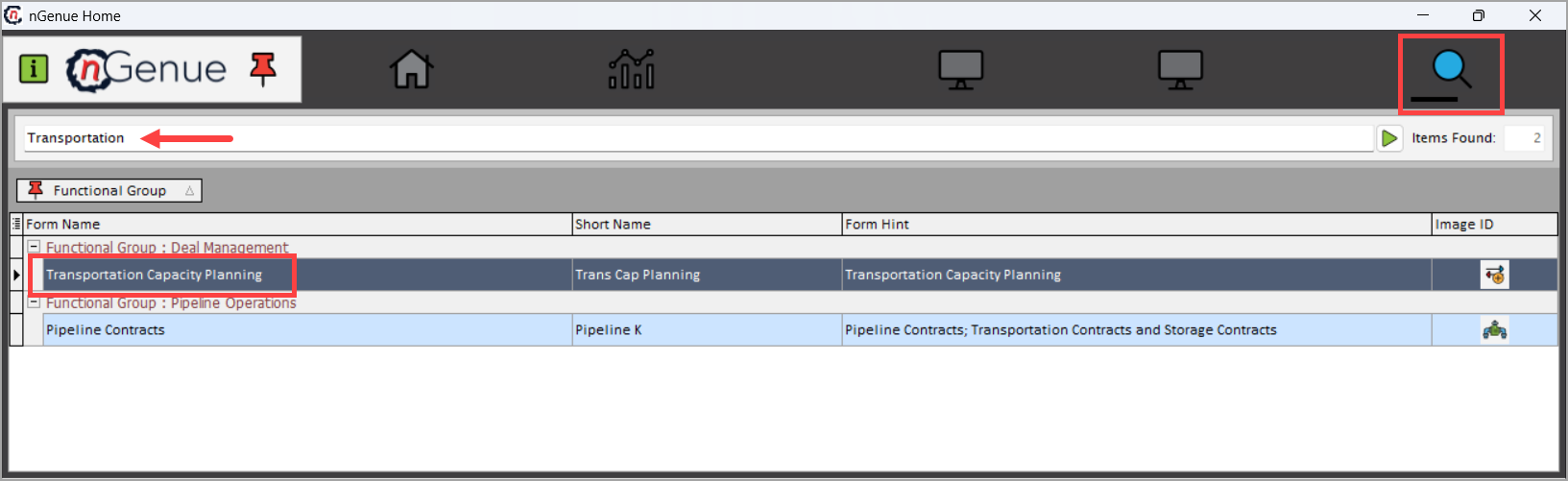
Click the Search icon and enter Transportation in the search bar.
-
Double-click Transportation Capacity Planning (Deal Management) to open the screen.
-
The Transportation Capacity Planning screen is divided into two sections:
- Transportation Capacity Planning Query: Used to apply filters and load projections.
- Transportation Capacity Planning Results: Displays allocation and projection data based on selected criteria.
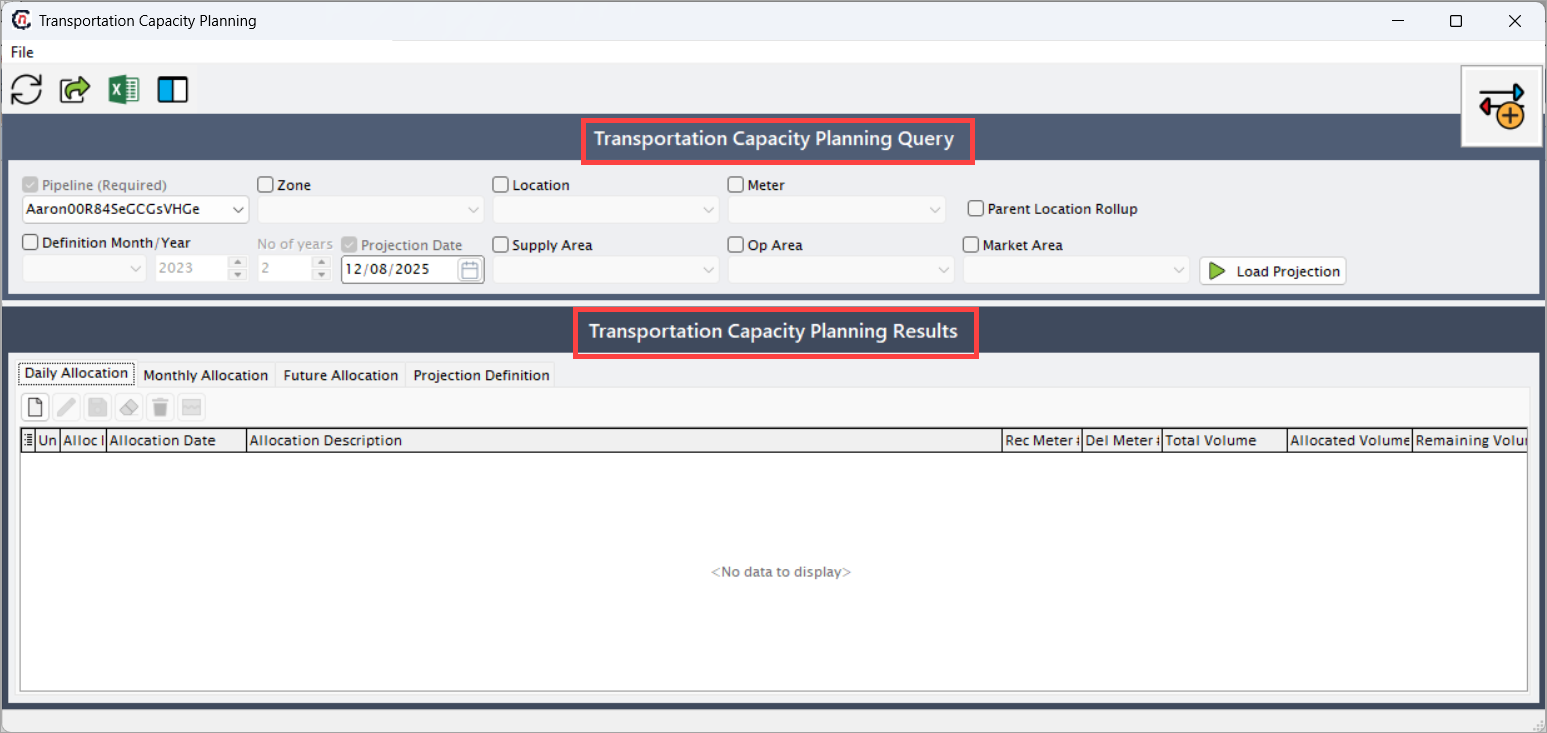
Transportation Capacity Planning Query Section
The Transportation Capacity Planning Query section allows users to filter, define, and load pipeline capacity data for analysis. It includes dropdown fields, checkboxes, and projection parameters that define the scope of the results.
Fields Description Pipeline (Required) Displays all configured pipelines available in the system. This field is mandatory. Pipelines are fetched from the PZL (Pipeline-Zone-Location) Configuration screen. Zone Enabled once selected. Displays all zones linked to the selected pipeline, fetched from the PZL Configuration screen. Location Displays the locations configured within the selected zone and pipeline. This allows granular filtering to a specific physical point. Meter When enabled, displays meters configured under the selected location. Used to view capacity data at a meter level. Parent Location Rollup When checked, aggregates data for all sub-locations under the parent location. Used for consolidated reporting. Definition Month/Year Defines the month and year for which the user wants to nominate or plan commodity allocation. No. of Years Defines how many years ahead the projection should extend. Projection Date Defines the effective date of the projection. Defaults to the current system date but can be modified. Supply Area Displays the region from where natural gas is sourced. Populated from the Supply Area master configuration screen. Op Area Displays the operational area associated with the selected pipeline or location. Pulled from the Operational Area configuration screen. Market Area Displays the market area where the gas is consumed. Populated from the Market Area master configuration screen. Load Projection Loads the projection data into the Transportation Capacity Planning Results section based on the filters selected above. 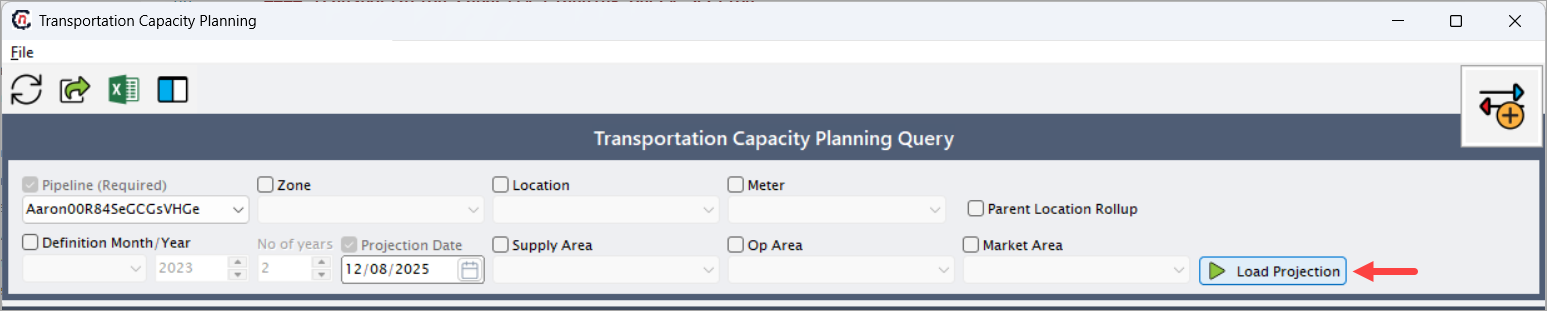
Transportation Capacity Planning Results section
The Transportation Capacity Planning Results section is divided into four tabs — Daily Allocation, Monthly Allocation, Future Allocation, and Projection Definition, each serving a specific planning purpose.
Daily Allocation tabThe Daily Allocation tab displays and manages gas allocations on a daily basis for the selected pipeline, location, and projection period. The Daily Allocation tab toolbar contains six icons (left to right). Each icon is explained below with its function, usage, and impact on the allocation grid.
Icons Name Description 
Add new daily allocation record. Creates a new allocation record in the grid, allowing users to enter allocation details for a specific date. To create a new allocation record:
1. Click the Add New Daily Allocation icon.
2. A blank row appears at the top of the grid, with the Unsaved flag checked.
3. Enter required details such as Allocation Date, Allocation Description, Rec Meter #, Del Meter #, Total Volume, Allocated Volume, and Pipeline Rate Schedule.
4. Click Save to persist the record.
Edit daily allocation record. Opens the selected row in edit mode to modify allocation details. 
Save daily allocation record. Commits the newly added or edited allocation records to the database. After saving, Unsaved flag clears and Alloc Exists updates to true.
Audit timestamps refresh.
Cancel the changes. Discards unsaved changes in the selected row and restores the previous values. Cancel does not affect already saved records. 
Delete daily allocation record. Removes selected allocation records from the system. 
Split daily allocation record. Splits an existing allocation into multiple allocations based on volume or date range. To split daily allocation:
1. Select a record and click the Split Daily Allocation icon.
2. In the split dialog, choose the split method:
- By Volume or Percentage (divide total volume into parts).
- By Date Range (split across multiple dates).
3. Enter split details and click OK.
4. Save the new records.The below table highlights the fields displayed in the Daily Allocation grid along with its detailed function:
Fields Description Unsaved Indicates whether the record is saved. If unchecked, changes need to be saved manually. Alloc Exists Displays whether an allocation already exists for the given day. Allocation Date Displays the date for which the allocation is applied. Allocation Description Allows entry of a descriptive name or note for the allocation. Rec Meter # Displays the meter number at the receipt point where gas enters the pipeline. Del Meter # Displays the meter number at the delivery point where gas exits the pipeline. Total Volume Displays the total transportation capacity defined for the day in the pipeline contract. Allocated Volume Displays the portion of the total volume that has been assigned for the day. Remaining Volume Displays the unallocated portion of total capacity. Pipeline Rate Schedule Displays the rate schedule applied for the transportation of gas. Pulled from the Rate Schedule configuration in the PZL screen. Receipt Pipeline Name Displays the name of the pipeline receiving the gas. Rec Pipe Abbrev Displays the abbreviation for the receipt pipeline. Receipt Location Name Displays the name of the location at which gas is received. Receipt Zone Name Displays the zone name associated with the receipt point. Rec Zone Displays the specific zone identifier for the receipt. Rec Location Abbrev Displays the abbreviated form of the receipt location. Rec Location Type Displays the location type such as City Gate, Hub, or Interconnect. Delivery Location Name Displays the name of the location where gas is delivered. Delivery Pipeline Name Displays the name of the pipeline through which gas is delivered. Del Pipe Abbrev Displays the abbreviation of the delivery pipeline. Delivery Zone Name Displays the name of the delivery zone. Del Zone Displays the identifier of the delivery zone. Pipeline Projection Def ID Displays the unique identifier for the pipeline projection definition. Pipeline Projection Alloc ID Displays the unique allocation ID related to the pipeline projection. Rec Pipeline ID Displays the internal ID of the receipt pipeline. Rec Pipeline Zone ID Displays the zone ID of the receipt pipeline. Del Pipeline ID Displays the internal ID of the delivery pipeline. Del Pipeline Zone ID Displays the zone ID of the delivery pipeline. Updated By Displays the username or system ID that last modified the allocation. Last Updated Displays the timestamp of the last modification. Fuel % Displays the percentage of gas used as fuel loss for transportation. Fuel Vol Displays the total fuel volume deducted during transportation. After Fuel Displays the net remaining gas volume after deducting transportation fuel losses. View Rec Pipeline Location ID Displays the location ID of the receipt pipeline. View Del Pipeline Location ID Displays the location ID of the delivery pipeline. Del Abbrev Displays the abbreviated name of the delivery location.
Monthly Allocation tabThe Monthly Allocation tab allows users to plan and allocate pipeline capacity on a monthly basis.
Fields Description Receipt Pipeline Displays the pipeline name where gas is received. Receipt Zone Displays the receipt zone configured for the selected pipeline. Receipt Location Displays the receipt location under the selected zone. Receipt Meter Displays the measurement device number at the receipt point. Delivery Pipeline Displays the pipeline name through which gas is delivered. Delivery Zone Displays the zone where gas is delivered. Delivery Location Displays the delivery location point within the delivery zone. Rate Schedule Displays the applicable rate schedule for the transportation. Total Volume Displays the total capacity volume allocated for the month. Remaining Volume Displays the remaining volume available for allocation. This tab provides a consolidated monthly view showing all days of the month with available or planned capacity allocations.
Future Allocation tabThe Future Allocation tab allows users to plan future transportation capacity for upcoming months or years.
Fields Description Receipt Pipeline Displays the pipeline name where gas is received from supply regions. Receipt Zone Displays the receipt zone under the selected pipeline. Receipt Location Displays the location where gas is received. Receipt Meter Displays the meter number at the receipt location. Delivery Pipeline Displays the pipeline name through which gas is delivered. Delivery Zone Displays the zone where gas is delivered. Delivery Location Displays the delivery point under the delivery zone. Rate Schedule Displays the tariff or rate schedule used for planning future capacity. This tab allows users to plan capacity for multiple years as defined by the No. of Years filter in the query section.
Projection Definition tabThe Projection Definition tab defines and manages pipeline capacity projection definitions between receipt and delivery locations.
Fields Description Definition Description Displays the name or brief description of the projection definition. Start Date Displays the start date of the projection definition. End Date Displays the end date of the projection definition. Season Start / Season End Displays the start and end dates for a defined seasonal period. Pipeline Rate Schedule Displays the applicable rate schedule for the transportation projection. Delivery Meter # Displays the meter number at the delivery point. Receipt Meter # Displays the meter number at the receipt point. Receipt Location Name Displays the location name where gas is received. Delivery Location Name Displays the location name where gas is delivered. Rec Abbrev / Del Abbrev Displays abbreviations for the receipt and delivery locations. Rec Zone Code Displays the code representing the receipt zone. Receipt Zone Name Displays the full name of the receipt zone. Receipt Pipeline Name Displays the pipeline name at the receipt point. Rec Pipe Displays the abbreviation of the receipt pipeline. Delivery Pipeline Name Displays the pipeline name at the delivery point. Del Pipe Displays the abbreviation of the delivery pipeline. Receipt Market Area Displays the market area linked to the receipt location. Delivery Market Area Displays the market area linked to the delivery location. Receipt Operating Area Displays the operational area for the receipt location. Delivery Operating Area Displays the operational area for the delivery location. Receipt Supply Region Displays the region from which gas is sourced. Delivery Supply Region Displays the region where gas is delivered. Updated By Displays the user or system ID of the last update. Last Updated Displays the timestamp of the most recent change. 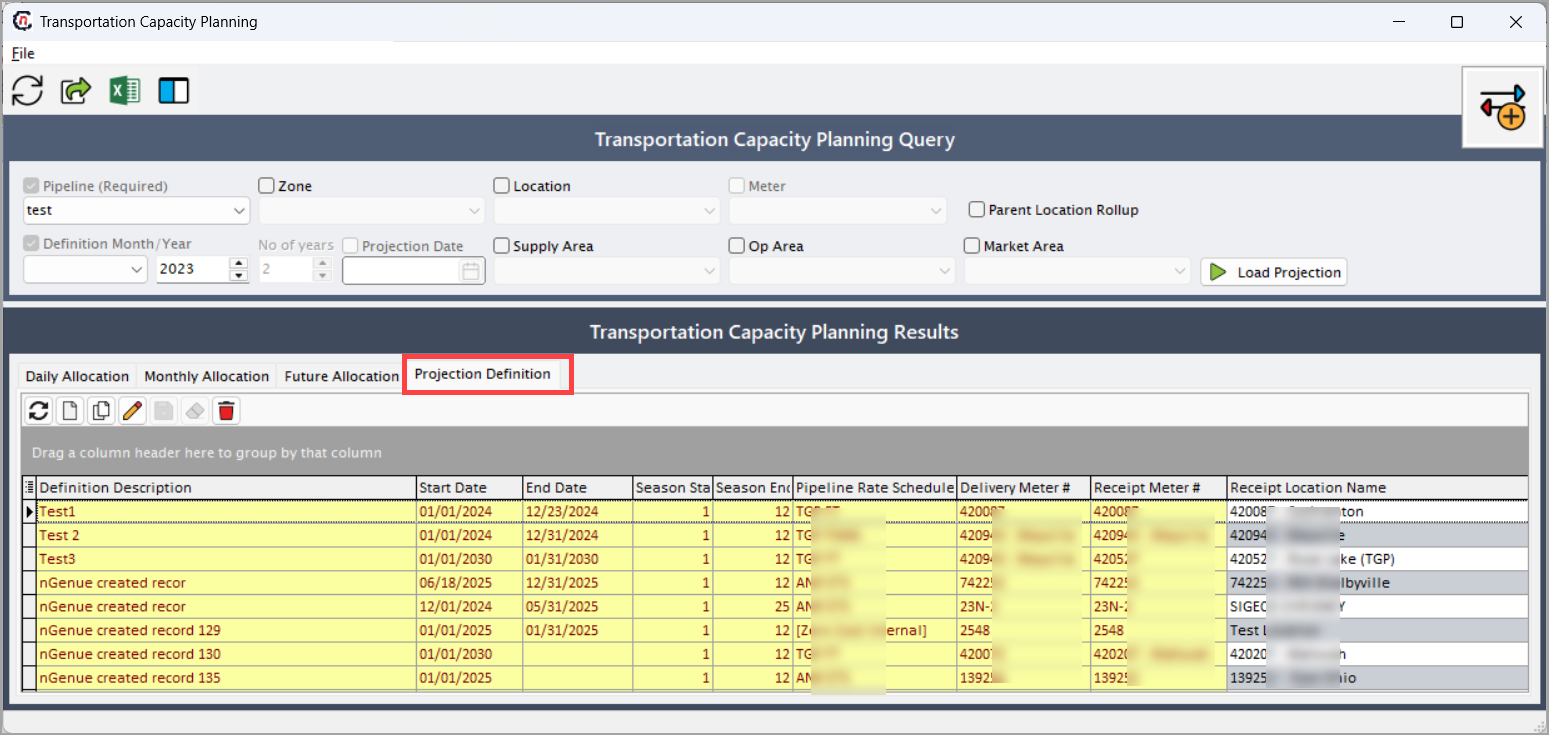
Key points to remember
- Pipeline is a mandatory field for any query execution.
- The Load Projection button must be clicked after selecting filters to display data.
- Daily, monthly, and future allocations are mutually independent but share the same pipeline configuration.
- Always verify Fuel % and Remaining Volume to ensure data accuracy.
- Users can switch between tabs to compare daily, monthly, and projection-level capacity plans.
- Any unsaved data is indicated in the Unsaved column and must be saved before closing the screen.
Summary
The Transportation Capacity Planning screen provides a comprehensive toolset to monitor, plan, and project transportation capacity across multiple pipelines and delivery locations. It enables pipeline operators and analysts to:
- Manage allocation volumes across different time horizons (daily, monthly, or yearly).
- Identify bottlenecks and optimize transport contracts.
- Forecast pipeline utilization for future operational periods.