Configuration of critical day type
A Critical day represents a specific period when the Local Distribution Company (LDC) enforces operational restrictions due to high demand, capacity limitations, or supply constraints. During these periods, users must maintain balanced nominations, deliveries, and storage operations to ensure system stability and compliance.
The Critical day setup screen enables administrators to define and manage Critical day types, establish short-term or long-term limitations, and track historical records for reference and auditing purposes.
The Critical day type screen provides the following action icons for managing critical day type records:
Critical day types icons
| Icons | Icons name |
|---|---|
 |
Refresh pipeline critical day type |
 |
Edit pipeline critical day type |
 |
Add new critical day type |
 |
Save pipeline critical day type |
 |
Delete selected partial |
 |
Delete selected pipeline critical day type |
History records icons
| Icons | Icons name |
|---|---|
|
Refresh pipeline critical day type history |
|
Edit pipeline critical day type history |
|
Add new critical day type history |
|
Delete selected pipeline critical day type history |
Prerequisites
Before configuring a Critical day type, ensure the following prerequisites are met:
- User Permissions: You must configure the security settings including User type, Security user, Security group, Security assign user, and Security assign permissions in their respective screens to ensure you have the required access and permissions for Critical day type screen actions.
- LDC: The relevant LDC must exist within the application.
- Storage setup: Ensure storage parameters and volume limits are configured before applying critical day restrictions.
Procedure to configure a critical day type
Step 1: Navigate to the Critical day setup screen
- Log in to the nGenue application.
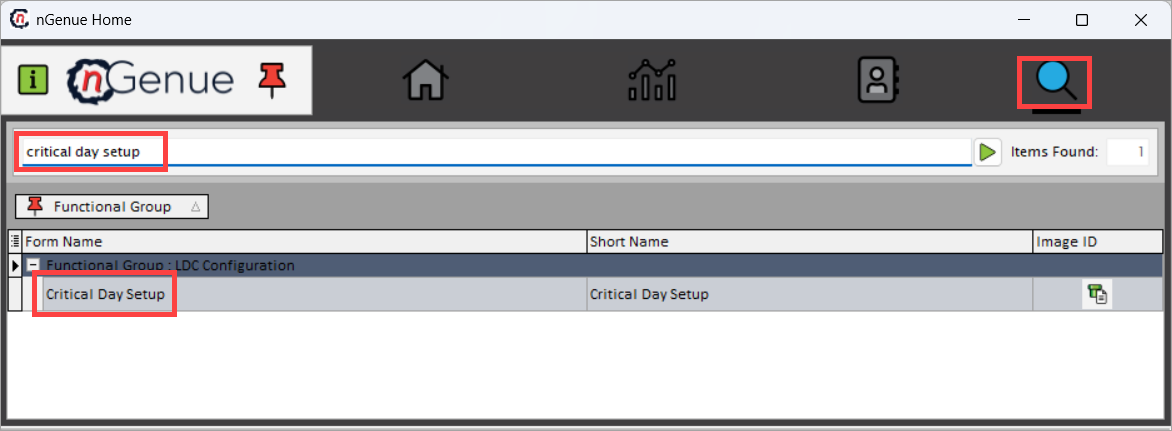
- Click the Search icon and enter critical day setup in the search bar.
-
Double-click Critical day setup to open the screen.
-
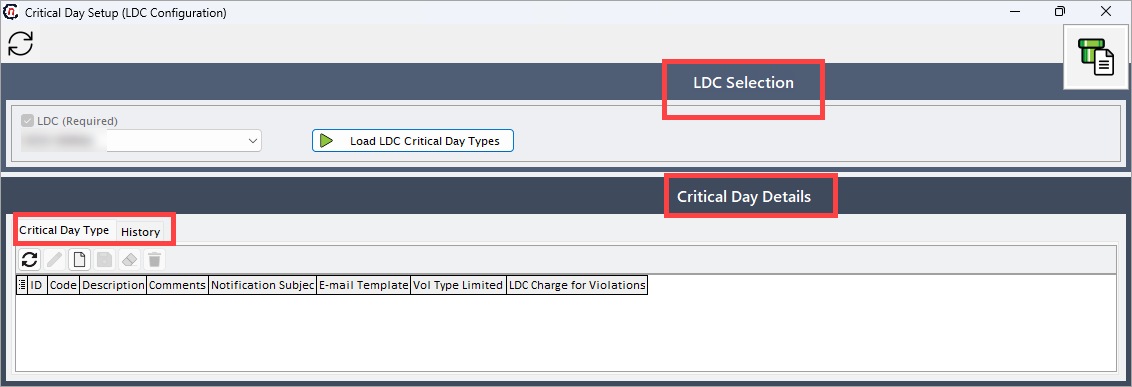
The Critical day setup screen is divided into two main sections:
- LDC selection: Search for and select an LDC to manage its critical day types.
- Critical day details: View, create, and manage critical day types and their history for the selected LDC.
LDC selection section
Use this section to select the LDC to configure. After selecting an LDC, click the Load LDC critical day types button to fetch the related data in the Critical day details section.
Critical day details section
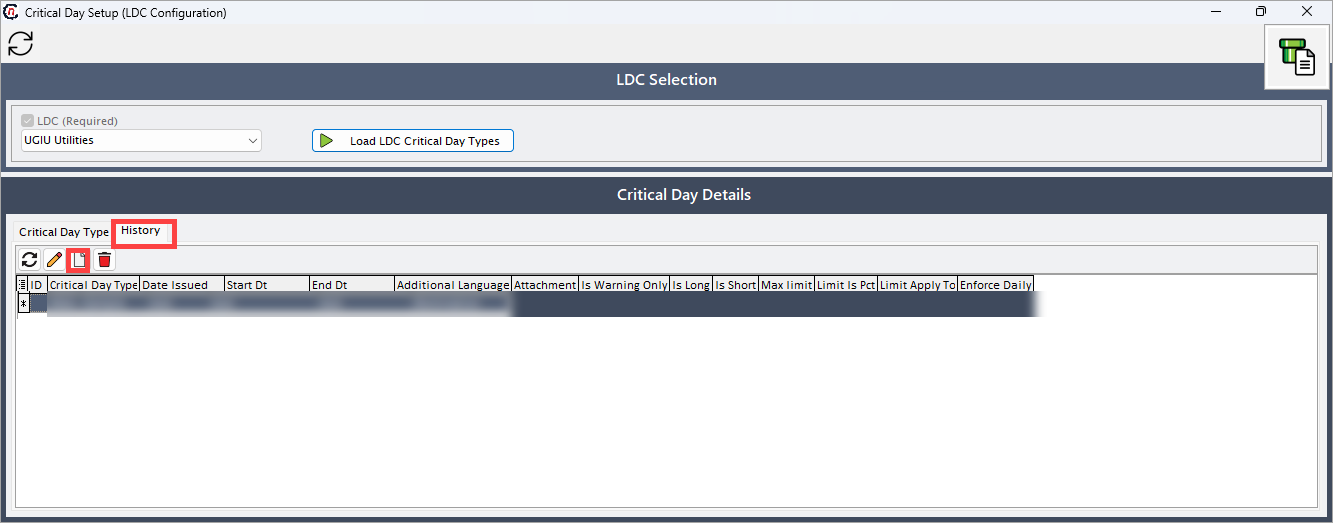
This section allows you to create, edit, save, and delete critical day types, or view historical records. It includes two tabs:
- Critical day type tab: Allows you to manage critical day records.
-
History tab: View and manage the history of critical day types.
Step 2: Create a new critical day type
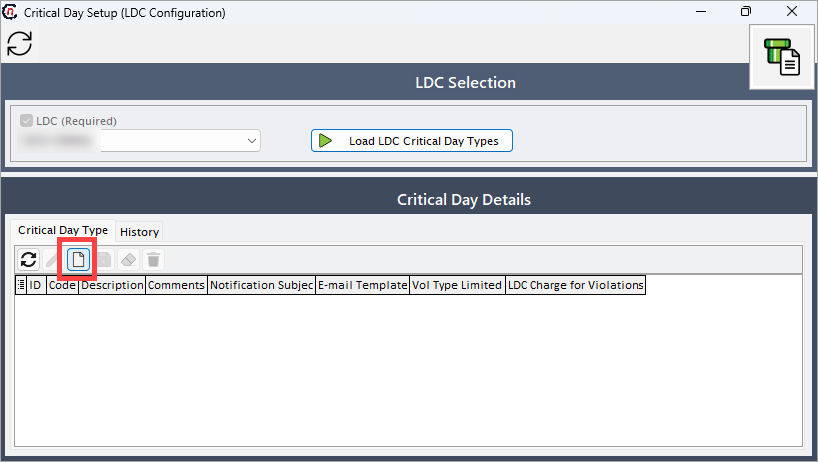
- In the Critical day details section, ensure you are on the Critical Day tab
-
Click the Add new critical day type icon.
-
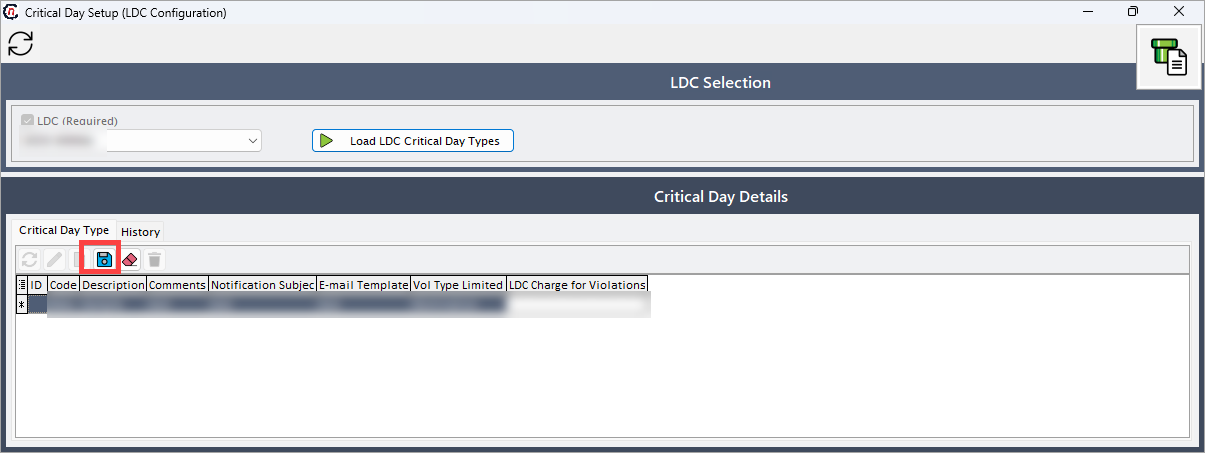
A new entry form will open. Configure the following fields:
Fields Description ID A system-generated, unique identifier for the critical day type. This field is auto-populated. Code Enter a unique code to identify the critical day type. Description Provide a clear, descriptive name for the critical day type that explains its purpose or the condition it represents. Comments Add any additional notes, context, or internal comments regarding this critical day type. Notification Subject Enter the subject line for the notification email that will be sent when this critical day is declared. The subject should clearly indicate the type of critical day. E-mail Template Select or enter the name of the email template that the nGenue application will use to format and send notifications for this critical day type. Vol Type Limited Select the volume type to which the limitation applies from the dropdown menu:
• Nomination: Limits apply to nominated gas volumes.
• Delivery: Limits apply to delivered gas volumes at a specific point.
• Storage: Limits apply to storage withdrawal or injection volumes.LDC Charge for Violations Select the specific charge or penalty from the dropdown that the LDC will apply if the limitations of this critical day type are violated. -
Click the Save critical day type icon to save the record.
Note
The critical day type configured here will be available in the Critical day screen under the Critical day type dropdown field within the Critical day details section.
Step 3: Create a critical day type history record
- In the Critical day details section, navigate to the History tab.
- Click the Add new critical day type history icon.
-
This action will redirect you to the Critical day screen, where you can configure the specific historical instance or declaration of the critical day. For more information, refer to Critical day article.
Summary
Configuration of Critical day type is essential for managing pipeline and storage system integrity during periods of high demand. By defining these limitations and their associated notification rules, administrators can enforce operational constraints, automate alerting, and ensure compliance with LDC tariffs. This setup provides a centralized and auditable method for handling both short-term peak events and long-term seasonal storage constraints, contributing to overall supply reliability and balanced system operations.