Printing collections report
The collections report provides a summary of outstanding receivables, showing overdue balances, aging details, and accounts that require follow-up. The Print collections report screen enables users to generate and print reports used for tracking overdue payments, monitoring outstanding receivables, and supporting reconciliation and collection activities.
Prerequisites
Before working on Print collections report screen, ensure the following prerequisites are met:
- User permissions: Configure the user permissions including User type, Security user, Security group, Security assign user, and Security assign permissions in their respective screens to enable access to the Cash receipts home page screen.
- LDC and pool set up: Ensure the Local Distribution Company (LDC), LDC pool, tariff and sales representative are properly configured, to support invoice processing and cash receipt generation.
- End user and Facility set up: Ensure the End user is fully configured and their Facility is properly set up before generating an invoice or cash receipt.
- Invoice generation: Ensure that Invoices and corresponding Cash receipts are generated for the selected end user.
Procedure to print collections report
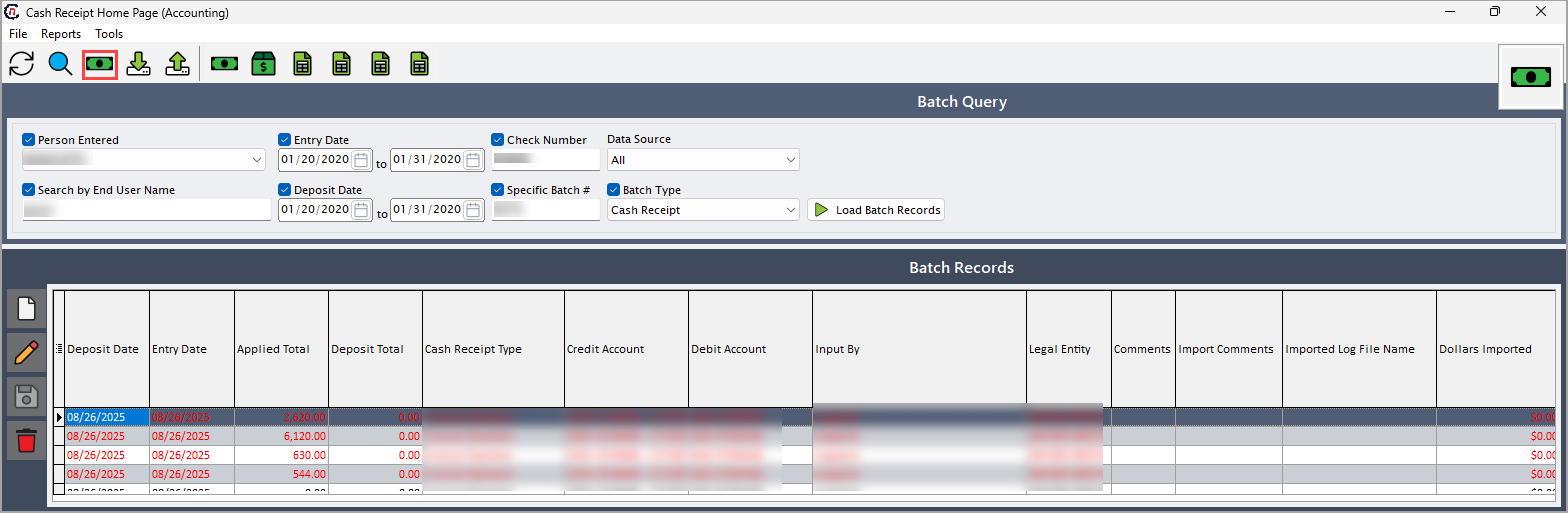
- Navigate to the Cash receipts home page screen.
-
Click Collections worksheet icon in the top header to open respective screen.
-
In the Print collections report screen, select the checkbox, to include corresponding field's information. The selected options will filter and customize the collections report accordingly.
The table below provides lists the fields in the Report options section:
Fields Description LDC Select the associated LDC. Filter by pool Select the pool. Filter by tariff Choose the tariff type. It is configured in the LDC rate configuration screen. Filter by sales rep Choose the sales representative. It is configured in the Employee screen. Print for aging greater than or equal to (in days) Specify the number of days that includes overdue accounts. Ignore balances less than (in dollars) Specify the amount to exclude accounts with balances below the provided amount. Print active facilities only Select this option to include only active facilities in the report. Print only end users in collection Select this option to include only end users currently in collection. Show facility details Select this option to include detailed information about the facility. Show billing contact details Select this option to include contact information for billing purposes. -
On the Print collections report screen, select any of the printing options in the top header to configure printing, preview, print, or export the report as a PDF, as described in the table below:
Icons Icon name Description 
Printer set up Click Printer set up icon to configure printing settings. 
Print preview Click Print preview icon to view the cash receipt detail. 
Print Click Print icon to print the cash receipt detail report. 
Print to excel Click Print to excel to export it as a excel file.
Summary
The collections report generates a filtered overview of aged receivables and outstanding balances. It streamlines collection tracking, supports analysis of overdue accounts, and enhances follow-up efficiency for pending payments.