Add an end user
This outlines the step-wise process to add an end user within the nGenue application. Once an end user is added, add their address, set up a sales contract and price agreement, and add facilities to activate the account. Each of these steps is detailed in the following pages.
User permissions are required to add or modify the End user screen within the application. Additionally it requires an Local Distribution Company (LDC), account number, rate class, pool account, primary rep, and consultant to configure an end user.
Note
LDC, account number, rate rider are configured in the LDC screen. Pool account is configured in the LDC pool screen. Primary reps, CSR are configured in the Employee screen. Consultant is configured in the Retail consultant screen.
Steps to add an end user
To add an end user in nGenue application, follow the steps below:
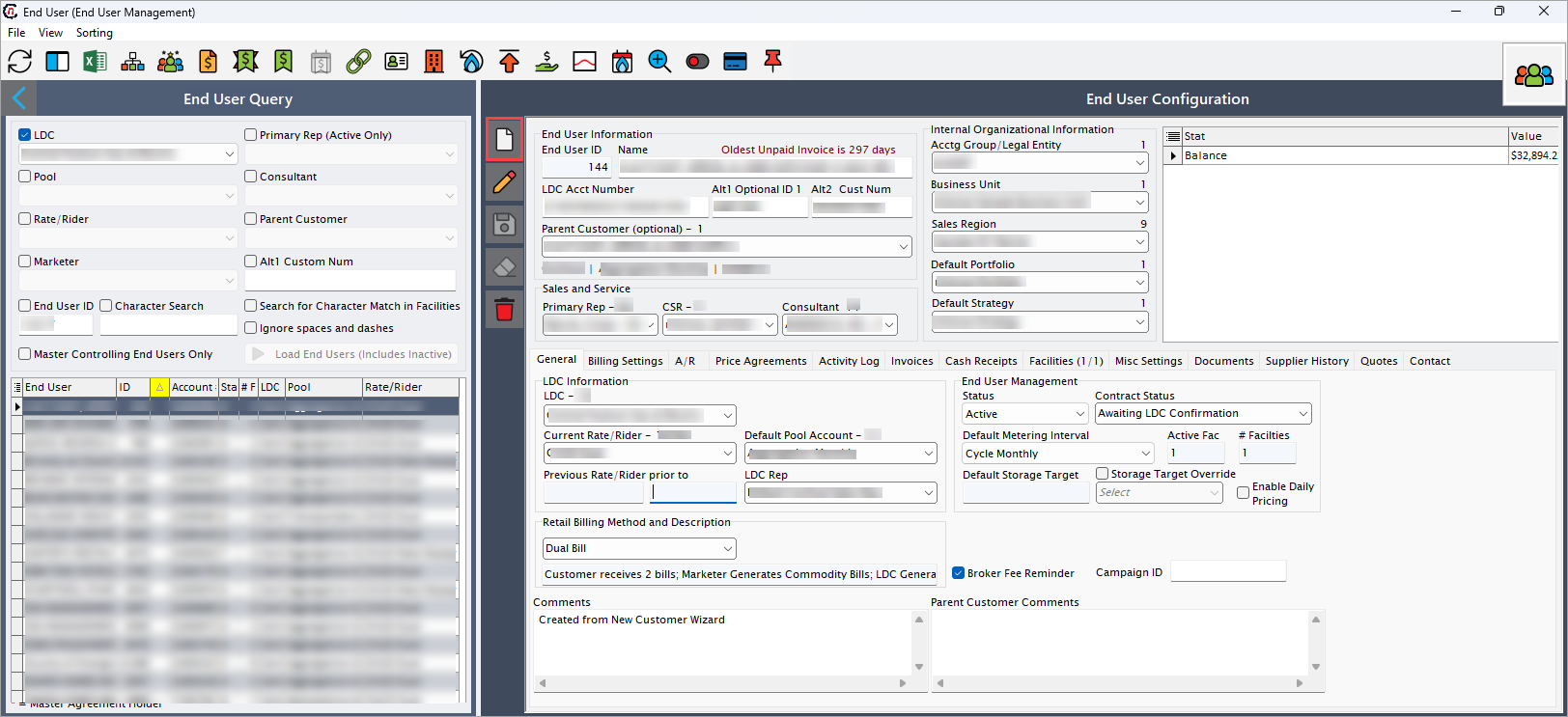
- In the End user configuration screen, click Add an end user record icon.
-
The table below provides detailed explanations for each field available in the End user configuration screen.
End user information
Fields Description End user ID A system-generated unique identifier assigned to the end user to track their account and manage transactions. Name Specify the full legal name of the end user or business entity associated with the account. Payment information Displays payment-related details for the end user that might include payment methods, terms, and history. LDC acct number Specify the LDC account number associated with end user to track and manage gas supply. Upon LDC configuration, LDC account number will be provided which can be used for end user configuration. Alt1 optional ID 1/ Alt2 Cust Num Provide alternate customer numbers for cross-referencing within the system. These are considered as legacy account numbers or IDs used for integration with external systems. Parent customer (optional) Select the parent customer to link the end user to manage account, billing, and reporting. It is configured in the Parent customer screen. Sales and service
Fields Description Primary rep Select the primary sales or service representative who manages the end user's account, handles contracts, and provide support. CSR Select the customer service representative who is designated to address customer inquiries, manage complaints, and ensure service quality. Consultant Select a consultant who is assigned to the end user for advisory purposes, such as helping with gas procurement strategies, compliance, or contract negotiations. Internal organizational information
Fields Description Acctg group / legal entity Select the accounting group or legal entity under which the end user’s account is categorized for financial and regulatory tracking. It is configured in Internal book structure. Business unit Select the internal business division or unit that manages the end user’s account, often used to report and allocate resources. It is configured in Internal book structure. Sales region Select the geographical region where the end user located or where the sales team manages their contract. It is configured from Sales area screen. Default portfolio Select the default product or service portfolio assigned to the end user, which may include gas supply agreements, pricing plans, or service packages. It is configured in Internal book structure. Default strategy Select the default sales, pricing, or contract strategy that applies to the end user’s account, determining pricing tiers, contract terms, and risk management approaches. It is configured in Internal book structure. 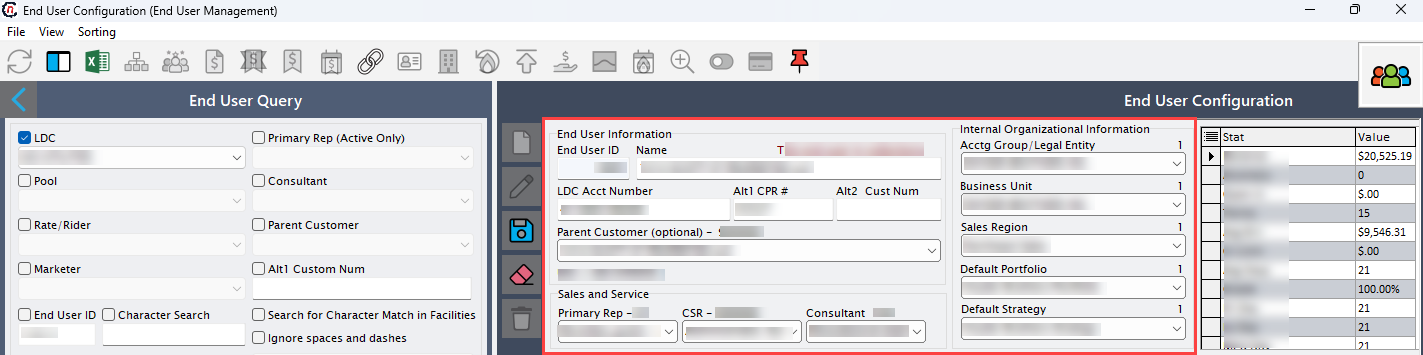
-
The End user configuration screen is also divided into multiple tabs, each designed to capture specific details required for end user configuration.
Below is a detailed explanation of each tab:
1. General tab
The General tab serves as a central hub for key configuration and management settings. It covers LDC information, end user management, retail billing methods, and other essential operational parameters, allowing users to view and update core system and account details in one place.
The table below provides detailed explanations for each field available in the General tab.
LDC information
Fields Description LDC Select the Local Distribution Company (LDC) that delivers gas to the end user. Current rate/rider Select the current rate plan or rider assigned to the end user. Default pool account Select the default pool account linked to the end user’s gas supply. Previous rate/rider prior to Specify the previous rate plan or rider that was assigned before the current one. LDC rep Select the representative from the LDC assigned to manage the end user's account. End user management
Fields Description Status Select the end user's current management status, which impacts their access to gas supply and billing. Dropdown options are given below:
Prospect: Select this if the end user is in the initial setup phase and need to be validated to activate the services.
Setup/Pending: Select this, if the account setup is pending because necessary procedures such as contract approval, LDC confirmation and related steps are still in progress.
Active: Select this if the end user is validated and activated, enrollment is complete and services are being provided currently. Billing for the end user's service will be done as per the selected billing method.
Credit Hold: Select this, if the account is temporarily suspended due to credit issues, prevents further gas supply or transactions. This status requires resolution of outstanding balances or credit approval.
Terminated: Select this if the end user's service has been permanently discontinued. No further transactions or billing will occur.Contract status Select the contract status that defines the progress of the end user’s contract in the enrollment process. The status impacts service activation and billing. Dropdown options are given below:
Awaiting LDC Confirmation: Select this if the supplier has submitted the enrollment request, the LDC needs to confirm the activation to initiate the services.
Awaiting Credit Approval: Select this if the contract is pending due to credit evaluation. Additional guarantees or deposits may be needed if the end user does not meet credit requirements.
Awaiting Enrollment Complete: Select this if the contract has been processed, but final enrollment procedures such as validation of meter setup, additional documentation and others are still pending.
Enrollment Complete: Select this if end user's enrollment is complete and the contract fully is executed, gas supply and billing is initiated.Default metering interval Select the default metering intervals to defines the frequency at which the end user’s meter readings are recorded, which impacts how often billing and consumption tracking occur. Dropdown options are given below:
Daily: Captures meter readings daily, providing detailed consumption data for high-usage customers requiring precise tracking.
Calendar Monthly: Captures readings monthly on a fixed date, aligned with standard billing cycles.
Cycle Monthly: Captures readings on LDC-defined billing cycles rather than fixed calendar months, allowing for variable read schedules.
Bill Cycle; Manage Daily: Enables daily readings with billing on a fixed schedule, balancing detailed tracking and structured billing.Active fac Specify the number of active facilities linked to the end user. # Facilities Specify the total number of facilities associated with the end user. Default storage target Provide the default storage target assigned to the end user. Storage target override Select this checkbox to override the default storage target if necessary. Enable daily pricing Select the enable daily pricing checkbox, to generate billing as per daily usage for the end user's account. Retail billing method and description
Fields Description Billing method name Select the billing method used to determine how invoices are generated and sent for the end user. Dropdown options are given below:
Rate Ready: A fixed rate set by the supplier, used by the LDC to calculate bills from actual usage. Ensures consistent billing but depends on correct rate setup.
Bill Ready: Supplier handles full bill calculation and LDC only delivers the invoice. This gives the supplier greater control over billing but requires strong data management.
Dual Bill: Supplier and LDC generate and send individual invoices for their respective charges, billing the customer independently.
Single Bill: A consolidated bill integrates supplier and LDC charges into a single invoice, thereby streamlining the payment process for the end user.Broker fee reminder Select this checkbox to set up a broker fee reminder for this account. When enabled, the system send reminders related to the broker fee for this account. Campaign ID Provide a valid campaign ID, for the system to validate and associate the end user with the specific marketing or pricing campaign. Parent customer comments Provide any optional notes pertaining to the parent customer, if applicable. 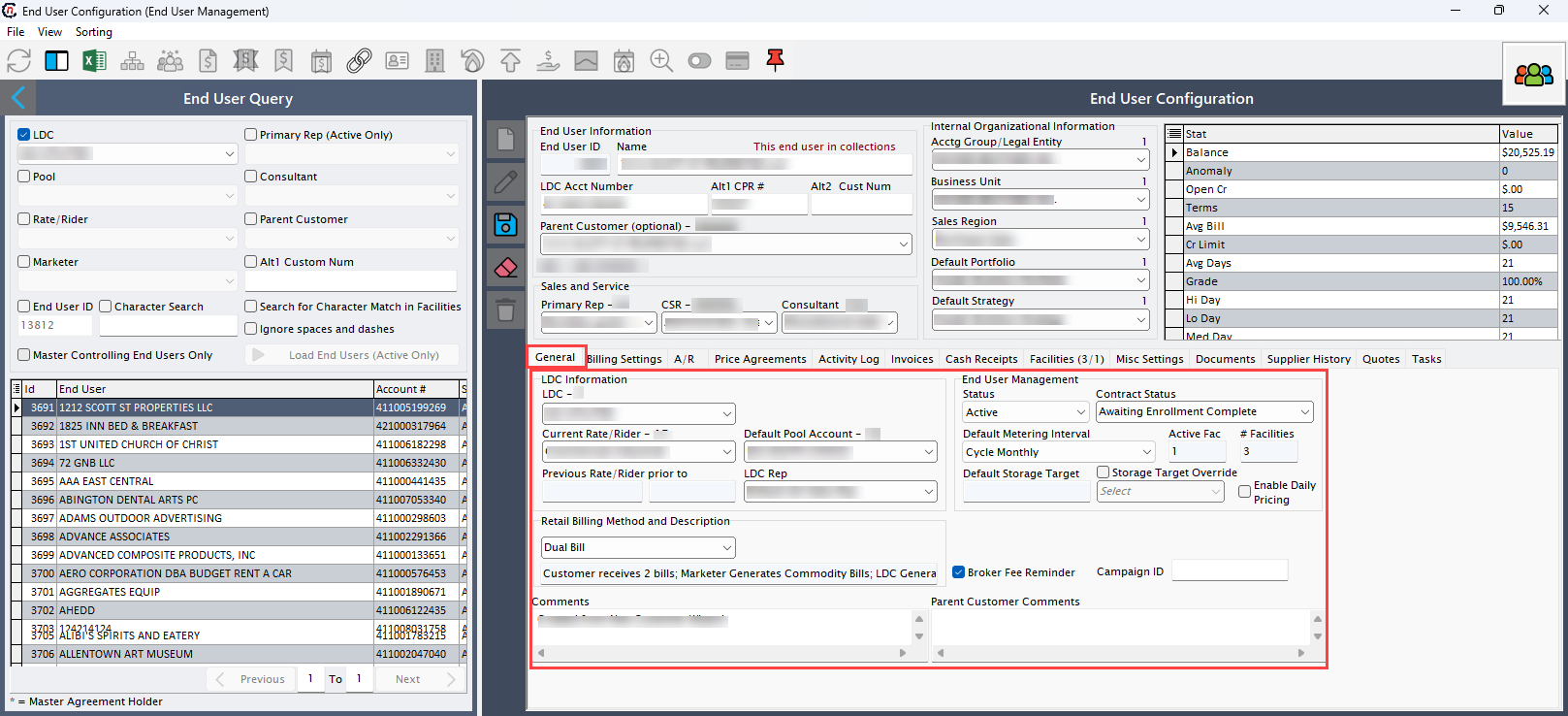
2. Billing settings tab
The Billing settings tab allows users to configure and manage all billing-related options. This includes payment terms, invoice preferences, and other parameters that control how billing and invoicing are handled for end users or accounts.
The table below provides detailed explanations for each field available in the Billing settings tab.
Fields Description Bill format Select the bill format. The selected option determines how charges, usage details, and line items appear on the invoice. Available drop-down options are given below:
Format v19 A - simple list by name
Format v19 B - grouped by marketer and LDC charges
Format v19 C - contract summary
Format v19 D - daily volume from metered usage
Format v19 E - single facility invoice
Format v19 F- multi facility invoiceLine detail level Select the detail level of invoice line items, affecting how usage, fees, and adjustments are displayed. Options include end user, all facilities on a single page, or separate page for each facility.
In case of availability of contacts, If a separate page is selected for each facility, the facility-level contact will be included in the invoice. If all facilities are included on a single page or the end user is selected, the end user-level contact will be included in the invoice.Billing hold Specify the period during which invoice generation is temporarily paused, provides time for billing adjustments or corrections before finalization. Message on invoice Specify a customizable message displayed on the customer’s invoice. Use this for general communication, promotions, or important billing notes. Recurring PO # Enter a purchase order number to automatically include on all invoices. Useful for corporate or contract billing that requires a PO for processing. Report volumes in Choose the unit of measurement for reporting gas volumes on the invoice. Options may include Therms, Dekatherms (Dth), MCF, Cubic Feet (CCF), or MMBtu. Selecting the correct unit ensures compliance with contracts and industry standards. Use alternate billing entity Select this option to have invoices issued by a different entity rather than the primary supplier. This is helpful when billing is managed by another company, like a parent company or financial institution. Round volumes to Choose the round volumes to define how gas volumes are rounded for billing. Options include rounding to whole numbers, one decimal place, or two decimal places. This ensures consistency and reduces minor discrepancies in invoice calculations. Invoice printing options
Fields Description Print prior balances Select this checkbox to include any unpaid balances from previous billing periods on the invoice to keep track of outstanding amounts. Don't print with controller Select this checkbox to prevent the invoice from being printed automatically through the controller system, allowing for manual review or printing. Print summary page for multi-facility invoices Enable this checkbox to add summary pages to invoices that cover multiple facilities, providing an easy-to-read overview of all charges. Bundle LDC charges onto 1 line Enable this checkbox to combine all Local Distribution Company (LDC) charges into a single line item on the invoice to simplify the billing layout. Billing line item options
Fields Description Hold bills until all facilities have volumes Select this checkbox to delay invoice generation until meter readings are reported for all linked facilities to ensure billing is complete and accurate. Suppress nGenue generated 3rd party charges Select this checkbox to hide third-party charges automatically added by the system, to exclude unapplied charges in the invoice. Credit details
Fields Description Credit limit Set the maximum credit limit for the end user. Once this limit is reached, new transactions may be restricted until the balance is reduced. Credit rating Choose the credit rating of the end user based on set criteria. Ratings like low, medium, or high can affect payment terms and eligibility for credit-based transactions. Default margin Specify the percentage added to the end user’s charges to account for the supplier’s profit margin. Last reviewed on Specify the date when the end user's credit details were last reviewed to ensure credit limits and terms remain appropriate. SIC code Select the Standard Industrial Classification (SIC) code representing the industry in which the end user operates, that influence contract terms and risk evaluation. NAICS Provide the North American Industry Classification System (NAICS) code that classifies the end user’s business type and is used for regulatory compliance and reporting purpose. Office Specify the office location managing the end user’s account, which influence billing jurisdiction and customer service processes. Industry title Specify the industry category associated to the end user, generally based on SIC or NAICS classification standards. Credit status Select the current credit qualification of the end user. Options include:
Credit_Qualified Manual: Credit approval granted through manual assessment.
Qualified: Credit approval granted automatically based on criteria.
Rejected: Credit application declined.
Review: Credit status is currently under evaluation
Expired: Previously approved credit status has expired.Credit expiration date Specify the date when the end user’s credit approval expires, triggering review or renewal. 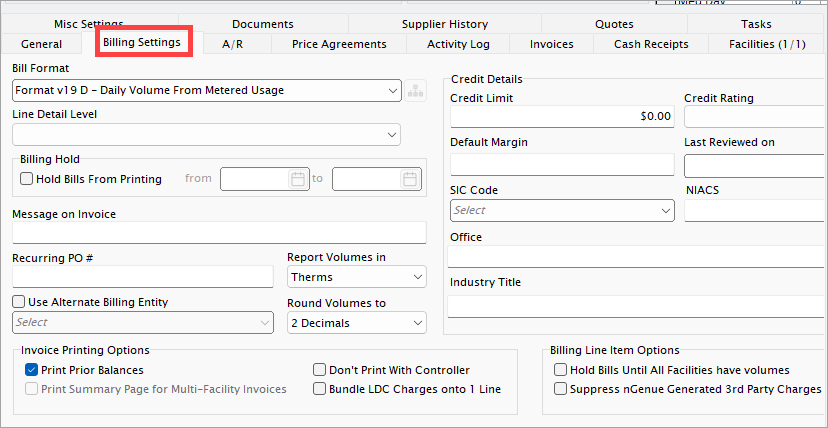
3. A/R (Accounts Receivable) tab
The A/R tab provides a detailed view of all outstanding amounts owed by end users. It allows users to track invoices, payments, and balances, helping manage collections, monitor cash flow, and maintain accurate financial records.
The following table provides detailed explanations for each field available in the A/R (Accounts Receivable) tab.
Payment processing
Fields Description Mail checks to Select the mailing address for physical checks to ensure timely payment processing and avoid delays. Wire funds to Select the designated bank account for wire transfers to make electronic payments. A/R Acct Specify the accounts receivable (A/R) account used to record payments. Sales acct Specify the sales account associated with the end user. Security deposit required Select this checkbox to submit a security deposit prior to service activation. Deposit amount Specify the amount required to deposit, prior to service activation. Date received Specify the date the security deposit was received to ensure accurate accounting and refund processing. Re-apply cash receipts Click on this to reapply previously recorded cash receipts to accommodate necessary adjustments or corrections. Payment terms Select the payment terms to determine due date, selected from options such as days from invoice date or day of each month. Min days Specify the shortest allowable payment period for calculating due dates and late fees. Cash receipt method Select how payments are applied, options include matching to specific invoices or applying to oldest invoice(s). Proper selection ensures accurate payment allocation. Form of payment Select the payment methods that is authorized to use such as check, cash, wire transfer, Electronic Funds Transfer (EFT), ACH, credit card, or LDC AR purchase which directly impact transaction processing and reconciliation. Late charges and collections
Fields Description Finance method Select the method for calculating late payment charges. Options include:
None: No finance charges are applied to late payments.
Defined rate x balance due: Applies a fixed interest rate to the outstanding balance, ideal for standard late fees.
Defined rate x # of days: Charges interest based on how many days the payment is late, useful for time-sensitive penalties.
Custom rate x balance due: Uses a user-defined interest rate on the total outstanding balance, allowing flexible fee application.
Custom rate x # of days: Applies a customized rate based on the number of overdue days, suited for variable late fee structures.Late penalty Select this checkbox to enable late fees on overdue invoices, calculation follows the selected finance method. In collections Select the in collections checkbox if the end user account is under collections for overdue balances. Date referred Specify the date the account was referred to collections. Waive fees (days after referral) Provide Permits authorized users to waive late fees for dispute resolution or goodwill. Custom APR Specify annual percentage rate for late payment penalties that overrides standard rates when applicable. Minimum late fee Specify the minimum late fee charged to ensure penalties on small balances. Block all collection letters Select this checkbox to prevent the system from automatically sending collection notices to the selected end user. Stop all late fee calculation Select this checkbox to disable automatic collection notices during external payment negotiations. 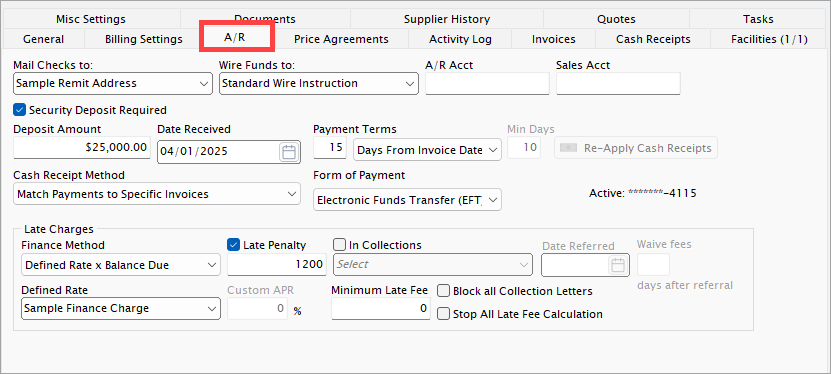
4. Misc settings tab
The Misc Settings tab centralizes end-user management, allowing configuration of identifiers, storage options, and flexible billing methods such as estimated reads and budget billing. It also governs participation in supply transactions and tracks annual usage forecasts with margins and terms. Additional options support self-nominated supply sources and consistent facility charge handling, ensuring efficient and precise operational control.
The table below provides detailed explanations for each field available in the Misc settings tab.
Fields Description Short name Specify a brief internal identifier used for quick reference to the end user. Enable cycle/financial storage Select this checkbox to enable cycle-based or financial storage programs for balancing supply and demand in gas storage management. Annual storage percent Specify the percentage of annual storage allocated to the end user. Enabled only if Enable cycle/financial storage is selected. Enable estimated meter read billing Select this checkbox to allow billing using estimated meter readings if actual readings are unavailable or delayed. End user is allowed to participate in supply transactions Select this checkbox to authorize the end user to perform supply transactions such as purchasing or transferring gas. Enable budget billing Select this checkbox to activate fixed-amount billing for each cycle based on estimated annual usage, helps to manage seasonal payment fluctuations. Initial sales forecast
Edit forecast and then save or remove forecast changes
Fields Description Annual usage Specify the estimated yearly usage to aid in supply forecasting. Margin Provide the profit margin applied to end user's usage, influencing pricing and revenue. Start date Specify the start date of the sales forecast for tracking usage projections. Term (Months) Specify the forecast period, usually 12 months for annual projections. Additional settings
Fields Description Self-nominating Select this checkbox to choose supply sources instead of default allocations, and helps in self-managed procurement. Block facility proration Select this checkbox to disable proration of facility charges, ensuring consistent costs despite usage variations. 5. Price agreements tab
Price agreements associated with a specific end user are displayed in the Price agreement tab, providing a quick overview of current and future agreements that define the pricing terms applicable to that user. These agreements are configured and managed in the Price agreement screen, which offers a detailed interface to create, edit, and maintain price agreements. The screen allows users to view previous, current, and future agreements over a selected time range, enabling precise control over pricing terms, conditions, and validity periods.
The following tables provides detailed description for price agreement line item associated with end user which are recorded in the Price agreements tab.
Fields Description Price method Specifies the methodology used to calculate the price, such as commodity pricing or recurring fee. Start Specifies the start date when the pricing term becomes active and enforceable. End Specifies The end date when the pricing term expires. Months Specifies the total number of months covered by the pricing term. Tier 1 Pricing Indicates the base price applied for the first defined volume tier within a tiered pricing structure. Tiers Indicates the number of distinct volume ranges with specific pricing levels defined in the agreement. Contract quantity Specifies the total agreed quantity to be supplied or purchased under the contract. Cashout Specifies whether deviations from contracted volumes settled financially. Wasp (Weighted Average Selling Price) Indicates the average price weighted by volume over the contract period. Contract MDQ (Maximum Daily Quantity) Specifies the maximum quantity that can be delivered or purchased in a single day under the contract. Defined quantity Defines quantity explicitly specified in the contract, typically as a fixed number rather than calculated dynamically. Fixed quantity Indicates the portion of the contracted quantity that remains constant regardless of market conditions or other variables. Floating quantity Indicates the portion of the contracted quantity that varies based on predefined indices, market prices, or external factors. Month year Represents the specific month and year related to the pricing or contract term. Master agreement Specifies the pricing agreement defined for group of end users. Master agreement # Specifies a unique identifier code assigned to the master agreement for tracking and reference purposes. Agreement description Provides a brief textual summary providing key details about the nature, purpose, or scope of the agreement. Estimated market sensitive ISpecifies the price that is expected to be sensitive to market fluctuations. End user (EU) ID Specifies the identifier of the end user associated with price agreement. Price ID Specifies the unique identifier assigned to the individual pricing record within the system. Price master ID Specifies the identifier that links the record to the central price master list that holds reference pricing information. Business ID Specifies the identifier for particular business unit responsible for managing the pricing agreement. Strategy ID Specifies the identifier for the trading strategy applied, which guides price setting or contract structuring. Portfolio ID Specifies the identifier representing the portfolio managed together for risk, performance, or reporting. Supply region ID It is a system generated ID specific to a supply region, where the supply applies. Rate code Determines the rates applied to price agreement, for standardizing the pricing models. Execution date Specifies the date when the pricing terms were agreed and became effective. 6. Activity log tab
The Activity log tab provides a comprehensive view of all actions and events within the system. It allows users to track, review, and manage activities in real time, including who performed each action, when it occurred, and relevant details. This tab helps ensure transparency, accountability, and easy auditing of all recorded events.
The table below provides descriptions for the icons and controls available in the Activity log tab.
Fields Description Refresh Click Refresh icon to reload the activity log to display the most recent events. Add event Click Add event icon to create a new entry in the activity log. Edit event Click Edit event icon to modify an existing event entry. Show full activity details Select this Show full activity details checkbox to display complete details for each event in the log for in-depth review. The following table describes the fields for each activity line item recorded in the Activity log tab.
Fields Description Facility Specifies the official name or description of the facility. Activity date/time Specifies the date and timestamp when the activity logged. Activity Describes the action or event. User name Specifies the name of the user who logged the activity. Activity source Specifies the source where the activity logged from. ID It is a unique identifier for the activity record. End user name Specifies the name of the end user associated with the activity record. End user ID It is a unique identifier for the associated end user. Facility ID It is a unique identifier for the associated facility. Activity ID It is a unique identifier for that activity record. Employee ID It is a unique identifier for the associated employee. Event type ID It is identifier assigned to specific event type. Customer ID Specifies a unique identifier for the customer account. Add event
Following table provides detailed explanations for each field available in the End user event pop-up window.
Event information
Fields Description End user Specify the end user linked to the event, representing the individual or entity for whom the event is relevant. Account number Specify the account number. Customer (optional) Specify the name of the customer or end user associated with the event. This field is optional and may provide additional context or identification. Event date and time Specify the precise date and time when the event was created, recorded in a timestamp format to ensure accurate tracking of event occurrence. Created by Specify the person or entity responsible for creating the event, providing traceability of the event's origin. Event type Specify the category of the event, describing the nature or purpose of the event being recorded. Facility (optional) Specify the facility linked to the event, this field is optional. Memo
Optional text field to capture additional notes or comments that provide further context or clarification about the event.
Credit and collections info
Fields Description Current balance Provide the current balance. Credit limit Specify the credit limit. Collections contact Specify the collections contact. Voice Provide the voice mail. Fax Provide the fax number. E-mail Provide the e-mail address. Event detail
Event detail provides a comprehensive log of all task detail records, capturing key information such as description, task owner, created date, volume details, contacts, task details and any relevant context to the end user event for tracking and auditing purpose.
7. Invoices tab
Upon completion of billing, the system generates an invoice through the Generate invoice screen and securely stores it for convenient future access. This tab provides a comprehensive list of all invoices associated with the end user for efficient tracking and management. To view detailed information of a specific invoice, double-click the corresponding entry, which will open the End user invoice inquiry screen displaying the invoice details.
The following table describes the fields for each invoice line item recorded in the Invoices tab.
Fields Description Invoice # (Invoice number) Specifies the unique identifier assigned to each invoice for tracking and reference. Date Specifies the date of issue of the invoice. Due date Indicates the date by which payment for the invoice is expected to be completed. Total Specifies the total billing amount on the invoice which includes taxes, fees, and all applicable charges. Paid Indicates the amount paid against the invoice. Balance Indicates the amount that still remains after payment deduction from total invoiced amount. Days Indicates the remaining credit balance after application. Days for payoff Specifies the number of days from due date to payoff fully. Paid date Indicates the date when the invoice was fully paid. Checks used Reference to check numbers or payment methods applied to settle the invoice. Facility if applicable Specifies the identifier of specific facility related to the invoice, if applicable. Budget bill setup ID Specifies the identifier that links invoice to budget billing setup record for pre-approved or structured billing. Budget amount Specifies the agreed-upon budgeted amount for this billing cycle. Images Provides links or references to any scanned documents, supporting files, or images attached to the invoice. LDC uploaded Indicates whether related LDC billing data has been uploaded for processing. Allow export Indicates the invoice data is eligible to be exported to external systems. LDC rebills Specifies the number of rebill cycles or adjustments related to LDC charges associated with this invoice. Facility ID Specifies the unique identifier of the facility tied to billing for facility-level tracking. Print date Specifies the date when the invoice printed or prepared for physical distribution. End user (EU) ID Indicates the identifier for the end user. Budget start Specifies the start date of the budget period applicable to this invoice. Budget end Specifies the end date of the budget period applicable to this invoice. Transfer code (Trnf) Specifies the identifier that represents the type of transfer or transaction related to the invoice. Facility account (Fac) Specifies the account associated with facility for accounting and cost allocation purposes. 8. Cash receipts tab
After an invoice is generated for a specific end user, the associated cash receipts can be created through the Cash receipt screen. These receipts are subsequently displayed in the Cash receipts tab on the end user’s screen, providing a comprehensive view of all payments linked to that invoice for streamlined tracking and management.
The following table describes the fields for each cash receipt line item recorded in the Cash receipts tab.
Fields Description Facility if used Specifies the identifier of the facility involved, if applicable. Entry batch Specifies the reference number of the data entry batch. Check number Indicates the payment check number associated with the cash receipt. Receipt date Specifies the date of receipt processed or issued. Amount Indicates the billing amount of the receipt. Amount applied Indicates the portion of receipt amount applied to outstanding balances. Open credit Indicates the remaining credit balance after application. Detail count Specifies the number of detailed line items in the receipt. Receipt ID Indicates the unique identifier assigned to the receipt record. 9. Facilities tab
The Facilities tab displays all facilities and their associated details for a specific end user. Facilities can be configured in the Facility screen by adding them to the end user, enabling streamlined management and quick access to all services assigned to that user.
The following table describes the fields for each facility line item recorded in the Facilities tab.
Fields Description Facility Specifies the official name or description of the facility. LDC account number Specifies the account number assigned by the Local Distribution Company (LDC) for utility services. Street address Specifies full physical address where the facility is located. Facility optional ID 1 Specifies the user-defined optional identifier for additional facility reference. Facility optional ID 2 Specifies the secondary user-defined optional identifier for additional facility reference. Status Indicates current operational state of the facility. Meters Indicates the total count of utility meters installed at the facility, regardless of operational status. Active meters Indicates the number of utility meters that are currently operational and actively recording data. Facility ID Specifies the system-generated unique identifier assigned to the facility for internal tracking. Pool start date Specifies the start date of the pooling period for the facility. Pool end date Specifies the end date of the pooling period for the facility, marks the exit of facility from the pool or billing group. 10. Documents tab
The Documents tab stores all relevant documents associated with the end user—such as contracts, agreements, and supporting files. It serves as a central location to upload, view, and manage these records for easy reference and secure access.
Add a document
Follow the steps below to add a document relevant to the end user:
- Click Add document icon.
-
Fill in the following fields to upload and store a document:
Fields Description End user Select the end user associated with the document to add a document. Facility Select the facility linked to the end user. Document description Provide a brief description of the document contents or purpose. Document category Select the document type. Available options are sales tax certificate, collections, end user contract, pipeline document, etc. Original file name Displays the original file name of the document from the local system. Added by Specify the user who is uploading the document. Permanent storage path Specify the configured permanent storage location, as defined in the Global settings screen. Stored file name Specify the file name to store the document in the system. -
Click Accept to store the customer document. Otherwise, click Cancel to discard the document upload.
11. Supplier history tab
The Supplier history tab displays the details of suppliers or marketers associated with the end user, maintaining a record of all relevant information for reference and management.
The following table describes the fields for each supplier history line item recorded in the Supplier history tab, where supplier or marketer details are logged.
Fields Description End user name Specifies the full name of the end user receiving the service. Marketer name Specifies the full name of the marketer or supplier managing the end user's account. Marketer Defines the official name of the marketer or supplier entity. Begin date Start date of the service or contract period with marketer/supplier. End date End date of the service or contract period with the supplier. Marketer ID Indicates the unique identifier assigned to the supplier for system tracking purposes. 12. Quotes tab
Once a quote is created in the Quote engine screen, all details related to the end user are reflected in this tab. This provides a centralized view of all quotes associated with the end user, enabling efficient tracking, review, and management.
The following table describes the fields for each quote line item recorded in the Quote tab and associated with the end user.
Fields Description Internal quote ID Specifies the unique internal identifier assigned to the quote. Accepted Specifies whether the quote was accepted or not. Quoted terms/prices Defines the terms and pricing originally proposed in the quote. Original WACOG terms/prices Specifies the initial Wholesale Average Cost of Gas (WACOG) terms and pricing at the time of quoting. Estimated flow date Estimated date when the service or commodity flow is scheduled to begin. Quote date Indicates the date the quote was created or issued. Expires on Specifies the expiration date of the quote. Accepted date Specifies the date the quote accepted by the end user. Accepted price Define final agreed price from the accepted quote. Accepted terms Defines final agreed contractual term from the accepted quote. Accepted flow date Scheduled start date for service or commodity flow based on the accepted quote. Report version Indicates the version number of the report or document related to the quote. Date created Indicates the date when the quote record was created in the system. Created by Specifies the name or ID of the user who created the quote record. Quote # Specifies the system generated quote number for reference. Signor Indicates the name of the person or entity who signed the quote agreement. Signed date Indicates the date when the quote was officially signed. Sent date Specifies the date when the quote was sent to the prospect end user. PDF file path It is file path location of the PDF formatted quote document. Overriden Indicates that quote terms/prices have been manually overridden. Booked by Indicates the name or ID of the prospect end user who finalized or booked the quote. Accepted adder Specifies the additional price component accepted as part of the final quote. Prospect end user Indicates the name of the prospect end user being quoted. Pricing group string Specifies the category or group for pricing Prospect quote WACOG ID Specifies the identifier linking to the WACOG quote for the prospect. Accepted variable index ID Indicates the identifier of the variable pricing index accepted in the quote. Prospect end user ID Indicates the unique identifier for the prospect end user. Accepted LDC pricing group ID Specifies the identifier of the LDC pricing group accepted in the quote. End date Indicates the end date of the service agreement or quote validity. Display code Indicates the identifier that is displayed for a specific quote record. 13. Tasks tab
The Tasks tab provides a central view of all logged tasks and activities. It allows users to review, and track each task details such as status, assignee, due dates, and progress so that ongoing work can be monitored and managed efficiently.
The following table describes the fields for each task line item recorded in the Tasks tab.
Fields Description Task ID Specifies a system-generated unique identifier for the task record. Date created Specifies the date when the task was initially logged. Date due Specifies the date for the task to get completed. Task type Specifies the type of logged task. First owner Specifies the original owner/user who created or assigned the task. Current owner Indicates the user who currently accountable for task completion. Task description Describes brief explanation about task purpose and related actions. Task notes Describes any additional comments or details relevant to the task for reference. Task on hold Indicates that task is temporarily paused or awaiting input before continuing. Task closed Indicates whether the task is complete or incomplete. Date closed Indicates the date when the status of task changed to closed. Urgency level Specifies the priority of the task. Source Indicates where the task has been sourced from. Source ID Specifies the unique identifier for the source from where the task has been logged. Date last updated Specifies the date when recent modifications are made to the task record. Last updated by Specifies the user who made recent update to the task record.
Click Save to save the record. You have successfully created an end user in the nGenue application.