Holiday
A Holiday in nGenue represents a specific calendar date marked as a non-working or special day, such as a public holiday, company holiday, or regional observance. Holidays are used in conjunction with Holiday sets to accurately control business calendars, working-day calculations, and scheduling across the system.
The Holiday screen provides the following action icons for managing Holiday records:
The Holiday screen provides the following action icons for managing Holiday records:
| Icons | Description |
|---|---|
 |
Add a record. |
 |
Edit current. |
 |
Save changes to current. |
 |
Cancel changes to record. |
 |
Delete current record. |
Prerequisites
Before working on the Holiday screen, ensure the following prerequisites are met:
- Ensure the nGenue application is installed and use valid login credentials to log into the application.
- User permissions: Must configure the securitytings including User type, Security user, Security group, Security assign user, and Security assign permissions in their respective screens to ensure the required access and permissions for Holiday screen actions.
Procedure to Holiday
Step 1: Navigate to Holiday screen
- Log in to the nGenue application.
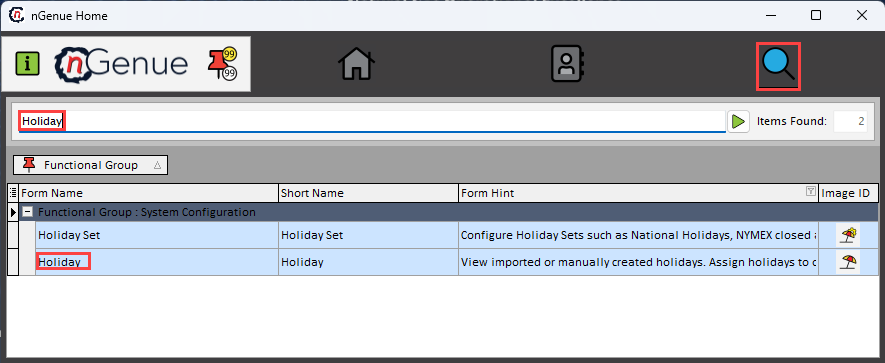
- Click the Search icon and enter Holiday in the search bar.
-
Double-click the Holiday from the search results to open respective screen.
-
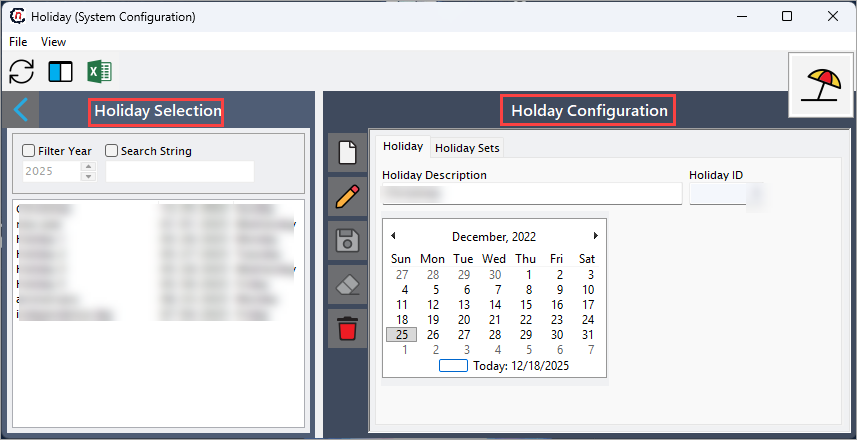
The Holiday screen contains two main sections:
- Holiday selction: Displays a list of exsiting holidays.
-
Holiday configuration: Allows you to create, edit, save, and delete holiday records. This section includes two tabs:
- Holiday: Create and maintain individual holiday records.
- Holiday set: Assign and manage holidays within one or more holiday sets.
Step 2: Create a holiday
-
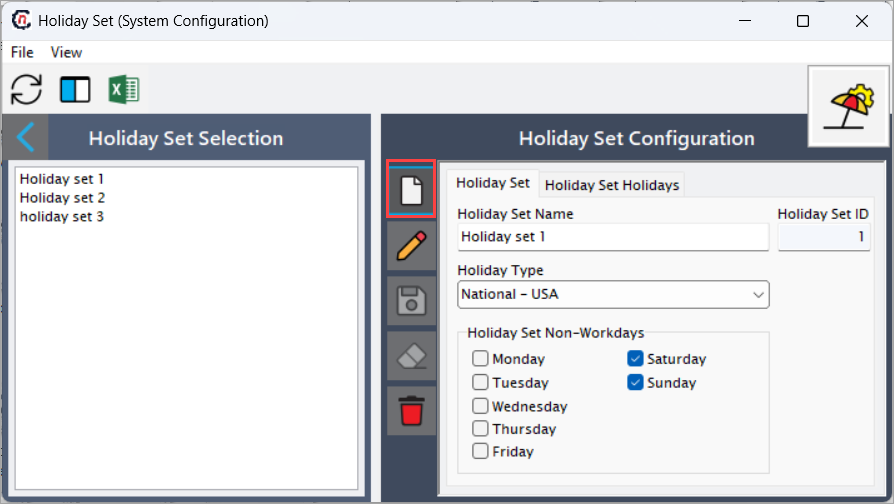
In the Holiday tab, click Add a record icon.
-
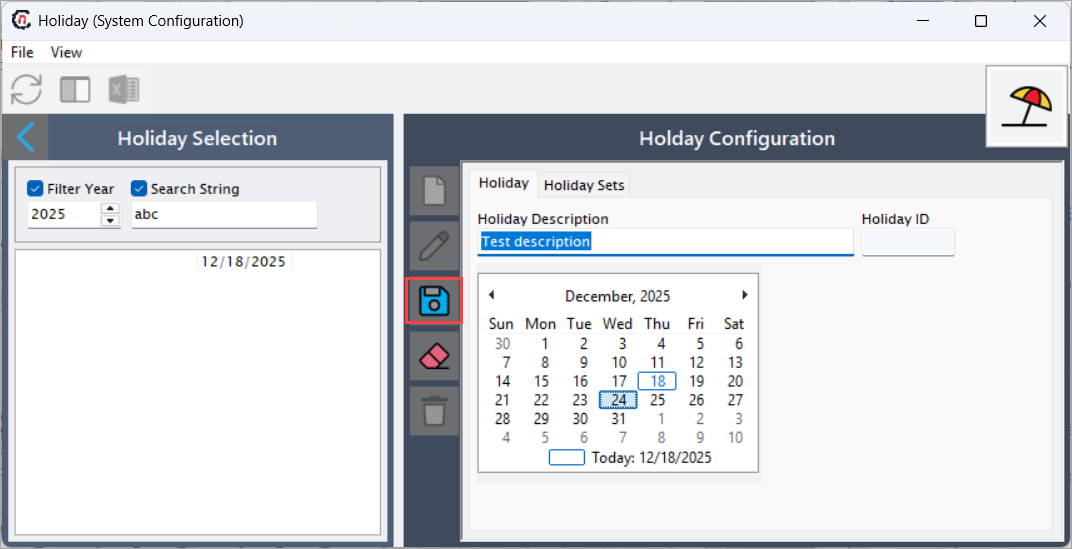
Enter the required details:
- Holiday description: Enter a clear and descriptive name for the holiday (for example, Independence Day or Company Foundation Day).
- HOliday ID: Auto-generated unique identifier used by the system for tracking and reference.
-
Select the holiday date and click Save changes to current to create the new holiday record.
Step 3: Mange holiday sets
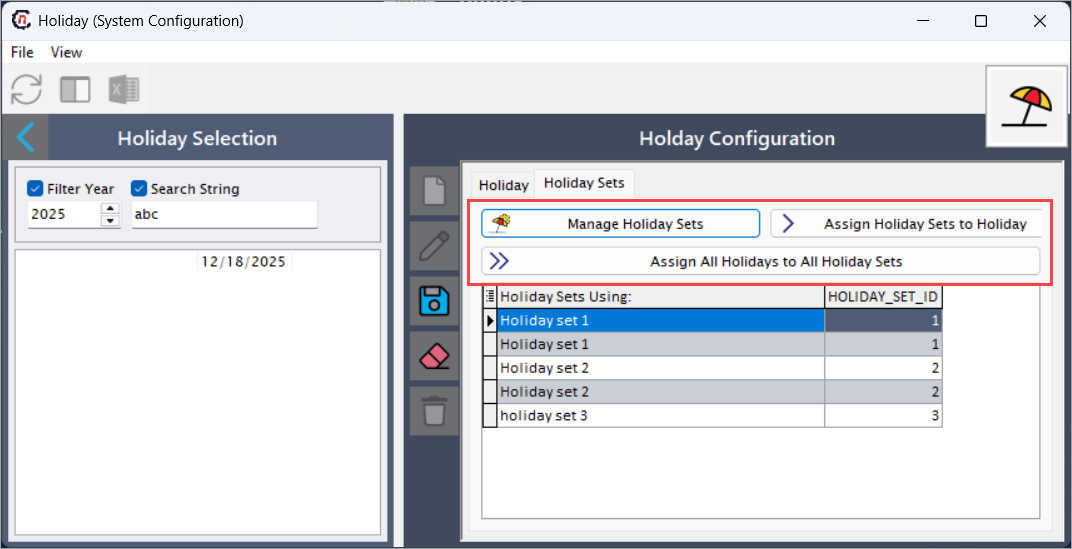
- Open the Holiday set tab.
- Click Manage holiday sets to navigate to the Holiday set screen. For detailed steps, refer to the Holiday set documentation.
-
Assign holidays to holiday sets:
- Click Assign holiday sets to holiday to assign a single holiday to selected holiday sets.
- Click Assign all holidays to all holiday sets to assign all holidays at once.
Summary
The Holiday feature in nGenue allows organizations to define individual holidays and associate them with holiday sets. By configuring holidays and assigning them to the appropriate holiday sets, businesses ensure accurate business calendars, consistent non-working day handling, and reliable scheduling across system operations and workflows.