Calculate commissions
The Calculate commissions screen allows users to compute commissions for sales representatives and consultants based on energy sales transactions, meter reads, or delivery data. Commissions represent the amount payable to sales agents as compensation for facilitating retail or wholesale energy sales.
They are typically calculated periodically (monthly) and directly impact billing and accounting by determining the payable amounts to respective agents. Once calculated, commission records are reflected in reports and can be integrated into financial systems for payment processing.
Prerequisites
Before working on the Calculate commissions screen, ensure the following prerequisites are met:
- Ensure the nGenue application is installed and use valid login credentials to log into the application.
- User permissions: Configure the user permissions including User type, Security user, Security group, Security assign user, and Security assign permissions in their respective screens to enable access to the Calculate commissions screen.
- Ensure the Local Distribution Company (LDC), Pool, End user, Sales rep from the LDC configuration screen, Retail consultant must be configured.
- Relevant Billing and Invoices must be generated.
- Ensure that Sales commission parameters and commission rules are properly configured.
Procedure to calculate commissions
Step 1: Navigate to Calculate commissions screen
- Log in to the nGenue application.
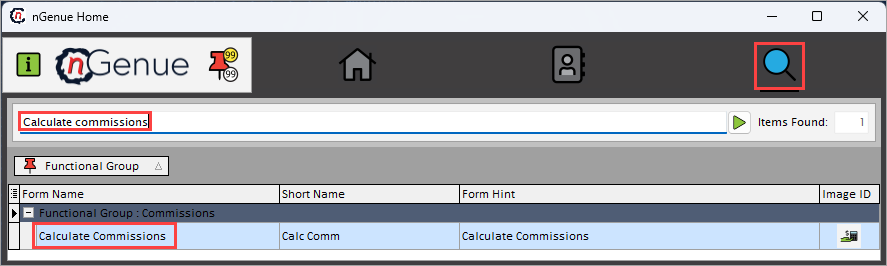
- Click the Search icon and enter Calculate commissions in the search bar.
-
Double-click Calculate commissions to open the respective screen.
Step 2: Configure commission parameters
-
In the Calculate commissions screen, enable and select the following fields before performing the calculation:
Fields Description Delivery month and year or Meter reads ending between Specify the time period for which commissions are calculated and to include only deals or meter reads within the specified billing cycle. LDC Select the Local Distribution Company (LDC) to filter commissions tied to sales transactions associated with that LDC. Pool Select the pool to narrow down commission calculations to a particular operational pool. End users (Active only) Select the end user to limit commission calculations to currently active customers. Sales rep Select the sales representative to filter commissions for specific sales representatives. Retail consultant Select the retail to filter commissions for specific consultant which enables consultant-specific commission tracking and reporting. 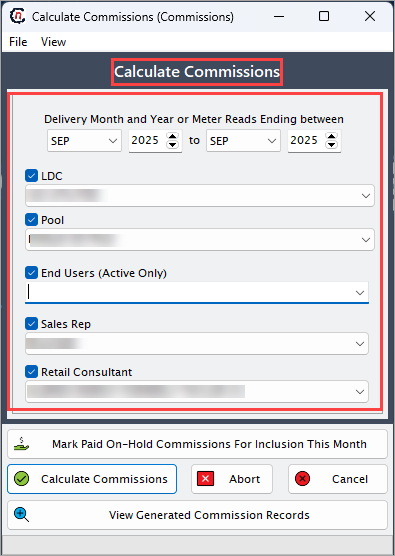
Step 3: Manage on-hold commissions
-
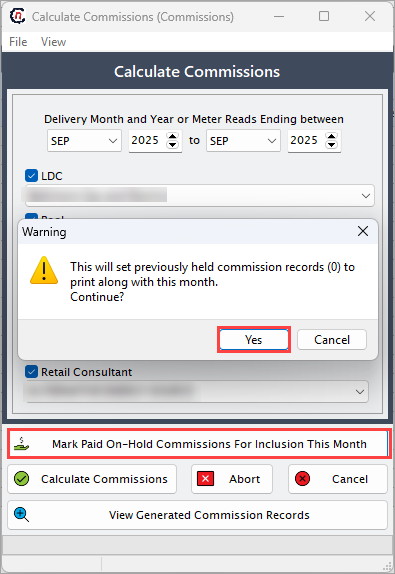
Click Mark paid on-hold commissions for inclusion this month to include any previously held commission records in the current month’s calculation.
-
Click Yes to confirm inclusion of these on-hold commissions.
-
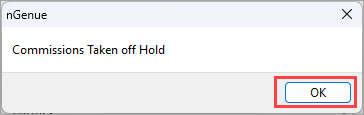
Click Ok in the confirmation dialog box to proceed.
-
Step 4: Execute commission calculation
-
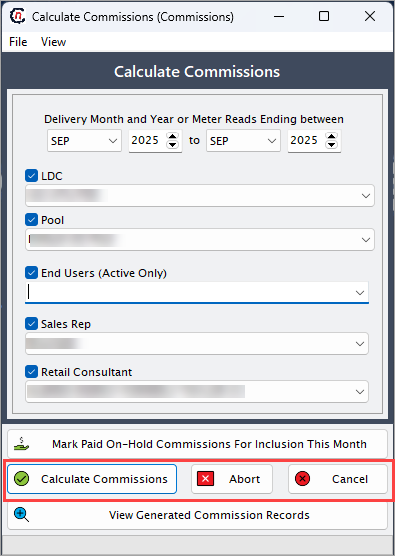
Click Calculate commissions to apply the selected filters and compute the commissions.
- Click Abort to discard the selected filters and stop the calculation.
-
Click Cancel to close the screen without saving any changes.
Step 5: View and verify commission records
-
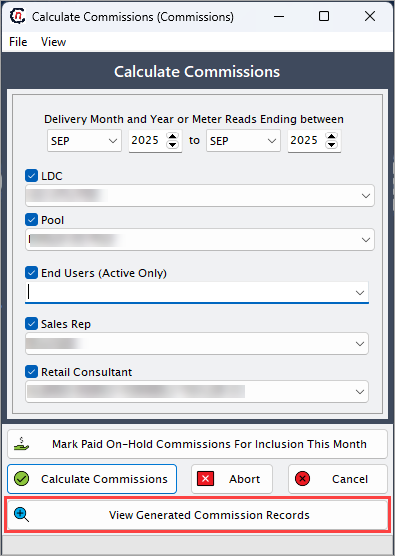
Click View generated commission records to review the calculated commission details in the View commission details (commission) screen.
Summary
The Calculate commissions screen enables accurate and automated computation of commissions based on predefined parameters, sales data, and time periods. It ensures that all eligible sales representatives and consultants are compensated correctly while maintaining consistency across billing and accounting systems. By managing on-hold commissions, this process provides flexibility and transparency in commission management.