Create new end user wizard
The New end user wizard/End user snapshot screen simplifies the process of creating and configuring a new end user record within the nGenue system. This wizard allows you to enter customer details, set up contract information, define pricing, and activate the end user in one guided workflow. It ensures all required configurations are completed for seamless onboarding and activation.
Prerequisites
Before configuring the New customer wizard screen, ensure the following prerequisites are met:
- Ensure the nGenue application is installed and use valid login credentials to log into the application.
- User permissions: Configure the security settings including User type, Security user, Security group, Security assign user, and Security assign permissions on their respective screens. This ensures you have the required access and permissions to perform actions on the New customer wizard screen.
- LDC: The relevant LDC must be configured and available in the system.
- LDC pool: The applicable LDC pool must be created and associated with the LDC.
- LDC rate configuration: The required rate rider configurations must be defined and available for selection.
Procedure to create a new end user wizard
Step 1: Navigate to the New customer wizard screen
Access the New customer wizard screen in either of the following ways:
-
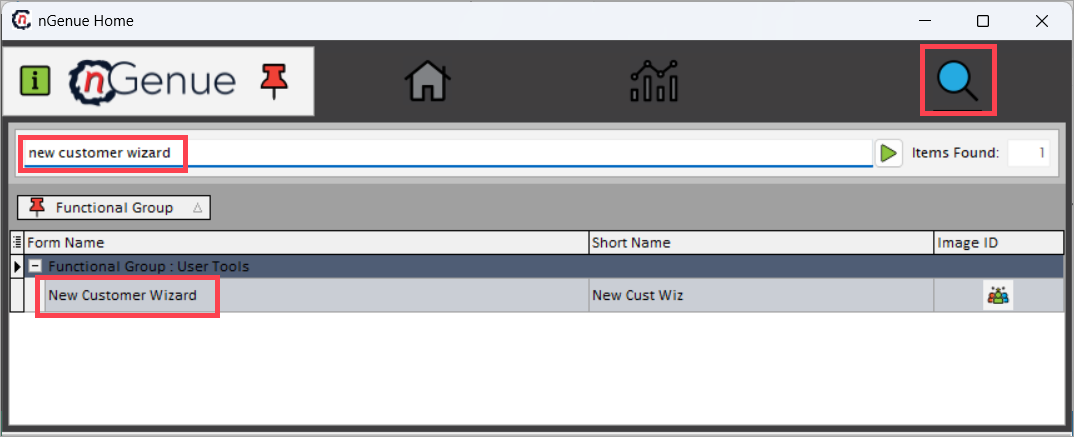
Search for new customer wizard from the nGenue homepage and double-click on the New customer wizard to open respective screen.
-
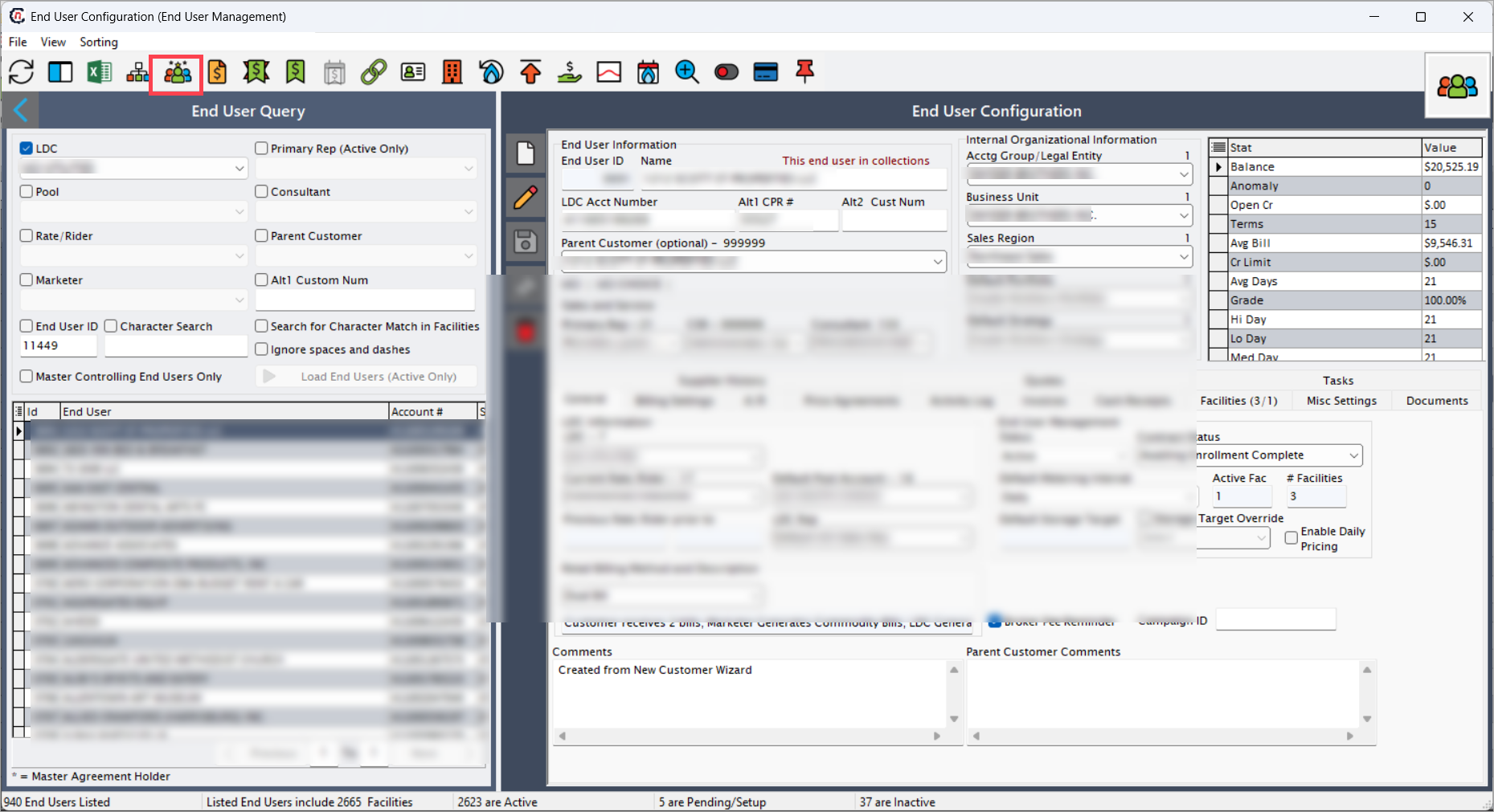
Navigate to the End user screen, and select the end user from End user query section then click the End user snapshot icon to open the New customer wizard screen.
Step 2: Create a new end user record
- Click the Add a new end user record icon.
-
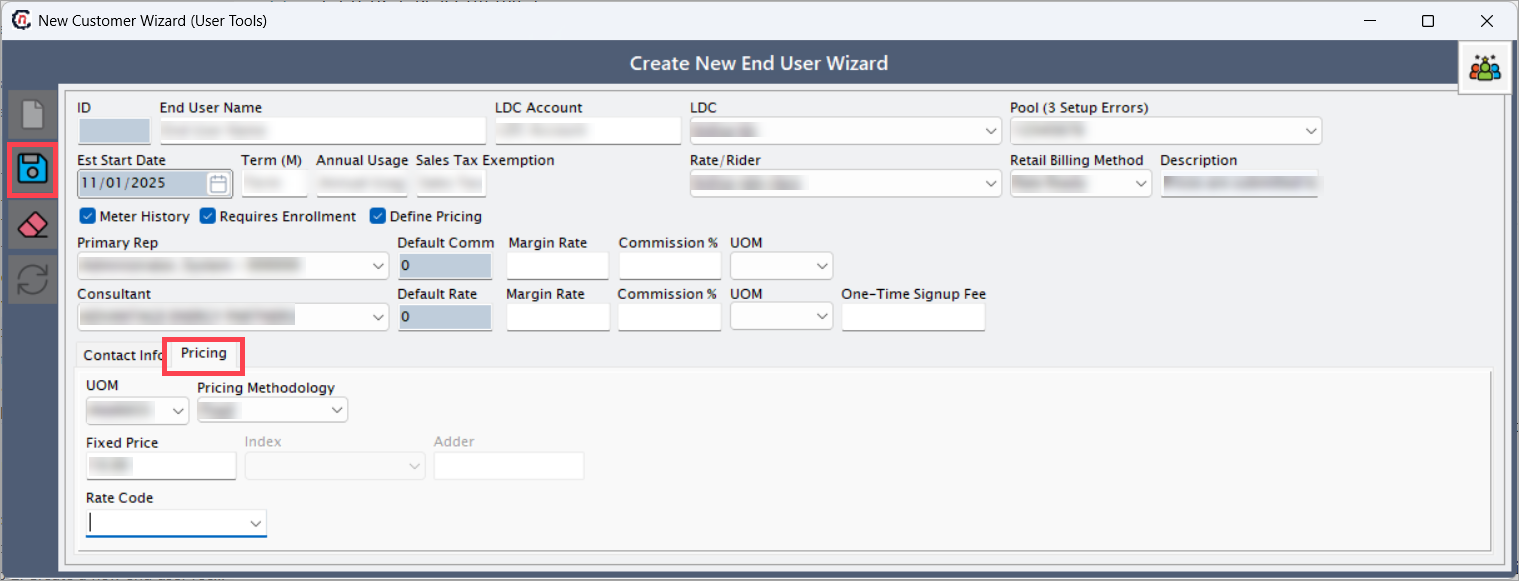
Enter the customer contract details in the fields provided:
Field Description ID Automatically generated by the system. End user name Enter the name of the end user. LDC account Enter the LDC account number. LDC Select the LDC from the dropdown list. Pool Select the LDC pool from the dropdown. Rate/Rider Select the applicable rate or rider from the dropdown. Retail billing method Select the retail billing method for the end user. Description Enter a short description of the end user or contract. Est. start date Select the estimated start date for the contract. Term Enter the contract term in months. Annual usage Enter the expected annual usage volume. Sales tax exemption Enter the applicable sales tax exemption percentage (enter 0 if not exempt). Meter history When selected, imports previous meter data for historical tracking. Requires enrollment When selected, flags the end user for enrollment processing. Define pricing When selected, enables the Pricing tab to define rate and cost details. Primary rep Select the internal sales representative. Consultant Select the external consultant, if applicable. Default comm Displays or defines the default commission setting. Default rate Displays or defines the default rate for the end user. Margin rate Enter the applicable margin rate. Commission % Enter the commission percentage. UOM Select the unit of measure from the dropdown list. One-time signup fee Enter the one-time signup fee, if applicable. 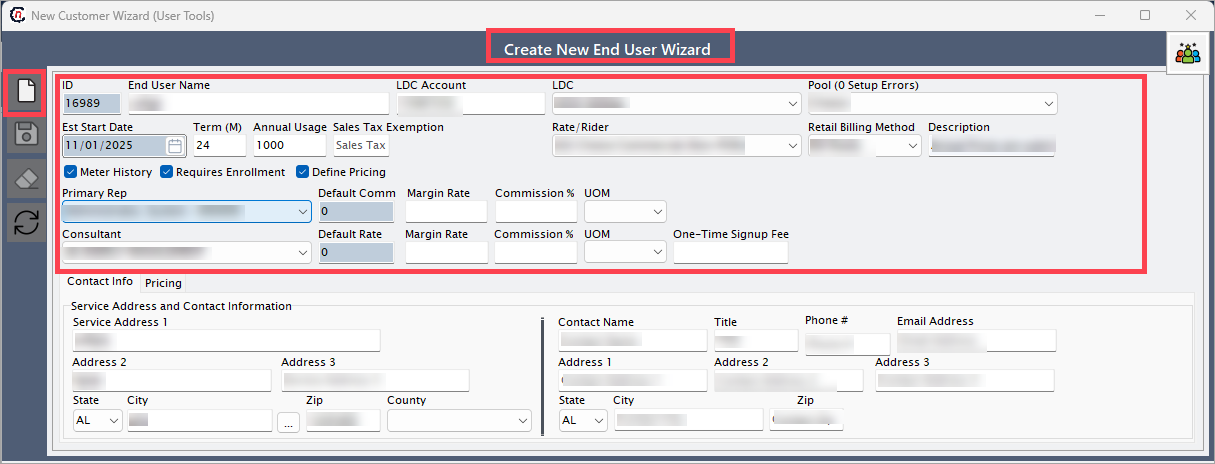
Contact information tab
Provide the end user’s contact and address details.
Field Description Service address 1 / 2 /3 Enter the service address details. If billing details differ from the service address, enter them separately in the billing fields. State/City/Zip/County Enter the location details. Contact name/Title Enter the contact person’s name and title. Phone/Email address Enter valid contact details for communication. 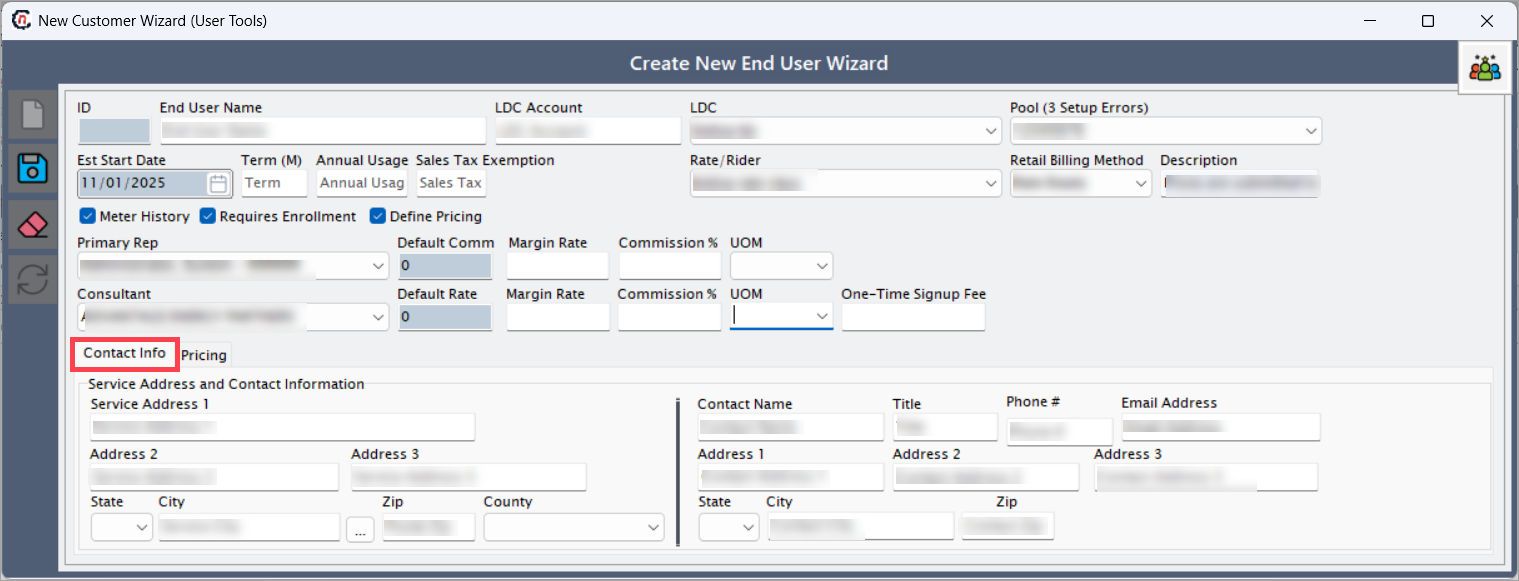
Pricing tab
When the Define pricing checkbox is selected, the Pricing tab becomes available.
Field Description UOM Select the appropriate unit of measure. Pricing methodology Choose from the dropdown:
1. Fixed: Enables the Fixed Price field for direct price entry.
2. Index: Enables the Index and Adder fields for indexed rate setup.Rate code Select the applicable rate code (if available). -
Click Save current end user record. The saved record will appear in the Wizard results tab under the End user and facility configuration section, which is displayed after saving the record.
Step 3: Review the end user and facility configuration tabs
After saving, review the details displayed under each tab to verify configuration accuracy.
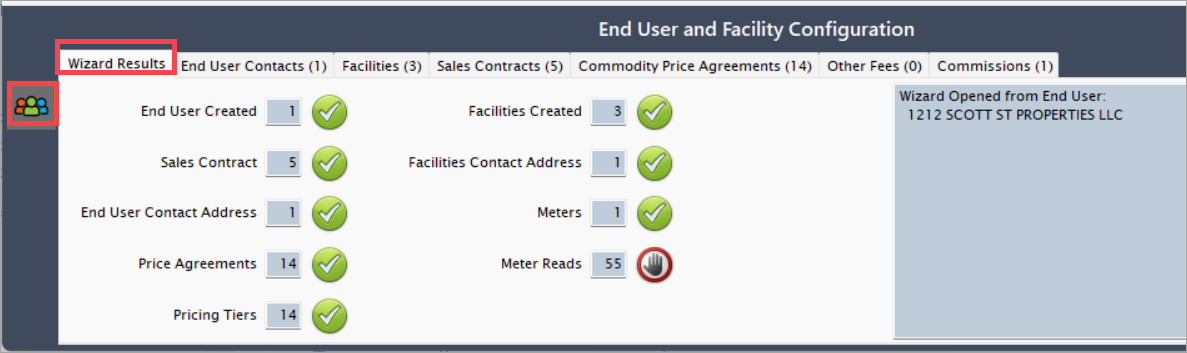
Wizard results tab
Displays validation status for each configuration step:
- A check mark (✓) indicates successful configuration.
- A cross mark (✕) indicates missing or incomplete setup.
You can click View end user to navigate directly to the End user screen.
End user contacts tab
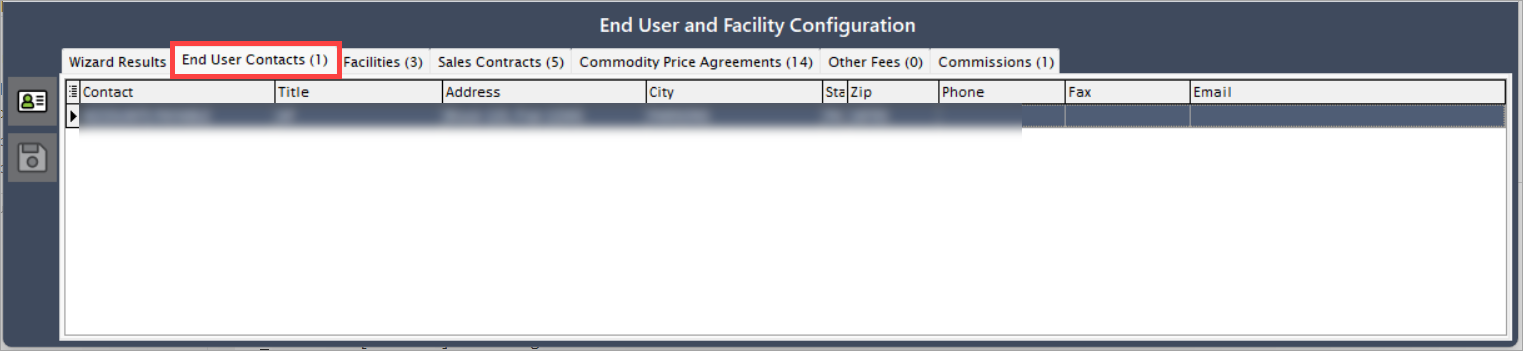
Displays contact details entered during the new end user setup. To edit or create additional contact records, click the Add new end user contacts icon. This action opens the End user address screen. Refer to the Add address article for step-by-step instructions.
Facilities tab
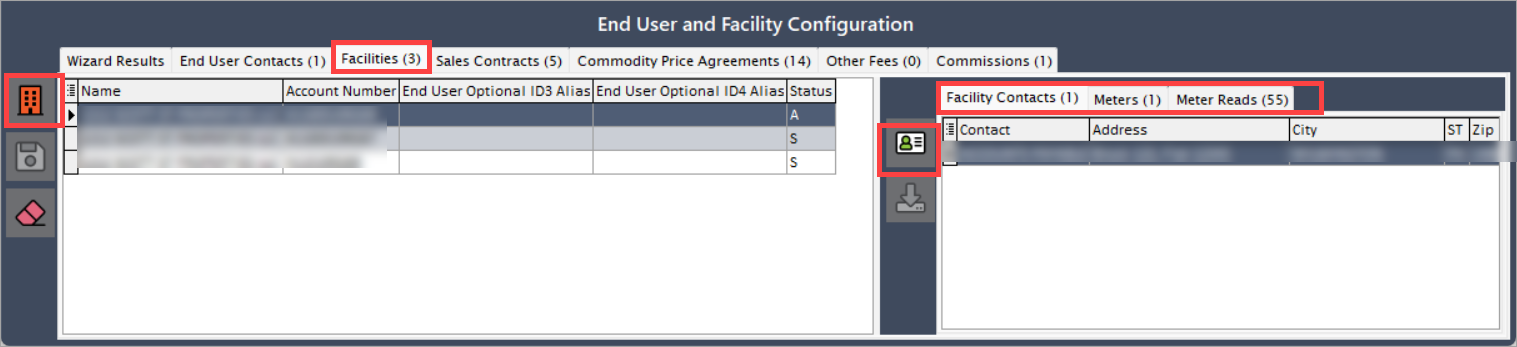
The Facilities tab contains three sub-tabs: Facility contacts, Meters, and Meter reads. Configure the facility contact details and click Save to update the Facility contacts. To learn how to configure meters and meter reads, refer to the Add facility article.
Sales contracts tab
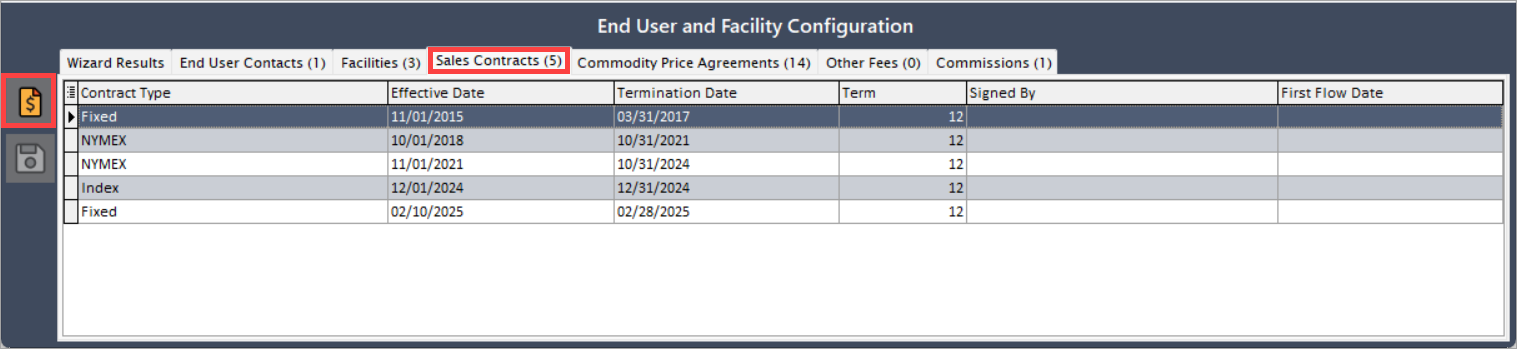
Displays the sales contract details configured during end user creation. To edit or create new sales contracts, click the Add new sales contract icon to open the Master sales contracts screen. Refer to the Add Sales Contract article for more information.
Commodity price agreements and other fees tabs
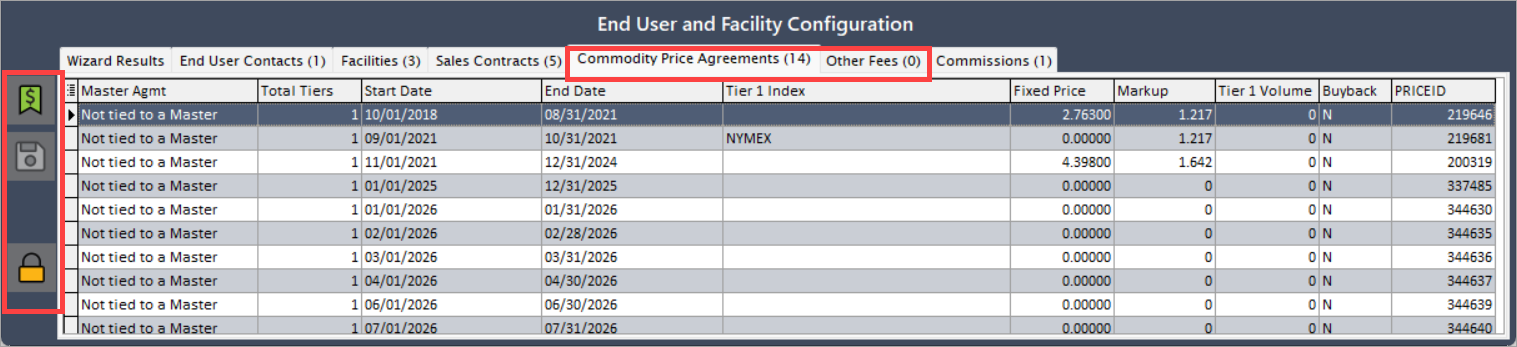
In these tabs, you can create price agreements and add other fees by clicking the Price agreement icon. You can also lock the price by clicking the Lock icon. To view detailed steps for creating price agreements and Lock, refer to the Add price agreement and Lock and liquidation article.
Commissions tab
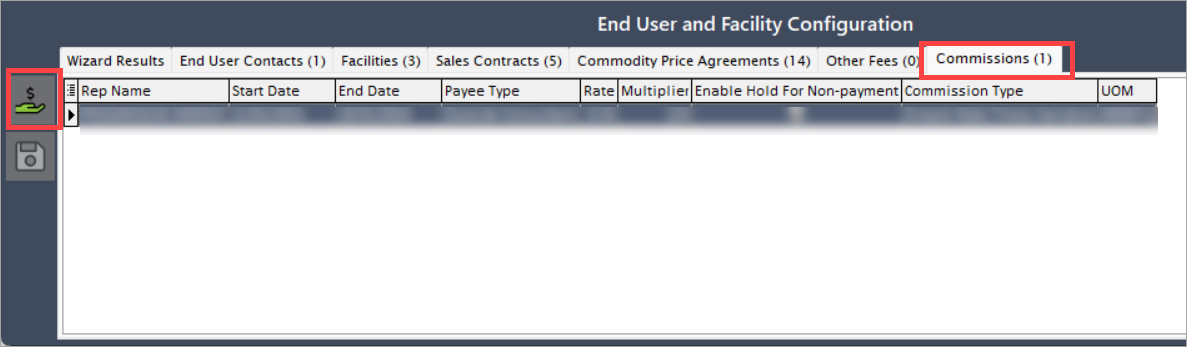
In the Commissions tab, create sales commissions by clicking the Add a new sales commissions icon. For detailed steps, refer to the Create sales commission article.
Summary
The New end user wizard provides a centralized and efficient process to create, configure, and activate new end users in nGenue. By following the guided workflow, you can ensure that all essential details such as customer information, facility data, pricing, and commissions are accurately set up before activation. This streamlined process ensures consistency and reduces errors in end user setup.