EDI imports
EDI imports is the process of uploading inbound EDI files received from Local Distribution Company (LDC). These files contain data such as enrollments, drops, meter reads, billing charges and related data. When utilities send new EDI files based on utility schedules, the end user status, usage, billing data and other related information will be updated in the system.
These files need to be imported to confirm enrollment and update status changes, usage, meter reads, billing and payment details. These files are imported to nGenue through EDI imports screen to ensure that the system stays synchronized with the utility's records.
Prerequisites
Before working on the EDI imports (EDI) screen, ensure the following prerequisites are met:
- Ensure the nGenue application is installed and use valid login credentials to log into the application.
- Configure the user permissions including User type, Security user, Security group, Security assign user, and Security assign permissions in their respective screens to enable access to the EDI imports (EDI) screen.
- Ensure LDC, Facilities, End user accounts are properly configured and active.
- EDI inbound folders must be configured, and must have permission to run import routines.
Procedure to manage EDI imports
- Log in to the nGenue application.
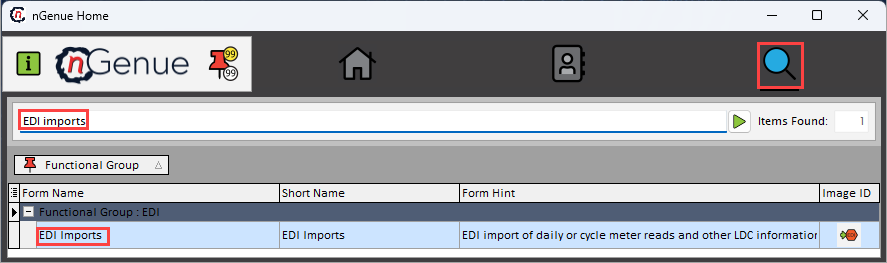
- Click the Search icon and enter EDI imports in the search bar.
-
Double-click the EDI imports from the search results to open respective screen.
-
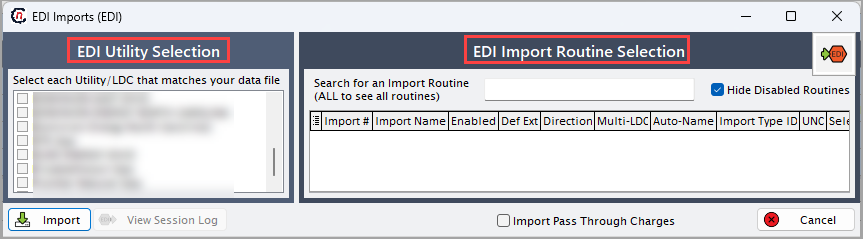
EDI imports (EDI) screen has two sections:
- EDI utility selection: Lists utilities/LDC associated with the inbound EDI files.
-
EDI import routine selection: Displays the list of available import routines.
-
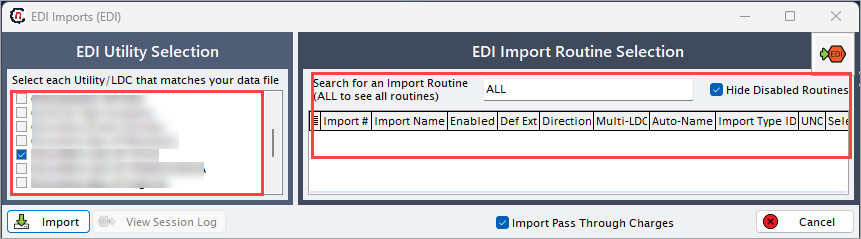
From the EDI utility selection section, select the utility/LDC for which files will be imported.
- Under EDI import routine selection section, in the Search for an import routine, enter the routine name or description to display related import routine. Enter All to see all import routines associated with the selected LDC. Select a file to import and follow the process system prompts.
-
Select Hide disabled routines checkbox to remove inactive routines from the list.
-
Following are the details of import routines provided in the column fields in the EDI import routine selection.
Fields Description Import # It is a system-assigned identifier for the import routine. Non-editable field. Import name Specifies the name of the import routine defining how inbound files are processed. Enabled Indicates whether the import routine is active and available for use. Def ext Specifies the default file extension expected for inbound files. Direction Specifies the direction (always “Import” for inbound files). Multi - LDC Indicates whether the routine supports multiple LDCs in a single import. Auto - name Specifies whether file naming rules automatically identify the inbound file. Long name Specifies the detailed descriptive name of the import routine. Import type ID Internal identifier linking this routine to an EDI transaction type. UNC Indicates whether the routine follows UNC formatting structures. Select folder Specifies the folder path where inbound files are picked up. UOM (Native) Specifies the system’s internal unit of measure. UOM (Import as) Specifies the unit of measure the file is converted to, during processing. -
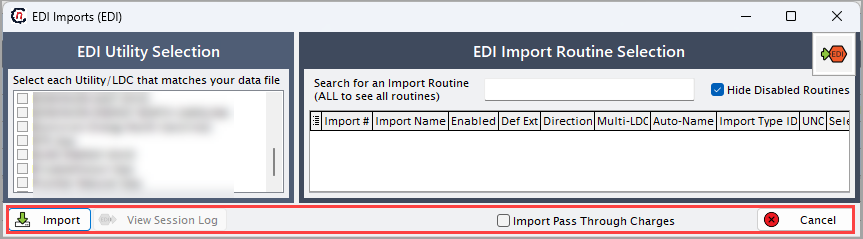
Select the import routine and click Import to process the inbound file.
- Select the Import pass through charges checkbox if utility charges in the file should be loaded into customer accounts.
- Click View session log to open the EDI session history for import results and error review.
-
Click Cancel to close the EDI imports screen.
Summary
EDI imports load inbound files from utilities, updating usage, billing. This ensures accurate synchronization with utility data and supports billing, enrollment, and operational accuracy. EDI imports maintain regulatory accuracy and prevent billing or enrollment errors.