Add a parent customer
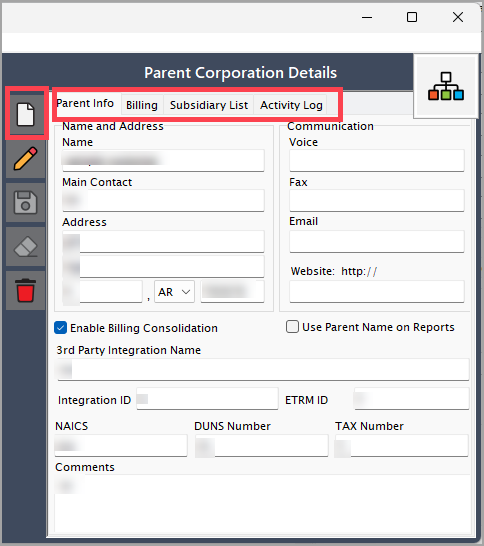
A Parent Customer is the primary account holder who owns a master contract with a supplier, utility, or pipeline. This account groups child customers such as end-users and their facilities under a single hierarchy. This structure enables consolidated or individual billing and ensures all pricing, volume commitments, and settlements roll up to the parent, which streamlines reporting, balancing, and invoicing. The Parent customer screen provides the following action icons for managing parent customer records:
| Icons | Description |
|---|---|
 |
Add a parent customer record. |
 |
Edit current parent customer. |
 |
Save changes to current parent customer. |
 |
Cancel changes to parent customer record. |
 |
Delete current parent customer record. |
Prerequisites
Before configuring the parent customer, ensure the following prerequisites are met:
- User permissions: You must configure the security settings including User type, Security user, Security group, Security assign user, and Security assign permissions in their respective screens to ensure you have the required access and permissions for Parent customer screen actions.
- LDC: The relevant Local Distribution Company (LDC) must exist within the application.
- LDC pool: An LDC pool must be configured to classify customers for efficient billing and distribution.
- LDC rate configuration: An LDC rate class must be defined to categorize customers and establish delivery terms.
- End user: Ensure end users are configured in the system before creating parent customer records.
Procedure to add a parent customer
Step 1: Navigate to the parent customer screen
-
Access this screen in one of two ways:
-
From the home screen: Click the Search icon and select parent customer.
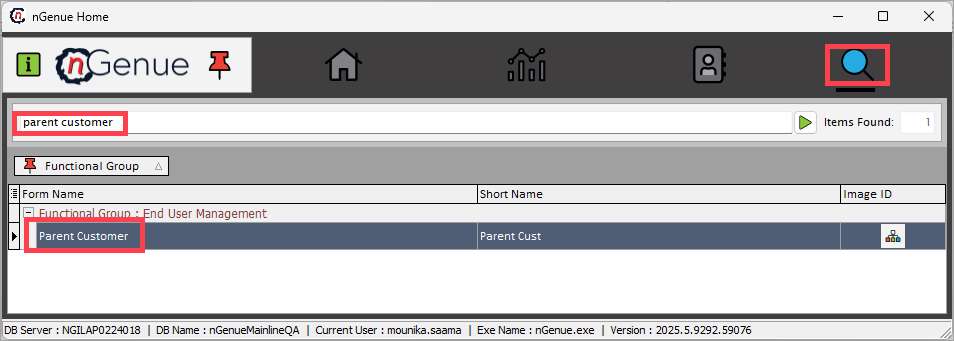
-
From the End user screen: Click the Parent customer icon in the top header.
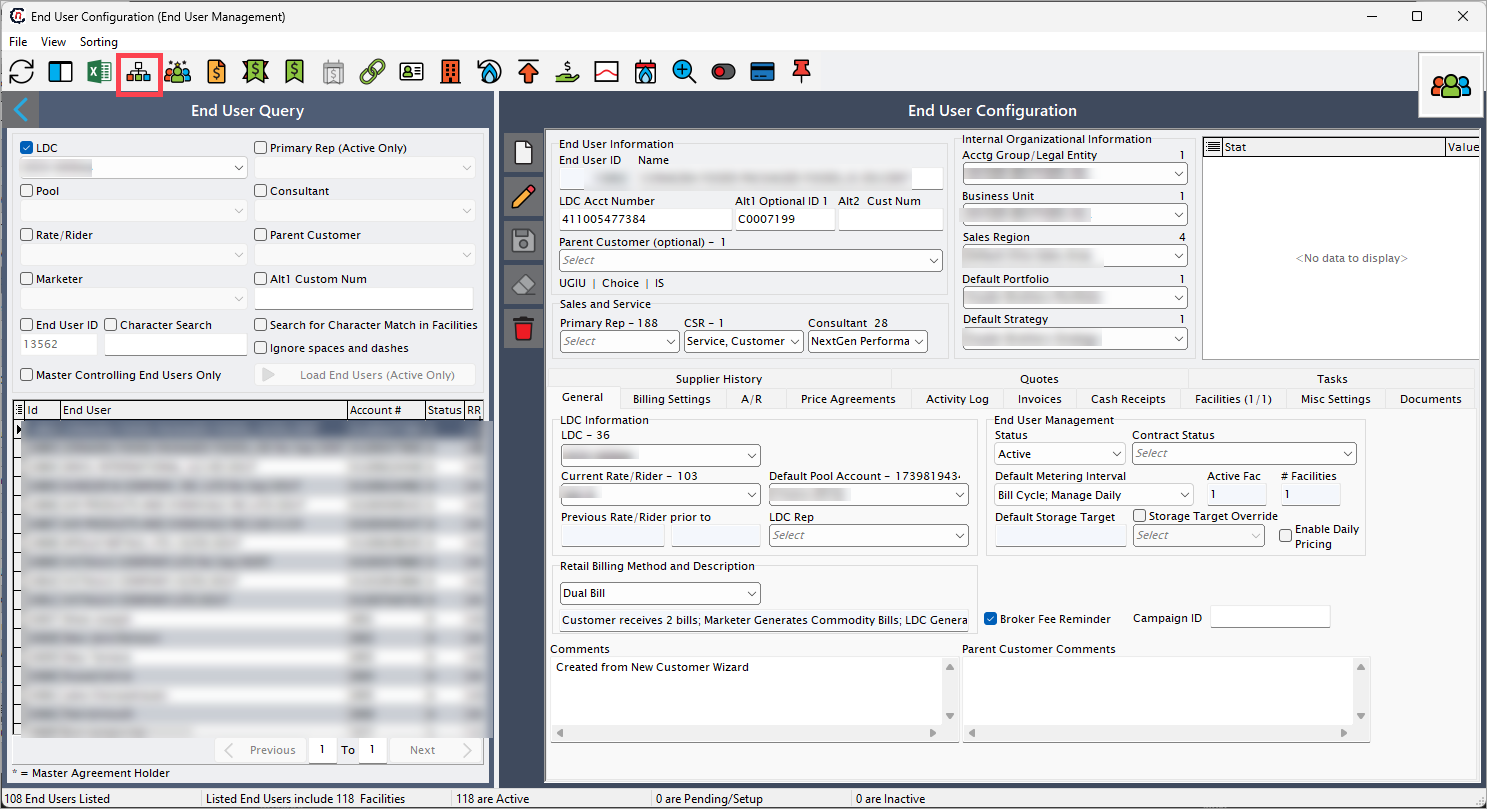
-
-
The Parent customer screen consists of two main sections:
- Parent corporation query: Search for existing parent customer records.
-
Parent corporation details: View and manage a specific parent customer's information, billing settings, subsidiaries, and activity history.
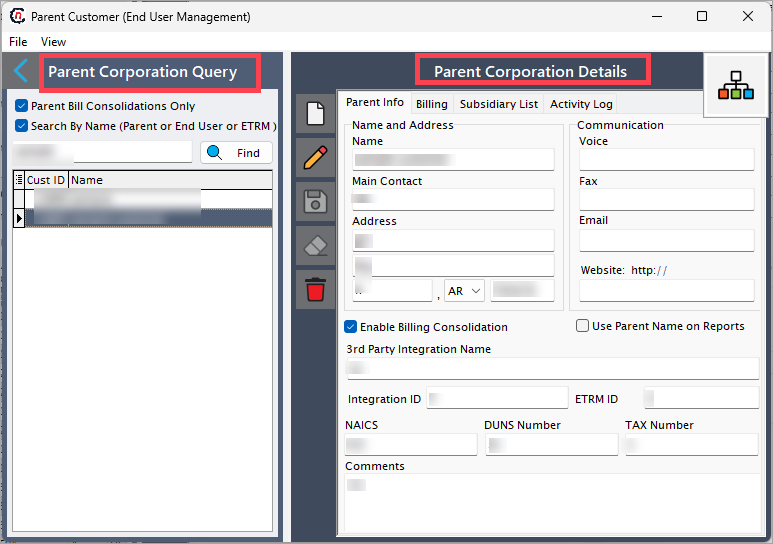
Parent corporation query
-
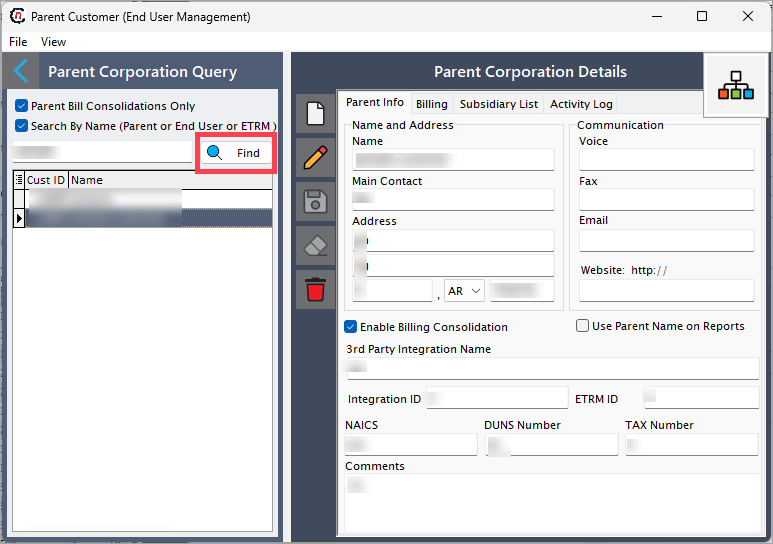
Use this section to search and filter the list of parent customers.
- Parent billing consolidation only: Check this box to display only parent records configured for consolidated billing.
- Search by name (parent or end user or ETRM): Check this box to enable search by name and then enter the search term in the text field.
-
After entering your search criteria, click Find to load the matching results.
Parent corporation details
This section allows you to add, edit, or delete a parent customer record.
Step 2: Create a new parent customer record
- Click the Add a parent customer record icon to open a new entry form.
-
This section contains the four tabs: 1. Parent info, 2. Billing, 3. Subsidiary list, and 4. Activity log.
1. Parent info tab
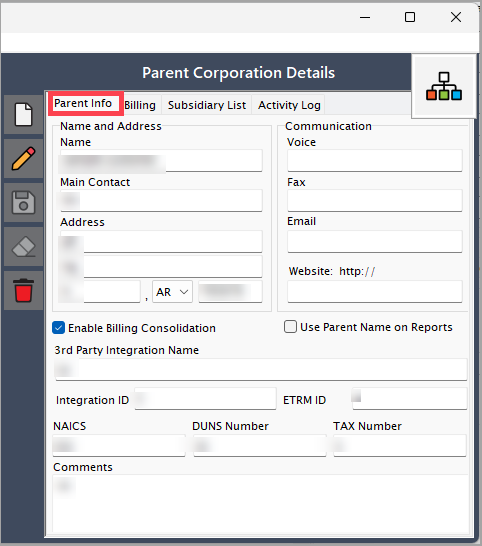
Parent info tab stores the key details for the parent customer. Configure the following required fields:
| Fields | Description |
|---|---|
| Name | Enter the legal or trading name. |
| Main contact | Enter the name and role of the primary contact person. |
| Address | Enter the complete mailing or billing address. |
| Voice/Fax/Email | Enter all relevant contact details. |
| Website (optional) | Enter the website URL . |
| Enable billing consolidation | Selecting this checkbox enables the Billing tab and automatically sets billing format and detail level for all associated end users. If disabled later, triggers validation to revert end user billing formats. |
| Use parent name on reports | Displays the parent's name on reports instead of individual subsidiary names. |
| 3rd Party integration name/Integration ID/ETRM ID | Provide relevant integration details. |
| NAICS/DUNS number/Tax number | Enter appropriate business identifiers. |
| Comments | Add free-text notes. |
2. Billing tab
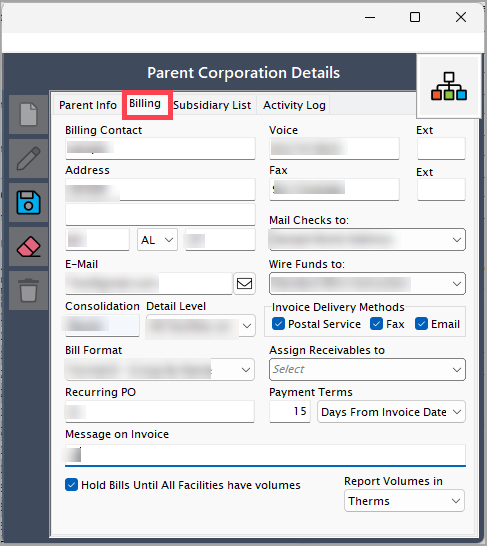
Billing tab becomes enabled when you select Enable billing consolidation in the Parent info tab. Configure the following required fields:
| Fields | Description |
|---|---|
| Name | The name of the billing entity. |
| Billing contact | Enter the billing contact person. |
| Address | Enter the address for billing purposes. |
| Enter the email address for billing communications. | |
| Voice | Enter the voice number for the billing department. |
| Fax | Enter the fax number for the billing department. |
| Mail checks to | Select the recipient for mailed checks from the dropdown. |
| Wire funds to | Select the account for wire transfers from the dropdown. |
| Consolidation | Auto-fetches from the parent-level setting. |
| Detail level | Select the level of detail for billing from the dropdown. |
| Invoice delivery methods | • Postal service: System prints and mails paper invoice. • Fax: System automatically faxes invoice. • Email: System automatically emails invoice. |
| Bill format | Select the preferred invoice template from the dropdown. |
| Assign receivables to | Select the entity responsible for receivables from the dropdown. |
| Recurring PO | Enter the recurring purchase order number. |
| Payment terms | • Days from invoice date: Due date calculates as days after invoice date. • Day of each month: Due date is fixed day of month. |
| Message on invoice | Enter a custom message to print on the invoice. |
| Hold bills until all facilities have volumes | Delays billing until volume data is received for all associated facilities. |
| Report volumes in | Select the unit of measurement for volumes from the dropdown. |
3. Subsidiary list tab
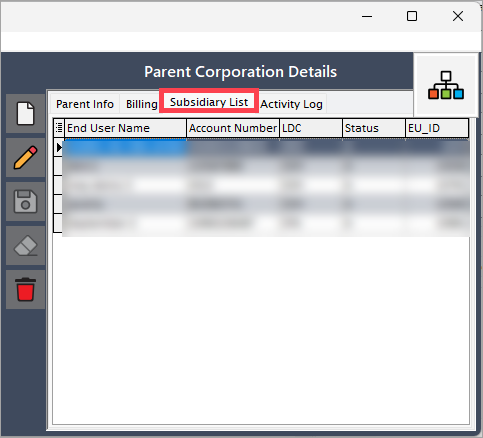
The following information is displayed for each subsidiary in the Subsidiary list tab:
| Fields | Description |
|---|---|
| End user name | The legal or trading name of the end user. |
| Account number | The unique account identifier. |
| LDC | The Local Distribution Company (LDC). |
| Status | The current state (active, inactive, pending). |
| EU ID | The system-generated unique ID for the end user. |
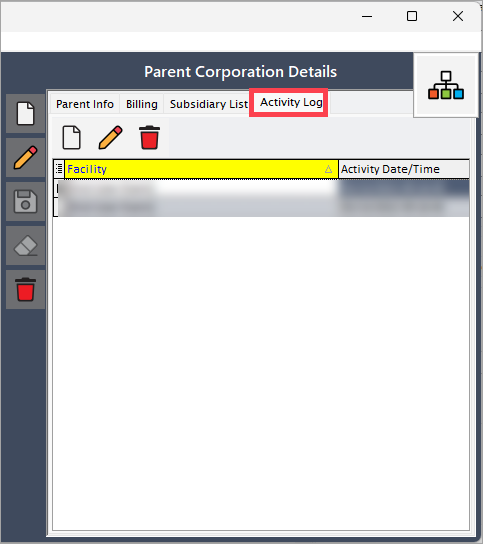
4. Activity log tab
Activity log tab displays a history of all changes and actions performed on the parent customer record. You can create, edit, and delete entries in the activity log. For more detailed information, refer to the Activity log article.
Step 4: Save the record
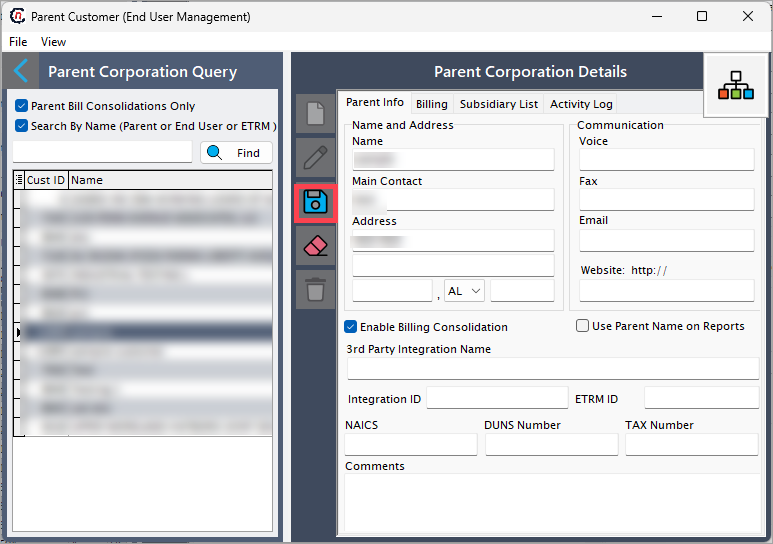
- Click Save changes to current parent customer to save the record.
-
Click Cancel changes to parent customer record to abort changes.
Summary
Adding a parent customer links multiple end-user accounts under a single corporate entity. This setup consolidates billing, centralizes contact management, and unifies reporting. It ensures consistent application of credit, tax, and integration settings across all subsidiaries. With proper configuration, administrators benefit from automated analytics, seamless third-party integrations, and scalable billing as the organization expands.