Create a cash deal
This guide shows how to add and manage a Cash deal using a step-by-step scenario. Follow the instructions to complete the process efficiently.
Step 1: Navigate to the Deal Management section
- Log in to the nGenue application.
- Click the Search icon and enter deal management in the search bar.
-
Select Deal management.
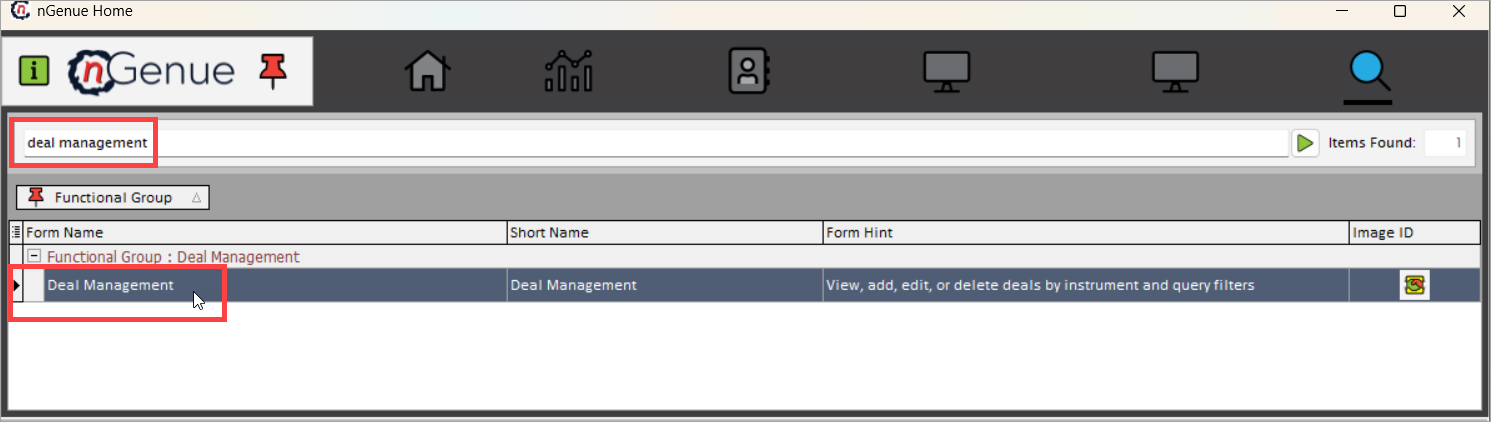
-
The next screen is divided into two sections: Deal query and Deal details. For detailed information and a list of fields available in both sections, refer to the navigating deal management screen article.
Step 2: Create a new cash deal
-
Click on Add Cash Deal or use the (Alt+C) keyboard shortcut.
-
You'll be navigated to the Cash Deal Capture screen, where you need to fill in the details as mentioned in the table below:

#### Transaction information fields

| Fields | Description |
|---|---|
| Instrument | Defines the type of deal being created. In this case, Physical NG (Natural Gas) is selected as it involves the physical delivery of natural gas. Selecting the correct instrument ensures the deal is processed under the appropriate market rules and contract terms. |
| Start date and End date | Defines the duration of the deal. The start date indicates when the deal becomes active, and the end date marks its expiration. Setting the correct date range ensures that contractual obligations, pricing periods, and gas deliveries align correctly. |
| Description | A brief summary or identifier for the deal. Helps users quickly understand the nature, purpose, or special conditions of the deal. Typically includes relevant details like deal type, counterparty, or special pricing conditions. |
| Trade Date | The date when the deal was executed. Important for historical tracking, regulatory reporting, and risk assessment. Trade dates impact financial reporting, as well as compliance with market regulations. |
| Int Ref ID | An internal reference ID used within nGenue for tracking and linking deals across different modules. Helps in ensuring data consistency across deal management and financial reporting. |
| Deal Source | Specifies how the deal was created (e.g., manually entered, imported from an external system, or generated via an API). Helps in data validation and troubleshooting by tracking deal origins. |
| Updated By | The user who last modified the deal. Ensures accountability by tracking changes made by different users. Useful in audits and internal reviews. |
| Date/Time Created | The timestamp when the deal was initially created. Used for tracking deal history, financial reporting, and auditing purposes. |
| Created By | The user who originally created the deal. Important for audit trails and compliance reporting, ensuring transparency in deal creation. |
| Date/Time Updated | The timestamp of the last modification made to the deal. Useful for audit tracking and version control, ensuring transparency in deal modifications. |
#### Counterparty configuration fields

| Fields | Description |
|---|---|
| Counterparty | The entity (supplier or customer) with whom the deal is being made. This could be a wholesale supplier, marketer, or retail customer. Correct selection ensures accurate contract execution, billing, and risk management. |
| Legal Entity | The registered business entity of the counterparty. Some counterparties operate under multiple legal entities, so selecting the correct one ensures compliance with contracts and legal requirements. |
| Business Unit | The internal division of the company managing this deal. Different business units handle wholesale, retail, or trading operations. Proper selection ensures accounting and reporting accuracy. |
| Contact | The point of contact for the selected counterparty. This information is useful for communication regarding contract negotiations, scheduling, and issue resolution. |
| Agreement | The contract governing the deal. Specifies the terms and conditions, pricing structures, penalties, and obligations between the supplier and buyer. Ensures compliance and minimizes disputes. |
#### Report groupings fields

| Fields | Description |
|---|---|
| Legal Entity | The company division responsible for the deal. This helps in financial reporting, compliance, and taxation. |
| Business Unit | The internal business segment handling the transaction. Used for operational control and profit/loss allocation. |
| Portfolio/Book | The portfolio or trading book where the deal is recorded. This is important for risk management and financial analysis. |
| Strategy | Categorizes the deal based on the company's market strategy, such as hedging, speculative trading, or customer supply. Helps in risk assessment and profitability tracking. |
Step 3: Saving the deal
Once all mandatory fields are filled, click Save to finalize the deal. This ensures that all details are stored and processed correctly. You will navigate to the Fees tab where a concise overview of the deal is displayed.

Additional tabs in the Cash Deal Capture screen
The Cash Deal Capture screen provides multiple tabs, each serving a specific function to manage, review, and analyze a Cash Deal effectively. Below is a detailed explanation of each tab and its functionality.
1. Fees tab
This tab allows users to add and manage various deal-related fees. Click add a new deal expense to configure fees.
| Fields | Description |
|---|---|
| Pay Receive | Indicates whether the fee is a pay or receive type. |
| Fee Type | Includes broker fee, demand, sleeve, transfer, fuel loss, margin, nom mgmt, AMA opt, pipe fee, premium. |
| Calc Period | Specifies the calculation period for the fee (daily, monthly, or one-time). |
| Calc Method | Defines whether the fee is calculated based on volume or as a flat amount. |
| Per Unit Price | Editable when volume-based calculation is selected; specifies price per unit volume. |
| Amount | Editable when flat calculation is selected; displays or allows manual entry of the total fee amount. |
| Description | Describes the fees applied to the deal or transaction. |
| Start Dt | Indicates the date on which the contract or delivery period begins. |
| End Dt | Indicates the date on which the contract or delivery period concludes. |
| Updated By | The user who last modified the deal. Ensures accountability by tracking changes made by different users. Useful in audits and internal reviews. |

Summary
| Calc period | Calc method | Supported | Functionality overview |
|---|---|---|---|
| Monthly | Volume | ✅ | Fee = volume × price; settlement based on flow month volumes. |
| Monthly | Flat | ✅ | Flat amount applied; settlement as amount × fee date range (months). |
| Daily | Volume | ✅ | Daily volume-based fee applied and displayed; monthly settlement based on flow month. |
| One time | Flat | ✅ | One-time flat fee; settlement includes fee if flow month falls in date range. |
| Daily | Flat | ❌ | Not supported. |
| One time | Volume | ❌ | Not supported. |
2. Comments tab
This tab allows users to add any additional remarks or important notes regarding the deal for reference and audit purposes.
3. Documents tab
This tab allows users to attach documents related to the deal. Click add new end user document to navigate to the store customer document screen. Users can provide document description, document category, and original file name for record keeping.


4. Trader Intent tab
This tab captures the trader’s reasoning or strategy behind executing the deal. It is useful for audit trails and business insights, helping management and risk teams understand deal objectives and context.

11. Activity Log tab
The Deal activity log tab provides a complete audit trail of changes made to deals, including the user who made each change and the exact date and time it occurred.

| Fields | Description |
|---|---|
| Date range | Allows the user to specify start and end dates to filter activity logs. |
| Deal Id | Unique identifier for the deal. |
| Instrument | Type of financial asset or commodity. |
| Trader | User who executed the deal. |
| Initial data | Original deal data before changes. |
Next steps
After the deal is created, the following post-deal activities are required to ensure proper execution, compliance, and tracking.
-
Pricing configuration
- Setting up a physical pricing for the deal:
- Set up pricing components for transportation or delivery services.
- Configure any applicable surcharges or adjustments based on market conditions.
- Setting up a physical pricing for the deal:
-
Nominations and scheduling
-
- Allocate volumes to the chosen pipeline paths or storage facilities as per the deal terms.
- Ensure nominations comply with pipeline rules and available capacity.
-
- Coordinate with counterparties and pipeline operators to set up the delivery timelines.
- Update and track the schedules within nGenue for real-time monitoring.
-
By following this procedure, deals are created, executed, and monitored efficiently in nGenue, with proper post-deal activities ensuring smooth operations and compliance.