Daily price agreement
The Daily price agreement lets you set a one-day, customer-specific price without altering the long-term contract-ideal for sudden market changes or short-term promotions. It differs from a price agreement, which locks in fixed or tiered rates for an extended period, and from a master agreement, which defines the overall commercial relationship and legal terms, the daily price agreement serves as a short-term override that takes priority on the specified date. When a daily agreement is active, the billing system automatically applies that rate to all transactions for that day, ensuring invoices match the agreed price and keeping the end-user experience clear and predictable.
The table below describes the available icons and their functions:
| Icons | Icons name |
|---|---|
 |
Add a price agreement record |
 |
Edit current price agreement |
 |
Save changes to current price agreement |
 |
Cancel changes to price agreement record |
 |
Delete current price agreement record |
 |
Lock on a fixed price |
Prerequisites
Before configuring a Daily price agreement screen, ensure the following prerequisites are met:
- User permissions: You must configure the security settings including User type, Security user, Security group, Security assign user, and Security assign permissions in their respective screens to ensure you have the required access and permissions for Daily price agreement screen actions.
- LDC: Create the relevant LDC in the application.
- End user: Configure the end user in the system before adding price agreement.
- Facility: Add the facility in the system to link it with the end user.
Procedure to configure daily price agreement
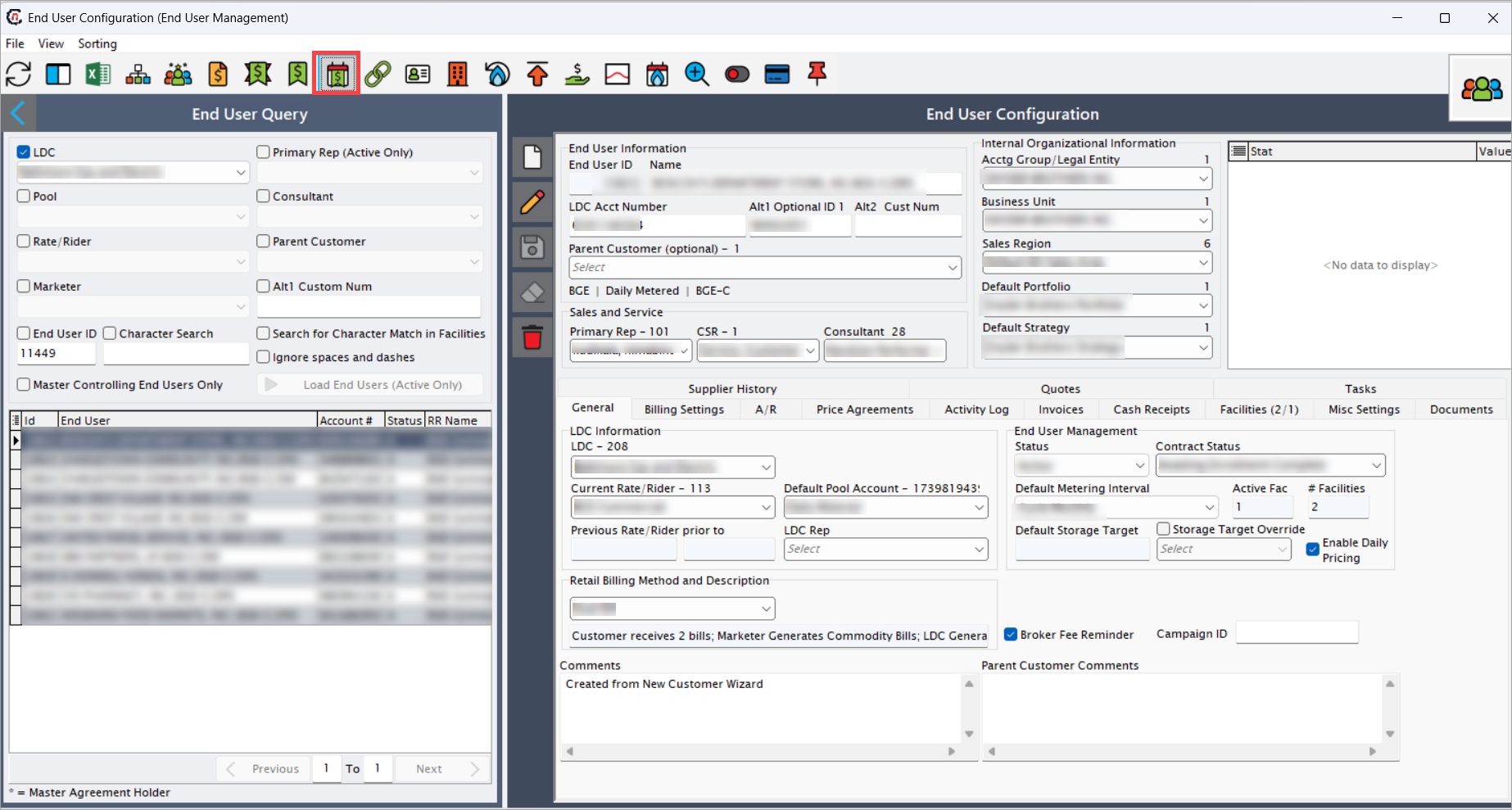
Step 1: Navigate to Daily price agreement screen
- Navigate to the End user screen.
- Click Daily pricing agreement icon in the top header to open respective screen.
-
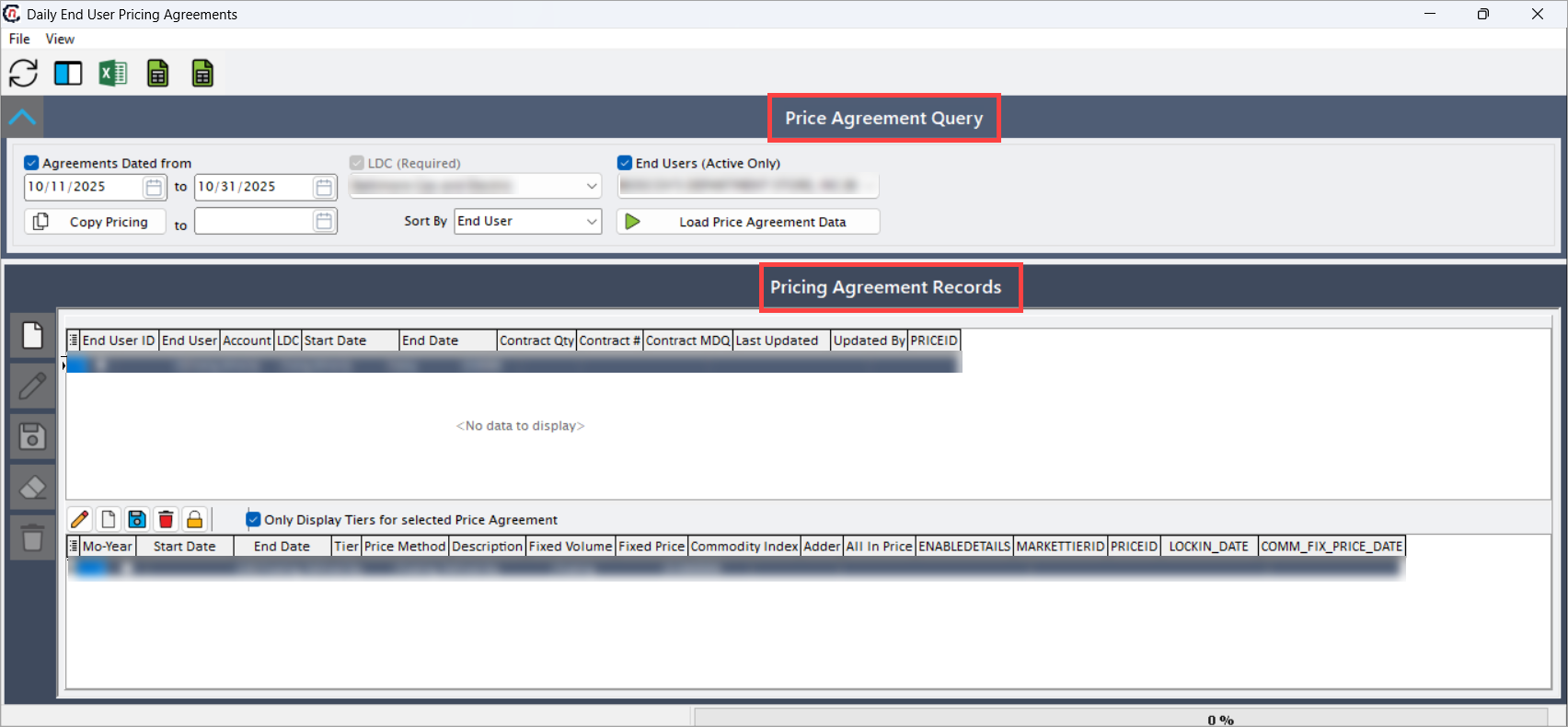
In Daily end user pricing agreement screen includes two key sections:
- Price agreement query: This allows to filter and search existing daily agreements, and price agreement records for viewing or modifying them.
-
Price agreement record: This allows to add a price agreement record or modify the selected price agreement record. Additionally allows to add or modify or delete tiers for selected price agreement record.
-
The Daily end user pricing agreement screen includes two key sections:
- Price agreement query: This allows to filter and search existing daily agreements, and price agreement records for viewing or modifying them.
-
Price agreement record: This allows to add a price agreement record or modify the selected price agreement record. Additionally allows to add or modify or delete tiers for selected price agreement record.
Price agreement query
-
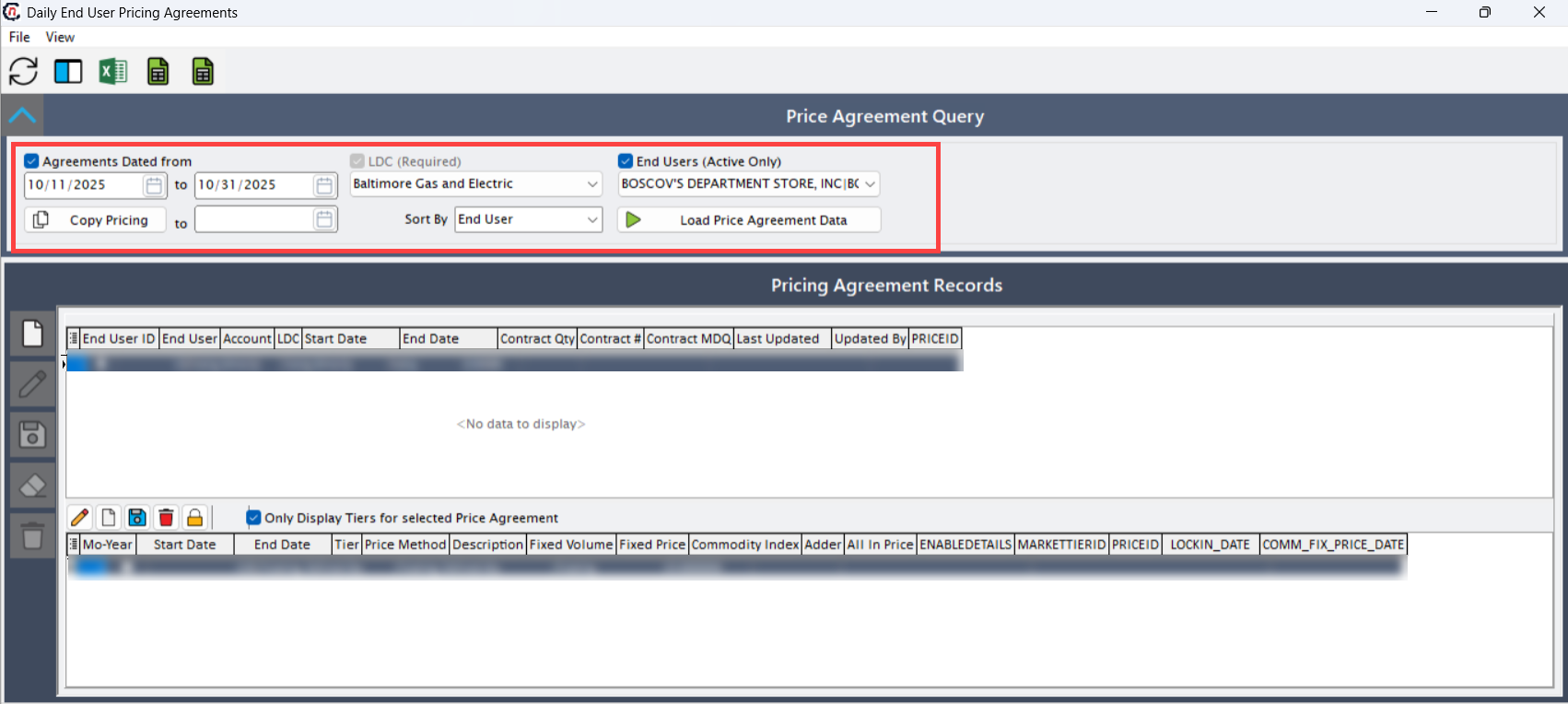
Select and complete the required fields in the following table which provides searchable and filterable fields that need to be enabled for quickly locating existing daily or standard price agreements.
Fields Description Agreements dated from (and to) Specify the date range to search agreements by their effective start and end dates. LDC (required) Select the Local Distribution Company tied to the price agreement. End user (Active only) Select the active end user associated with the price agreement. Copy pricing to Specify the date to copy the selected pricing details to another agreement or period. Sort by Choose the column (for example, end user or date) to sort the search results. -
Click Load price agreement data to execute the query and load matching price agreement records.
Price agreement records
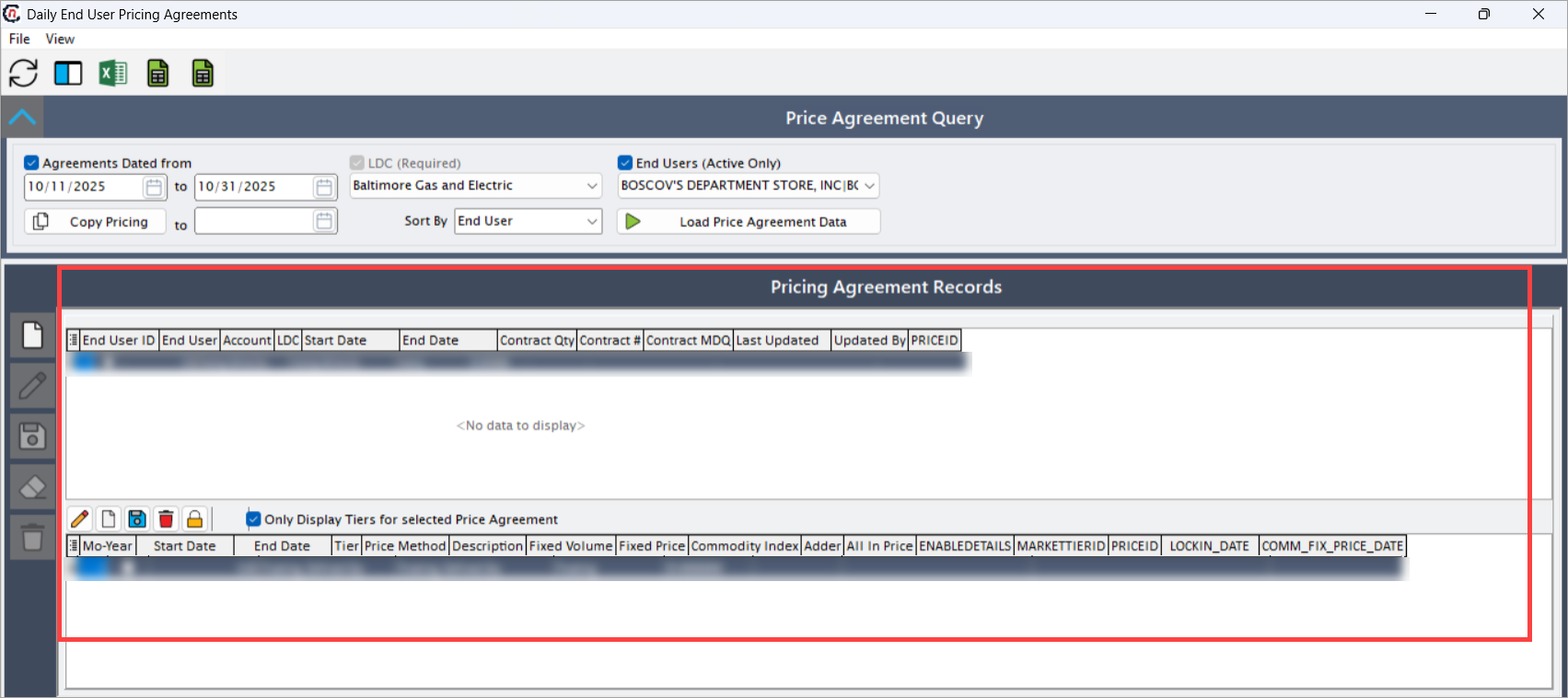
Use this section to create, edit, or manage price agreements and their associated tiers. After loading a price agreement, the existing agreement records and tiers are displayed in this section.
The table below describes the fields of each displayed line item of price agreement records retrieved from a query, highlighting key contractual details for each agreement:
| Fields | Description |
|---|---|
| End user ID | Specifies a unique system identifier for the end user tied to the agreement. |
| End user | Specifies the name of the end user receiving the pricing. |
| Account | Specifies the billing account of the end user associated with the agreement record. |
| LDC | Specifies the Local Distribution Company or service territory for the agreement. |
| Start date | Specifies the date on which the price agreement becomes effective. |
| End date | Specifies the date on which the price agreement expires. |
| Contract quantity | Indicates the total contracted volume or usage committed under the agreement. |
| Contract # | Indicates the reference number assigned to the contract associated with the price agreement. |
| Contract MDQ | Indicates maximum daily quantity defined in the contract related to the agreement. |
| Last updated | Specifies the date and timestamp of the most recent change to the record. |
| Updated by | Specifies the name of the user who last modified the record. |
| Price ID | Specifies the unique identifier for the associated pricing schedule or agreement. |
Price agreement tiers
This section presents detailed pricing for the selected agreement, outlining rate variations by volume and time period. It allows the users to add a new tier, modify, save, delete and lock in fixed price for a selected tier. The table below describes the details regarding tiers for selected price agreement for each line item.
| Fields | Description |
|---|---|
| Mo-Year | Specifies the month and year to which the tiered pricing applies. |
| Start date | Specifies the start date of the effective period for this tier. |
| End date | Specifies the end date of the effective period for this tier. |
| Tier | Indicates the level of the pricing volume and effective period that is specific to a tier. |
| Price method | Indicates the method of pricing |
| Description | Specifies the optional notes that describes about the tier or special conditions. |
| Fixed volume | Indicates guaranteed or agreed volume covered at the fixed rate for this tier. |
| Fixed price | Indicates the fixed price applied to the defined volume as per the tier. |
| Commodity index | Specifies the market index referenced for indexed pricing. |
| Adder | Indicates additional cost or premium added to the index or base rate of the pricing tier. |
| All in price | Indicates total effective price per unit, including any adders or adjustments associated to the pricing tier. |
| Enable details | Specifies the details or sub-tier associated with selected pricing tier was enabled. |
| Market tier ID | Specifies the system-generated ID for the market tier record. |
| Price ID | Specifies the unique identifier linking the selected tier back to its parent price agreement. |
| Lock in date | Specifies the date on which the price for this tier was locked or confirmed. |
| Commodity fix price date | Specifies the date when the commodity portion of the price was finalized. |
Step 2: Create a daily price agreement
To create a new price agreement, click Add a price agreement record icon. The system opens the Price agreement screen. Follow the steps described in the add price agreement article and select the default metering interval in the End user screen. For detailed steps, refer to the Add price agreement article.
Step 3: Lock a price agreement
To lock the price for a created price agreement, click the Lock on a fixed price icon. The system opens the Lock Price Agreement screen, where you can lock the price. For detailed steps, refer to the Lock and liquidation article.
Summary
Once created and saved, the Daily price agreement becomes the active rate for the specified end user on the selected date. The billing system automatically applies this one-day rate, temporarily overriding any existing standard or master agreements. All related usage and adjustments are captured for reporting accuracy. After the agreement’s end date, the system automatically reverts pricing to the regular contract terms without requiring manual intervention.