Populate fuel loss rates
In gas volume and billing operations, conversion factors such as BTU, pressure, temperature, and fuel loss percentages play a critical role in transforming raw meter reads into billable and reportable volumes. When these factors are missing, incorrectly configured, or updated after data has already been loaded, daily meter reads can become inaccurate—leading to incorrect usage calculations, imbalances, billing discrepancies, and settlement issues.
The Populate Fuel Loss Rates screen is designed to address these situations by allowing users to retroactively apply or correct conversion factors and fuel loss rates on daily meter reads. This tool is typically used when factors were not defined at the LDC or pool level at the time of processing, or when corrected values need to be applied for a specific effective period. Importantly, this feature ensures that only daily meter reads are impacted, preserving the integrity of cycle-level meter records.
Prerequisites
Before working with the Populate Fuel Loss Rates screen, ensure the following prerequisites are met:
- The user has add or modify permissions for the Populate Fuel Loss Rates screen.
- The LDC and LDC pools are configured and active.
- End users and facilities exist and are active.
- Daily meter read data exists for the selected effective period.
- Billing or settlement processes for the affected period have been reviewed.
Procedure to populate fuel loss rates
Step 1: Navigate to the Populate Fuel Loss Rates screen
- Log in to the nGenue application.
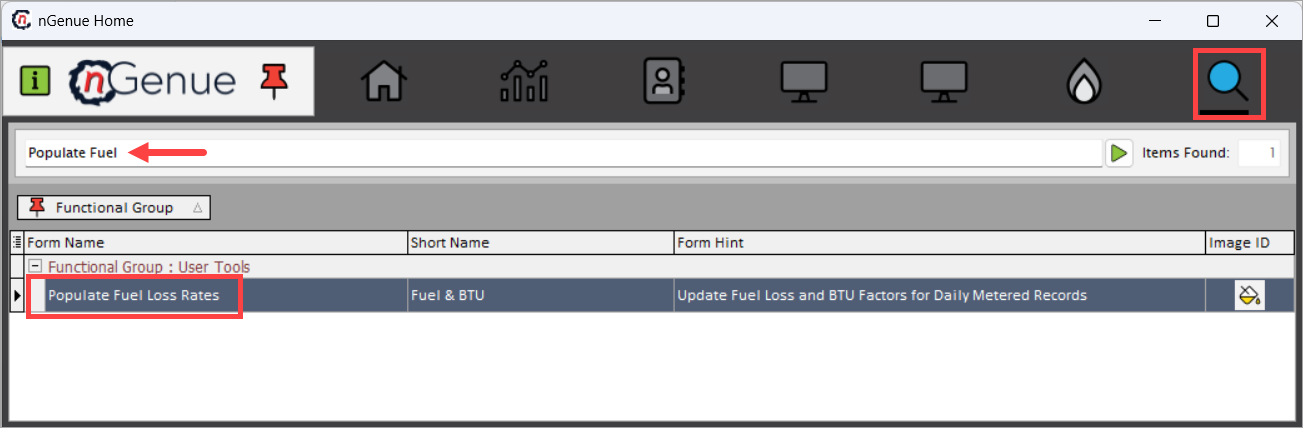
- Click the Search icon and enter Populate Fuel in the search bar.
-
Double-click Populate Fuel Loss Rates to open the Populate Fuel Loss Rates (User Tools) screen.
-
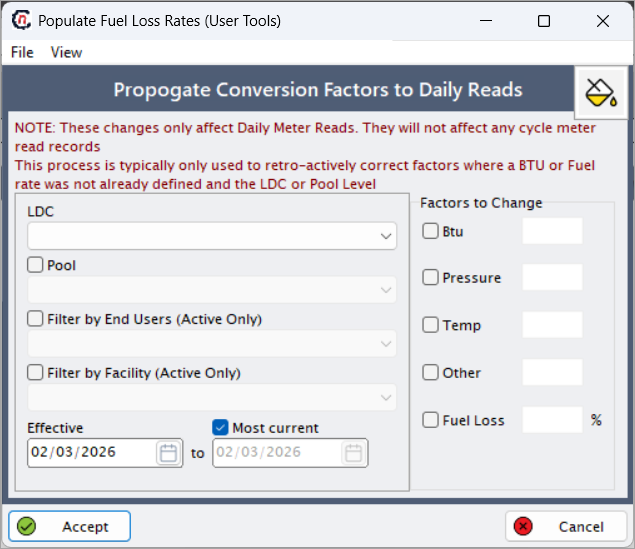
The Propagate Conversion Factors to Daily Reads screen is displayed.
Note
At the top of the screen, an informational note highlights the scope of this process:
1. These changes only affect Daily Meter Reads. They will not affect any cycle meter read records.
2. This process is typically used to retroactively correct factors where a BTU or Fuel Loss rate was not already defined at the LDC or Pool level.
This reminder is critical for understanding the limited but precise impact of the update.
Step 2: Define scope and filters
Use the left side of the screen to define which records are affected.
| Fields | Description |
|---|---|
| LDC | Selects the Local Distribution Company whose daily meter reads will be updated. This controls all downstream scope. |
| Pool | Limits the update to daily meter reads associated with a specific pool. |
| Filter by End Users (Active Only) | Narrows the update to daily reads for a specific active end user, reducing unintended impact. |
| Filter by Facility (Active Only) | Optionally restricts the update to a specific active facility under the selected end user. |
| Effective | Defines the start and end dates for which daily meter reads will be updated. Only reads within this range are affected. |
| Most current | When selected, applies the update to the most current applicable daily records rather than a fixed date range. |
These filters ensure that only the intended daily meter reads are recalculated.
Step 3: Select factors to change
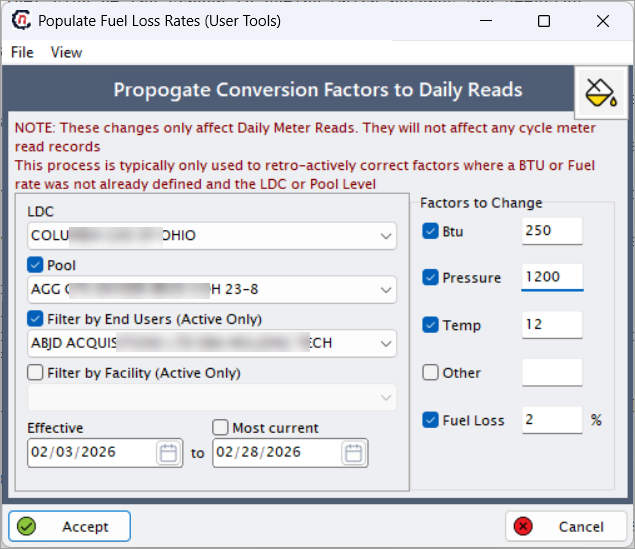
Use the Factors to Change section to specify which conversion values should be applied.
| Fields | Description |
|---|---|
| BTU | Applies a BTU conversion factor to daily meter reads. This impacts energy-based volume calculations. |
| Pressure | Applies a pressure factor used in converting raw meter volumes to standardized conditions. |
| Temp | Applies a temperature factor used in volume normalization calculations. |
| Other | Optional field used for additional conversion factors, if configured. |
| Fuel Loss (%) | Applies a fuel loss percentage to daily meter reads, accounting for gas lost during transportation or distribution. |
Only selected factors are applied, allowing targeted corrections without overwriting unrelated values.
Step 4: Apply changes
- Review the selected LDC, pool, end user, facility, effective dates, and factors.
- Confirm that billing and settlement implications have been evaluated.
- Click Accept to apply the conversion factor updates.
- Click Cancel to exit without making changes.
Once accepted, the system recalculates the affected daily meter reads using the specified factors.
Key points
- This process impacts daily meter reads only, not cycle meter reads.
- It is primarily used for retroactive correction of missing or incorrect factors.
- Effective dates strictly control which records are recalculated.
- Fuel loss and conversion factors directly impact usage, imbalances, and billing.
- Changes should be coordinated carefully with billing and settlement timelines.
Summary
The Populate Fuel Loss Rates screen provides a precise and controlled way to correct conversion factors and fuel loss rates on daily meter reads. By allowing effective-dated, targeted updates without altering cycle records, this feature helps maintain data accuracy while preserving historical integrity across billing, volume management, and settlement processes within nGenue.