Configure EDI Drop transactions (814)
The EDI Drop transactions 814 request is implemented on cancellation of active services, so drop request can be configured either manually or automated on preset conditions. Must have a valid account number, rate code, price agreement to configure a drop request.
Submitting an EDI Drop request
Follow the given below steps to submit a drop request manually:
- Log in to the nGenue application.
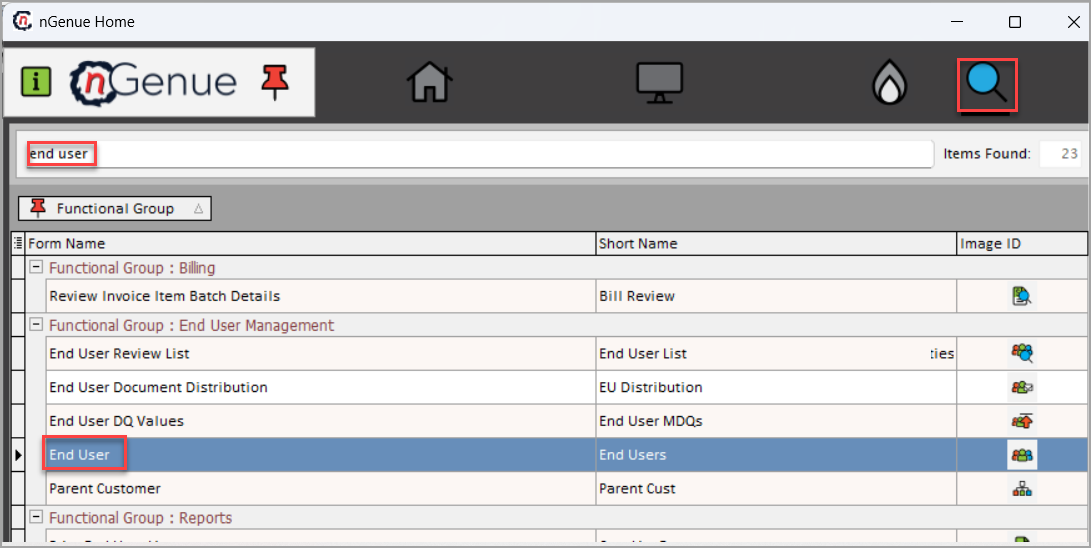
- Click Search and enter End user and double-click on the End user.
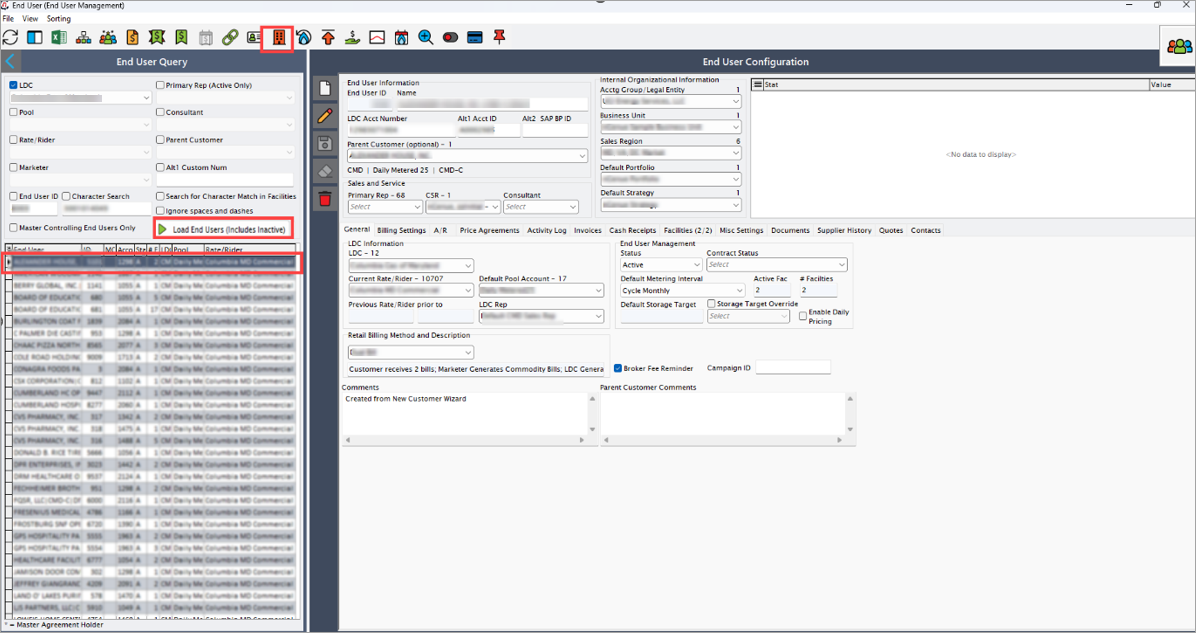
- In the End user screen, select LDC, then click on the Load end users button and select a facility.
- Locate and click on the Facility icon to open Facility screen.
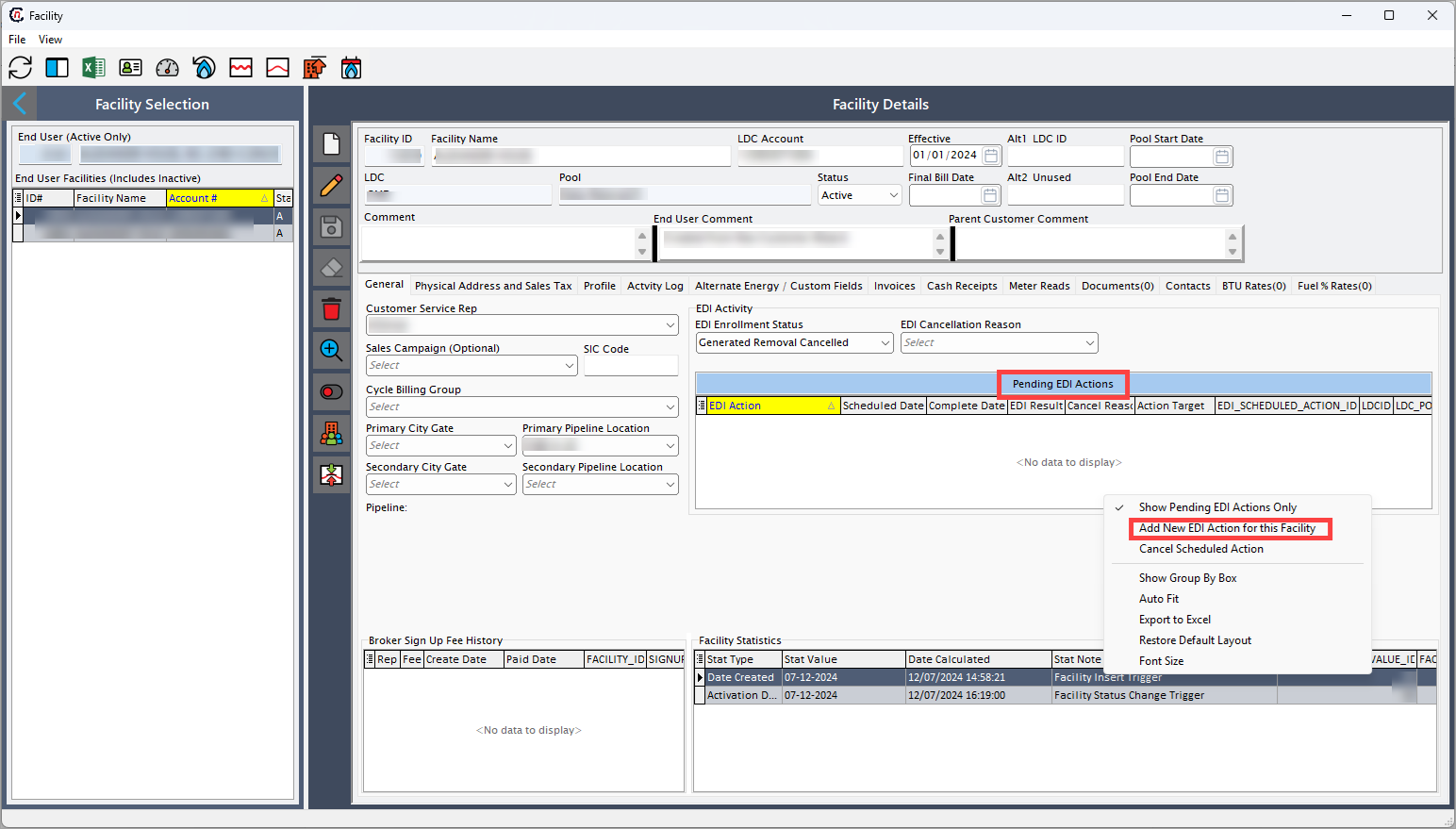
- In the Facility screen, go to Facility details section to add new transactions and to view transaction status.
- Find Pending EDI actions and right-click on it, then select the Add new EDI action for this facility.
-
In the Create EDI action screen:
- Find EDI action, then select Drop request from the dropdown.
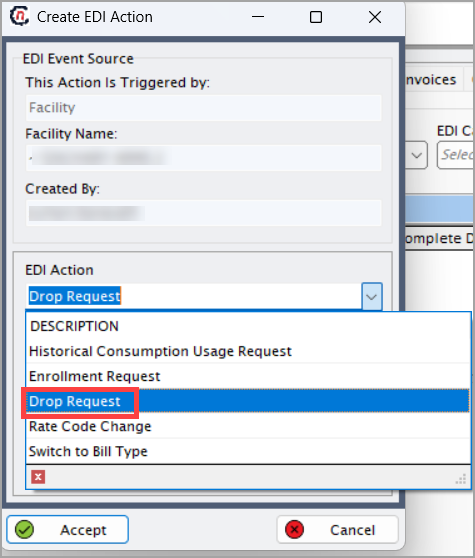
- Select Effective for price agreement, Scheduled action date and the Cancellation reason.
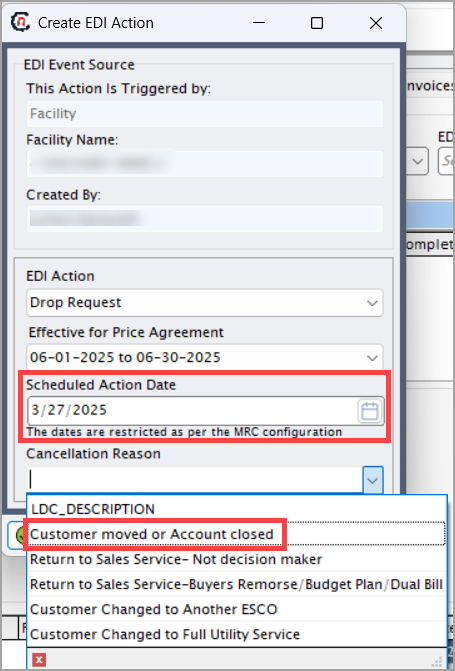
- Click Accept to commit.
- Find EDI action, then select Drop request from the dropdown.
-
After submission, the request enters the workflow:
- EDI service processes the request based on the scheduled date.
- An outbound file is generated and transmitted to the utility.
- The Facility screen shows status as Awaiting response in the EDI Activity log.
Post-submission of EDI Drop request
Outbound process (Supplier to utility)
- The request will be logged in the EDI schedule, then EDI service executes the request at the scheduled time.
- The system generates an outbound file in the desired format.
- Files are processed by 15:00 and transmitted to the utility by 16:00 (if set up for FTP shipment).
- The file can be shipped through utility FTP, or uploaded to utility website. Also, shipment can be tracked through Activity log.
- The transaction will be displayed in
- Pending EDI Actions (Facility screen).
- Activity log tab (once request is initiated).
Inbound process (Utility to supplier)
- The utility provides a drop response file upon the request.
- EDI service retrieves response file from nGenue FTP site.
- Then the file will be decrypted and processed.
- The system fetches the file from the FTP site.
-
Then the file is validated and decrypted.
-
If response is accepted:
- Activity log confirms the drop.
- Effective drop date is captured and viewed.
- In the Facility screen, EDI status will be updated to Drop accepted.
-
If rejected:
- Rejection will logged in Activity log.
- Create a task for review.
- Once processed, the file is moved to the archive for the record.
-
Upon submitting the EDI drop request, the request will be logged and processed, the transactions will be recorded and cancellation of active services will be implemented as scheduled. This provides a structured process to ensure accurate and timely cancellation of the services with the provider.