Creating a quick deal
The Quick Deal Process screen in nGenue is used to review, validate, and manage deal information efficiently for financial, trading, or physical gas contracts.
This screen enables users to quickly query existing deals, review their details, and perform batch updates or confirmations without navigating through multiple deal setup modules.
The Quick Deal functionality provides a streamlined way to:
- Review multiple deals across various trading instruments and contract types.
- Validate deal attributes such as status, start and end dates, volume, and unit of measure (UOM).
- Update deal lock or confirmation statuses in bulk.
- Filter deals based on traders, LDC, counterparties, or specific time ranges.
- Improve coordination between trading, operations, and back-office reconciliation.
Prerequisites
Before working with the Quick Deal Process screen, ensure that the following prerequisites are met:
- The user have the add or modify permissions for the Quick Deal Process screen.
- All deal master data and instruments (e.g., swaps, forwards, futures) are configured via the Deal Management screen.
- Counterparty and supplier details are defined under the respective setup sections.
- Valid LDC, Pipeline, and Supply region configurations are in place.
Procedure to create a quick deal
Step 1: Navigate to the Quick Deal Process screen
- Log in to the nGenue application.
-
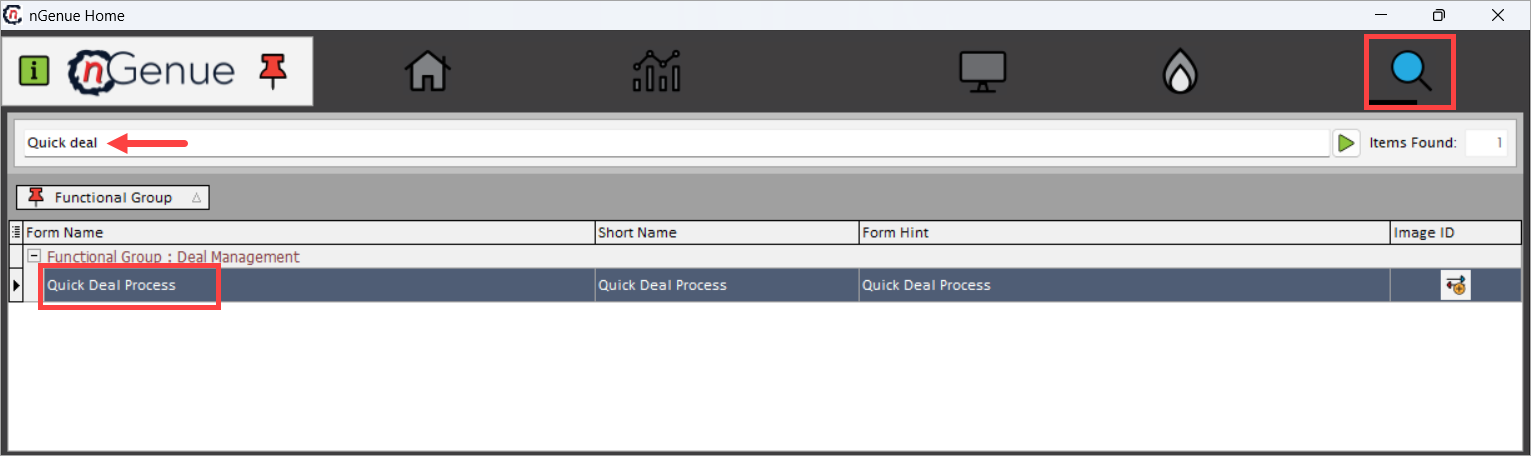
Click Search and enter Quick deal in the search bar.
-
Double click Quick Deal Process to open the Quick Deal Process (Deal Management) screen.
-
The screen is divided into two main sections:
- Deal Query: Filters and load deals based on user-defined parameters.
- Deal Details: Displays the filtered deals and enables users to take actions on selected records.
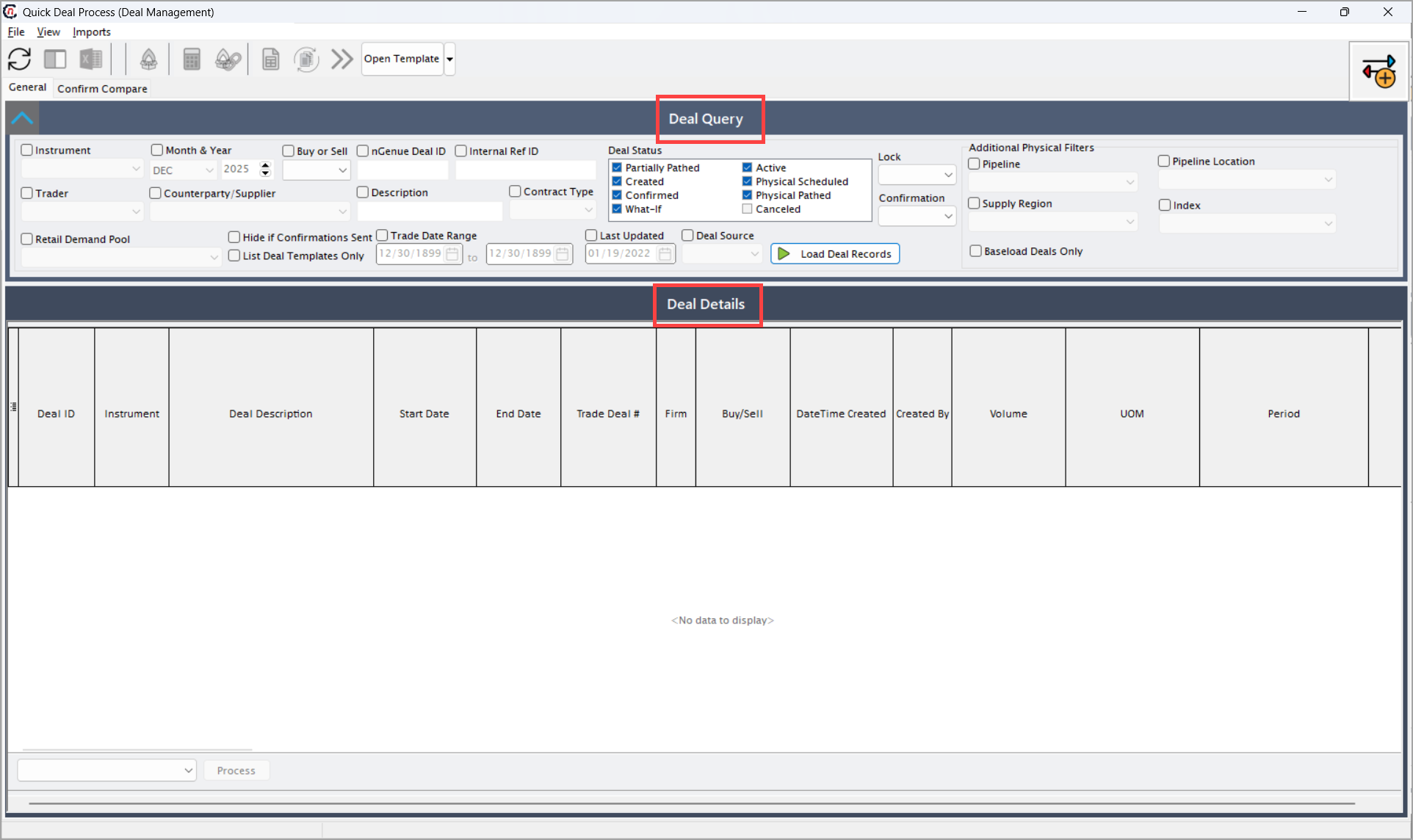
Deal Query section
Fields Description Instrument Allows selection of the trading instrument such as Swap, Forward, Option, or Physical contract. Functionally, this identifies the deal type, while technically it filters deal records based on the InstrumentTypeIDin the deal master table.Month & Year Defines the contract period (delivery month and year) for the deal. It filters deals whose start or end dates align with the selected month-year combination. Buy or Sell Specifies whether the deal represents a Buy or Sell transaction. This helps categorize deals from a trading perspective and affects downstream accounting entries. nGenue Deal ID Displays or filters deals using the unique internal identifier assigned by nGenue. It ensures quick referencing within the deal database. Internal Ref ID Used to capture custom internal identifiers or external trade references, providing traceability between nGenue and external trading systems. Trader Allows filtering by the trader responsible for executing the deal. This supports performance tracking and workload management. Counterparty/Supplier Selects or filters deals based on the counterparty or supplier organization. Technically, this links to the CounterpartyIDin the deal master configuration.Description Filters deals using free-text search on the deal description. This is useful for identifying specific contracts or remark-based deals. Contract Type Defines the contract classification, such as Physical, Financial, or Indexed, depending on how the deal is structured. Retail Demand Pool Identifies deals associated with retail demand aggregation pools. This helps manage supply-demand balancing for retail markets. Hide if Confirmations Sent When enabled, hides deals that have already been confirmed to counterparties to reduce clutter in the deal review list. Trade Date Range Allows filtering of deals executed within a specific date range. Useful for monthly or quarterly deal review processes. Last Updated Shows or filters deals based on the most recent update timestamp. This ensures that users always work with the latest information. Deal Source Specifies how the deal was created — e.g., imported via EDI, manually entered, or system-generated. It links to the source field in deal audit logs. Deal Status Allows filtering based on current deal statuses:
• Created: newly added deals pending action
• Confirmed: deals that have been approved and locked
• Partially Pathed: partially scheduled deals
• Active: currently valid and tradeable deals
- Canceled: invalidated or withdrawn deals
• Physical Scheduled: deals linked to physical transport schedules.Lock Used to filter deals that are locked for editing. Locking prevents further modifications once a deal has been finalized or confirmed. Additional Physical Filters Filters that refine deal selection by physical parameters:
• Pipeline: Selects deals linked to a specific pipeline.
• Pipeline Location: Filters deals based on delivery points.
• Supply Region: Filters deals by region of gas supply.
• Index: Filters deals tied to specific market indexes.
• Baseload Deals Only: When enabled, restricts results to Baseload-type deals — those delivering consistent volumes throughout the period.Load Deal Records Executes the query based on selected filters and loads matching deal data in the Deal Details section. 
Deal Details section
The Deal Details section allows fetching of several deal records based on filters applied in the Deal Query section.
Fields Description Deal ID Unique identifier for the deal in nGenue. Instrument Displays the deal instrument type, such as Swap, Forward, or Fixed-Float Swap. Deal Description Textual description of the deal for identification and reporting. Start Date / End Date Defines the contract’s active duration. Functionally, these determine billing or settlement eligibility. Trade Deal # Represents the external trade number or reference used for reconciliation with trading partners. Firm Indicates whether the deal is firm (binding) or interruptible. This classification affects capacity commitments and financial exposure. Buy/Sell Shows whether the contract represents a Buy or Sell position. DateTime Created Timestamp of when the deal was created. Useful for audit tracking and review. Created By Displays the user ID of the person who created the deal. Supports traceability and change control. Volume Specifies the deal volume in units such as MMBtu, Dth, or Mcf. This is critical for balancing and settlement calculations. UOM (Unit of Measure) Defines the measurement unit used for volume (e.g., MMBtu). Ensures consistency in volume aggregation. Period Indicates the billing or settlement frequency, such as Daily, Monthly, or Quarterly. Deal Lock Status Dropdown used to lock or unlock selected deals from editing. Locked deals cannot be modified until manually unlocked. Deal Confirmation Status Dropdown to update the confirmation stage — e.g., Pending, Sent, or Confirmed. Process Executes batch updates based on the selected Lock or Confirmation Status values. 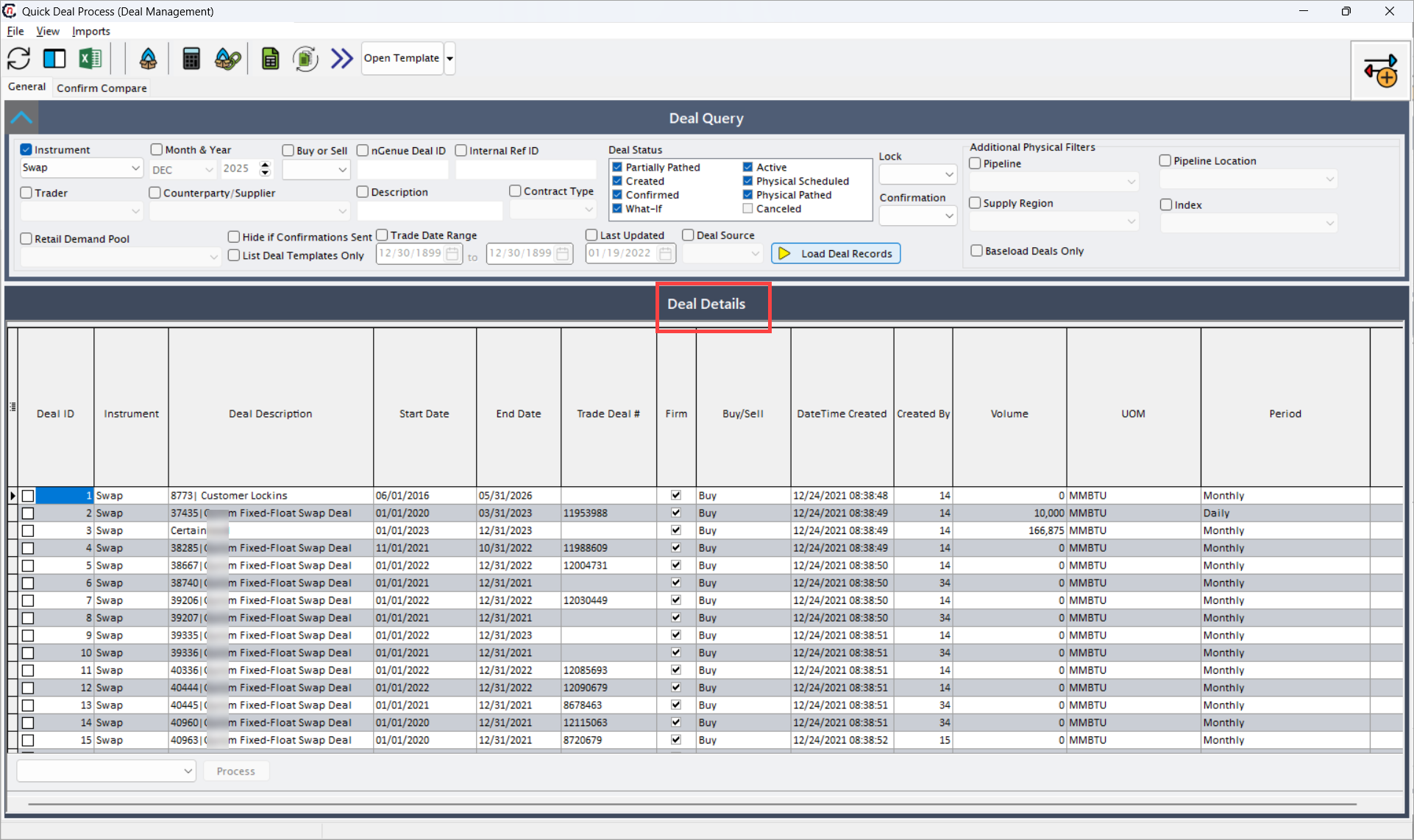
Step 2: Select the deal(s)
Once the deals are displayed in the Deal Details section:
- Users can select multiple deal records by checking the boxes beside each Deal ID.
-
Two primary actions can then be performed on these selected deals:
-
Deal Lock Status: The Deal Lock Status dropdown allows users to control the editability of selected deals. This feature is used primarily during internal review and confirmation stages to ensure data consistency.
- Lock: Locks the selected deals, preventing any further modifications to deal terms, volume, or pricing. Once locked, the deal becomes read-only and ready for confirmation or scheduling.
- Unlock: Unlocks previously locked deals, allowing authorized users to make necessary corrections or updates before reconfirmation. This is typically used in exceptional scenarios or correction cycles.
-
Deal Confirmation Status: The Deal Confirmation Status dropdown allows users to update the confirmation state of selected deals in bulk. It reflects the communication and acknowledgment stage of the deal with the counterparty or external system.
- Received: Indicates that confirmation acknowledgment has been received from the counterparty but has not yet been fully verified internally.
- Matched: Represents that the deal has been successfully matched with the counterparty’s version and verified for consistency. Functionally, this is the stage before final locking.
- Sent: Marks that the deal confirmation document has been sent to the counterparty (via email, EDI, or integration) but acknowledgment is still pending.
- Not Sent: Identifies deals that have not yet been dispatched for confirmation. This is the initial state before any confirmation action.
-
These actions are applied using the dropdown menus available at the bottom of the screen, followed by clicking the Process button.
Step 3: Process the deal(s)
Once the desired status selections are made:
- Select the relevant deals from the Deal Details section.
- Choose the appropriate Deal Lock Status or Deal Confirmation Status.
-
Click the Process button.
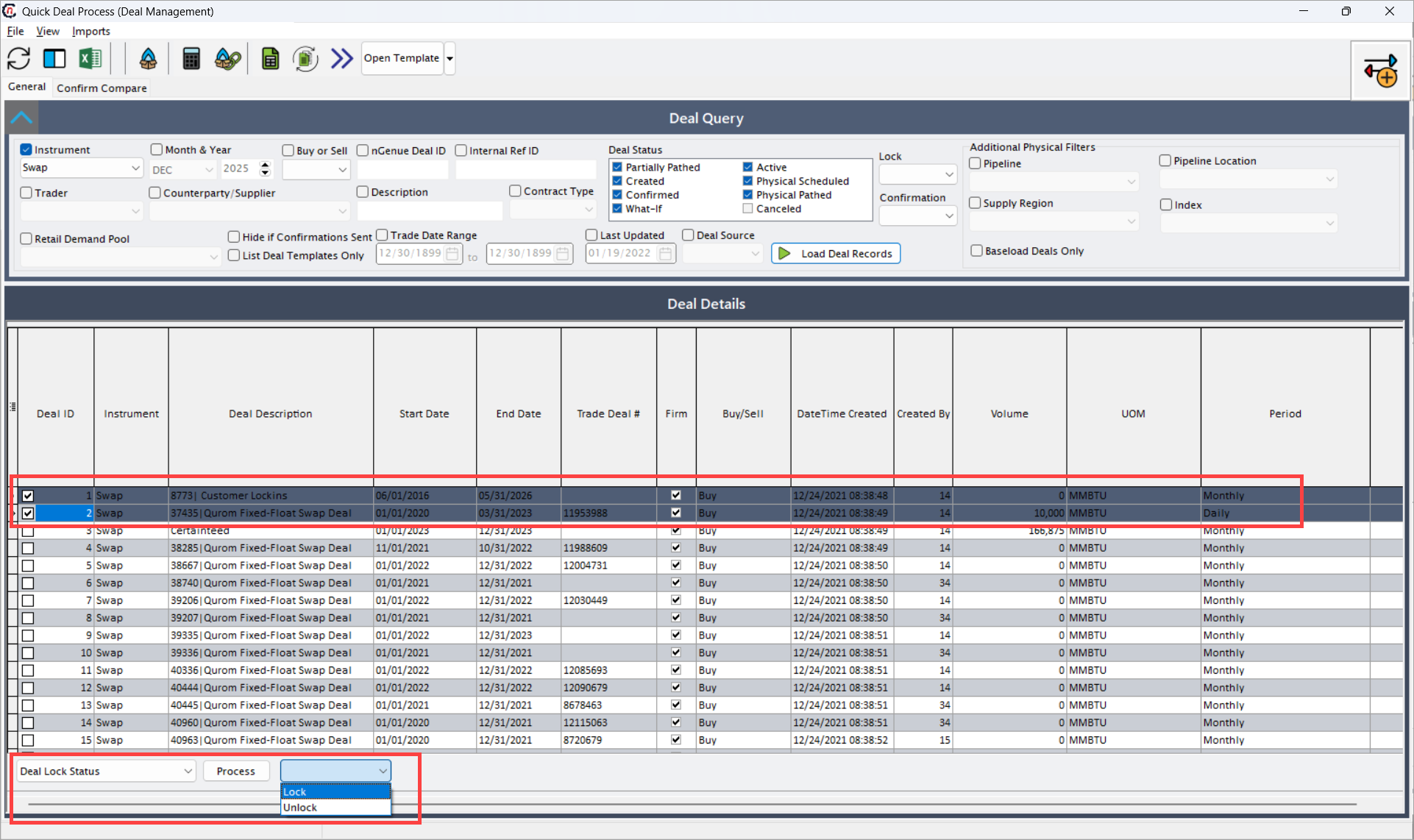
The Process button executes the batch update for all selected deals, applying the chosen status (lock/unlock or confirmation stage) across multiple records simultaneously. This capability allows traders and operations teams to efficiently process large deal volumes in a single action rather than updating each deal individually.
Summary
The Quick Deal Process screen serves as a centralized interface for deal validation and management, combining operational flexibility with process efficiency.
By consolidating multiple deal attributes, filtering options, and batch processing features, it significantly reduces manual effort while ensuring data accuracy and compliance with trading and settlement standards.