Manage wholesale settlements
The Wholesale settlements screen facilitates the management, review, and processing of settlement transactions related to wholesale energy deals. Wholesale settlements are essential for ensuring that transactions are correctly invoiced, recorded in the General Ledger (GL), and reconciled with physical and financial positions. Accurate settlement management directly impacts billing integrity, financial reporting, and audit compliance within the wholesale trading workflow.
Prerequisites
Before working on the Wholesale settlements screen, ensure the following prerequisites are met:
- Ensure the nGenue application is installed and use valid login credentials to log into the application.
- Configure the user permissions including User type, Security user, Security group, Security assign user, and Security assign permissions in their respective screens to enable access to the Wholesale settlements screen.
- Ensure the Deal management, Pipeline, Counterparty and Chart of accounts are properly configured and active.
- Ensure the required settlement statuses and rate schedules are defined.
- Ensure related billing and pricing data has been finalized.
Procedure to manage wholesale settlements
Step 1: Navigate to Wholesale settlements screen
- Log in to the nGenue application.
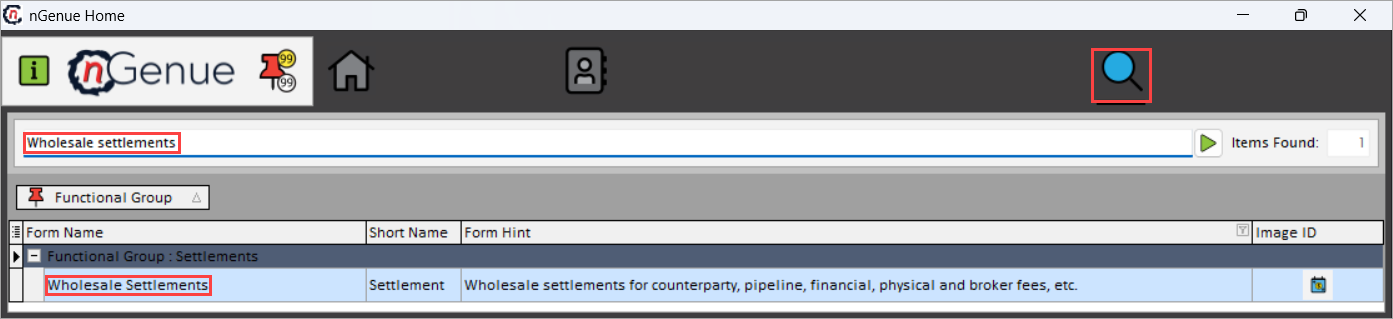
- Click the Search icon and enter Wholesale settlements in the search bar.
-
Double-click Wholesale settlements to open respective screen.
-
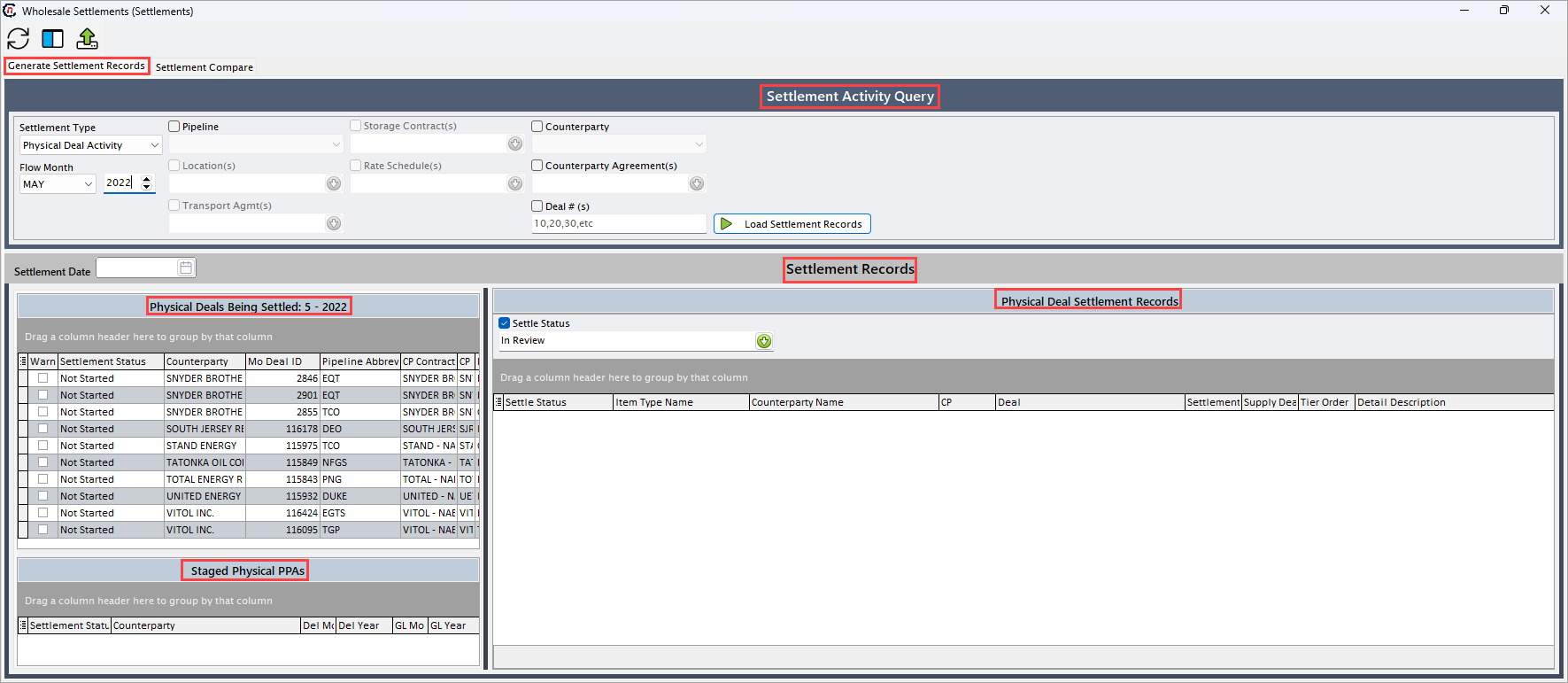
Wholesale settlements (Settlements) screen has two sections:
-
Generate settlement records: Settlement records can be loaded, initialized, and managed for deals through this section.
- Settlement activity query: This section provides the filterable fields to execute a query for fetching the settlement records.
-
Settlement records: This section displays the unsettled, settled deals and adjusted deals.
- Physical deals being settled: This section displays the deals that are newly created or unprocessed.
- Staged physical PPAs: This section logs the deal records that require adjustments.
- Physical deal settlement records: This section displays the settlement records.
-
Settlement compare: This section allows to compare and validate settlement results across different runs or periods to identify discrepancies.
Step 2: Load settlement records
-
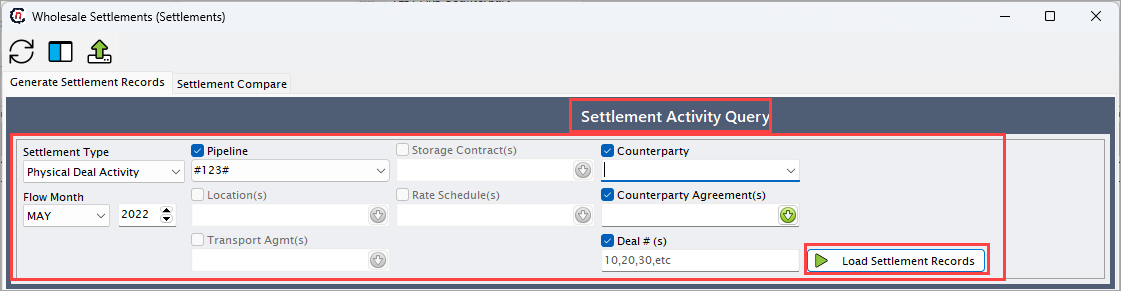
In the Generate settlement records tab, under the Settlement activity query section, enable and select the required fields from the table below to filter deal data for settlement generation.
Fields Description Settlement type Select the type of settlement either physical deal activity, pipeline activity, financial deal activity, broker fee, production deal activity or physical NG - option. Flow month Select the month and year for which the settlement applies. Pipeline Select the pipeline associated with the deal. Location Choose the physical or contractual delivery location. Transport agreement(s) Select the associated transport contract. Storage contract Select the linked storage agreement, if applicable. Rate schedule Applies the rate or tariff schedule relevant to the settlement. Counterparty The trading counterparty involved in the deal. Counterparty agreement(s) Lists one or more agreements tied to the counterparty. Deal #(s) Allows selection of one or more deal identifiers to include in settlement processing. -
Click Load settlement records to display deals matching the selected criteria.
Step 3: Settlement initialization
- Newly created or unprocessed deals appear under Physical deals being settled section with a status of Not started.
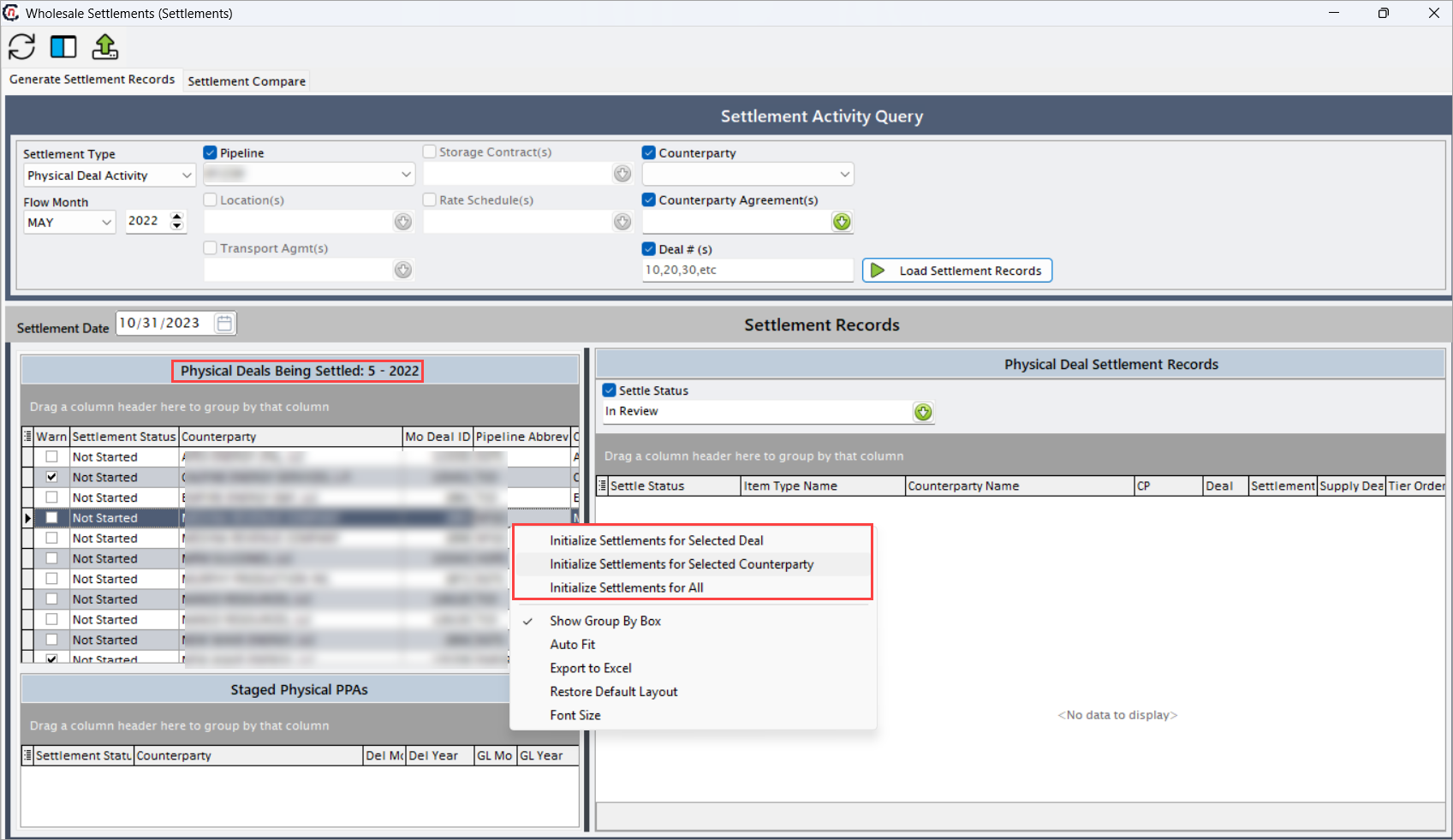
- To begin settlement processing, select the Settlement date and right-click within the Physical deals being settled section, to open the context menu.
-
From the menu, select one of the following initialization options:
- Initialize settlement for selected deal: Initiates the settlement process for the currently selected deal only.
- Initialize settlement for selected counterparty: Begins the settlement process for all deals associated with the selected counterparty.
-
Initialize settlement for all: Triggers the settlement process for all deals and counterparties listed in the section.
-
After initialization, the deals from Physical deals being settled section are transferred to the Physical deal settlement records section, with their status automatically set to In review by default.
Step 4: Manage deal settlement records
Modify and review settlement details
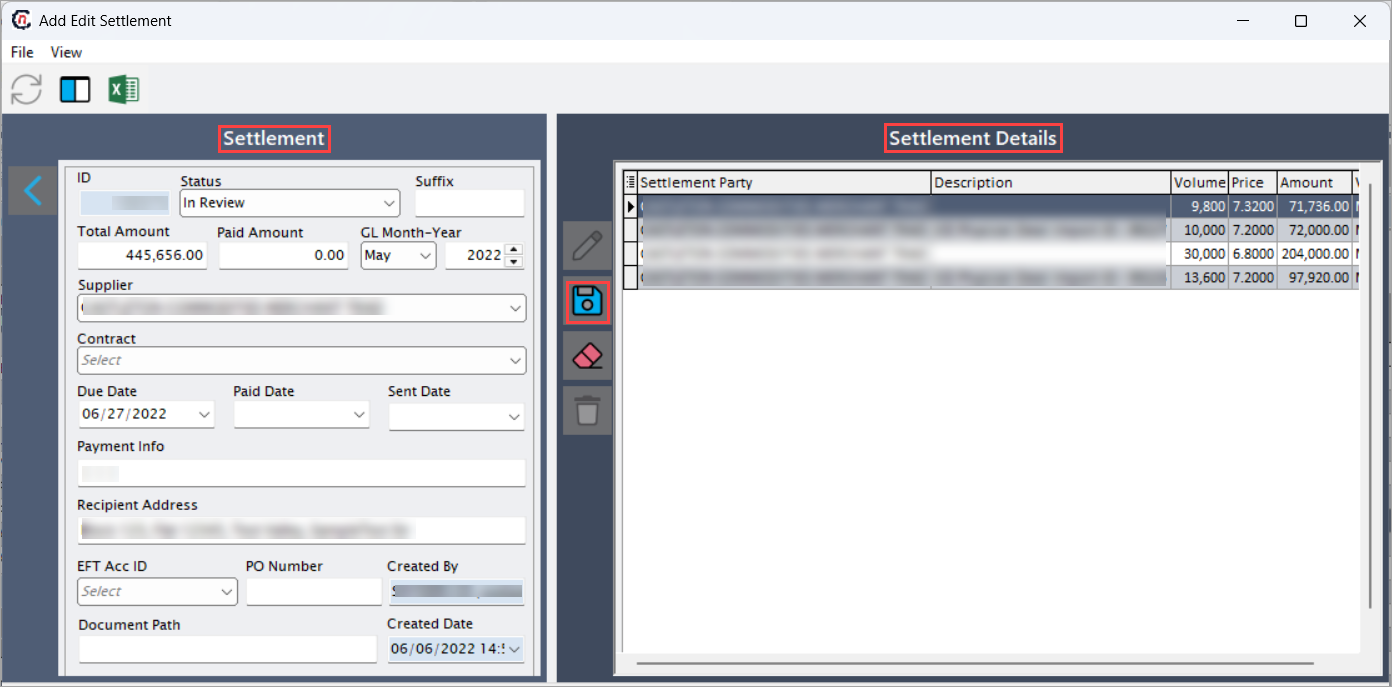
- Double-click a settlement record in the Physical deal settlement records section to open it in the Add/Edit settlement screen.
-
In Add/Edit settlement screen, under the Settlement section review and update the settlement details as outlined below:
Fields Description ID A unique identifier for each settlement. This field is read-only and cannot be edited. Status Select the settlement status to indicate the current stage of processing. Available status options include: In Review, Approved, Pending Approval, Calculating, Not Started, Paid in Full, Sent, Supply Approved. Total amount The full amount of the settlement; can be edited or entered manually. Paid amount The amount paid from the total settlement; can be added or updated. GL month-year Specifies the General Ledger (GL) month and year; editable field. Supplier Represents the counterparty or supplier; can be edited. Contract Allows selection or modification of the counterparty contract. Due date Indicates the payment due date; editable. Paid date The date on which the payment was made. Sent date The date the settlement was sent to the counterparty. Payment info Contains payment-related details. Recipient address The address to which the settlement is sent. EFT account ID Electronic Funds Transfer account identifier. PO number Purchase Order number related to the settlement. Created by Displays the user who created the settlement. Read-only field. Document path The date on which the payment was made. Created date Date when the settlement was created. Read-only field. -
Click the Save changes to current icon to apply the changes.
Manage physical deal settlement records
- Enable and select the Settle status to display the settlements by status.
-
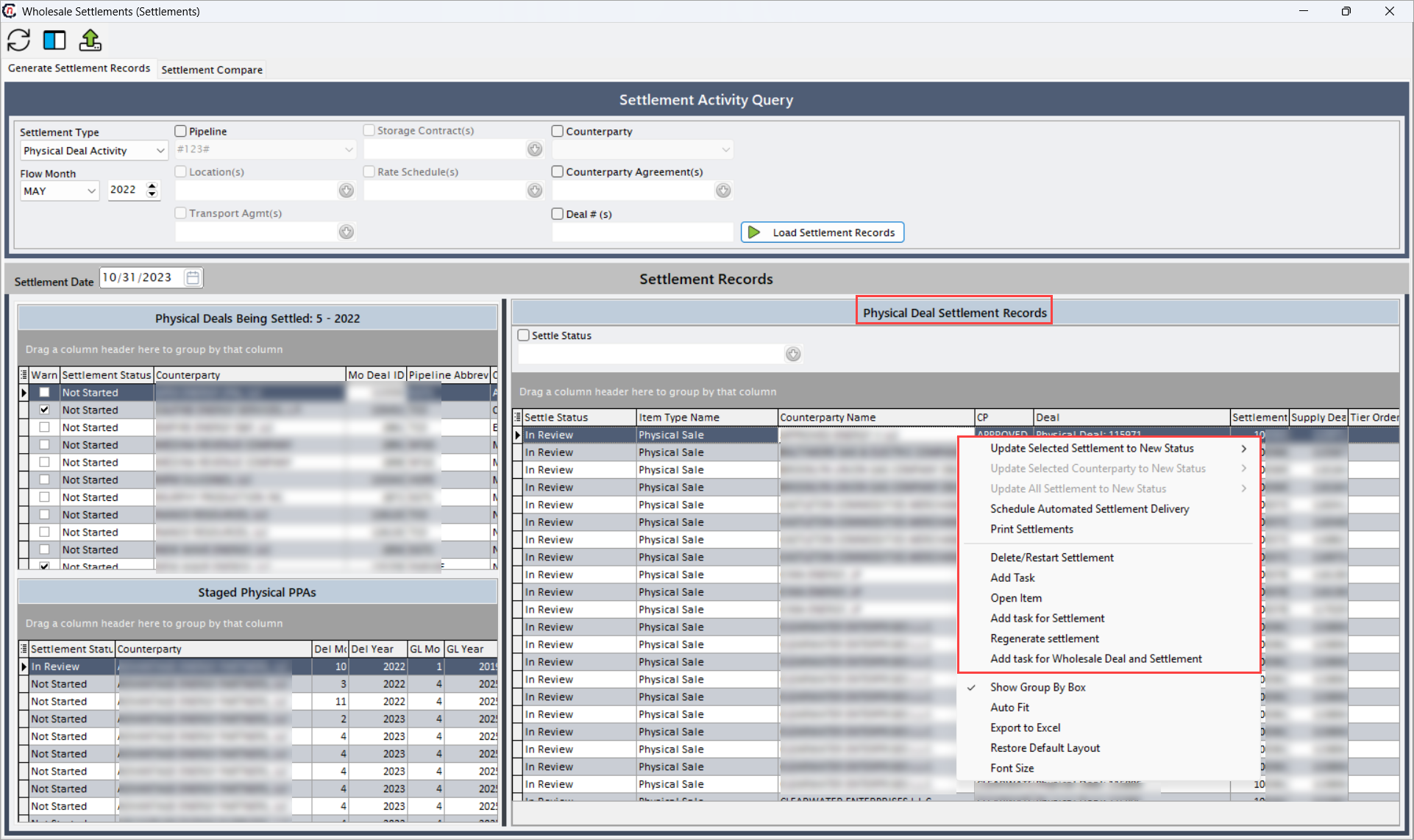
Right-click the selected settlement record within the Physical deal settlement records to open context menu and choose from the available actions below:
Update selected settlement to new status
Updates the status of the currently selected settlement record from In review to Pending approval. This action is typically performed after verifying settlement accuracy and indicates that the record is ready for approval and subsequent invoicing.
Update selected counterparty to new status
Changes the status of all settlement records associated with the selected counterparty from In review to Pending approval. This allows batch status updates for all deals tied to a specific counterparty, ensuring consistent workflow progression.
Update all settlements to new status
Updates the status of all settlement records displayed in the current settlement records section. This bulk action is used to advance multiple settlements from In review to Pending approval at once, streamlining processing for large settlement batches.
Schedule automated settlement delivery
Automatically schedules the electronic delivery of the selected settlement document to the counterparty. The system sets the delivery to occur one hour from the time of selection, ensuring timely distribution without manual intervention.
Print settlements
Generates a finalized PDF version of the settlement invoice using predefined templates. The generated document can be downloaded, printed, or sent to the counterparty for billing and audit purposes.
Delete/Restart settlements
Removes the selected settlement records from the current view and resets the associated deals to the Deals Being Settled section. This function allows reprocessing of settlements when configuration errors, data corrections, or updates are required.
Add task
Creates a manual task entry related to settlement delivery or processing. This can be used to schedule a settlement action at a specific time or to track follow-up activities within the settlement workflow.
Open item
Opens a detailed view of the selected deal or settlement record. This allows review of transaction-level information such as pricing, quantities, counterparty details, and accounting entries for validation or troubleshooting.
Add task for settlement
Adds a specific task linked directly to a settlement record. This function is useful for assigning actions, reminders, or workflow steps related to settlement approval, delivery, or reconciliation.
Regenerate settlement
Recreates the selected settlement record to reflect any modifications made to the underlying deal after the initial settlement was generated. This ensures that the latest contract terms, prices, or adjustments are accurately captured in the updated settlement.
Add deal for wholesale and settlement
Enables the creation of a new deal directly within the settlement process. This option is used to record additional wholesale transactions or settlement-related adjustments without leaving the current workflow.
View staged physical PPAs
A Prior Period Adjustment (PPA) refers to a correction or modification made to transactions, quantities, or prices from a previously settled billing period. Such adjustments are applied when updated or corrected data becomes available, ensuring that historical settlements and invoices remain accurate, consistent, and compliant with accounting standards.
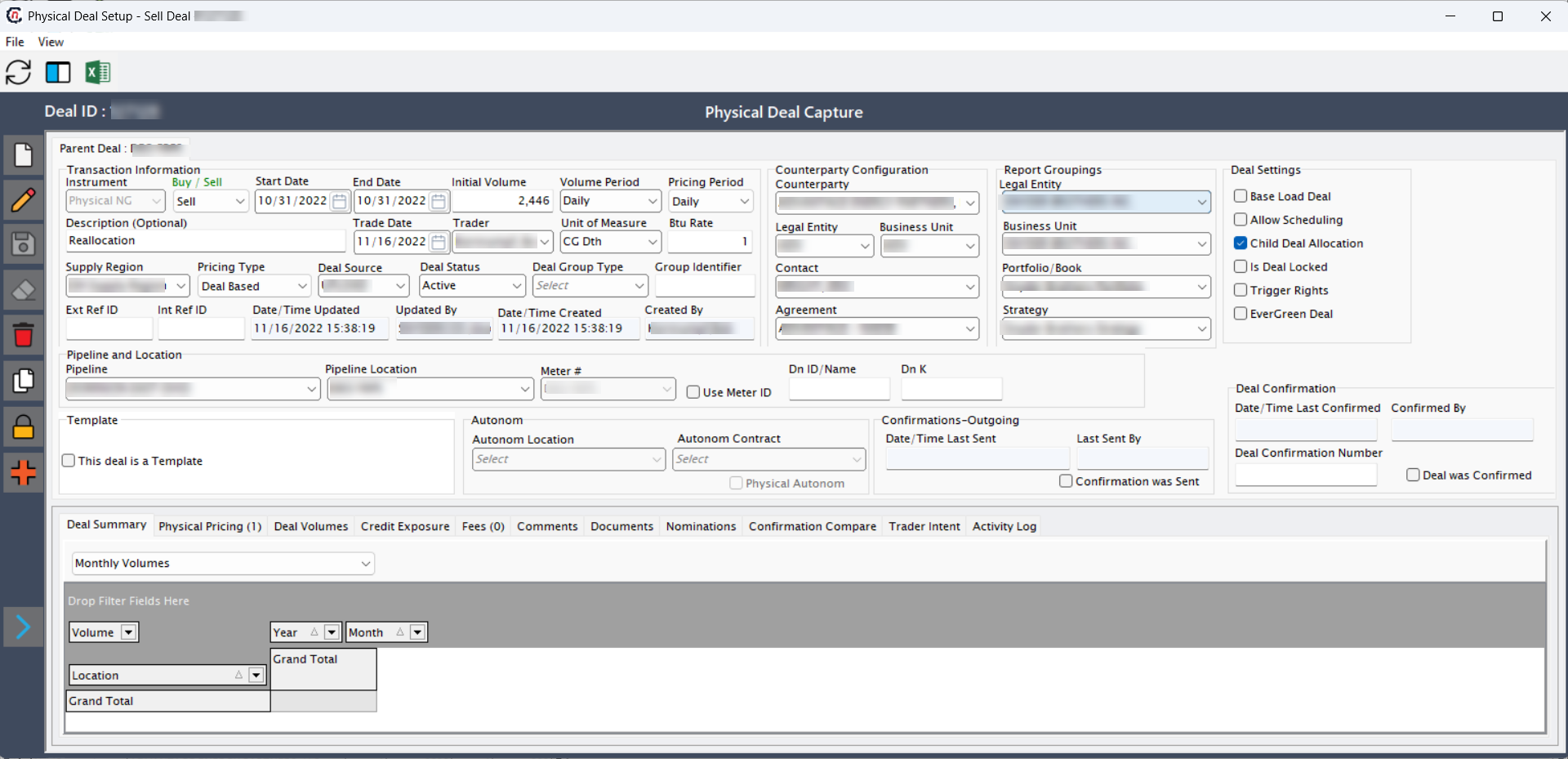
Double-click any record listed under Staged physical PPAs section to open it in the Physical deal setup screen for detailed review and necessary updates.
Summary
The wholesale settlements functionality provides a comprehensive workflow for initializing, processing, and finalizing wholesale deal settlements. By managing settlement statuses, updating financial details, and reconciling prior period adjustments, users maintain complete control over wholesale billing accuracy and audit readiness.