Viewing facility list
The Facility list screen provides a comprehensive view of facility-related details. It displays key attributes such as facility information, customer details, facility ID, account status, end-user details, Local Distribution Company (LDC) details, meter count, and pricing methods.
Efficiently manage and filter facility records on this screen. Track and analyze facility details to verify data accuracy.
The table below describes the icons and their functions on the Facility list screen:
| Icons | Icons name | Description |
|---|---|---|
 |
End user | Opens the selected end user's detailed information, including account and contact details. For more information, refer to the End user article. |
 |
Meter reads | Navigates to the Monthly/Cycle meter read history screen where users can edit or view details directly. For more information, refer to the Monthly/Cycle meter read history article. |
 |
Facility MDQ | Opens the Facility MDQ screen. For more information, refer to the Facility MDQ article. |
 |
View address information | Displays the address information linked to the selected end user or facility. For more information, refer to the Add address to end user or facility article. |
 |
Add facility | Opens the interface to create a new facility record in the system. |
 |
Edit facility | Opens the interface to modify existing facility information. |
Prerequisites
Before configuring the Facility list, ensure the following prerequisites are met:
- User permissions: You must configure the security settings including User type, Security user, Security group, Security assign user, and Security assign permissions in their respective screens to ensure you have the required access and permissions for Facility list screen actions.
- LDC: The relevant LDC must exist in the application.
- LDC pool: Configure an LDC pool to classify customers for efficient billing and distribution.
- LDC rate class: Define an LDC rate class to categorize customers and establish delivery terms.
- LDC charge definition : Set up charge definitions for billing purposes.
- End user: Configure the end user in the system before creating facility records.
- Facility: Create facility records with required details.
Procedure to view facility list
Step 1: Navigate to Facility list screen
- Log in to the nGenue application.
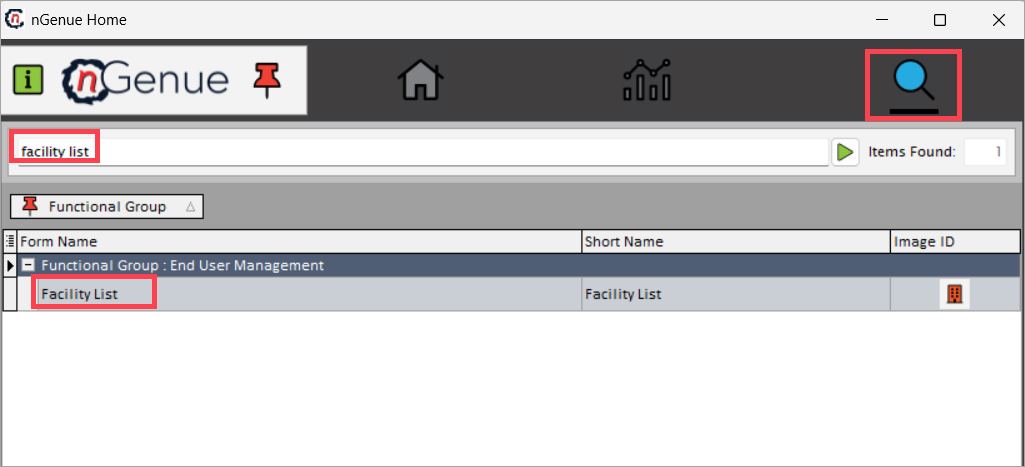
- Click the Search icon and enter facility list in the search bar.
-
Double-click Facility list to open the screen.
-
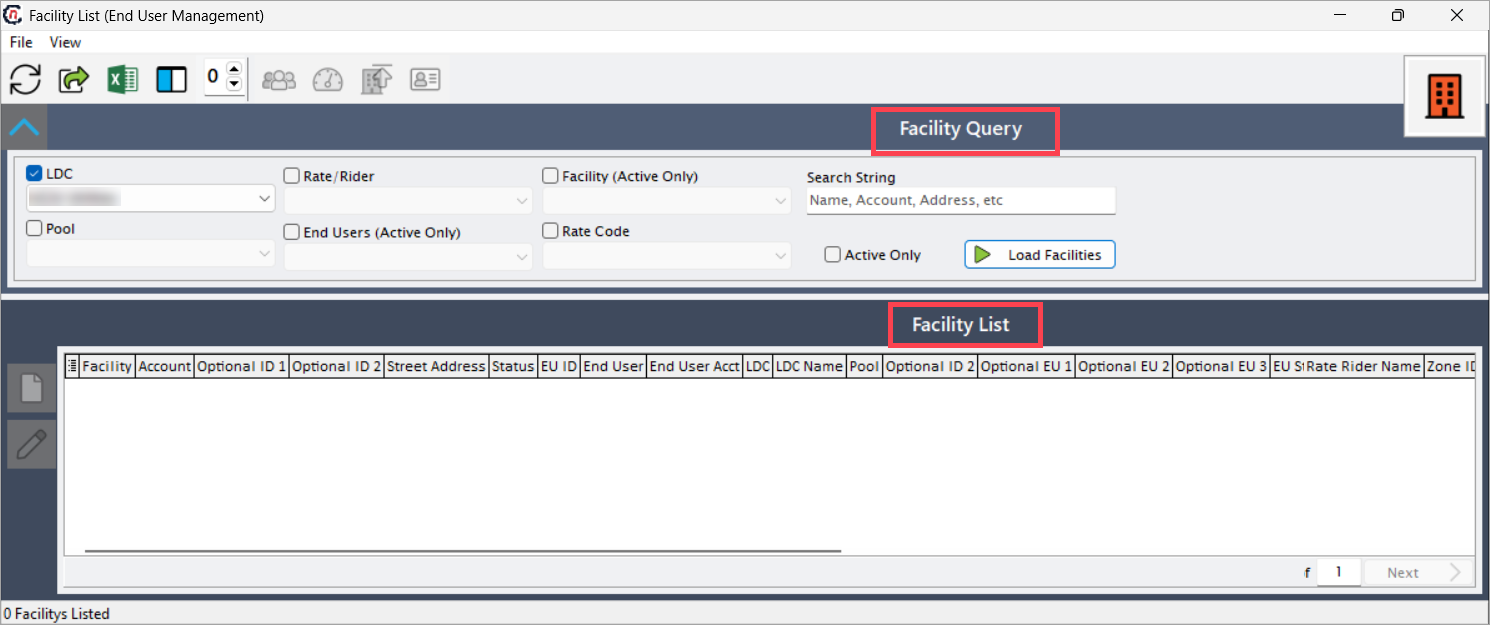
The screen displays two sections:
- Facility query: This section filters data based on selected criteria.
-
Facility list: This section automatically displays data based on applied filters.
Facility query section
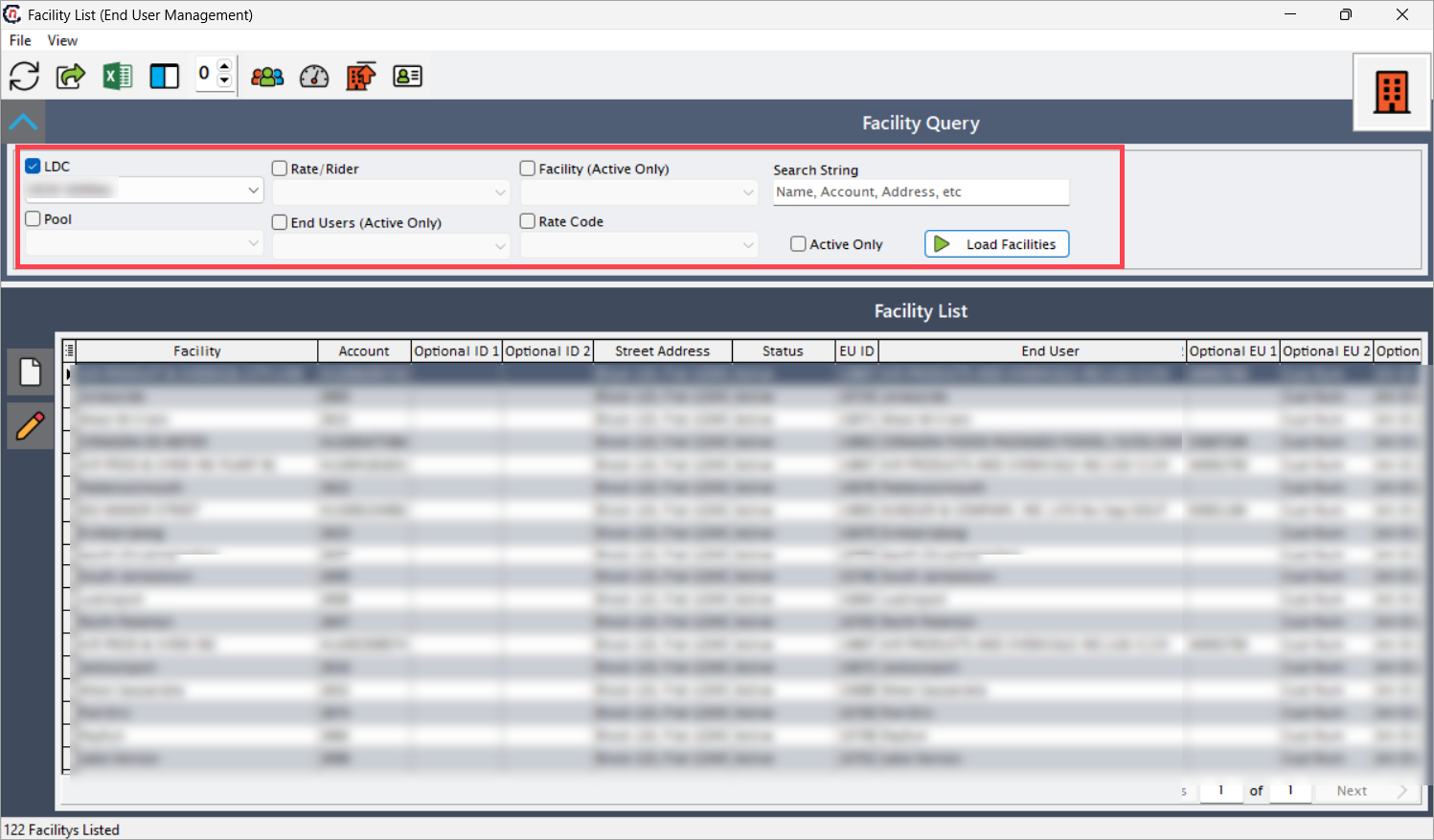
This section allows filtering data based on selected criteria. It helps retrieve configured facility data. The following table describes each filter field available in the Facility query section.
| Fields | Description |
|---|---|
| LDC | Filters facility by LDC. |
| Rate/Rider | Filters facility by LDC rate rider. |
| Pool | Filters facility by LDC pool. |
| End user (Active only) | Retrieves data for a specific end user. |
| Facility (Active only) | Retrieves data for a specific facility. |
| Rate code | Retrieves data for a specific facility. |
| Search string | Accepts any text defined in the facility screen (such as name, account, or address) to search for facilities. |
| Active only checkbox | Enables display of only active facility data when checked. |
Click Load facilities to display facility records.
Facility list section
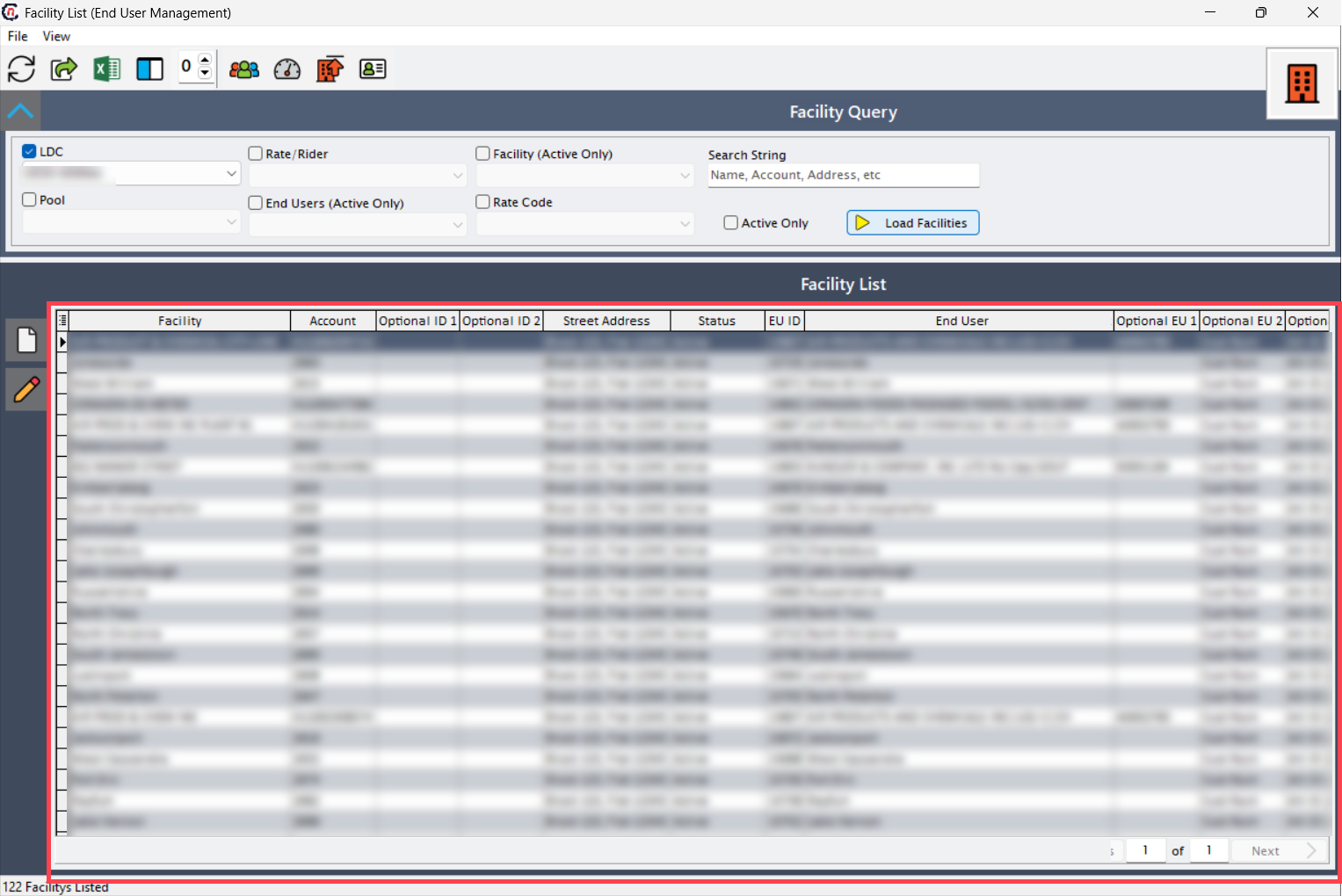
The system automatically displays relevant data based on selected filters. The following table describes each field displayed in the Facility list section.
| Fields | Description |
|---|---|
| Facility | The name or unique identifier assigned to a facility where the system supplies gas. The system populates this field from the Facility screen. |
| Account | A customer's billing account associated with the facility. This represents the LDC account number to which the facility connects. |
| Optional ID 1 | An additional identifier assigned to the facility. Defined in the Facility screen. |
| Optional ID 2 | Another optional identifier assigned to the facility. Defined in the Facility screen. |
| Street address | The physical location of the facility. The system populates this from the physical address and sales tax tab. |
| Status | Represents the current state of a facility in the natural gas system. The system determines whether a facility is active, inactive, pending, or terminated based on business rules. • Active: The facility has an active meter connected and a defined physical address. • Inactive, Pending, or Terminated: The system determines these statuses based on facility configuration and usage. The system populates this from the Facility screen. |
| Facility ID | A unique system-generated identifier assigned to a facility after its configuration. The system generates this in the Facility screen. |
| Group 1 | A grouping category for organizational purposes. |
| Grouped object | Objects or entities grouped together for management purposes. |
| EU ID (End User ID) | A unique identifier assigned to an end user who receives the gas supply. The system creates this in the End user screen. |
| End user | The name of the customer who consumes the gas. Defined in the End user screen. |
| End user acct | The account number assigned to an end user for billing purposes. This is typically the LDC account number. |
| LDC | The code assigned during LDC configuration. The system populates this during LDC screen. |
| LDC name | The full name of the LDC. Defined during LDC creation. |
| Pool | A grouping of different end users for managing gas supply and billing. The screen displays the pool account number. |
| Optional ID2 | An alternative unused identifier for the end user. The system populates this from the End user screen. |
| Optional EU1 | Another alternative unused identifier for the end user. The system populates this from the End user screen. |
| EU status | The current status of the end user account. The system populates this from the customer database. |
| LDC ID | A unique identifier assigned to the LDC. The system auto-generates this during LDC screen. |
| Pool name | The name assigned to a pool during LDC pool configuration. |
| Last pool | The most recent pool associated with the facility. The system auto-updates this from pool assignments. |
| Rate rider abbrev | A short code representing the rate rider applied to the invoice. The system populates this from the Rate rider screen. |
| Rate rider name | The full name of the rate rider. The system populates this from the Rate rider screen. |
| Zone ID | The zone classification of the facility for regulatory or supply purposes. The system populates this from the zone management system. |
| Weather zone name | The weather zone associated with the facility, which impacts gas consumption. The system populates this from the weather zone database. |
| Customer name | The name of the customer associated with the account. The system populates this from the customer database. |
| Supply region ID | The identifier for the supply region from where the system sources gas. Defined in the Supply region screen. |
| Meter interval | The time period between meter readings. Defined in the Meter reads screen. |
| Delivery billing level | Defines the level at which billing occurs (facility-level, customer-level, etc.). Configured in the Billing configuration. |
| Meter interval str | A text-based description of the meter interval. The system auto-generates this from Meter reads screen. |
| Agency status | The status of any third-party agency involved in gas distribution. The system populates this from the Agency management screen. |
| Cycle billing | Indicates whether the system bills the facility in a cycle. The system derives this from the Billing configuration. |
| Pool billing source | The billing source linked to the pool. The system populates this from the Billing configuration. |
| Meter count | The total number of meters at the facility. The system populates this from the Meter reads screen. |
| Meter count active | The number of active meters at the facility. The system auto-populates this from the Meter reads screen. |
| Oldest invoice age | The age of the oldest outstanding invoice. The system auto-calculates this from the Billing configuration. |
| FAC ALT ID1 caption | An alternative identifier for the facility used in reports. Defined in the Facility screen. |
| FAC ALT ID2 caption | Another alternative identifier for the facility. Defined in the Facility screen. |
| Pool start date | The start date of the pool's validity. Defined in the LDC pool screen. |
| Pool end date | The end date of the pool's validity. Defined in the LDC pool screen. |
| Price ID | A unique identifier for a price agreement. The system generates this from the Price agreement screen. |
| Effective date | The date when the price agreement or rate becomes effective. The system populates this from the Price agreement screen. |
| Pricing method | The method used to determine pricing for the gas supply. Configured in the Price agreement screen. |
| LDC rate code ID | The identifier for the rate code the LDC assigns. The system populates this from the LDC rate code screen. |
| Rate code | The pricing category applied to the gas supply. The system populates this from the Price agreement screen. |
Step 2: Create facility record
To create a new facility, open the Facility screen by clicking the Create facility icon. Then, add the new record by following the procedure in the reference Add facility article.
Summary
The Facility list screen serves as a central hub for comprehensive facility management within the nGenue application. It provides users with robust filtering capabilities through the Facility query section and detailed facility information display through the Facility list section. With its intuitive interface and extensive field descriptions, users can efficiently monitor, analyze, and manage facility records, ensuring data accuracy and supporting informed decision-making in natural gas operations. The screen's functionality, combined with proper prerequisite configurations, enables seamless facility management across various organizational levels.