Add a Max Daily Quantity (MDQ) values to end user
The Max Daily Quantity (MDQ) limits/End user MDQ values screen define the maximum quantity an end user or facility can consume in a single day. They help manage energy usage, control costs, and ensure compliance with contractual values. Configuring MDQ values accurately ensures proper monitoring and helps avoid over-consumption penalties.
Prerequisites
Before configuring a End user MDQ values screen, ensure the following prerequisites are met:
- Ensure the nGenue application is installed and use valid login credentials to log into the application.
- User permissions: Must configure the security settings including User type, Security user, Security group, Security assign user, and Security assign permissions in their respective screens to ensure the required access and permissions for End user MDQ values screen actions.
- LDC: Create the relevant LDC in the application.
- LDC Daily Quantity (DQ) type is configured: Add a daily factor record under LDC Daily Quantity (DQ) types, define all required fields, and save the configuration.
- Map Rate rider to the DQ type: In the LDC rate class screen, select the applicable Rate rider, click Assign daily factor to this tariff, move the record using the Forward arrow (>), and click Accept to confirm.
- End user: Configure the end user in the system before adding MDQ values.
- Facility: Add the facility in the system to link it with the end user.
Procedure to add a end user MDQ values
Step 1: Navigate to End user MDQ values
Access the End user MDQ values screen in two ways:
-
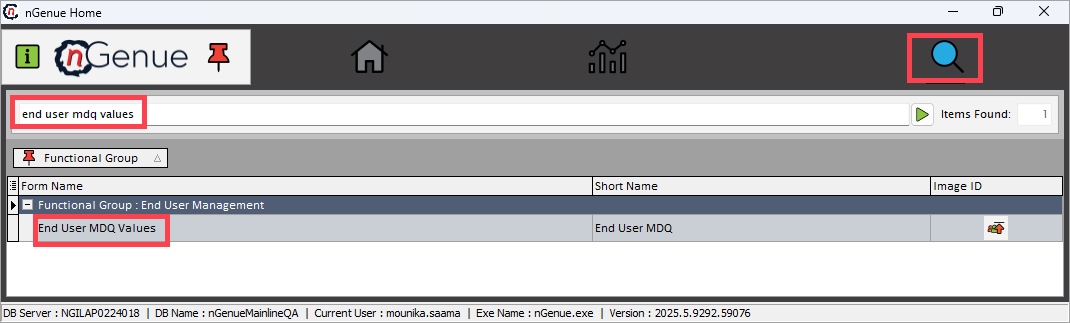
Search for the end user MDQ values from the nGenue homepage and select End user MDQ values from the result or,
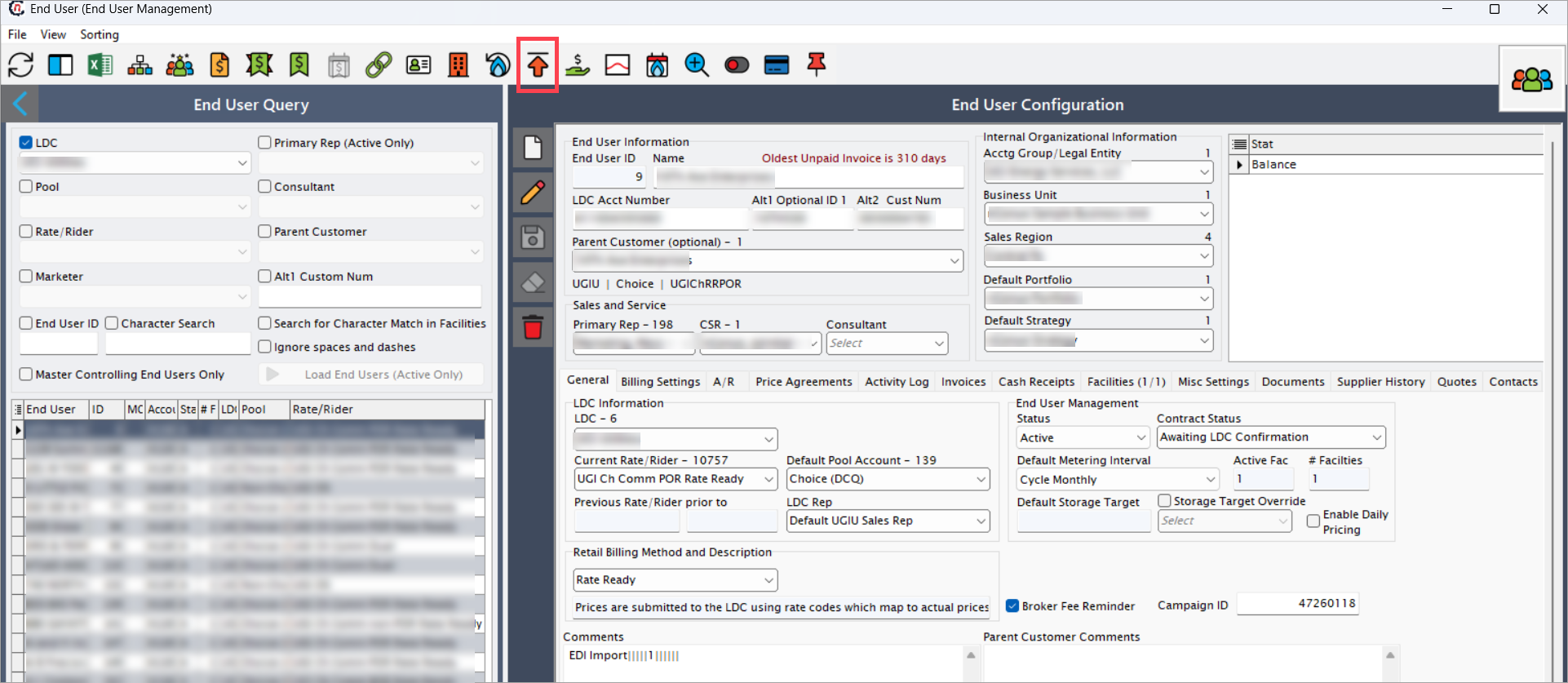
navigate via the End user screen. From this screen, select the desired End user from the list, and then click on the Open MDQ limits icon to access the End user MDQ values screen.
-
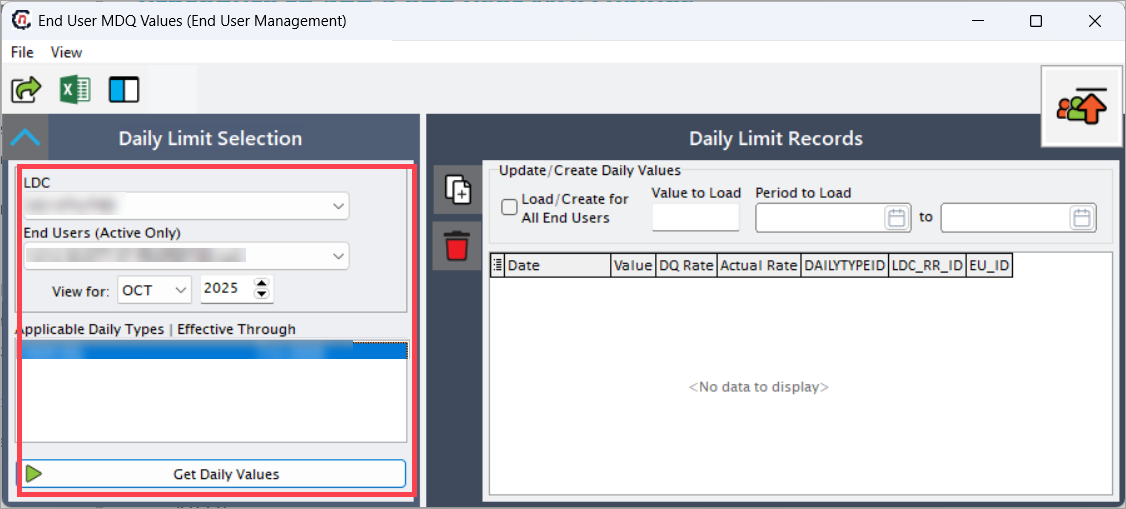
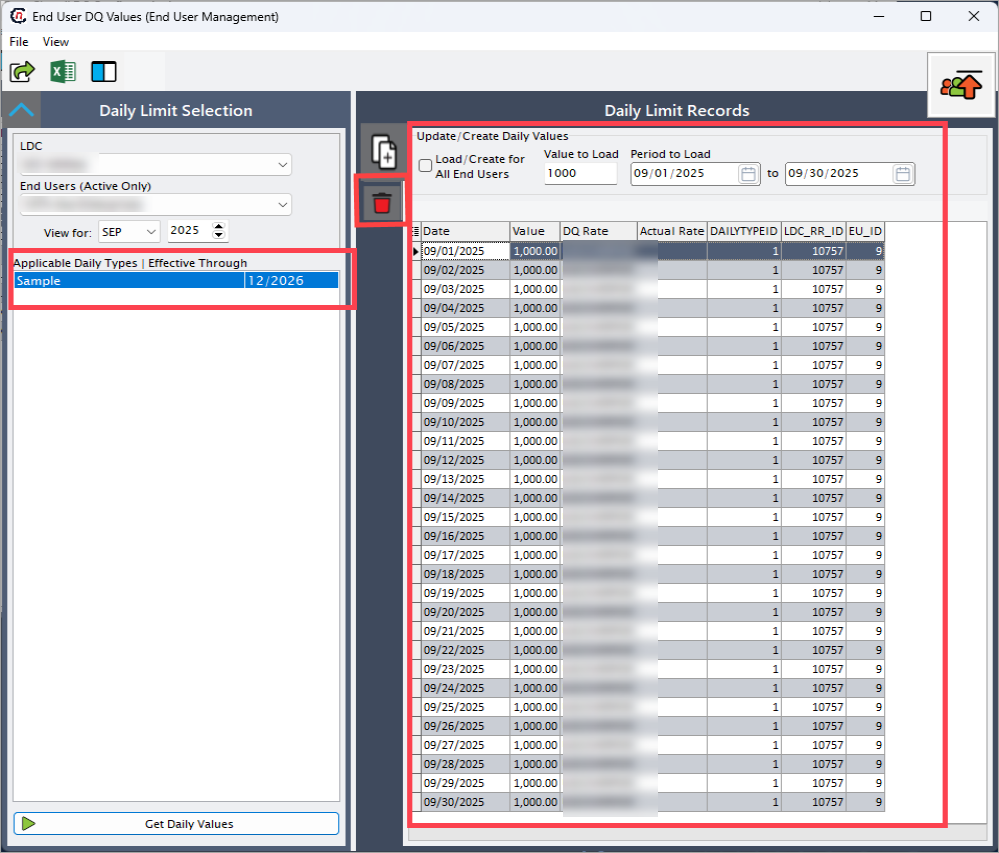
Select the LDC, End user, and View for (month and year). The Daily limit selection section displays the DQ type according to the chosen criteria.
-
Click Get daily values to view existing MDQ record.
Step 2: Create MDQ record
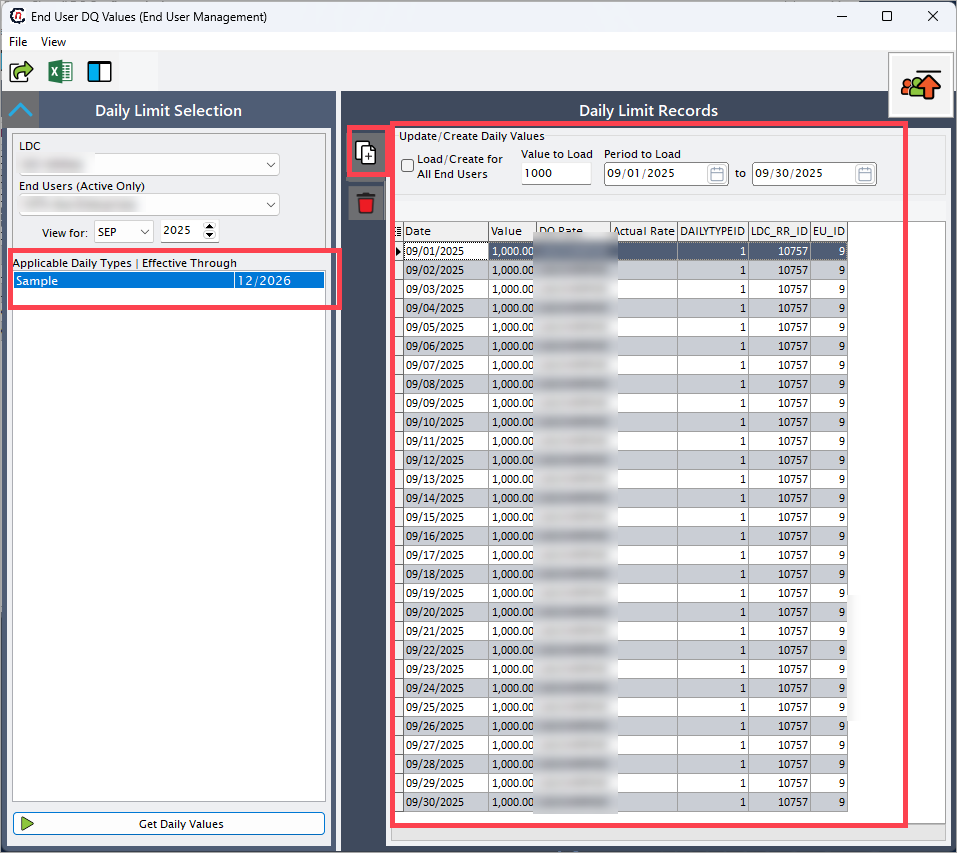
- Enter the Value to load and Period to load(enter the start date and end date).
- Enable Load/Create for all end users to apply the same values to all end users; disable it if values apply individually.
- Click Create values for period.
-
The system automatically creates the values for the specified period.
-
Step 3: Delete MDQ records (optional)
To delete existing MDQ records, if required:
- Load the End user daily limit records using the steps above.
- Select the record(s) you want to delete from the displayed list.
-
Click the Delete button to remove the selected MDQ values.
Note
- The system uses the MDQ value only for display purposes.
- It appears on the Nomination and storage balance review screen to show the maximum allowable quantity per day as defined by the LDC.
- MDQ values do not affect any calculations or functionality.
- Users can consume more than the defined MDQ if required; the system does not restrict usage beyond this limit.
- The MDQ configuration serves as an informational guideline to help users monitor daily usage and maintain awareness of potential over-consumption relative to LDC values.
Summary
Configuring MDQ values ensures precise control over daily consumption at both the end user and facility levels. Following these steps enables accurate energy management, enforces contractual values, and reduces financial risks associated with over-consumption. Always verify the values and settings to maintain consistent and correct data in the system.