Reviewing sales tax
By configuring and running the sales tax review, ensures compliance with tax regulations, identify discrepancies between taxable and non-taxable amounts, verify exemptions and applied tax rates, and generate aggregated totals for accurate reporting and audits.
Prerequisites
Before working on Sales tax review screen, ensure the following prerequisites are met:
- You must configure the Security settings including User type, Security user, Security group, Security assign user, and Security assign permissions in their respective screens to access the Sales tax review screen.
- The LDC and related facility for the selected invoice must be configured in their respective screens.
- Invoice for the selected end user and all related details, including tax identifiers, should be available for reviewing the sales tax.
- You must configure sales tax in the Sales tax definition screen before you can view or review any sales tax records.
Procedure to review sales tax
- Log in to the nGenue application.
- Click the Search icon and enter sales tax review in the search bar.
-
Double-click Sales tax review to open the corresponding screen.

-
In the Sales tax review (accounting) screen, Sales tax review query section provides filters to load sales tax records. you must enable the required filters to execute the query.
The table below lists the filterable fields required to run the query:
Fields Description LDC Select the Local Distribution Company associated with specific end user. Delivery month/year Specify the delivery month and year. State Select the state for tax review. Country Select the country for tax review. 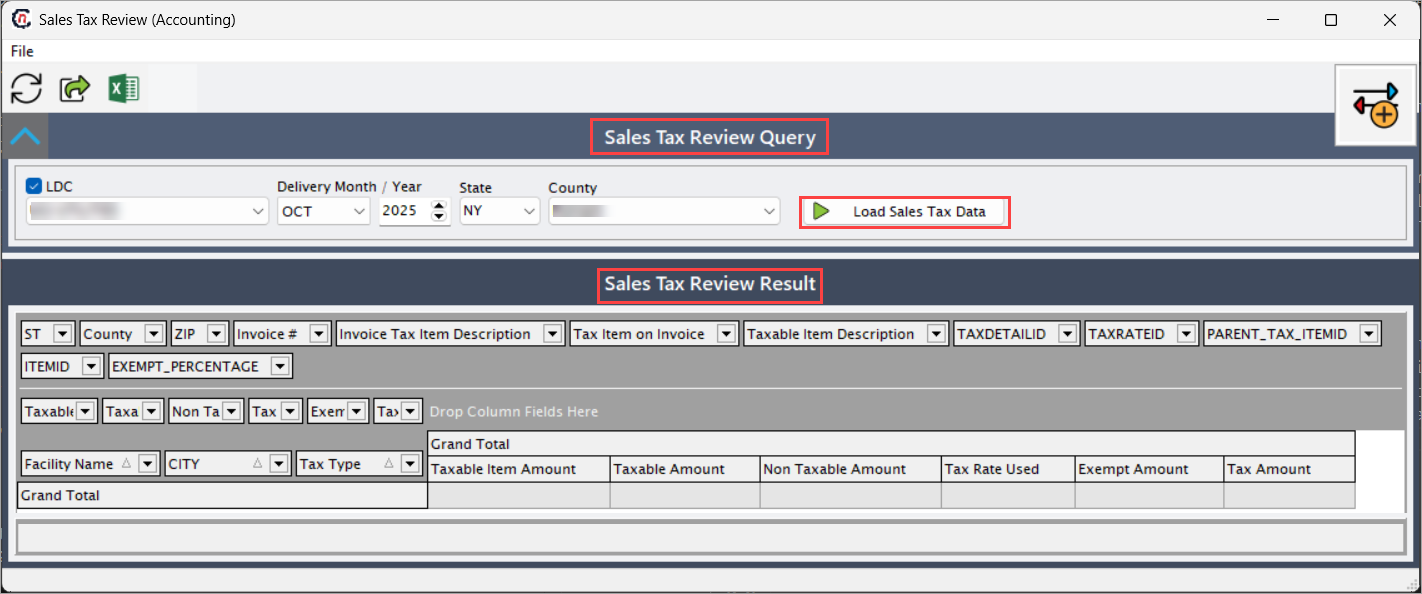
-
Click Load sales tax data to run the query to load and display the related sales tax records in the Sales tax review result section.
-
The Sales tax review result section displays the sales tax results for each invoice and allows validation of tax related details.
The table below provides the fields with dropdown options to select along with brief description:
Fields Description ST Select the state where tax is applied. Country Select the country where tax is applied. Zip Provide the zip code related to the facility or end user. Invoice # Select the invoice number linked to the tax record. Invoice tax item description Choose the description of the tax item on the invoice. Tax item on invoice Select the tax item applied to the invoice. Taxable item description Choose the description of taxable items. Tax detail ID Select the identifier for tax detail record. Tax rate ID Select the identifier for applied tax rate. Parent_tax_item ID Select the parent reference for tax item grouping. Item ID Select with identifier of the taxable item. Exempt_percentage Select the percentage of exemption applied. Taxable item amount Choose the value of taxable items. Taxable amount Select the portion of invoice subject to tax. Non taxable amount Select the portion of invoice not subject to tax. Tax rate used Select the tax rate applied for calculation. Exempt amount Select the dollar value of exempted tax. Tax amount Select the calculated tax amount applied. Facility name Choose the facility name associated with the tax record. City City for the taxable entity. Tax type Type of tax applied (e.g., state, local, federal). Grand total Total invoice amount including tax. -
The Sales tax review result section also provides summarized values across selected invoices to review.

The table below lists fields that consolidate taxable amounts, exemptions, and applied tax rates for a complete view of tax obligations:
Fields Description Grand total Specifies the total of all invoice amounts reviewed. Taxable item amount Specifies the sum of taxable item amounts. Taxable amount Specifies the sum of taxable portions of invoices. Non taxable amount Specifies the total non-taxable invoice amounts. Tax rate used Indicates the applied rate for total calculation. Exempt amount Indicates the total amount exempted from tax. Tax amount Indicates the total calculated tax amount.
Summary
It displays detailed tax information, including taxable amounts, exemptions, and applied rates for each invoice. By reviewing and verifying tax details, helps to reduce risk, resolve discrepancies, and stay compliant with regulatory requirements.