Adding daily volumes to an end user
Daily meter reads capture the actual energy usage of end users on a daily basis. These readings are essential for:
- Accurate billing: Ensuring invoices reflect actual consumption.
- Usage monitoring: Tracking consumption trends for analysis and reporting.
- Forecasting and planning: Supporting demand projections and supply management.
- Regulatory compliance: Maintaining accurate records for audits and settlements.
This guide explains how to manage daily volume records, including loading existing data, inserting new records, entering metered usage, and updating daily facility volumes.
The table below describes the available icons and their functions:
| Icons | Description |
|---|---|
 |
Create an end user trade. |
 |
View end user trades. |
 |
View weather detail. |
 |
Lock or unlock first of month nomination. |
 |
recalculate usage projections. |
 |
View penalty adjustments |
 |
Convert volumes |
 |
Insert daily record for date range |
 |
update tier 1 volumes with First of Month (FOM) noms |
Prerequisites
Before configuring a Daily volumes screen, ensure the following prerequisites are met:
- User permissions: You must configure the security settings including User type, Security user, Security group, Security assign user, and Security assign permissions in their respective screens to ensure you have the required access and permissions for Daily volumes screen actions.
- LDC: Create the relevant LDC in the application.
- End user: Configure the end user in the system before adding daily volumes.
Procedure to configure daily volumes
Step 1: Navigate to Daily volumes screen
-
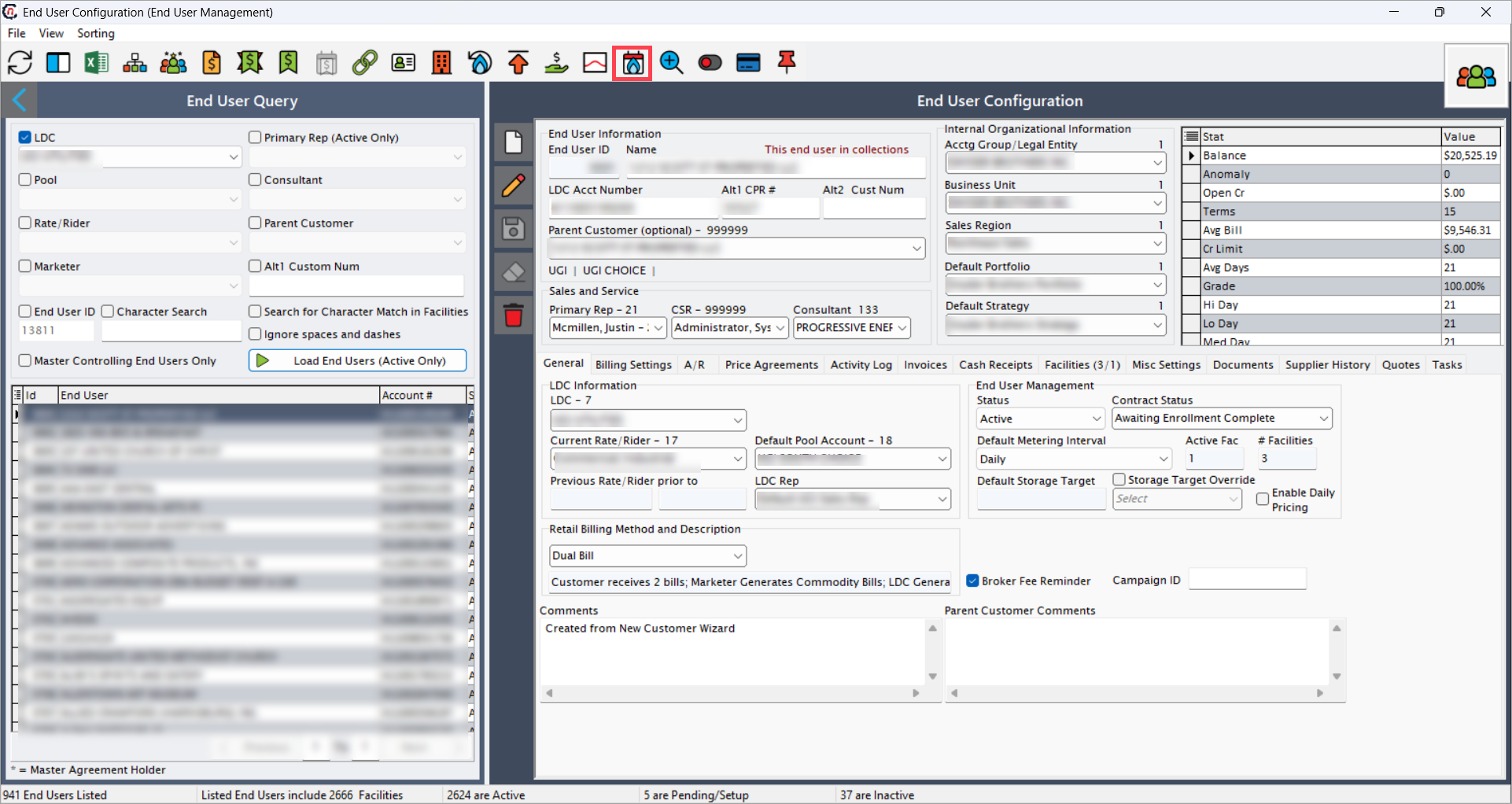
Navigate to the End user screen.
Note
Set the Default metering interval to Daily in the End User screen.
-
Select the end user and then, click the Daily volumes icon.
-
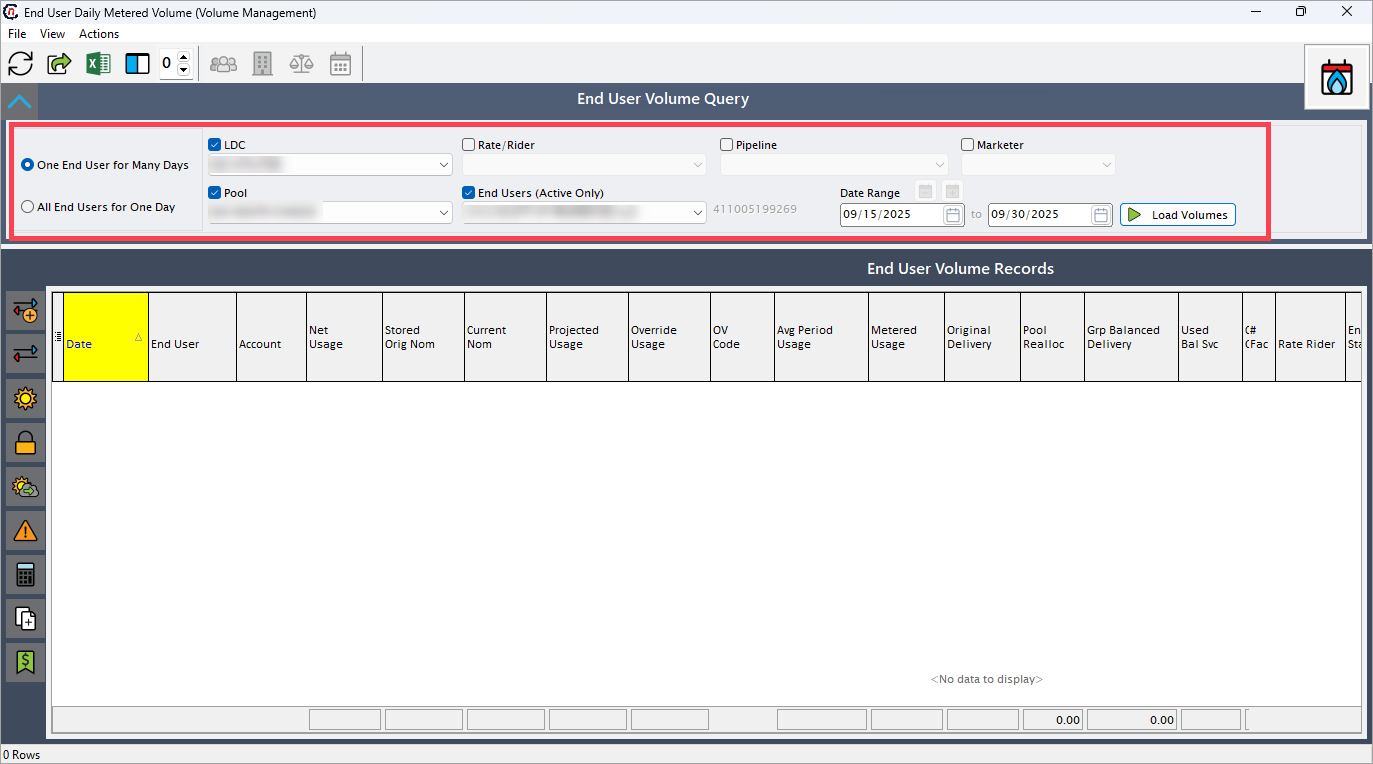
The End user daily metered volume screen appears and automatically displays the selected LDC, Pool, and End User.
- Select one of the following options:
- One end user for many days: To view daily meter reads for a single end user over a specified period.
- All end users for one day: To view meter reads for all end users on a single day.
-
Click Load volumes to retrieve any existing records for the selected date range.
Step 2: Insert new records (If no data exists)
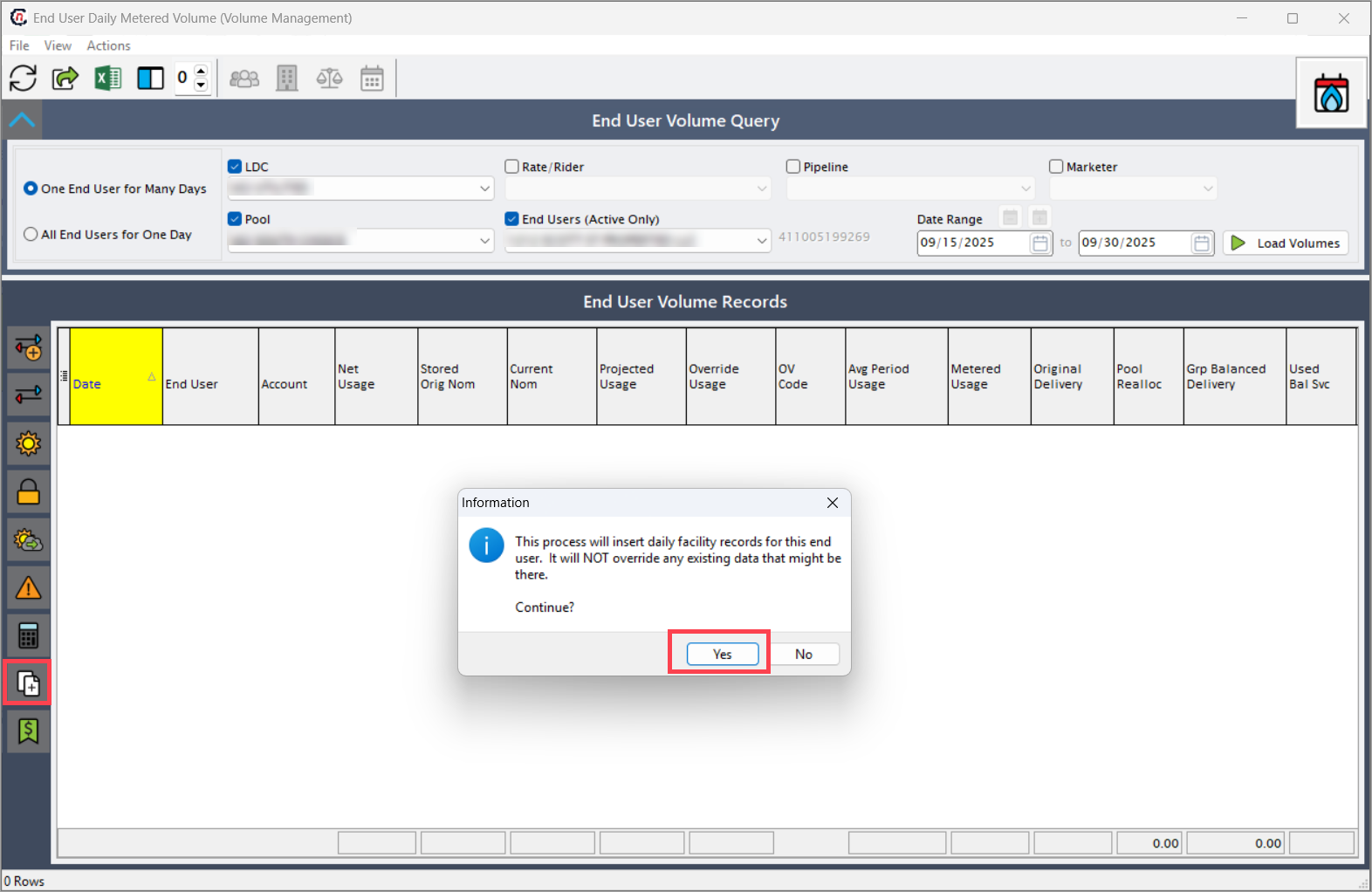
- Click the Insert daily record for date range icon on the Daily metered volume screen.
- Ensure the filter is correctly set to avoid creating records outside the intended range.
- An informational message appears stating that: This process will insert daily facility records for the end user without overriding any existing data.
-
Click Yes to proceed.
Step 3: Enter metered usage
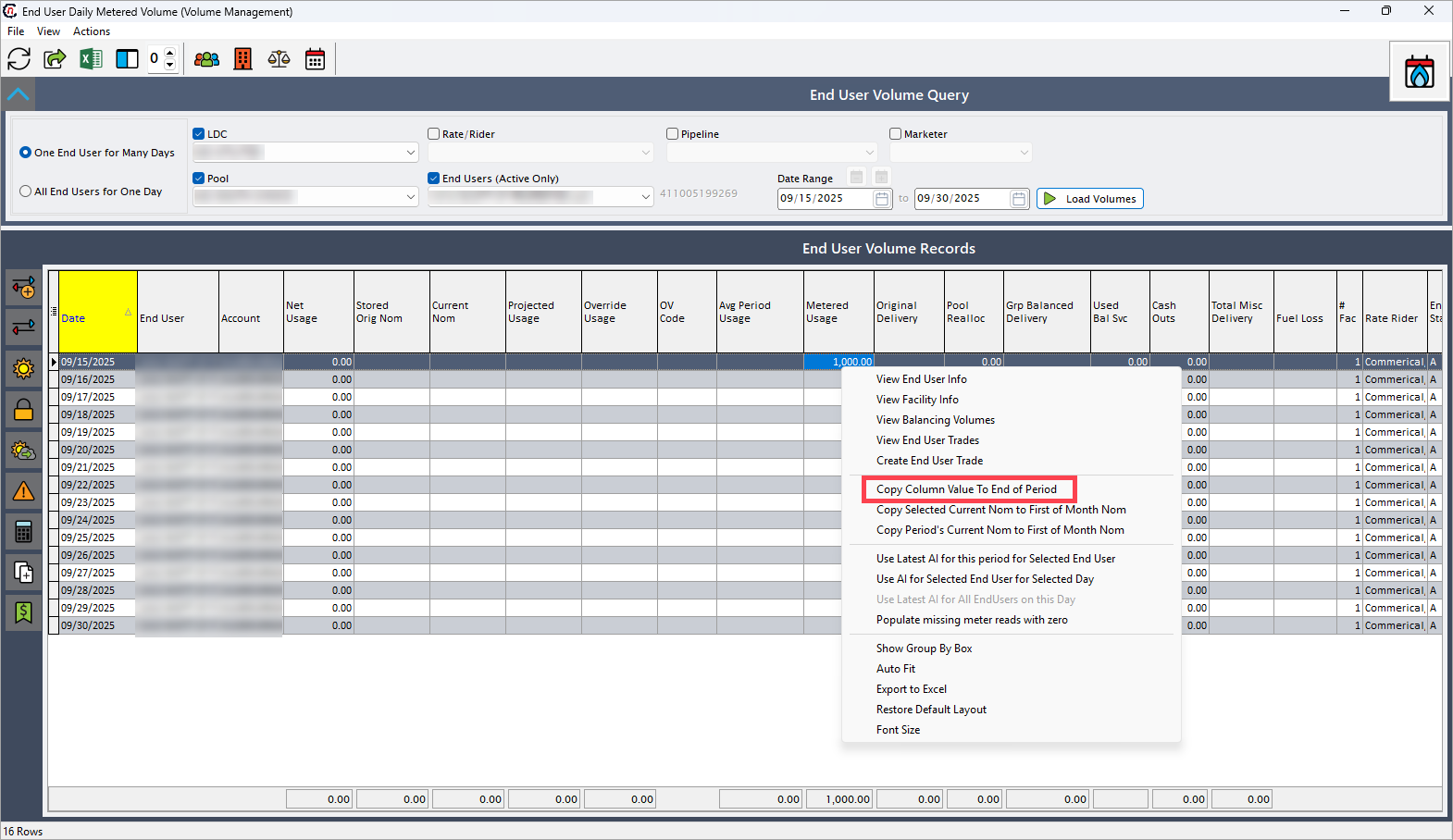
- Double-click a specific day to enter the metered volume.
- Press Enter, then use the Down arrow key to move to the next day.
- To quickly apply the same volume across the remaining days of the month:
- Right-click the entered value.
-
Select Copy column value to end of period.
Step 4: Access and update daily facility volumes
Daily facility volumes allow entry of usage data at the facility level. This is useful when an end user has multiple facilities linked to their account.
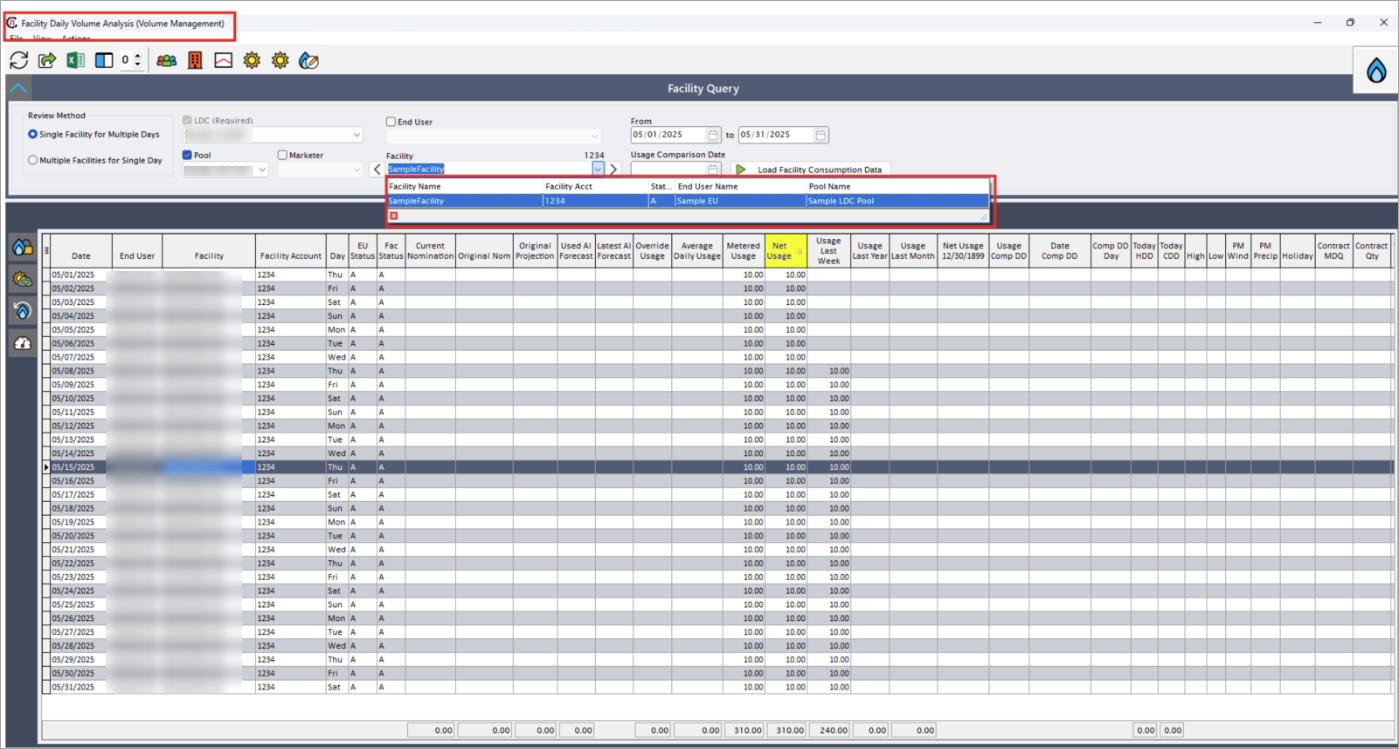
- In the End user daily metered volume screen, double-click any line item to open the Daily facility volume analysis screen.
- When the screen opens:
- Select the appropriate facility from the dropdown if multiple facilities are associated with the end user.
- Click Load facility consumption data to display the usage records for the selected facility.
-
Update the meter reads if required, as mentioned above.
Summary
By following these steps, you can accurately manage and maintain daily energy usage records for end users. Properly entering and updating daily volumes ensures reliable billing, informed analysis, effective forecasting, and compliance with regulatory requirements.