Viewing LDC representatives
The View LDC representative feature in nGenue provides a dedicated window to review and manage contact details of representatives linked to a Local Distribution Company (LDC). Representatives may include account managers, sales contacts, or utility liaisons who serve as the primary communication bridge between the LDC and your organization.
Note
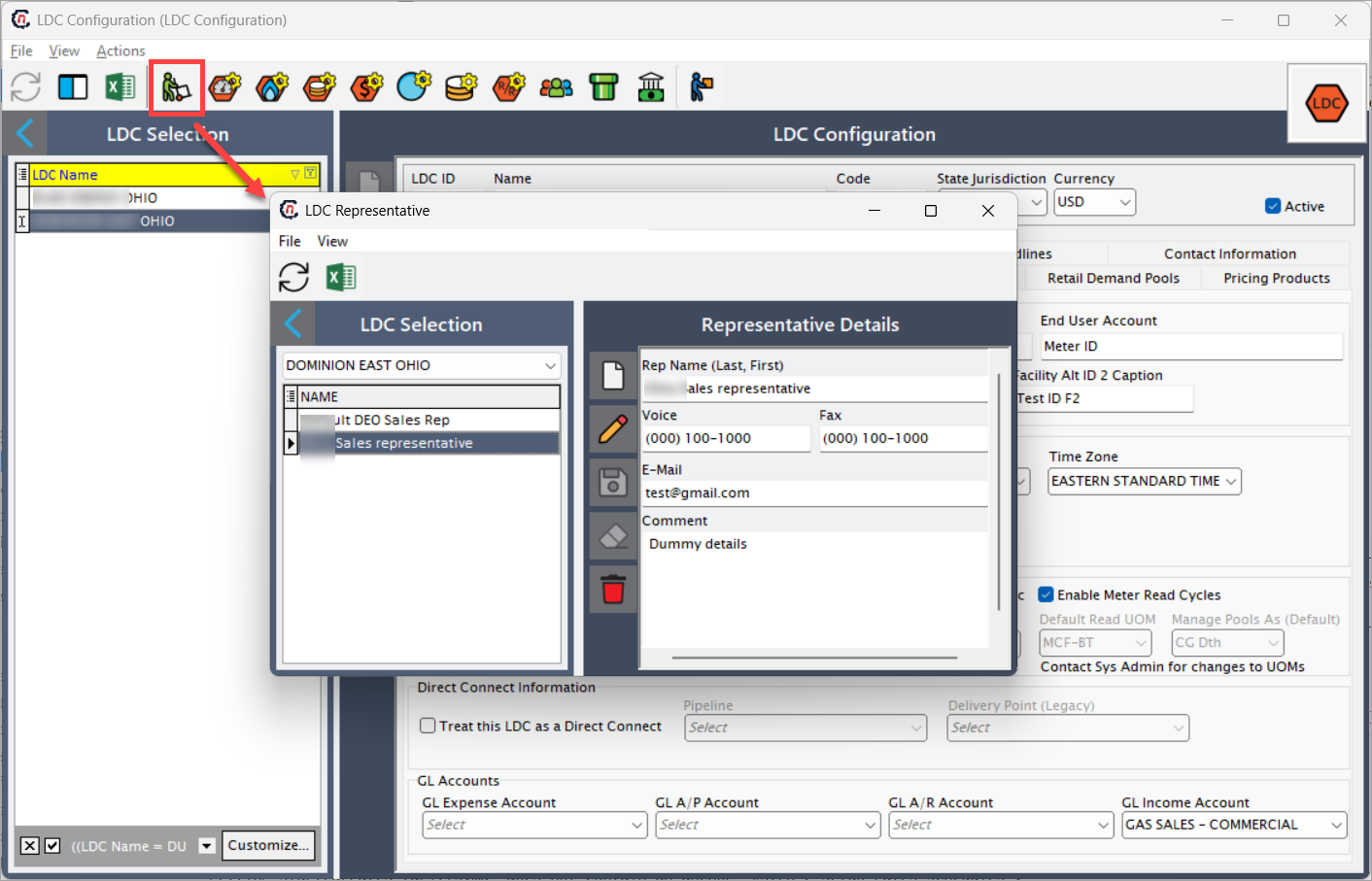
You can access this feature from the LDC configuration screen by clicking the Open LDC representative icon on the toolbar.
On the Open LDC representative screen, you can:
- View all representatives – See every representative associated with a specific LDC in one place.
- Access detailed contact information – Review phone numbers, email addresses, and other communication details.
- Create new representatives – Add new sales representatives when onboarding new LDC contacts.
- Edit or delete existing representatives – Keep records up to date by modifying details or removing outdated entries.
- Identify the default representative – One representative is always marked as the default for the LDC. You can update or change details using the Edit option.
- Maintain notes and comments – Add contextual information such as availability, responsibilities, or escalation roles.
Why this screen is required
Maintaining accurate representative information is essential for several reasons:
- Communication clarity – Ensures your team knows exactly whom to contact for issues, clarifications, or escalations related to an LDC.
- Audit and compliance – Provides an official record of assigned representatives, supporting audit and regulatory requirements.
- Operational efficiency – Reduces delays caused by unclear or outdated contact details.
- Relationship management – Helps build stronger relationships by keeping track of key contacts (sales reps, administrators, technical liaisons).
Without this setup, teams may face challenges in identifying the correct point of contact, which can lead to miscommunication, delays in issue resolution, and non-compliance during audits.
Fields in the LDC representative screen
| Fields | Description |
|---|---|
| Rep name (Last, First) | Full name of the LDC representative in Last, First format. This ensures consistent identification and sorting of contacts. |
| Voice | Primary phone number for contacting the representative. Used for direct communication. |
| Fax | Fax number of the representative (if applicable). Supports legacy communication and official document sharing. |
| Email address of the representative, used as the primary electronic communication channel. | |
| Comment | Free-text field to add notes about the representative, such as availability, role-specific notes, or preferred communication method. |
| Default LDC sales rep (checkbox) | Identifies whether this representative should be treated as the default contact for the LDC. This ensures one representative is always available as the primary contact. |
Example usage scenario
- A utility company (XYZ) has multiple sales and account representatives.
- You configure one of them as the Default LDC sales rep.
- During contract setup, billing disputes, or compliance audits, the system automatically references the default representative to ensure consistent communication.
- If other team members need to escalate issues, they can access this screen to quickly locate phone numbers, emails, or additional contacts.
This improves coordination, reduces dependency on external spreadsheets, and ensures that your system of record maintains up-to-date contact details.
The LDC representative screen is a critical part of the LDC configuration. It centralizes representative details, ensures compliance and operational efficiency, and establishes clear communication channels with utility partners. By maintaining accurate representative records, your organization minimizes risk, improves collaboration, and strengthens its working relationships with Local Distribution Companies.