Creating a prospect status
The Prospect status screen allows you to define the status of prospects within the nGenue application. Any status descriptions created in this screen will reflect in the Prospect Quote Engine (PQE) screen within the prospect status field. This article provides the complete procedure for creating and managing prospect status records.
The table below describes the available icons and their functions:
| Icons | Icons name |
|---|---|
 |
Add a prospect status record |
 |
Edit current prospect status |
 |
Save changes to current prospect status |
 |
Cancel changes to prospect status record |
 |
Delete current prospect status record |
Prerequisites
- You must configure the security settings including User type, Security user, Security group, Security assign user, and Security assign permissions in their respective screens to ensure you have the required access and permissions for Prospect status screen actions.
Procedure to configure prospect status
Step 1: Navigate to the Prospect status screen
- Log in to the nGenue application.
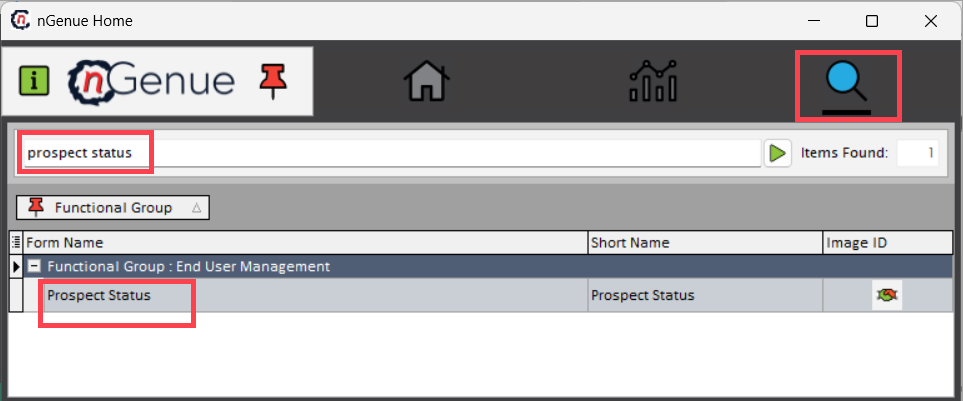
- Click the Search icon and enter prospect status in the search bar.
-
Double-click the Prospect status from the search results to open the screen.
-
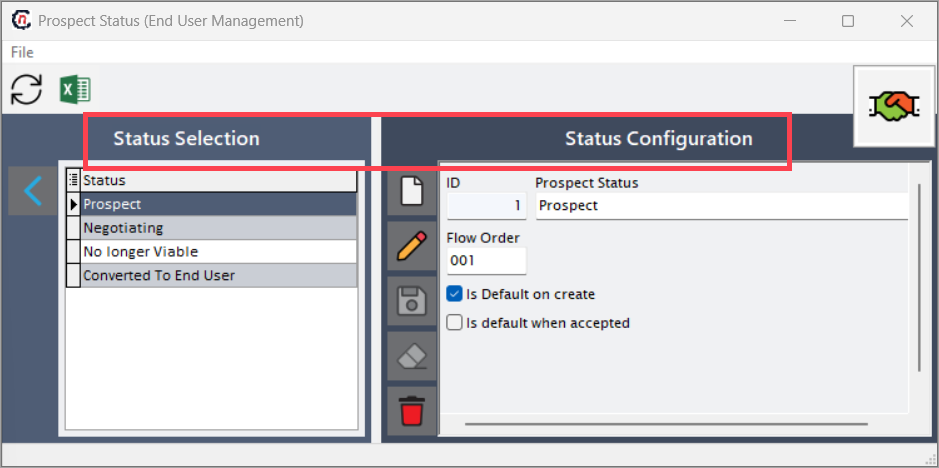
The Prospect status screen contains two main sections:
- Status selection: Displays a list of all existing prospect status records.
-
Status configuration: Allows you to create, edit, or delete prospect status records.
Step 2: Create a new prospect status
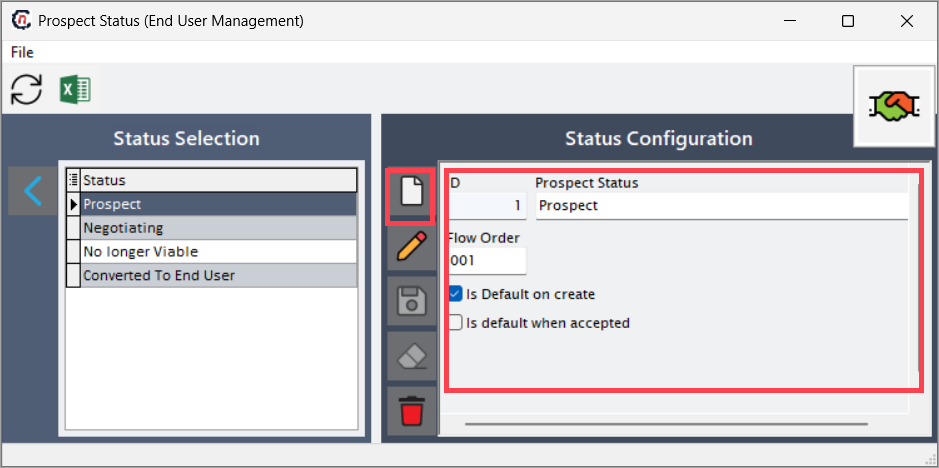
- In the Prospect status screen, click the Add a prospect status record icon.
- In the status configuration section, enter the following details:
- Prospect status: Enter a descriptive name for the new status.
- Flow order: Enter a numerical value to define prospect status's position in the prospect lifecycle sequence.
-
Select the appropriate default behavior for Prospect status:
- Is default on create: Enable this checkbox if prospect status should be automatically assigned to all newly created prospects.
-
Is default when accepted: Enable this checkbox if prospect status should be automatically assigned when a prospect is accepted.
-
Click the Save icon to update the new prospect status record.
Summary
Once saved, the new prospect status will be available for selection and will automatically appear in the prospect status field within the Prospect Quote Engine (PQE) screen. This ensures consistent status tracking and management throughout the prospect lifecycle.