Configure menu
A menu in nGenue defines how users access application functionality from the home screen. Menu configuration controls which functional forms are grouped together, how they are visually organized, and which users see which layout. By configuring menu categories and layouts, administrators can tailor the home screen to match user roles, workflows, and operational responsibilities.
Menus are used whenever a user logs in to nGenue. The configured layout determines the categories displayed, the forms available within each category, and the visual arrangement of icons, ensuring faster navigation and controlled access to system features.
Prerequisites
Before working on the Menu configuration screen, ensure the following prerequisites are met:
- Ensure the nGenue application is installed and use valid login credentials to log into the application.
- Configure the user permissions including User type, Security user, Security group, Security assign user, and Security assign permissions in their respective screens to enable access to the Menu configuration screen.
Procedure to configure menu
Step 1: Navigate to Menu configuration screen
- Log in to the nGenue application.
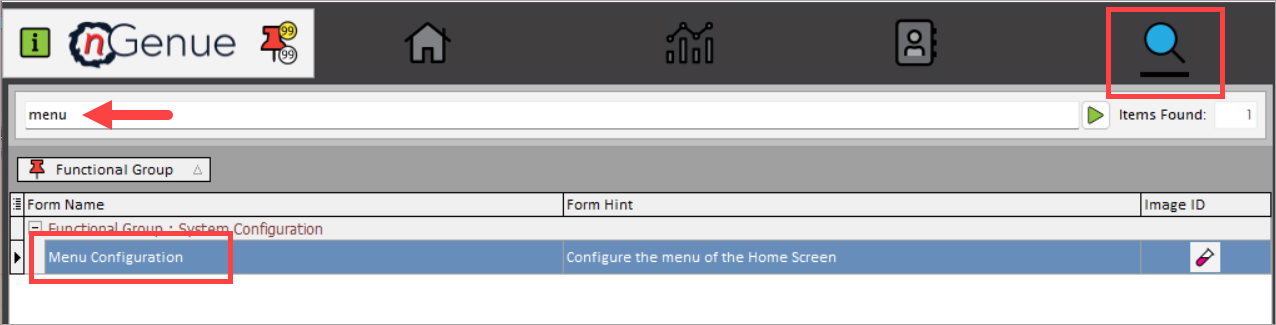
- Click the Search icon and enter Menu configuration in the search bar.
-
Double-click the Menu configuration from the search results to open respective screen.
-
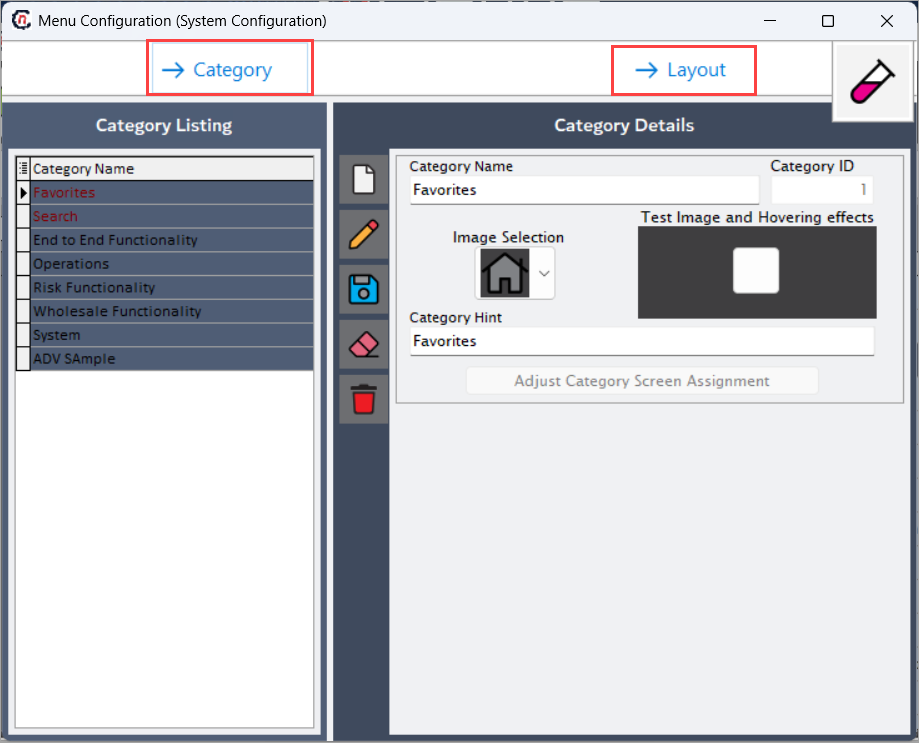
Menu configuration (System configuration) screen has two sections:
-
Category:
- Category listing:
- Category details:
-
Layout: Layouts define how categories are arranged on the home screen and which users see a specific arrangement. Multiple layouts can exist to support different user roles.
- Layout listing:
-
Layout details:
- General:
-
Users:
-
Step 2: Configure category
The following table lists the icons available on the Category details section and their respective functions:
| Icons | Icon name | Description |
|---|---|---|
 |
Add a new category record | Opens a new record form to create a category entry. |
 |
Edit current category record | Opens the selected record for editing. |
 |
Save changes to current category record | Saves the modifications made to the current record. |
 |
Cancel changes to current category record | Discards unsaved changes made to the record. |
 |
Delete current category record | Permanently removes the selected category record. |
Step 2.1 : Add a category record
- In the Category details, click the Add a new category record icon to create a new contract language record.
-
Complete required fields available in the Category details section that are listed in the table below:
Fields Description Category name Specifies the official name or description of the facility. Category ID Specifies the date and timestamp when the activity logged. Image selection Describes the action or event. Test image and hovering effects Specifies the name of the user who logged the activity. Category hint Specifies the source where the activity logged from. Adjust category screen It is a unique identifier for the activity record. -
Click Adjust category screen, select the required forms, and click Accept changes. After assigning forms, the following information is displayed for each associated form:
Fields Description ID Specifies the official name or description of the facility. Form name Specifies the date and timestamp when the activity logged. Form hint Describes the action or event. Order Specifies the name of the user who logged the activity. Functional group Specifies the name of the user who logged the activity. 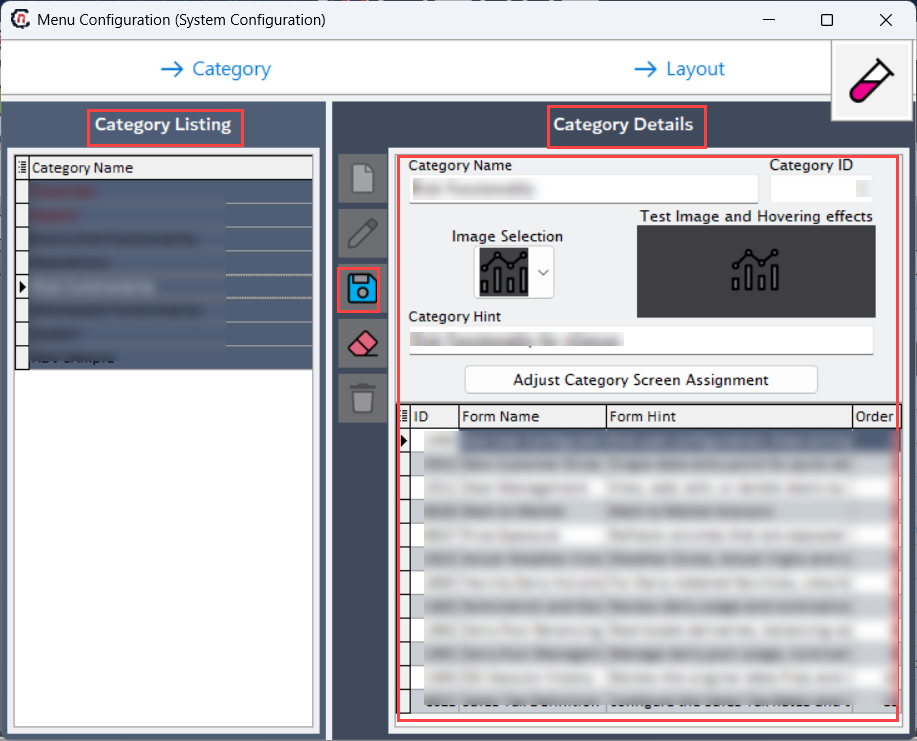
Step 2.2 : Edit a category record
- Select the category record from Category listings and click the Edit a category record icon to modify the selected category record.
- Update necessary details and click Save changes to current category record to apply changes.
Step 2.3 : Delete a category record
Select the category record from Category listings and click the Delete current category record icon to permanently remove the selected category record. Confirm the deletion.
Step 3: Configure layout
The following table lists the icons available on the Layout details section and their respective functions:
| Icons | Icon name | Description |
|---|---|---|
|
Add a new layout record | Opens a new record form to create a category entry. |
|
Edit current layout record | Opens the selected record for editing. |
|
Save changes to current layout record | Saves the modifications made to the current record. |
|
Cancel changes to current layout record | Discards unsaved changes made to the record. |
|
Delete current layout record | Permanently removes the selected category record. |
Step 2.1 : Add a layout record
- In the Layout details section, click the Add a new layout record icon to create a new layout record.
-
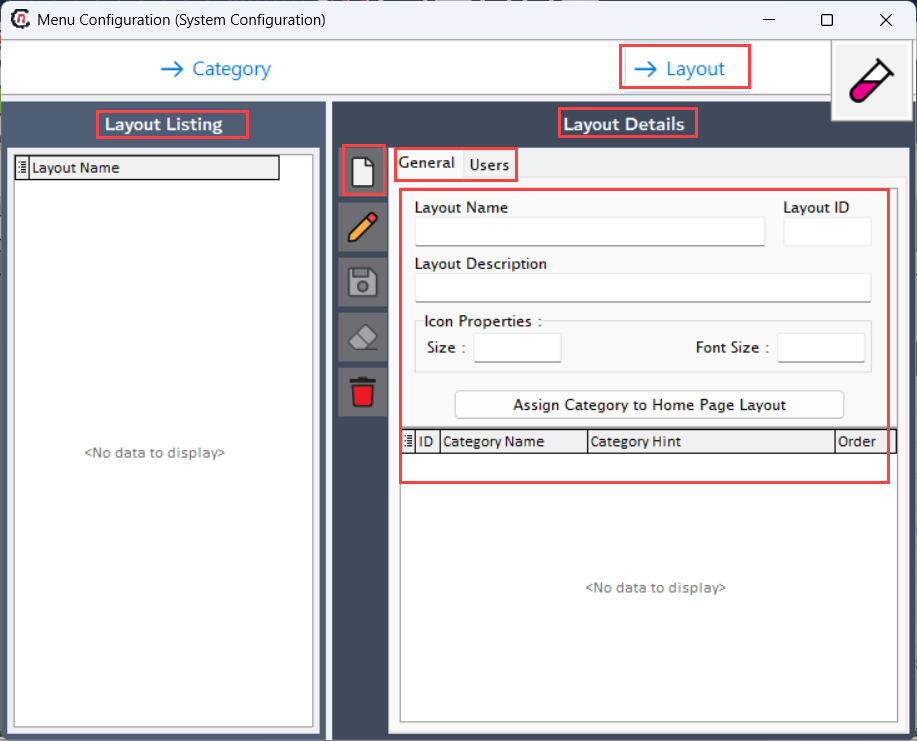
Complete required fields available in the General tab:
Fields Description Layout name Specifies the official name or description of the facility. Layout ID Specifies the date and timestamp when the activity logged. Layout description Describes the action or event. Test image and hovering effects Specifies the name of the user who logged the activity. Icon properties Size and Font size Adjust category to home page layout It is a unique identifier for the activity record. -
Click Adjust category to home page layout, select categories, and click Accept changes. Assigned categories are displayed with the following details:
Fields Description ID Specifies the official name or description of the facility. Category name Specifies the date and timestamp when the activity logged. Category hint Describes the action or event. Order Specifies the name of the user who logged the activity. -
Navigate to the Users tab and select the users who should see this layout.
Step 2.2 : Edit a layout record
- Select the layout record from Layout listings and click the Edit a layout record icon to modify the selected layout record.
- Update necessary details and click Save changes to current layout record to apply changes.
Step 2.3 : Delete a layout record
- Select the layout record from Layout listings section.
- Click the Delete current layout record icon to permanently remove the selected layout record and confirm the deletion.
Summary
Menu configuration in nGenue controls home screen navigation, functional grouping, and user-specific layouts. Categories define what functionality is grouped together, while layouts define how and for whom those categories are displayed. Proper menu configuration improves usability, ensures role-based access, and streamlines user interaction across the application.