Configuring supply WACOG pool
The Supply WACOG pool in nGenue represents a consolidated pool used to calculate the Weighted Average Cost of Gas (WACOG) across multiple supply sources, Local Distribution Company (LDC) pools, and supply regions. It enables marketers and administrators to manage gas cost allocation, track pool associations, and ensure accurate cost reconciliation between supply and consumption.
A Supply WACOG pool groups multiple gas supply sources under a single cost pool. This structure allows the system to calculate a WACOG that reflects all supply inputs within the pool. The calculated average cost is then applied consistently across LDC pools and supply regions for billing, reconciliation, and reporting purposes.
This document outlines the process to create and configure supply WACOG pools in nGenue, link them to LDC pools, and associate them with supply regions.
The following table lists the icons available on the Supply WACOG pool screen and their respective functions:
| Icons | Icons name | Description |
|---|---|---|
 |
Add a supply WACOG pool record | Creates a new supply WACOG pool record. |
 |
Edit current supply WACOG pool | Opens the selected supply WACOG pool record for editing. |
 |
Save changes to current supply WACOG pool | Saves the modifications made to the current supply WACOG pool record. |
 |
Cancel changes to supply WACOG pool record | Discards unsaved changes to the current supply WACOG pool record. |
 |
Delete current supply WACOG pool record | Permanently removes the selected supply WACOG pool record. |
 |
Print supply positions | Prints the supply position details. |
 |
View monthly WACOG pool calculations | Displays the monthly WACOG pool calculation details. |
Prerequisites
Before working on the Supply WACOG pool screen, ensure the following prerequisites are met:
- Ensure the nGenue application is installed and use valid login credentials to log into the application.
- User permissions: Must configure the security settings including User type, Security user, Security group, Security assign user, and Security assign permissions in their respective screens to ensure the required access and permissions for Supply WACOG pool screen actions.
- LDC: Must be configured to define LDC details required for pool and marketer associations.
- LDC pool: Must be established to define the relationship between pools and LDC for tracking gas movement.
- Supply region: Must be mapped to LDC operations for cost tracking.
Procedure to configure supply WACOG pool
Step 1: Navigate to the Supply WACOG pool screen
- Log in to the nGenue application.
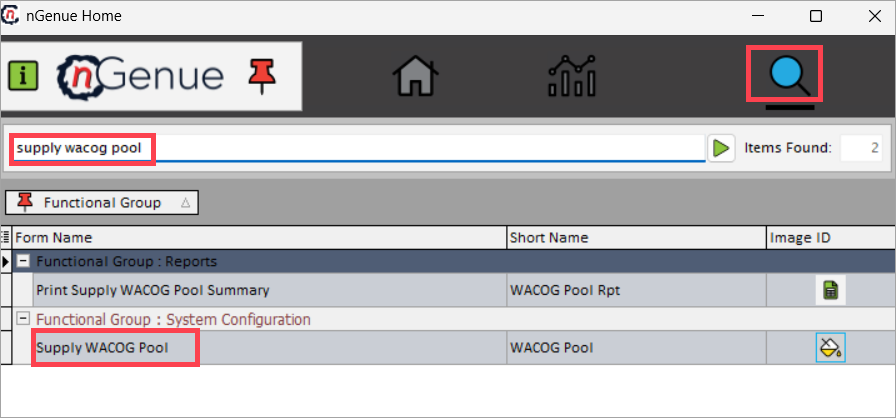
- Click the Search icon and enter supply WACOG pool in the search bar.
-
Double-click Supply WACOG pool to open the screen.
-
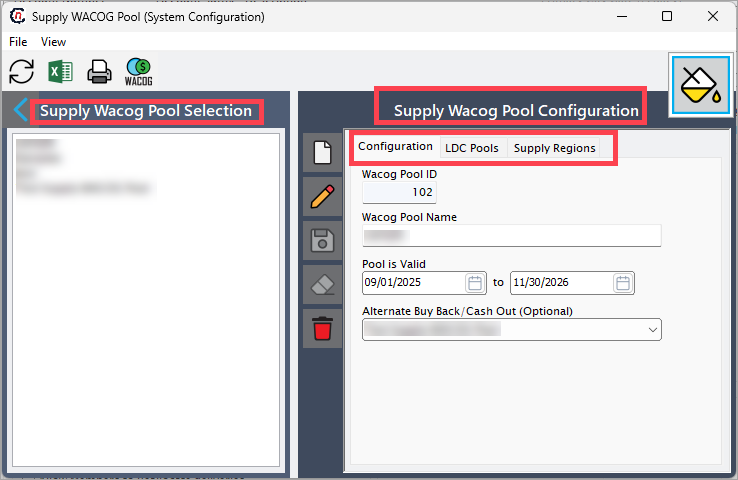
The screen is divided into two sections:
- Supply WACOG pool selection: Displays all existing supply WACOG pool records configured in the system.
-
Supply WACOG pool configuration: Enables the add, modify, or delete supply WACOG pool records. This section is divided into three functional tabs that manage supply WACOG pool-specific configurations and their associations with LDC:
- Configuration: Enables the add, modify, or delete supply WACOG pool records.
- LDC pools: Displays the LDC pool details linked to the supply WACOG pool.
-
Supply regions: Displays the supply region details linked to the supply WACOG pool.
Step 2: Create a supply WACOG pool record
Configuration tab
After opening the Configuration tab, follow the steps below to create a new supply WACOG pool record. These steps ensure that all key pool parameters are defined correctly before linking them with LDC pools and supply regions.
- In the Supply WACOG pool section, click the Add a supply WACOG pool record icon.
-
Enter the following fields and descriptions:
Fields Description WACOG pool ID Auto-generated by the system once the record is saved. It uniquely identifies each supply WACOG pool record. This ID is referenced throughout the application wherever pool-level cost tracking is applied. WACOG pool name Enter the descriptive name for the supply WACOG pool. This name appears in dropdown lists, reports, and selection fields across modules. It is recommended to use a clear and identifiable name that represents the associated supply area or LDC. Pool valid Specify the validity period for the supply WACOG pool by selecting the start and end dates. The system considers this date range when applying pool calculations to ensure that WACOG costs are allocated only during the defined active period. Alternate buy back/Cash out (option) Select the appropriate alternate buy back or cash out option from the dropdown. These options determine how surplus or deficit gas costs are managed within the pool. The dropdown is populated based on existing configurations in the same screen, and it helps control how WACOG adjustments are applied during reconciliation. 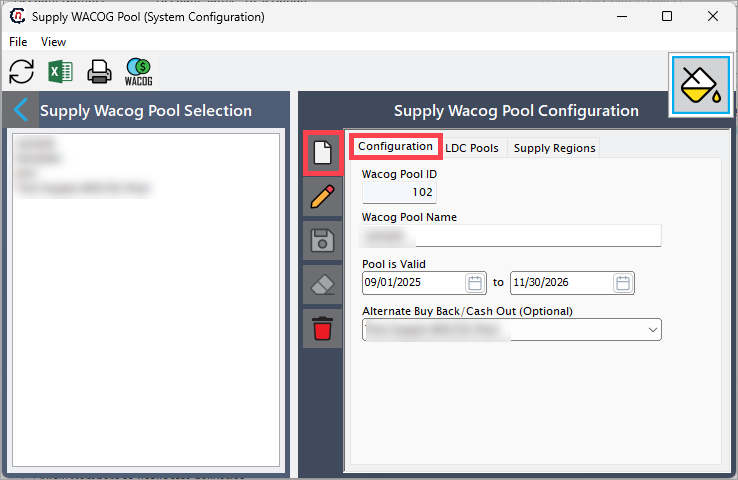
-
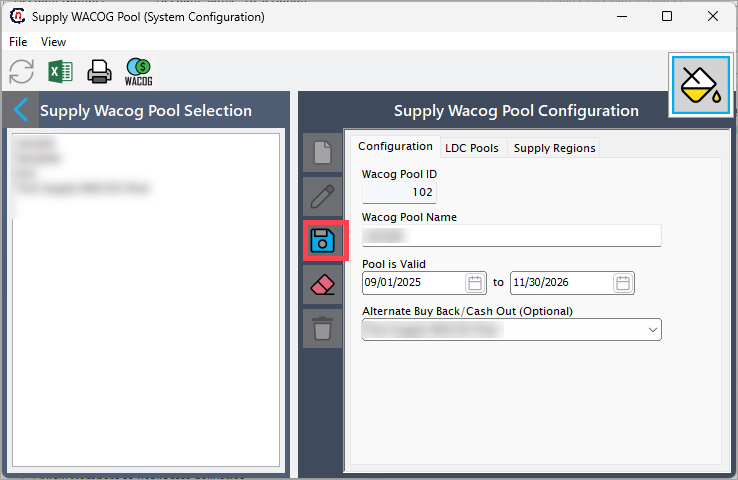
Click the Save changes to current supply WACOG pool icon to save the record.
LDC pools tab
The LDC pools tab displays all Supply WACOG pools linked to the LDC pools.
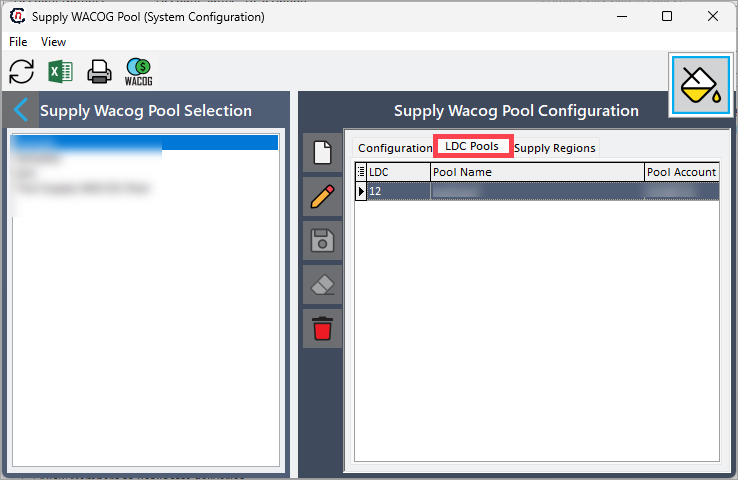
When configuring an LDC pool, users can associate it with a specific supply WACOG pool by selecting it from the Default WACOG costing pool dropdown in the LDC pool configuration screen. This association ensures that the WACOG calculation from the selected pool is automatically applied to all gas transactions under the linked LDC pool.
Once configured, the associated LDC pools appear in this tab for reference and validation.

Supply regions tab
The Supply regions tab displays all supply WACOG pool connected to the selected supply regions.
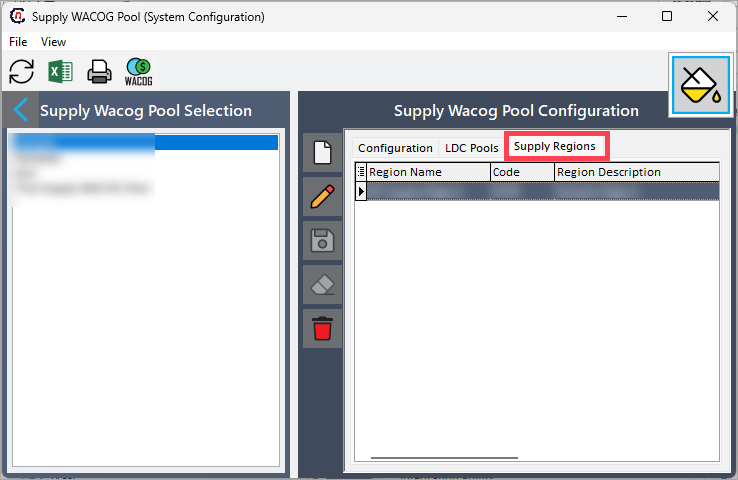
Users can establish this relationship by choosing the appropriate Supply WACOG pool from the dropdown in the Supply region configuration screen. This link enables cost tracking and reporting by region, ensuring that the WACOG cost flows accurately from supply source to end-use regions. Once linked, the supply regions appear in this tab and can be reviewed or modified as needed.
Summary
The Supply WACOG pool in nGenue enables users to manage gas supply cost allocation across multiple LDC pools and supply regions.
By calculating a consistent weighted average cost of gas, it ensures cost accuracy, improves operational efficiency, and supports transparent financial reporting across the gas distribution network.