Setting up finance charge type
Finance charge configuration allows Natural Gas businesses to define how interest is applied to late payments, overdue balances, or specific customer segments. These finance charge settings are used in the billing process to automatically calculate and apply interest based on defined rates and effective dates.
Configuring finance charges ensures:
- Accurate penalty computation: Late payments automatically trigger the correct finance charge based on effective rates.
- Historical tracking: Different effective dates allow you to maintain historical accuracy for audit and reporting.
- Automation: Reduces manual intervention by linking finance charges directly with the billing process.
Each finance charge group can have multiple effective rates to reflect interest rate changes over time. For example, if a utility company updates its penalty rate from 10% to 12%, you can add a new effective date and rate rather than deleting or editing historical records.
The Finance charge type screen is used to configure and manage various finance charge groups and their corresponding annual interest rates. Finance charges represent the interest or penalties applied to overdue invoices or outstanding balances. By defining these charges accurately, you ensure that the billing system applies consistent and compliant finance calculations during the customer billing cycle.
Prerequisites
Before setting up the finance charge type, ensure that the following prerequisites are met:
- The user must have the add or modify permissions for the Finance charge type screen.
- Billing setup must be completed in the system to associate finance charges with specific accounts.
- Ensure that customers or rate classes that will use finance charge calculations are defined.
- Understand applicable finance charge rates, compounding rules, and the start date of enforcement.
Procedure to setup finance charge type
Step 1: Navigate to the Finance charge type screen
- Log in to the nGenue application.
-
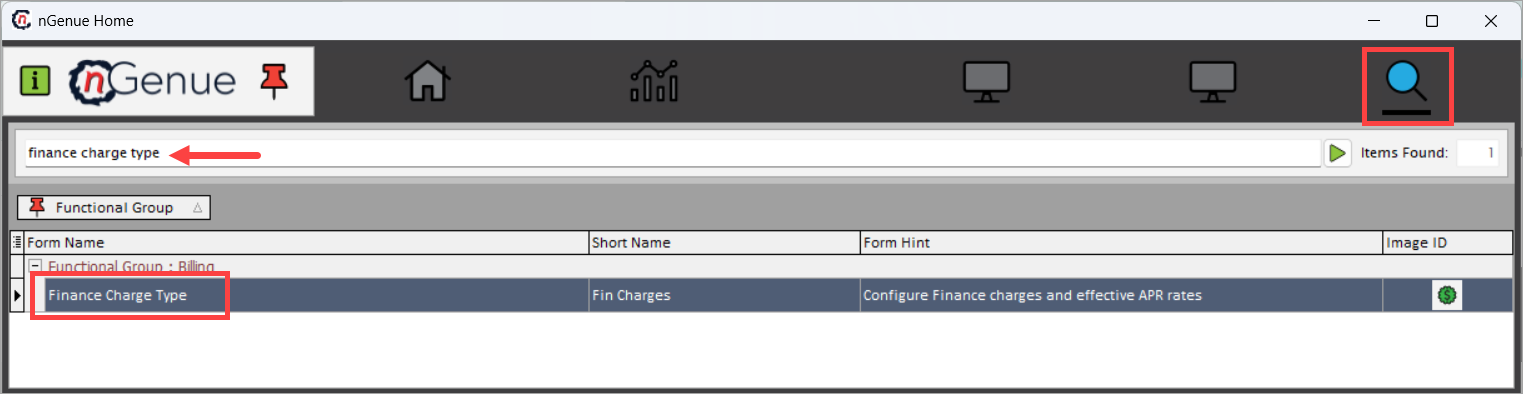
Click Search and enter finance charge type in the search bar.
-
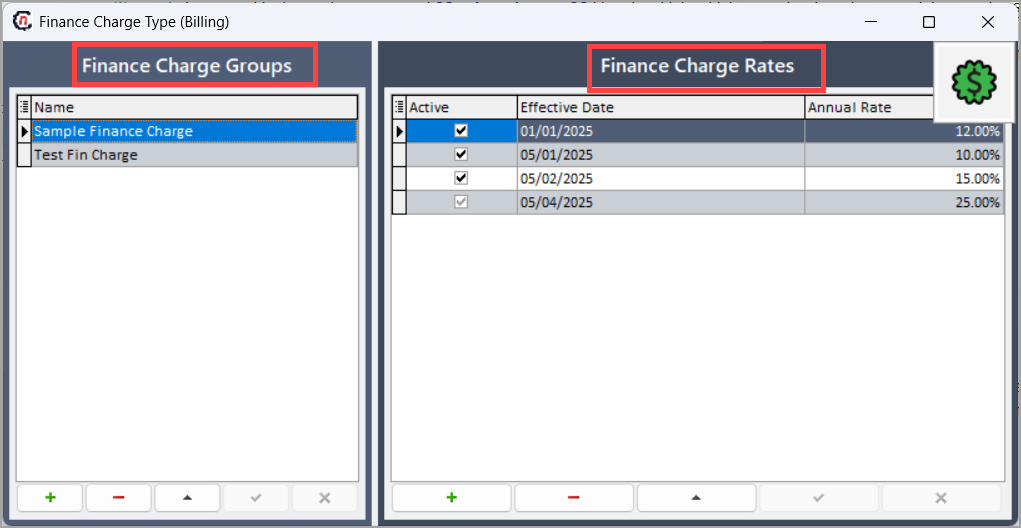
Double-click Finance charge type to open the Finance charge type (billing) screen.
-
The screen is divided into two main sections:
- Finance charge groups section
- Finance charge rates section
Finance charge groups section
The Finance charge groups section lists all available finance charge categories. Each entry represents a defined set of finance rules that can be associated with one or more rates. For example, late payment charge, penalty interest, credit card surcharge. Each group acts as a category to manage related rate structures.
This section includes the following action icons:
Icons Description 
Add a new finance charge group. Opens a new row to enter the name of the finance charge group. 
Delete a finance charge group. Permanently removes the selected group from the list. Deleting a group will also remove all related rate entries. 
Edit the selected group up. Edit the details of the selected finance charge group. 
Save the record. Stores newly added or modified finance charge group details. 
Cancel editing. Discards any unsaved changes made to the finance charge group. 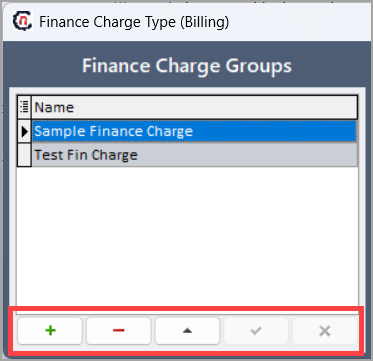
Finance charge rates section
The Finance charge rates section defines the detailed rate configuration for the selected finance charge group. Multiple rate records can be created for a single group to reflect rate changes over time.
This section includes the following fields:
Fields Description Active Indicates whether the specific rate record is active. When checked, the rate is considered valid for billing calculations. You can deactivate older rates to prevent them from being used while still keeping them for reference. Effective date The start date from which the finance charge rate becomes applicable. This allows multiple rate records to exist for different timeframes, ensuring historical accuracy and forward compatibility. Annual rate Defines the yearly interest percentage applied to overdue invoices. For example, an annual rate of 12% translates to a 1% monthly charge if the system divides the rate by 12 months. This section includes the following action icons:
Icons Description Add a new rate. Opens a blank row for entering a new effective date and annual rate for the selected group. Delete rate. Removes the selected rate entry from the table. Reorder rate entries. Moves the selected rate up in the list for visual organization. Save the record. Commits the newly added or modified rate details. Cancel editing. Reverts any unsaved modifications to rate details. 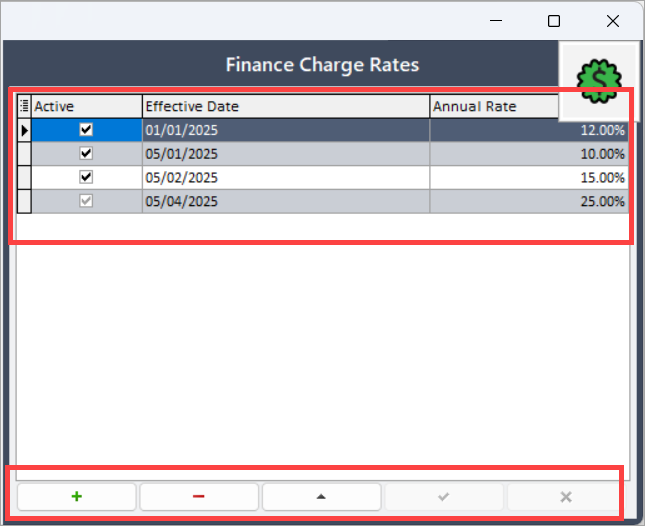
Step 2: Add a new finance charge group
- In the Finance charge groups panel, click the Add (+) icon.
- Enter a descriptive name for the new finance charge type (for example, Late fee 2025).
- Click the Save (✓) icon to confirm and save the group.
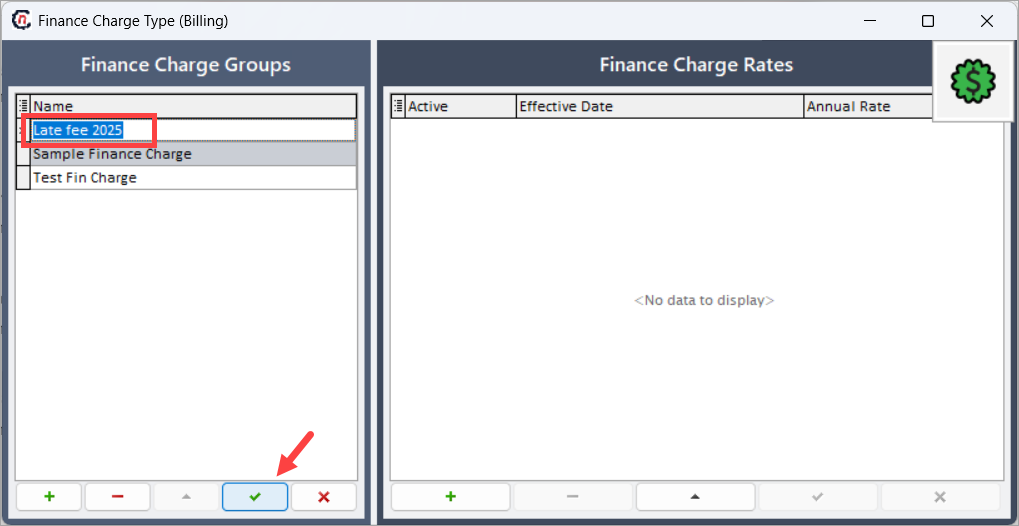
The new group now appears in the list and can be associated with one or more rate records.
Step 3: Add a finance charge rate
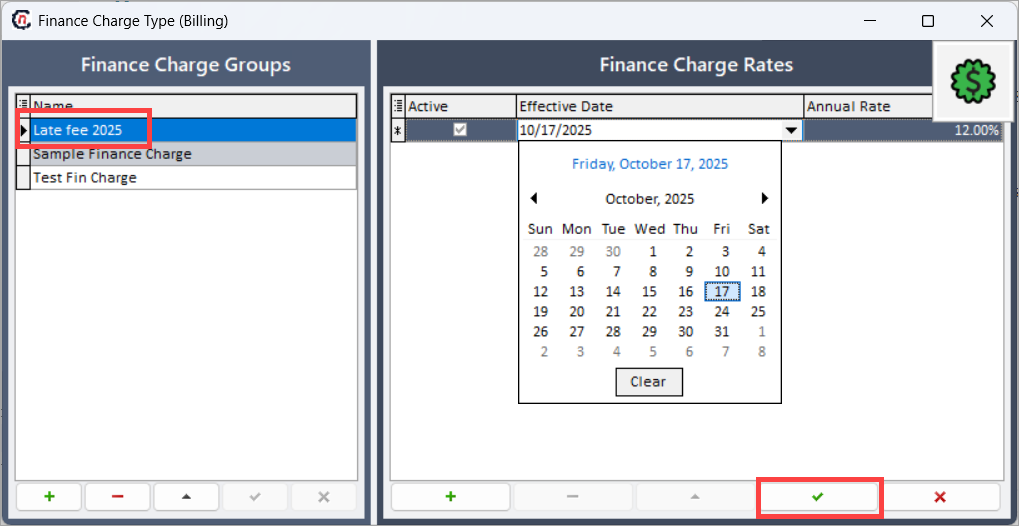
- Select the finance charge group you want to assign rates to.
-
In the Finance charge rates section, click the Add (+) icon.
-
Enter the following details:
- Effective date: The start date for the rate.
- Annual rate: The percentage value to be applied annually.
-
Check the Active box if the rate should be applied immediately.
- Click the Save (✓) icon to store the new rate record.
Step 5: Modify or delete existing records
- To edit, click on the row, make the changes, and click Save (✓).
- To delete, select the record and click the Delete (-) icon. A confirmation message appears before final deletion.
Example scenario
Scenario: The company wants to define finance charge types for late payments.
- Create a finance charge group named Late payment interest.
- Add multiple rate entries for it:
- Effective date: 01/01/2025 | Annual rate: 12%
- Effective date: 05/01/2025 | Annual rate: 10%
- Effective date: 05/02/2025 | Annual rate: 15%
- Effective date: 05/04/2025 | Annual rate: 25%
During billing, the system applies the correct rate automatically based on the invoice date and the effective period.
Summary
The Finance charge type configuration enables automated, accurate calculation of late payment penalties and finance charges. By organizing charge groups and defining rate timelines, the billing system ensures:
- Consistent finance computations across customer accounts.
- Automatic rate application based on effective dates.
- Clear record-keeping for audits and compliance.
This setup simplifies interest management, ensures transparency, and maintains financial discipline within the billing process.