Configure active states or provinces
An active state or province represents a geographic jurisdiction where the company is authorized to conduct business and perform operational activities such as contracting, billing, taxation, service delivery, and regulatory reporting. Configuring active states or provinces ensures that downstream processes—such as customer setup, facility management, tax calculation, and regulatory compliance—are restricted to valid and approved locations.
Active states/provinces are used throughout the application to control address validation, tax mapping, utility commission rules, county-level taxation, and facility eligibility. Only configured and active states or provinces are available for selection in operational workflows, ensuring consistency and regulatory accuracy.
Prerequisites
Before working on the Active states/provinces screen, ensure the following prerequisites are met:
- Ensure the nGenue application is installed and use valid login credentials to log into the application.
- Configure the user permissions including User type, Security user, Security group, Security assign user, and Security assign permissions in their respective screens to enable access to the Active states/provinces screen.
- Ensure that geographic tax and regulatory requirements and facilities and services are defined.
Procedure to configure active states/provinces
Step 1: Navigate to Active states/provinces screen
- Log in to the nGenue application.
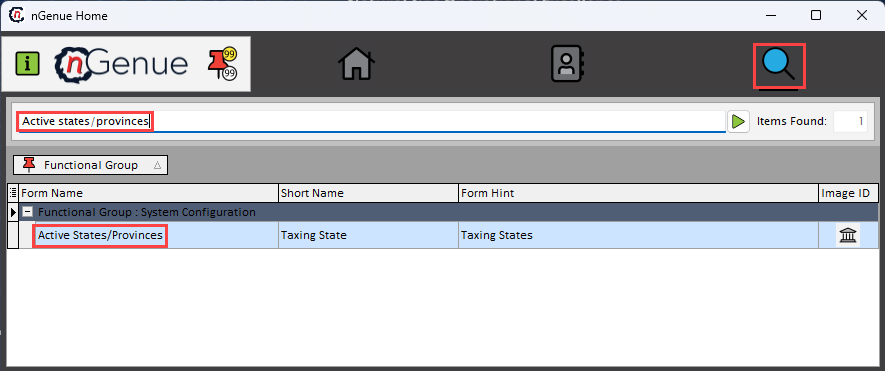
- Click the Search icon and enter Active states/provinces in the search bar.
-
Double-click the Active states/provinces from the search results to open respective screen.
-
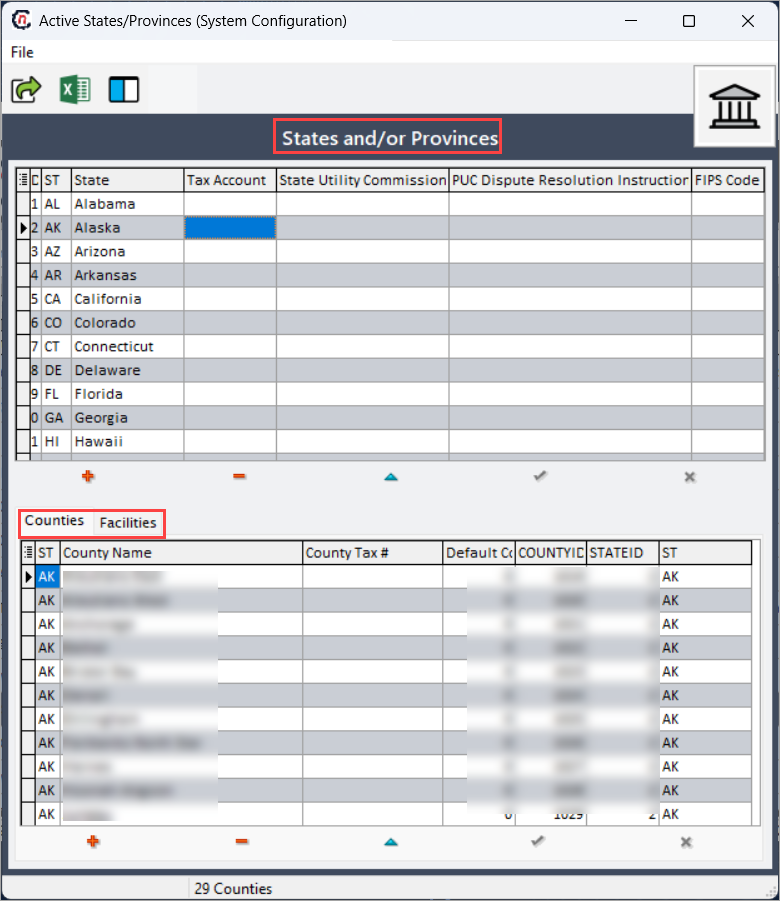
Active states/provinces (System configuration) screen has two sections:
-
States and /or Provinces:
- Counties:
-
Facilities:
-
Step 2: Configure active states/provinces
- Click Insert record (+) to add a active state/province or Edit record (⏶) to modify the existing active state/province record.
-
Complete the required fields mentioned in the table below:
Fields Description State ID Specifies the official name or description of the facility. ST Specifies the date and timestamp when the activity logged. State Describes the action or event. Tax account Specifies the name of the user who logged the activity. State utility commission Specifies the source where the activity logged from. PUC dispute resolution instruction It is a unique identifier for the activity record. FIPS code It is a unique identifier for the activity record. GL map It is a unique identifier for the activity record. -
Click Post edit (✓) to save the record or Cancel edit (☓) to discard the changes.
Delete active state/province
Click Delete record (-) to remove the selected active state/province from the records.
Step 3: Configure counties
- In the Counties tab, click Insert record (+) to add a counties or Edit record (⏶) to modify the existing counties record for the selected active state/province.
-
Complete the required fields mentioned in the table below:
Fields Description ST Specifies the official name or description of the facility. County name Specifies the date and timestamp when the activity logged. County tax # Describes the action or event. Default co rate % Specifies the name of the user who logged the activity. County ID Specifies the source where the activity logged from. State ID It is a unique identifier for the activity record. -
Click Post edit (✓) to save the record or Cancel edit (☓) to discard the changes.
Delete counties
Click Delete record (-) to remove the selected county from the records.
Step 4: View associated facilities
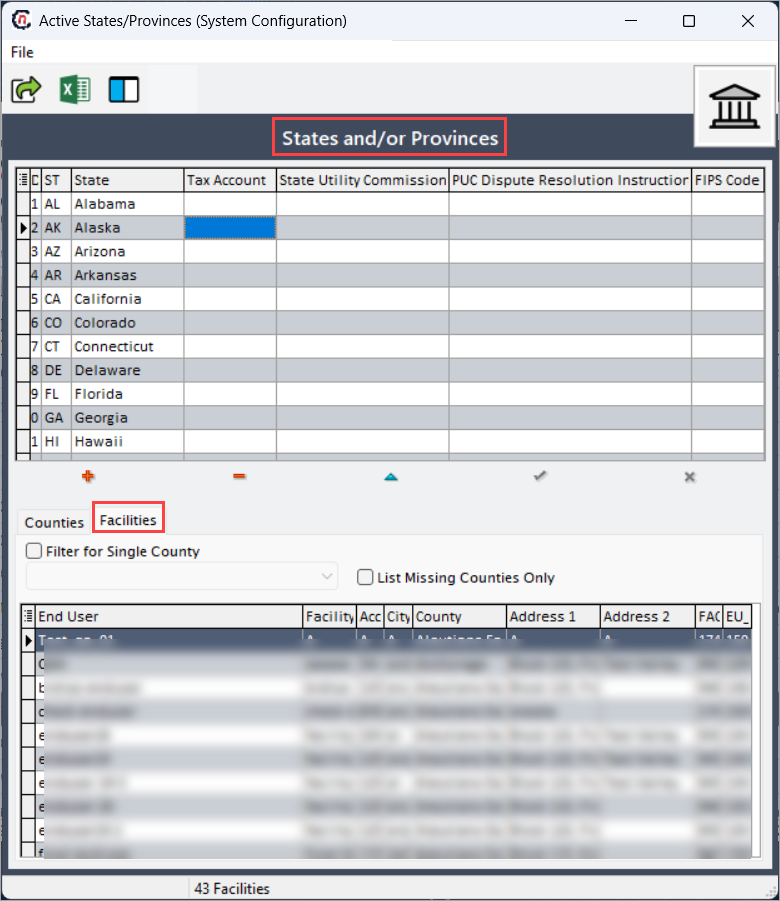
- In Facilities tab, enable Filter for single county and select the county from the dropdown.
- Select the List missing counties only checkbox to.
-
Facilities and related details will be displayed in the Facilities upon selecting the county
Summary
Configuring active states or provinces establishes the geographic foundation for operational, regulatory, and financial processes within nGenue. By defining valid states, counties, and their associated attributes, the system ensures accurate tax calculation, regulatory compliance, and consistent geographic selection across workflows. Proper maintenance of this configuration supports reliable billing, reporting, and facility management across all operational areas.