Print event history
An Event history report provides a chronological record of system-generated and user-initiated events that occur within the nGenue application. These events may include configuration changes, data updates, transactional actions, and other operational activities associated with LDCs, pools, rates, and end users.
This report is used to track what happened, when it happened, where it occurred, and who performed the action. It supports auditing, troubleshooting, compliance, and operational review by giving users clear visibility into historical system activity. Event history reports are commonly used during audits, issue investigations, system validation, and internal reviews to understand the sequence and impact of changes.
The report includes event dates, affected entities, event types, and related details. It can be previewed or printed from the nGenue application for record-keeping, audit support, and operational analysis.
Prerequisites
Before working on the Print event history (Reports) screen, ensure the following prerequisites are met:
- Ensure the nGenue application is installed and use valid login credentials to log into the application.
- Configure the user permissions including User type, Security user, Security group, Security assign user, and Security assign permissions in their respective screens to enable access to the Print event history (Reports) screen.
Procedure to print event history report
- Log in to the nGenue application.
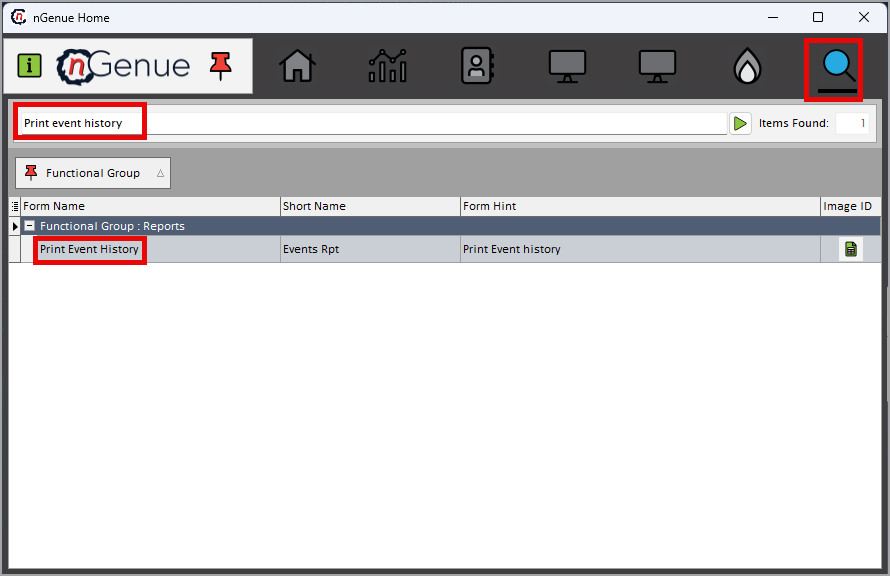
- Click the Search icon and enter Print event history in the search bar.
-
Double-click the Print event history from the search results to open respective screen.
-
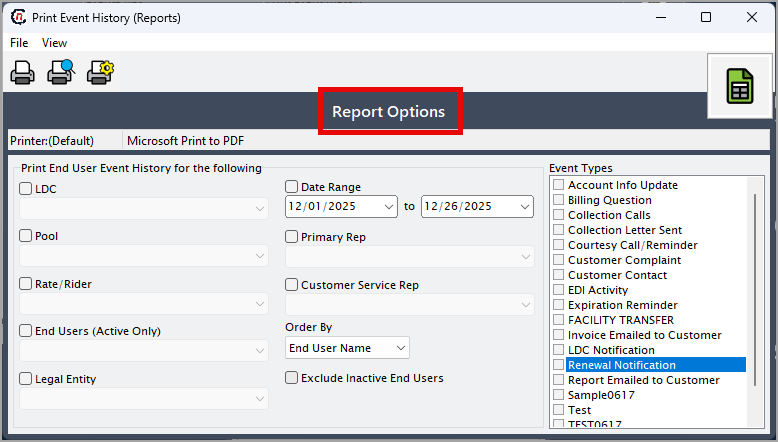
In Print event history (Reports), the Report options section allows you to specify report filters, reporting period, and output preferences.
-
Complete the required fields available in the Report options section as listed in the table below:
Fields Description LDC Select the Local Distribution Company to limit the event history to actions related to the selected LDC. Pool Select the pool to filter events associated with that pool. Rate/rider Select the rate or rider to include only events related to that pricing structure. Month Select the month during which the events occurred. Year Select the year during which the events occurred. Print daily details Select this option to display event records in a detailed, day-by-day format. Calculate imbalances based on actual delivery or nomination If applicable, select how imbalance-related events should be evaluated—based on actual deliveries or nominations. 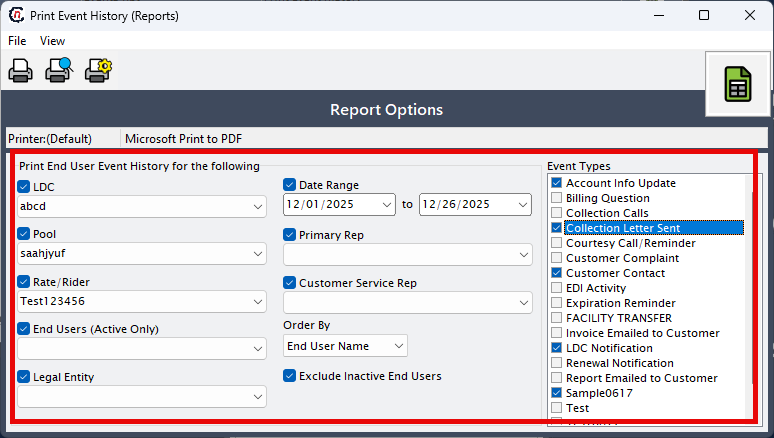
-
Select any of the printing options available in the top header as described in the table below:
Icons Icon name Description 
Print Click Print icon to print the aging detail report. 
Print preview Click Print preview icon to view the aging detail report. 
Printer setup Click Printer setup icon to configure printing settings. -
Click Printer setup to configure print settings such as printer name, paper size, orientation, properties, and network.
- Click Ok to save the configuration.
- Click Cancel to discard changes.
-
Click Print preview to view the report before printing to make any necessary adjustments.
- Click Print to generate the event history report based on the selected filters and reporting period.
Summary
The event history report provides a detailed audit trail of system and user activities within nGenue. It enables users to understand when and where changes occurred, who initiated them, and how they impact operational and billing processes. This report is essential for audit readiness, issue resolution, compliance tracking, and maintaining transparency across system operations.