Configure contract language
Contract language defines the standardized text, terminology, and phrasing used across customer contracts within the nGenue application. It ensures consistency in legal wording, commercial terms, and contract structure. Contract language records are used when generating customer contracts, quotes, and amendments—allowing users to maintain uniform documentation and streamline contract-related workflows.
Prerequisites
Before working on the Contract language screen, ensure the following prerequisites are met:
- Ensure the nGenue application is installed and use valid login credentials to log into the application.
- Configure the user permissions including User type, Security user, Security group, Security assign user, and Security assign permissions in their respective screens to enable access to the Contract language screen.
- Ensure contract templates or contract workflows should be defined.
Procedure to configure contract language
Step 1: Navigate to Contract language screen
- Log in to the nGenue application.
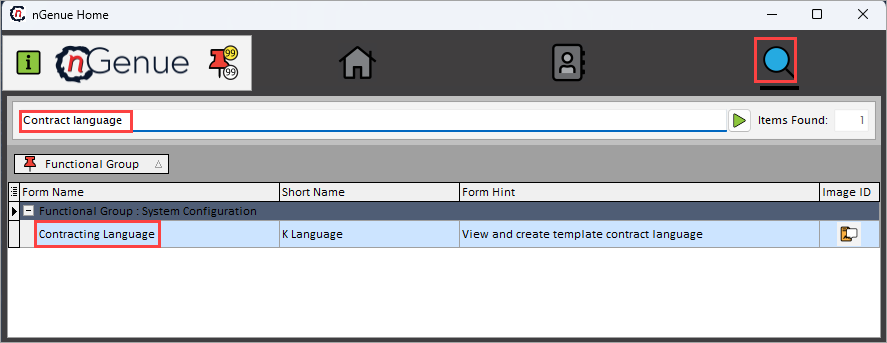
- Click the Search icon and enter Contract language in the search bar.
-
Double-click the Contract language from the search results to open respective screen.
-
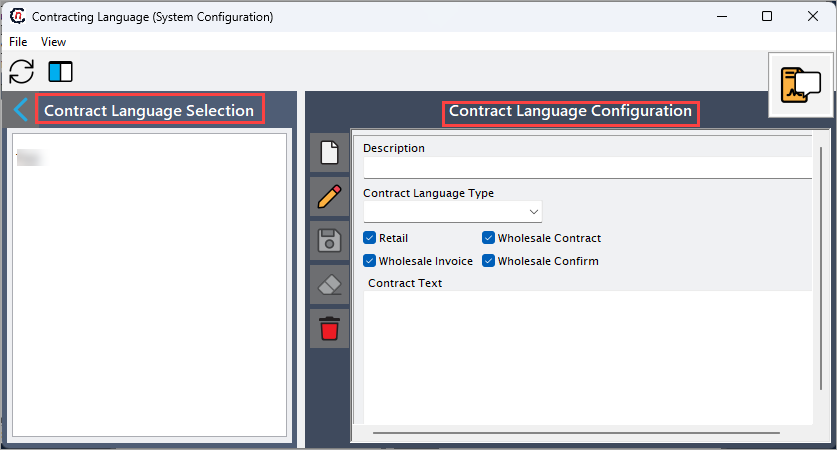
Contract language (System configuration) screen has two sections:
- Contract language selection: Allows to search and filter existing contract language records.
-
Contract language configuration: Allows to create, view, and update contract language entries.
Step 2: Configure contract status
The following table lists the icons available on the Contract language configuration section and their respective functions:
| Icons | Icon name | Description |
|---|---|---|
 |
Add a contract language record | Opens a new record form to create a contract language entry. |
 |
Edit current contract language | Opens the selected record for editing. |
 |
Save changes to current contract language | Saves the modifications made to the current record. |
 |
Cancel changes to current contract language record | Discards unsaved changes made to the record. |
 |
Delete current contract language record | Permanently removes the selected contract language record. |
Step 2.1 : Add a contract language
- In the Contract language configuration, click the Add a contract status type record icon to create a new contract language record.
-
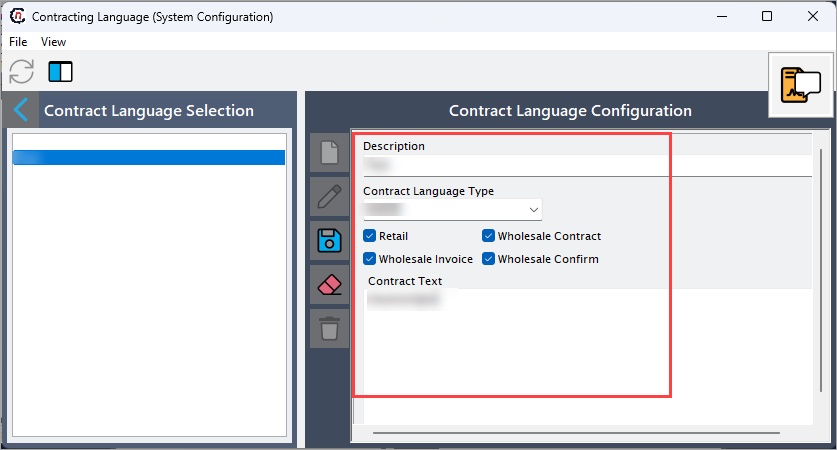
Complete required fields available in the Contract language configuration section that are listed in the table below:
Status ID: Specifies the system-generated internal identifier for the contract language entry. It is non-editable field. Sequence order: Specify the display order or priority order for this language item. Status name: Provide the descriptive name for the contract language that will appear in contract related screens or documents.
-
Click Save changes to current contract language to store the configuration.
Step 2.2 : Edit a contract language
- Click the Edit a contract language record icon to modify the selected contract language.
- Update necessary details and click Save changes to current contract language to apply changes.
Step 2.3 : Delete a contract language
Click the Delete current contract language record icon to permanently remove the contract language record. Before performing the delete action, ensure the language is not referenced in active contract templates.
Summary
Contract language configuration allows organizations to maintain consistent, reusable contract text elements within nGenue. Users can create, update, and manage contract language entries that support contract generation and ensure uniformity across customer agreements. This centralized approach streamlines documentation, reduces manual edits, and supports compliance with internal contracting standards.