Reconciling LDC bill payments with invoices
Reconciling LDC bill payments with invoices means verifying that each payment matches the correct invoice and ensuring all charges are accurately accounted for. LDC bill upload confirmation screen in nGenue is used to validate and reconcile bills received from Local Distribution Company (LDC) with invoices logged in the system. It ensures charges uploaded from LDC files match customer invoices and payments, minimizing billing discrepancies. It supports cash receipt reconciliation and is used after importing billing data, during invoice matching, when investigating disputes, or when confirming if rebills or adjustments are needed.
Prerequisites
Before working on LDC bill upload confirmation screen, ensure the following prerequisites are met:
- User permissions: Configure the user permissions including User type, Security user, Security group, Security assign user, and Security assign permissions in their respective screens to enable access to the Cash receipts home page screen.
- LDC set up: Ensure the LDC is properly configured, to support reconciliation of payments.
- End user and Facility set up: Ensure the End user is fully configured and their Facility is properly set up and configured.
- Invoice and cash receipt generation: Ensure that Invoices and corresponding Cash receipts are generated for the selected end user. The relevant cash receipt batch records must be selected to perform A/R utility clean up process.
Procedure to reconcile LDC bill payments with invoice
Step 1: Navigate to the LDC bill upload confirmation screen
- Navigate to the Cash receipts home page screen.
-
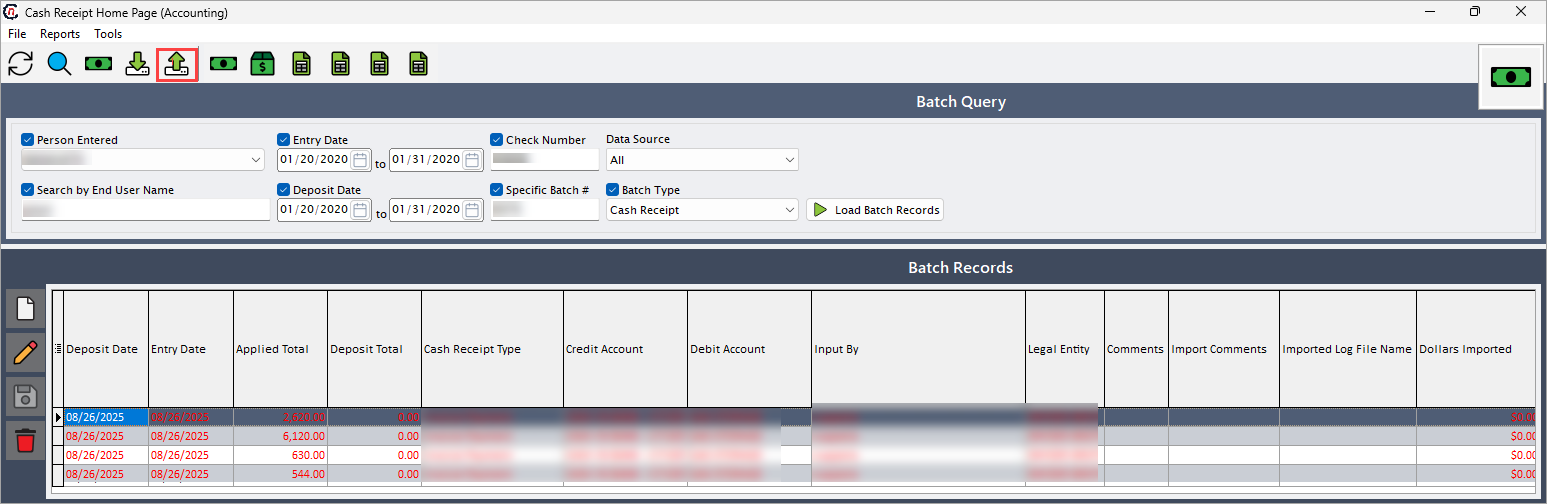
Click Reconcile LDC bill payments icon in the top header to open the respective pop-up screen.
-
In LDC bill upload confirmation screen, there are two sections:
-
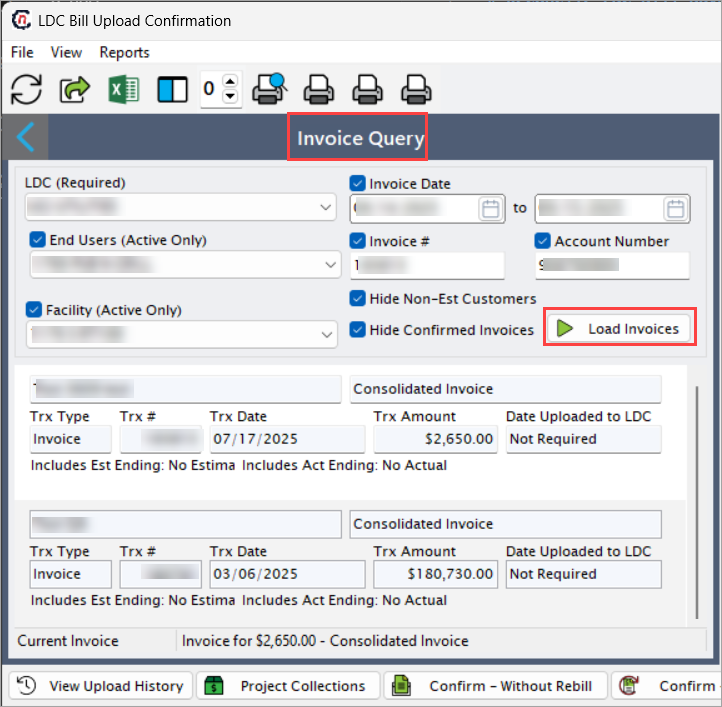
Invoice query: This section provides filters that applies to load invoice records.
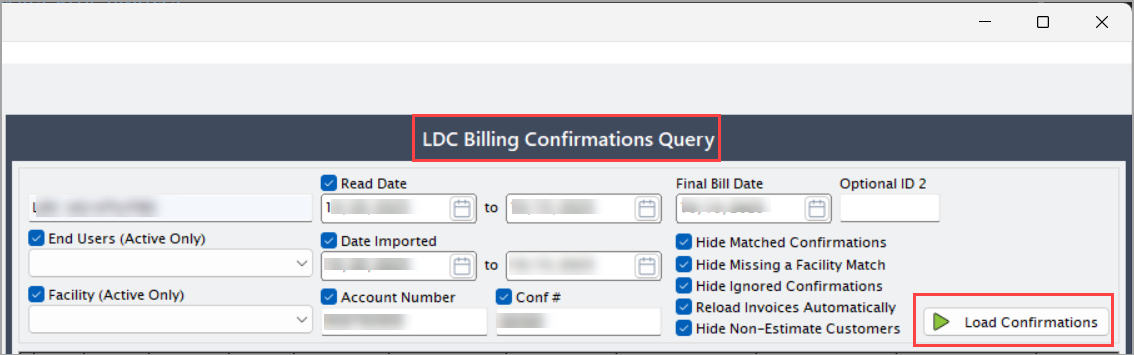
- LDC billing confirmations query: This section provides filterable fields to load confirmations records.
Step 2: Load invoices and confirmations
-
In the Invoice query section, enable the checkbox to apply the filters and complete the required fields to load invoices.
The following table provides the filterable fields to load invoice records along with brief description:
Fields Description LDC (Required) Select the LDC associated with invoice. Only invoices linked to the selected LDC are loaded. End users (Active only) Select the associated end user under the chosen LDC. Facility (Active only) Select the associated facility. Invoice date Specify the date the invoice was issued. Invoice # Specify the invoice number for the selected invoice. Account number Specify the account number associated with a specific invoice. Hide non-est customers Select this to hide non-estimated customers. Hide confirmed invoice Select this option to show only invoices that have not yet been confirmed, filtering out those already finalized. -
Click Load invoices to fetch the relevant invoice records.
-
In the LDC billing confirmations query section, first enable the checkbox to apply the filters, then complete the required fields to load billing confirmations.
The following table provides the filterable fields to load invoice records along with brief description:
Fields Description End users (Active only) Select the active end users associated with the LDC billing confirmations. Facility (Active only) Select the facility linked to the end user for which billing confirmations are to be loaded. Only active facilities will appear, enabling accurate filtering and reconciliation of billing confirmations. Read date Specify the date the meter was recorded. Date imported Specify the date the data was imported into the system. Account number Provide the account number associated with billing. Conf # Provide the unique identifier assigned for the billing confirmation. Final bill date Specify the date of the final bill for the account. Optional ID 2 Provide an additional identifier related to the confirmation record. Hide matched confirmations Select this option to exclude confirmations that have already been matched with invoices. Hide missing a facility match Select this option to exclude confirmations that do not have an associated facility match. Hide ignored confirmations Select this option to hide confirmations marked as ignored. These ignored confirmations are excluded from reconciliation and do not require further action. Reload invoices automatically Select this option to automatically reload related invoices whenever the confirmation query is refreshed, ensuring the latest data is always displayed. Hide non-estimate customers Select this option to exclude customers without estimates from the results. -
Click Load confirmations to display LDC billing confirmation based on selected criteria.
Step 3: Reconcile and confirm LDC bill Payments
- After loading invoices and LDC billing confirmations, select a particular invoice and its corresponding LDC billing confirmation.
-
Click on any one of the following related actions from the table below to perform reconciliation and confirmation.
Action Description View uploaded history Click View uploaded history to review the history of the selected invoice or confirmation. Project collections Click Project collections to estimate or project collections related to the selected invoice. Confirm without rebill Click Confirm without rebill to confirm the invoice and payment match without creating a rebill. Confirm – create rebill Click Confirm – Create rebill to confirm the invoice and generate a rebill if needed. Clear selections Click Clear selections to deselect the currently selected invoice and confirmation. Ignore confirmations Click Ignore confirmations to mark confirmations to be ignored in reconciliation. -
After performing the selected action, review the applied changes to ensure invoices and payments are correctly matched.
Summary
The reconciliation process matches LDC-uploaded billing confirmations with corresponding invoices to verify charge accuracy. It enables confirmation of matched records, generation of rebills where discrepancies exist, and finalization of validated payments. This ensures consistent alignment between LDC billing data and internal invoice records.