Configuring a counterparty contract
The Counterparty contract screen is used to define and manage commercial agreements between the organization and external counterparties involved in pipeline operations. These contracts govern legal, financial, and settlement-related aspects such as billing language, netting agreements, payment terms, document recipients, and default usage behavior.
Counterparty contracts act as the commercial foundation for transportation contracts, nominations, settlements, invoicing, and financial reporting within the system.
Prerequisites
Before configuring a counterparty contract, ensure that the following prerequisites are met:
- The user has the add or modify permissions for the Counterparty Contract screen.
- The Counterparty is created and active in the master counterparty setup.
- Required Pipelines are configured in the system.
- Required languages, payment terms, and document templates are available.
- Integration identifiers (ETRM, CRM, GL) are available if required.
Procedure to configure a counterparty contract
Step 1: Navigate to the Counterparty Contract screen
- Log in to the nGenue application.
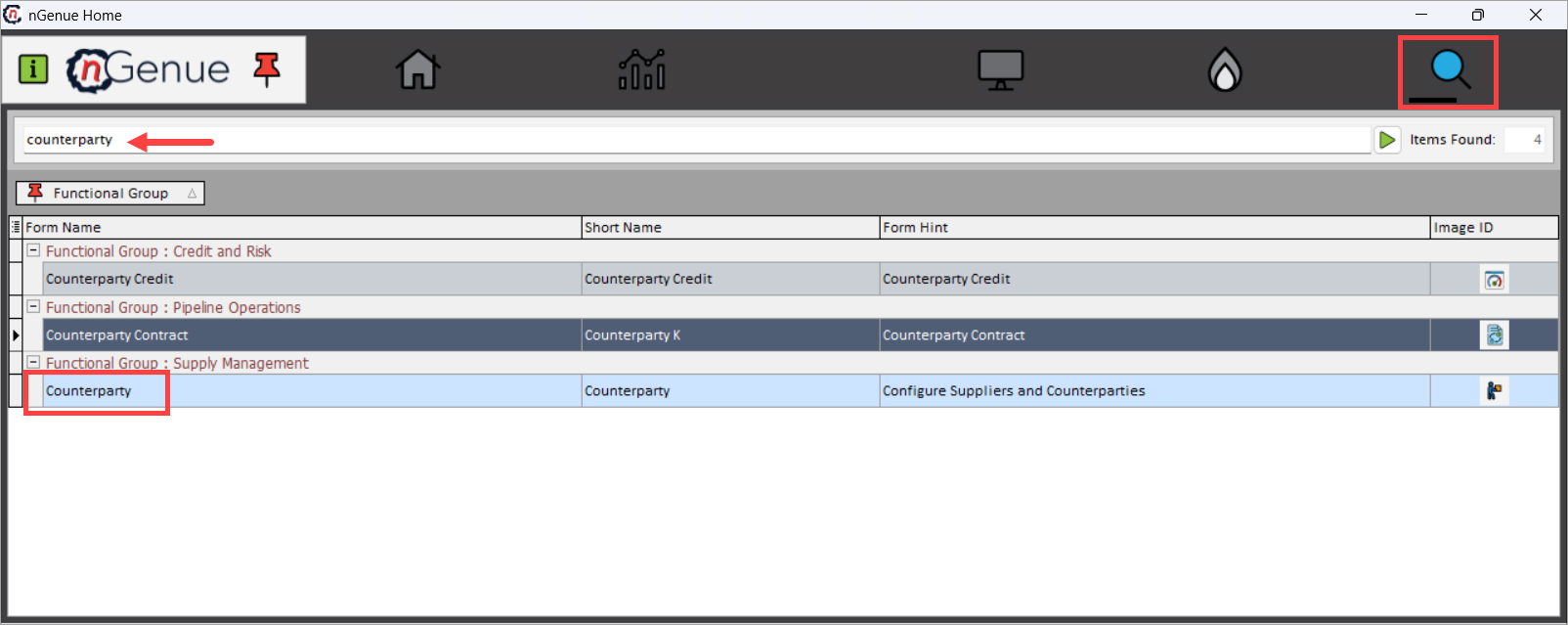
- Click the Search icon and enter Counterparty contract.
-
Double-click Counterparty Contract to open the Counterparty Contract (Pipeline Operations) screen.
-
The screen is divided into two important sections:
- Counterparty Contract Listing: This section allows users to search, filter, and select counterparty contracts.
- Counterparty Contract Details: The Counterparty Contract Listing grid displays contracts loaded based on the query criteria. Selecting a contract from the list populates the Counterparty Contract Details section for review or modification.
Step 2: Load existing counterparty contracts
-
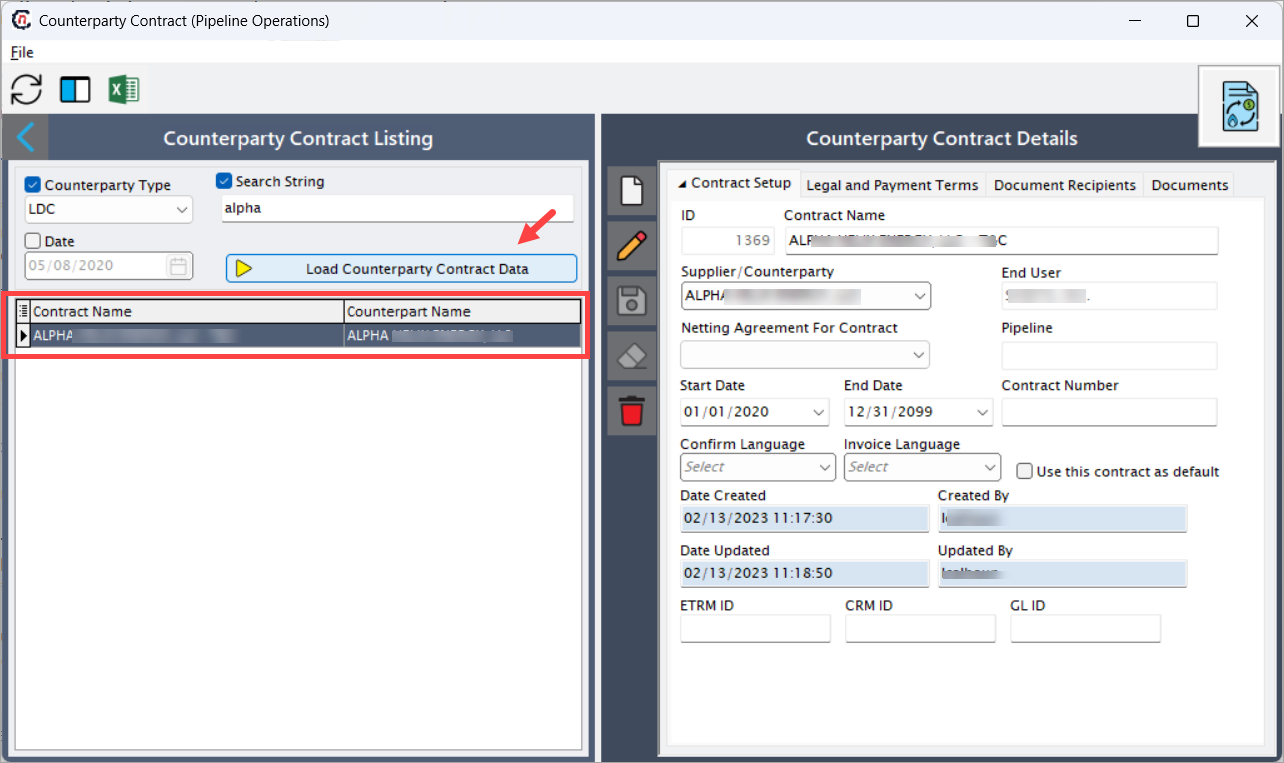
In the Counterparty Contract Listing section:
-
Select Counterparty Type (optional). This filters contracts based on the type of counterparty (Supplier, Customer, Marketer, etc.).
- Enter Search String (optional). This allows searching contracts by name or partial text match.
-
Select Date if filtering by effective date.
-
Click Load Counterparty Contract Data.
- Existing contracts matching the criteria are displayed in the listing grid.
Step 3: Create or edit a counterparty contract
-
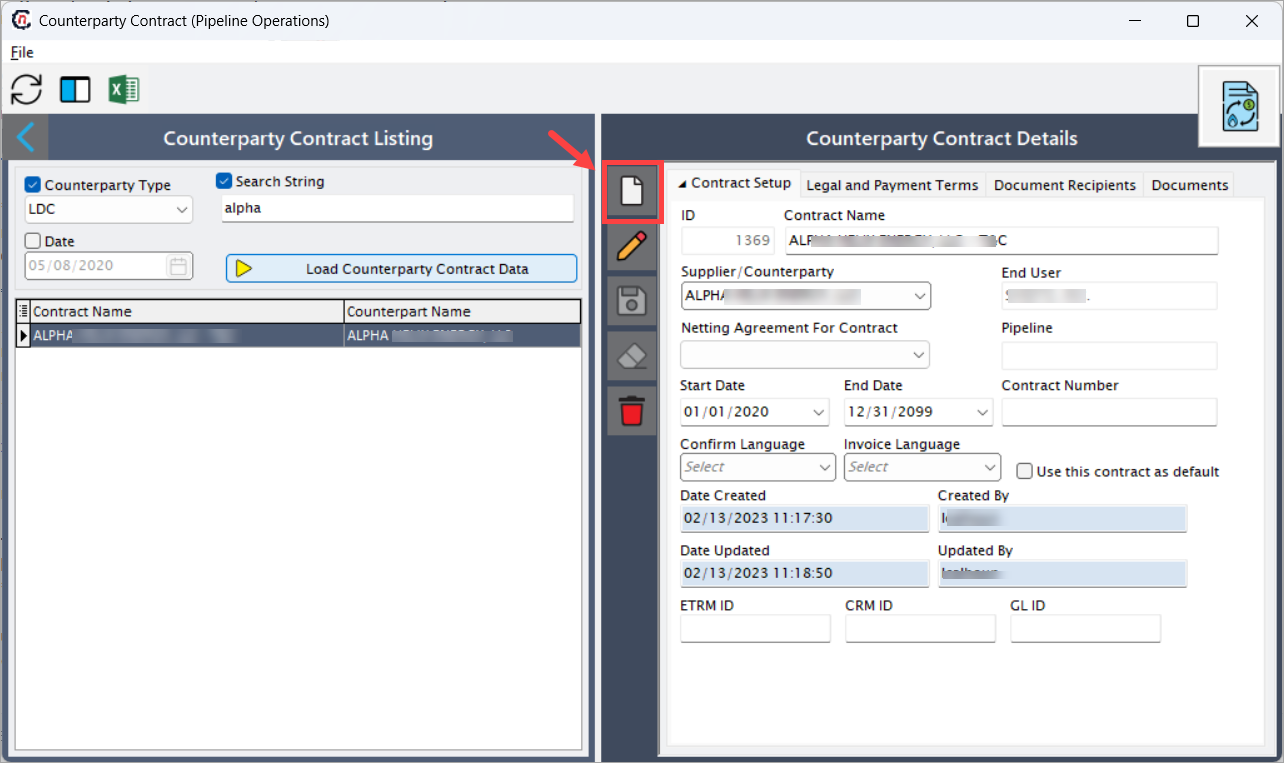
Click on Add a counterparty contract record button to create a new contract, or select an existing contract and click Edit.
-
The Counterparty Contract Details section is divided into multiple tabs. Fill in the fields as mentioned in the table below grouped under each tab:
Contract Setup tab
| Fields | Description |
|---|---|
| ID | System-generated unique identifier for the counterparty contract. |
| Contract Name | Descriptive name of the counterparty contract used for identification and reporting. |
| Supplier/Counterparty | Identifies the counterparty associated with this contract. Selected from configured counterparties. |
| End User | Displays the end user associated with the contract, if applicable. |
| Netting Agreement For Contract | Specifies whether this contract participates in netting arrangements for settlements. |
| Pipeline | Indicates the pipeline to which this counterparty contract is associated. |
| Start Date | Contract effective start date. Determines when the contract becomes active. |
| End Date | Contract expiration date. After this date, the contract is no longer valid for operational use. |
| Contract Number | External or legal contract reference number used for audits and documentation. |
| Confirm Language | Language used for contract confirmations and notices. |
| Invoice Language | Language used for invoice generation and billing documents. |
| Use this contract as default | When enabled, this contract is treated as the default for the counterparty when multiple contracts exist. |
| Date Created | System-generated date when the contract was created. |
| Created By | User who created the contract. |
| Date Updated | System-generated date when the contract was last modified. |
| Updated By | User who last updated the contract. |
| ETRM ID | Identifier used to link the contract with an external ETRM system. |
| CRM ID | Identifier used to link the contract with an external CRM system. |
| GL ID | General Ledger identifier used for financial postings and accounting integration. |
Legal and Payment Terms tab
The Legal and Payment Terms tab defines how financial settlements, invoicing, confirmations, and payment communications are handled for the counterparty contract. This tab is critical for ensuring accurate billing behavior, compliance with agreed payment terms, and correct routing of confirmations and invoices.
| Fields | Description |
|---|---|
| Legal Address | Specifies the official legal address of the counterparty. This address is used on invoices, confirmations, and legal documentation generated by the system. |
| Collection Address | Specifies the address to which payments, remittances, or collection-related correspondence should be sent. This may differ from the legal address. |
| Settlement Bank (A/P) | Identifies the bank used for Accounts Payable settlements when the organization is required to pay the counterparty. |
| ABA # | Represents the bank routing number associated with the settlement bank. This value is used for electronic funds transfers. |
| Account | Specifies the bank account number to be used for settlement payments or receipts. |
| Terms Type (A/P) | Defines the payment terms applicable when the organization is paying the counterparty. This determines due date calculation logic. |
| Days (A/P) | Specifies the number of days used in payment due date calculations based on the selected A/P terms type. |
| Day of Next Month (A/P) | Indicates whether payment is due on a specific day of the following month, based on the selected payment terms. |
| Terms Type (A/R) | Defines the receivable terms applicable when the counterparty is paying the organization. |
| Days (A/R) | Specifies the number of days used to calculate receivable due dates. |
| Day of Next Month (A/R) | Indicates whether receivable payment is expected on a specific day of the next month. |
| Wiring Instructions – Pay | Specifies wiring instructions used when sending payments to the counterparty. |
| Wiring Instructions – Receive | Specifies wiring instructions used when receiving payments from the counterparty. |
| Send Confirm To Counterparty | When selected, confirmation documents are automatically sent to the counterparty. |
| Send Confirm to Counterparty only for Buy deals | Limits confirmation delivery to buy-side transactions only. |
| Send confirm to Counterparty only for Sell deals | Limits confirmation delivery to sell-side transactions only. |
| Generate one invoice per pipeline | When selected, the system generates a separate invoice for each pipeline associated with the contract. |
Document Recipients tab
The Document Recipients tab defines who receives settlement documents, confirmations, and invoices related to the counterparty contract.
This ensures that the correct individuals or departments are notified during contract execution and settlement cycles.
| Fields | Description |
|---|---|
| Contact | Displays the name of the contact or department receiving documents. |
| Settle | When selected, the contact receives settlement-related documents such as invoices and statements. |
| Confirm | When selected, the contact receives confirmation documents for transactions. |
| Contact’s Email | Displays the email address used for document delivery. |
| COUNTERPARTY_CONTRACT_RECIPIENT_ID | System-generated unique identifier for the document recipient record. |
Documents tab
The Documents tab is used to store and manage contract-related documents associated with the counterparty contract. This includes legal agreements, amendments, terms and conditions, and supporting documentation.
When adding a new document, the Store Customer Document window is displayed. Proceed to upload the documents by filling in the following fields:
| Fields | Description |
|---|---|
| Pipeline Contract | Displays the counterparty contract to which the document is being attached. This field is auto-generated. |
| Facility | Displays the associated facility. This field is auto-generated. |
| Document Description | Allows users to enter a meaningful description of the document. |
| Document Category | Specifies the document classification, such as Broker document, Prospects document, Counterparty, etc. |
| Original File Name | Upload the document by clicking on three dots (...) and selecting the files from the local system. The file format supported are .doc, .docx, .pdf, .xlx. once uploaded, the field will display the selected file name. |
| Added By | Displays the user uploading the document. |
| Permanent Storage Path | Displays the configured file storage location. |
| Stored File Name | Displays the internal file name used by the system. |
Click on Accept button to redirect the user to the Counterparty Contract > Documents tab. The Documents grids will contain the below information:
| Fields | Description |
|---|---|
| Doc ID | System-generated unique identifier for the stored document. |
| Doc Name | Displays the descriptive name assigned to the document. |
| Original File Name | Displays the original file name of the uploaded document. |
| Permanent Storage Path | Displays the file system location where the document is permanently stored. |
| Added By | Displays the user who uploaded the document. |
| Datetime Added | Displays the date and time when the document was uploaded. |
| Doc Category | Specifies the document classification (e.g., Counterparty). |
| BROKER_ID | Identifier associated with a broker, if applicable. |
| PROSPECT_ENDUSER_ID | Identifier used when the document is related to a prospective end user. |
Step 4: Verifying the result
The Counterparty Contract Listing grid displays contracts loaded based on the query criteria. Selecting a contract from the list populates the Counterparty Contract Details section for review or modification.
All changes made in the details section are reflected back in the listing upon save.
Key points
- Counterparty contracts are mandatory for settlement, invoicing, and billing processes.
- Date ranges must align with associated pipeline and transport contracts.
- Only one contract can be marked as default per counterparty per pipeline.
- Integration fields (ETRM ID, CRM ID, GL ID) are critical for system reconciliation.
- Expired contracts cannot be used for new operational transactions.
Summary
The Counterparty Contract screen provides a way to manage commercial agreements with pipeline counterparties. By defining legal terms, payment preferences, and integration references, this configuration ensures accurate settlement, billing, and compliance across pipeline operations.
Properly configured counterparty contracts enable seamless interaction between operational, financial, and regulatory processes within the system.