Configure contract status
A contract status defines the lifecycle stage of a customer contract within nGenue. Each status represents a point in the contract process such as draft, pending approval, active, expired, or terminated. Contract statuses are used across sales, operations, billing, and reporting to determine how a contract should be processed at any given time. Proper configuration ensures contracts flow through the correct business steps and prevents incorrect or premature activation, billing, or operational routing.
Prerequisites
Before working on the Contract status screen, ensure the following prerequisites are met:
- Ensure the nGenue application is installed and use valid login credentials to log into the application.
- Configure the user permissions including User type, Security user, Security group, Security assign user, and Security assign permissions in their respective screens to enable access to the Contract status screen.
Procedure to configure contract status
Step 1: Navigate to Contract status screen
- Log in to the nGenue application.
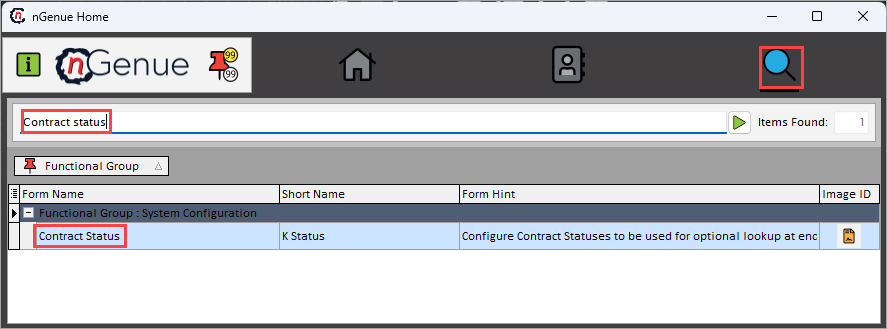
- Click the Search icon and enter Contract status in the search bar.
-
Double-click the Contract status from the search results to open respective screen.
-
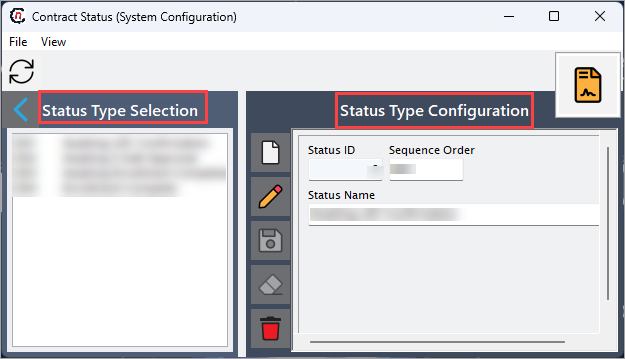
Contract status (System configuration) screen has two sections:
- Status type selection
-
Status type configuration
Step 2: Configure contract status
The following table lists the icons available on the Status type configuration section and their respective functions:
| Icons | Icon name | Description |
|---|---|---|
 |
Add a contract status type record | Opens a new record form to create a retail cashout definition entry. |
 |
Edit current contract status type | Opens the selected record for editing. |
 |
Save changes to current contract status type | Saves the modifications made to the current record. |
 |
Cancel changes to current contract status type record | Discards unsaved changes made to the record. |
 |
Delete current contract status type record | Permanently removes the selected retail cashout definition. |
Step 2.1 : Add a collection agency
- In the Status type configuration, click the Add a contract status type record icon to create a new collection agency record.
-
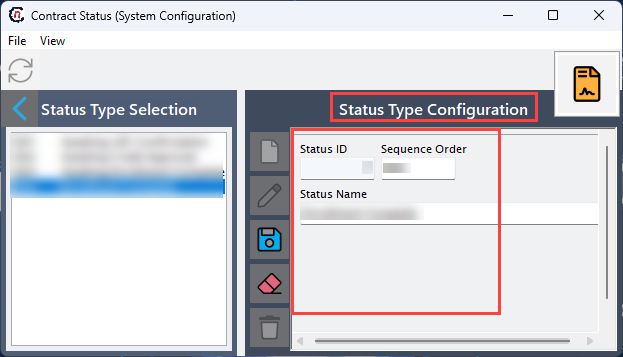
Complete required fields available in the Status type configuration section that are listed in the table below:
Status ID: It is a system-generated unique internal identifier for the contract status. Sequence order: Specify the order in which statuses appear and how the workflow progresses. Status name: Provide the descriptive name to represent the contract status used across the application.
-
Click Save changes to current collection agent to store the configuration.
Step 2.2 : Edit a collection agency
- Select a contract status to modify. Click the Edit a collection agency record icon to modify the selected collection agency.
- Update necessary details and click Save changes to current collection agent to apply changes.
Step 2.3 : Delete a collection agency
- Select the contract status you want to remove.
- Click the Delete current contract status type record icon.
- Confirm the deletion to permanently remove the status (only allowed if it is not in active use).
Summary
Contract statuses define the workflow stages a contract moves through in nGenue. By configuring clear and structured statuses, organizations can control how contracts progress from creation through activation and termination. Using the Contract Status screen, administrators can add, edit, or retire status types to ensure internal processes remain accurate and aligned with operational requirements.