Billing item types
Billing item types in nGenue define how individual billing line items behave during invoicing, taxation, general ledger posting, and third-party exports. They control whether an item is taxable, how it posts to revenue accounts, how it appears on invoices, and how external systems consume billing data. Proper configuration of billing item types ensures accurate billing calculations, financial reporting, and system integrations.
Prerequisites
Before working on the Billing item types* screen, ensure the following prerequisites are met:
- Ensure the nGenue application is installed and use valid login credentials to log into the application.
- User permissions: Must configure the security settings including User type, Security user, Security group, Security assign user, and Security assign permissions in their respective screens to ensure the required access and permissions for Billing item types screen actions.
Procedure to configure billing item types
Step 1: Navigate to Billing item types screen
- Log in to the nGenue application.
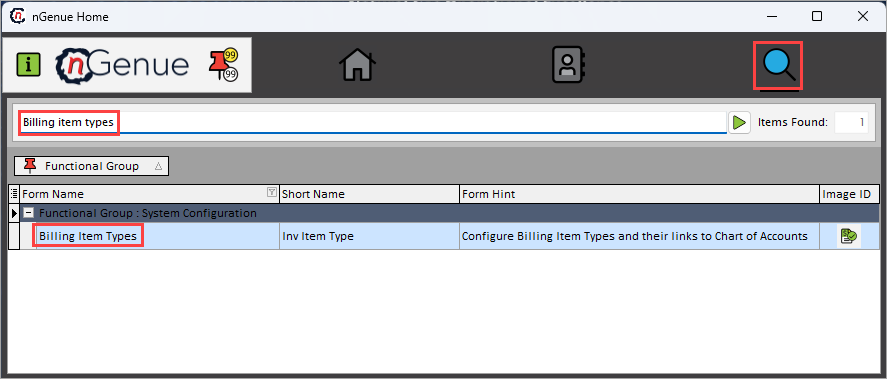
- Click the Search icon and enter billing item types in the search bar.
-
Double-click the Billing item types from the search results to open respective screen.
Step 2: Create or edit a billing item type
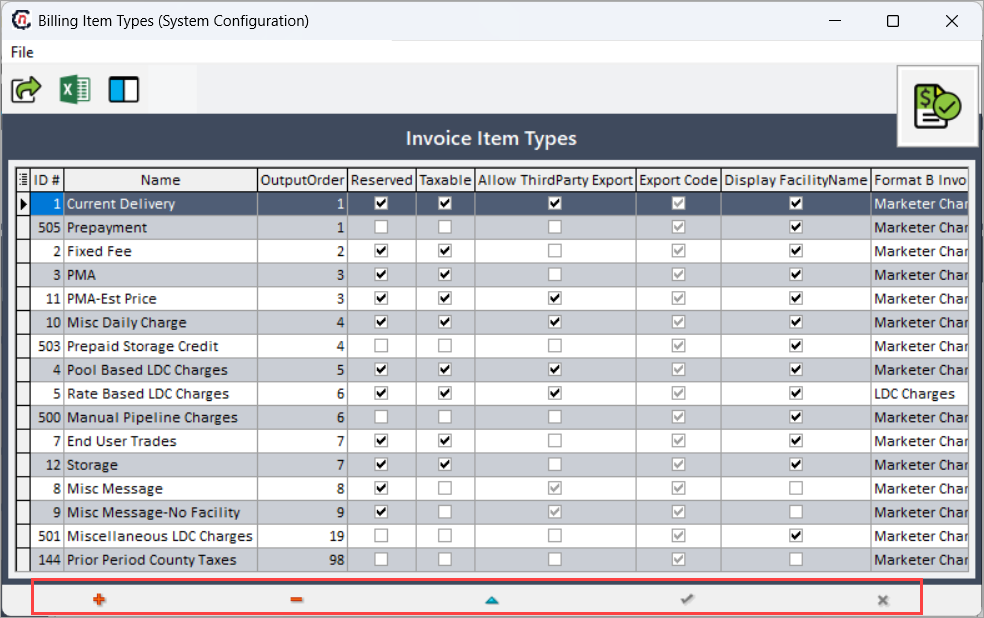
- Click Insert record (+) to create a new billing item type, or click Edit record (⏶) to modify the existing record.
-
Complete the required fields mentioned in the table below:
Fields Description ID System automatically generates a unique identifier for the billing item type. Name Specifies the descriptive name of the billing item type. Output order Defines the sequence in which the billing item appears on invoices and reports.. Reserved Indicates whether the system reserves this billing item type and restricts user modification. taxable Specifies whether the system applies tax to this billing item type. Allow third party export Enables the system to include this billing item type in third-party data exports. Export code Defines the external system reference code used during data export. Display facility name Controls whether the system displays the facility name on invoices for this billing item type. Formate csection Determines the invoice formatting section where the billing item type appears. GL Rev account Assigns the general ledger revenue account for posting billing transactions. Block Auto reversals Prevents the system from automatically reversing transactions associated with this billing item type. -
Click Post edit (✓) to save the record or Cancel edit (☓) to discard the changes.
Step 3: Delete a billing item type
- Select the billing item type record.
- Click Delete record (-) to remove the selected record from the system.
Summary
The Billing item types feature in nGenue defines how billing line items behave across invoicing, taxation, revenue accounting, and third-party integrations. By configuring billing item types correctly, organizations ensure accurate tax application, consistent invoice formatting, reliable general ledger postings, and seamless data exports. This configuration reduces billing errors, supports financial compliance, and improves overall billing efficiency.