Reviewing invoice item batch details
This article provides detailed instructions for using the Review invoice item batch details screen in nGenue. This screen allows billing analysts and finance teams to review, validate, and analyze invoice item details before invoice finalization.
By reviewing item-level billing data for each customer, facility, and delivery month, users can ensure billing accuracy, detect discrepancies, and verify that all charges, adjustments, and taxes align with defined billing rules and business expectations.
Prerequisites
Before working on Reviewing invoice item batch details screen, ensure the following prerequisites are met:
- The billing cycle for the desired delivery month is completed or partially processed.
- Invoice items are generated and stored in the database.
- The user have the add or modify permissions for the Reviewing invoice item batch details screen.
- Key configurations such as LDC setup, tax setup, and rate-based charge definitions are already completed.
- The relevant batch or delivery month data exists in the system.
Procedure to review invoice item batch details
Step 1: Navigate to the Review invoice item batch details screen
- Log in to the nGenue application.
- Click Search and enter Review invoice in the search bar.
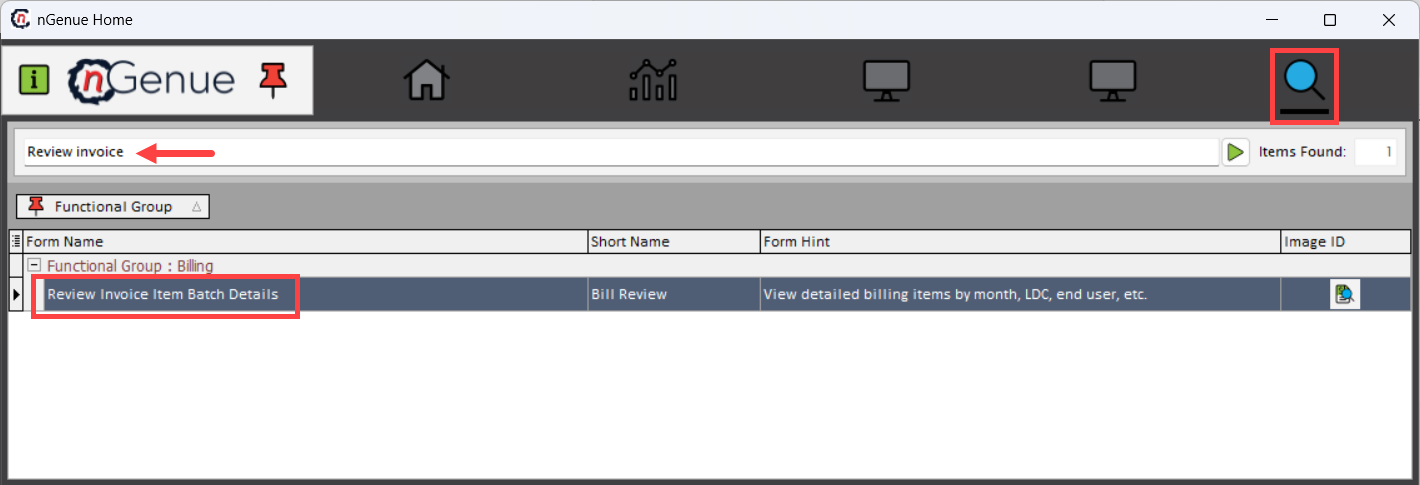
- Double-click Review invoice item batch details to open the Review invoice item batch details (billing) screen.
-
The screen is divided into two main sections:
- Invoice items query section
- Invoice item details section
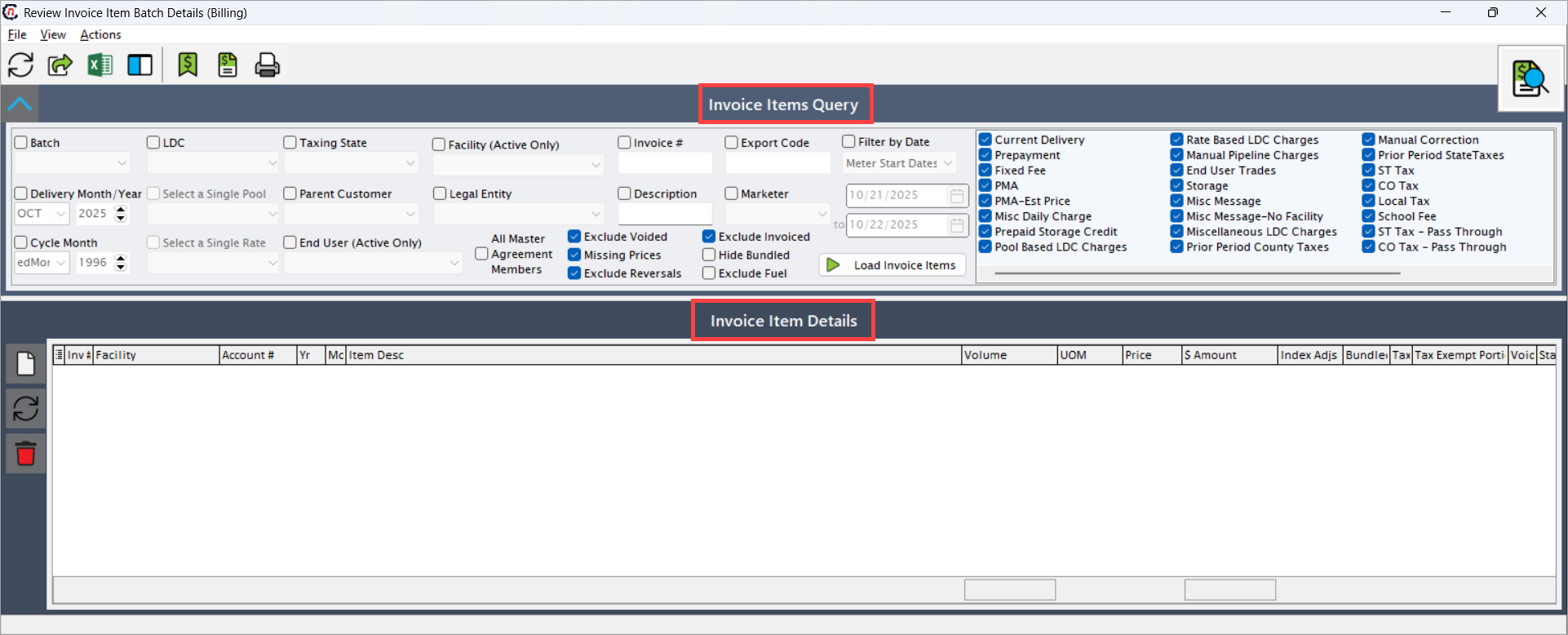
Invoice items query section
The Invoice items query section allows you to apply filters to retrieve specific invoice item records for analysis. You can filter by batch, LDC, facility, or delivery month, and use additional options to exclude unwanted records such as reversals or voided transactions.
General filters
Fields Description Batch Allows selecting a specific billing batch to review invoices processed within that batch. This helps in focusing on a defined billing run for validation. LDC Selects the Local Distribution Company (LDC) whose invoices you want to review. This helps narrow the data to a specific service provider. Taxing state Filters invoice records by the applicable taxing state, ensuring proper jurisdictional validation of tax calculations. Example: Alaska, California. Facility (active only) Displays only active facilities for which billing items are generated. This helps avoid reviewing outdated or inactive records. Invoice # Enables searching for a specific invoice number to quickly locate and review the corresponding invoice item details. Export code Filters invoice items based on assigned export codes, which can be useful for identifying billing records prepared for external reporting. Filter by date Allows you to view invoices created or modified during a specific date range, useful for period-based analysis. Delivery month/year Filters invoice items by the selected billing month and year, ensuring that only relevant records from that billing period are displayed. Select a single pool Filters data for a specific pool associated with an LDC. This is helpful when validating billing for pooled accounts or groups. Parent customer Displays all invoices linked to a specific parent customer hierarchy. Useful for analyzing large enterprise customers with multiple sub-accounts. Legal entity Filters invoices for a specific legal entity, ensuring that the correct financial records are reviewed for each company. Description Allows keyword-based search within invoice descriptions, helping to locate items with specific charge names or comments. Marketer Filters records by marketer name, identifying which marketer or trader was associated with the billed transactions. Cycle month Displays invoices associated with a particular billing cycle month. This helps track recurring charges for the same period. Select a single rate Enables filtering by a specific rate schedule (e.g., residential, commercial), ensuring the rate plan is correctly applied to the billing data. End user (active only) Displays only active end users for selection. This ensures that the billing items reviewed belong to currently active accounts. All master agreement members Includes all customers under a single master agreement, allowing batch review of related accounts. Exclude voided Excludes all invoices that were voided, keeping the focus on valid and active transactions. Exclude invoiced Filters out invoices that are already finalized and invoiced, displaying only pending or review-stage records. Exclude reversals Removes reversal entries (created during corrections) to avoid confusion with actual invoice items. Missing prices Displays invoice items that are missing price information, helping analysts identify and correct incomplete billing data. Hide bundled Hides line items that are part of bundled or grouped charges, simplifying review of standalone items. Exclude fuel Excludes fuel surcharge or related charge types if not required for review. Load invoice items Executes the query to load invoice items based on the selected filters. This button must be clicked to generate results. 
Charge type filtersThe following filters narrow the results by specific charge categories. Selecting these checkboxes helps users focus on particular types of billing items for review or validation.
Fields Description Current delivery Represents charges associated with the current billing period’s gas delivery. These are the standard charges calculated based on the volume delivered within the billing cycle. Prepayment Indicates advance payment amounts made by the customer for future usage. Typically used in prepaid billing arrangements or to offset upcoming consumption costs. Fixed fee A standard recurring fee not tied to consumption levels. This may include service, meter, or administrative fees applied each billing cycle. PMA Refers to pipeline management agreement charges. These cover costs incurred for managing pipeline capacity and scheduling gas transportation for customers. PMA- EST price Represents estimated PMA charges calculated based on projected gas prices or volume forecasts. Adjustments are made later when actual data is available. Mise daily charge A daily recurring charge related to MISE (Market Integration and Scheduling Engine) operations. Typically applied to recover daily system costs. Prepaid storage credit Credits applied when prepaid amounts are used to cover storage-related costs or offset prior storage debits. Pool based LDC charges Charges allocated to end users based on their participation in a pool managed by a Local Distribution Company (LDC). The cost distribution depends on the pool’s aggregated usage. Rate based LDC charges Charges calculated based on the LDC’s approved tariff rates rather than pooled allocations. These reflect standard rate-based billing from the LDC. Manual pipeline charges User-entered or manually adjusted pipeline transportation charges applied outside of automated calculation processes. End user trades Represents charges or credits resulting from trades or gas exchanges between end users within the same pipeline or pool. Storage Charges associated with gas storage, including injection, withdrawal, and inventory management fees. Mise message Refers to charges or credits resulting from MISE system communications such as imbalance adjustments or reconciliations tied to facility-level messages. Mise message - no facility Similar to Mise message, but applies when charges are not associated with a specific facility. Used for generalized system-level adjustments. Miscellaneous LDC charges Covers any additional or special LDC-applied fees not categorized under standard billing types, such as one-time adjustments. Prior period county taxes County-level tax adjustments applied retroactively to correct or reconcile charges from prior billing periods. Manual correction Represents manual billing corrections or journal entries made by users to adjust previous charges or credits. Prior period state taxes State-level tax corrections applied for previous billing periods to reflect accurate tax computation. St tax Refers to state tax applied to the current billing period’s transactions as per state taxation rules. Co tax Refers to county tax applied to current billing cycle charges based on local county regulations. Local tax Represents city or municipal-level tax charges applied on top of state and county taxes. School fee A specific surcharge levied for funding educational or school district initiatives, applicable in certain jurisdictions. St tax - pass through State tax directly passed through from the supplier or LDC without modification. The end user bears the full tax amount. Co tax - pass through County-level tax passed directly to the end user as billed by the LDC, without additional processing. Local tax - pass through Local (city/municipal) tax that is transferred directly to the customer in its original form. Other tax - pass through Covers any other category of pass-through tax such as environmental surcharges or regional regulatory fees. Tax adjustment Used for reconciling discrepancies between estimated and actual tax amounts or applying tax corrections for previous invoices. PMA- Pass through PMA-related charges directly passed to customers without internal adjustments, typically reflecting actual pipeline costs. Late charges Penalty fees imposed on overdue balances or unpaid invoices beyond the due date. Early termination fee Charges levied when a customer ends a service or contract before the agreed term duration. Pass through - non tax Represents non-taxable pass-through charges such as supplier service fees, administrative recovery, or transport adjustments. 
After setting the desired filters, click Load invoice items to view the filtered records in the Invoice item details section.
Invoice item details section
Once invoice items are loaded, this section displays detailed records for review. Each line item represents a specific billing entry that can be validated for accuracy in terms of charge type, quantity, rate, and tax application.
The users or analysts use this section to verify itemized charges before invoice finalization. Any incorrect or missing data can be corrected here to ensure billing integrity.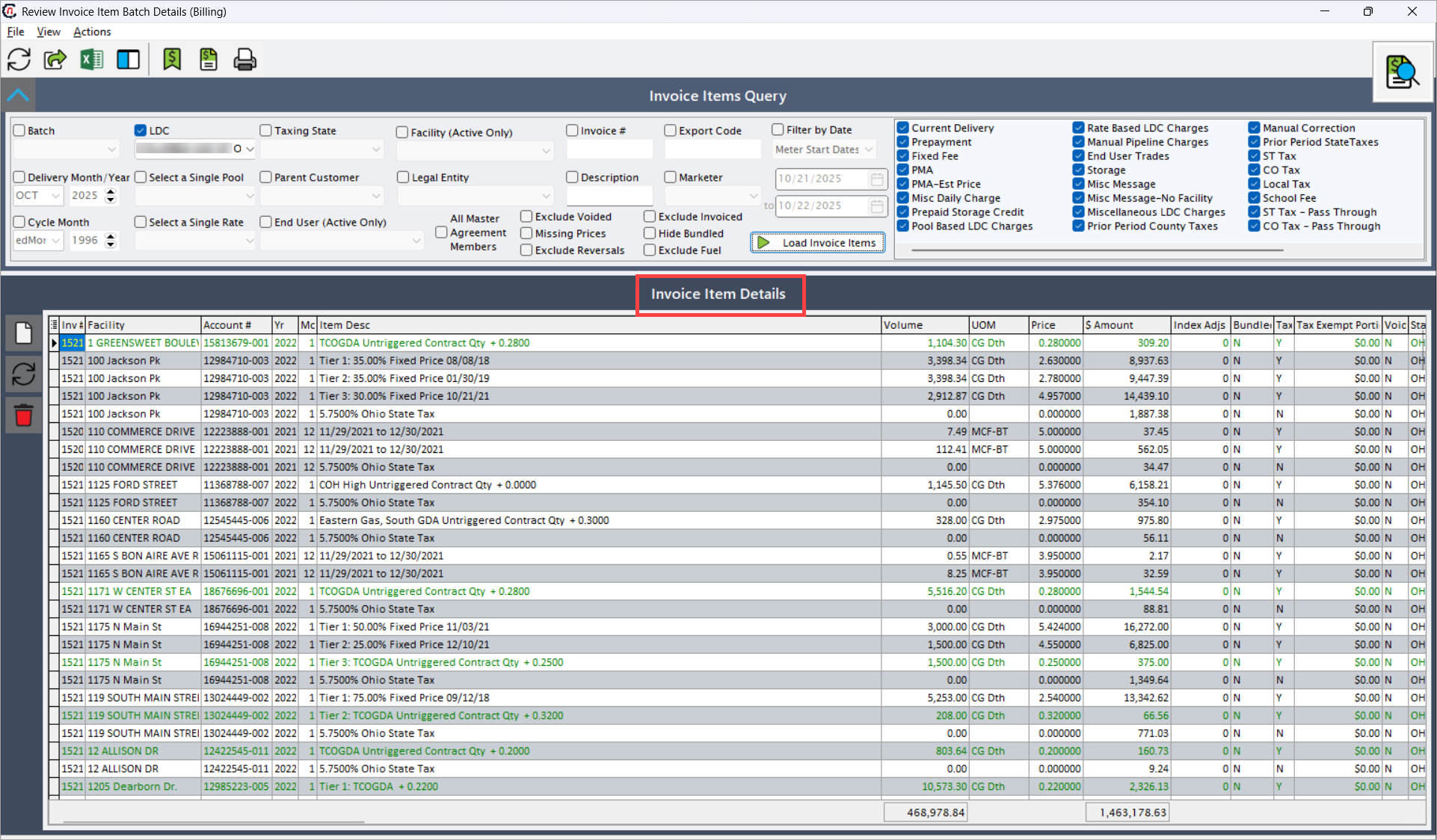
Step 2: Manually create a single invoice item
In cases where adjustments, additional charges, or corrections are required, users can manually create an invoice item.
- From the Review item details section, click Manually create single invoice item.
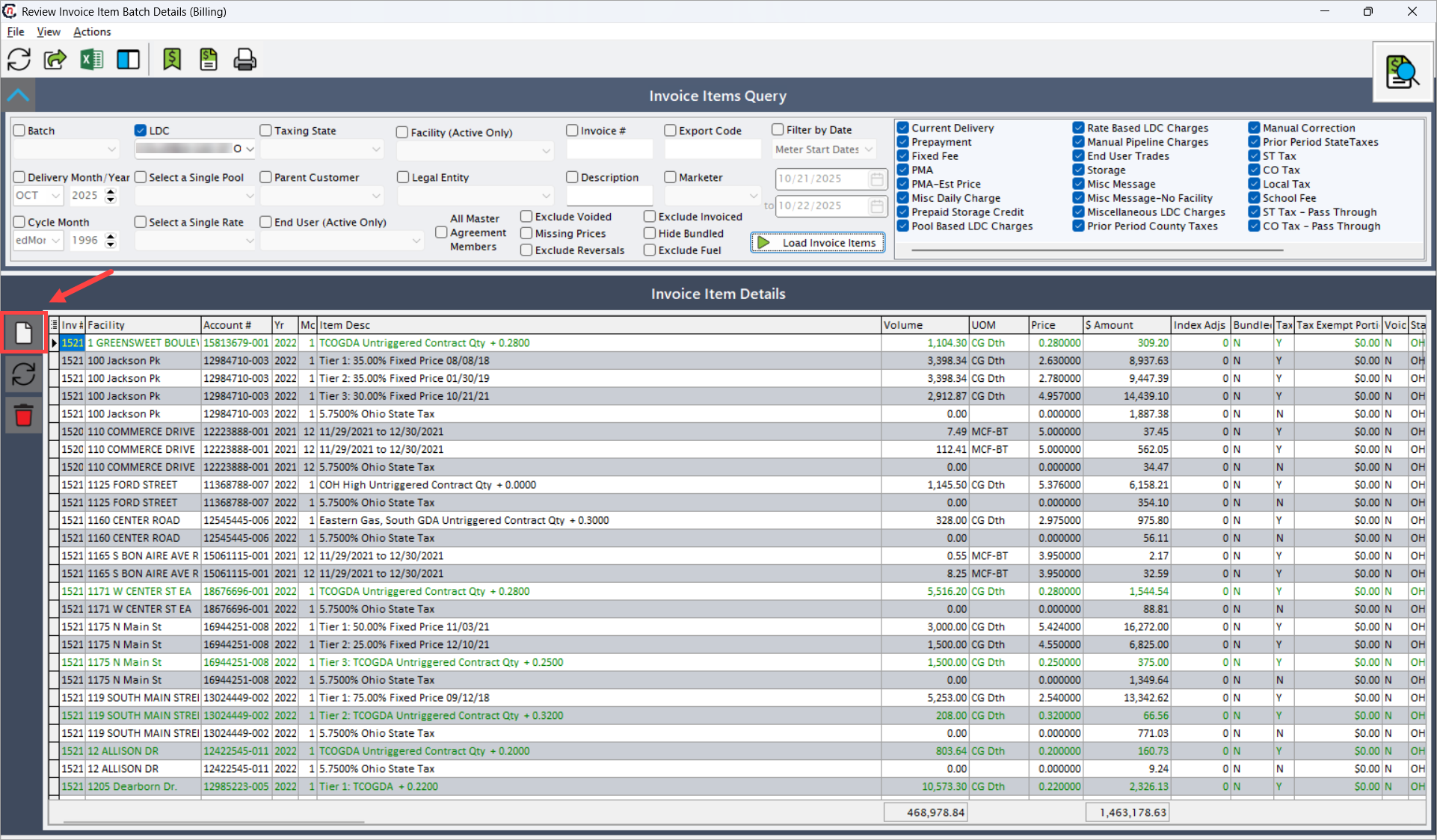
- The Input billing item details popup window appears.
-
Fill in all necessary fields as described below and click Save this invoice item.
Fields Description Filter facility list by Allows filtering facilities by parameters such as LDC, parent customer, pool, or end user. This helps users quickly locate the specific facility for which the billing item needs to be created. It is necessary to ensure that the invoice item is applied to the correct operational entity, avoiding errors in billing allocations. Batch information Displays the batch name or number under which the invoice item will be created. Grouping related invoice items into a batch helps maintain organized records, simplifies reconciliation, and allows bulk posting or approval actions. If no batch exists, click the New batch icon to create one by providing details like batch date, log file path and name, and a brief description. Once created, click Accept to select it. Advance to next facility on save When enabled, this option automatically moves to the next facility in the list after saving an invoice item. This is particularly useful when creating multiple invoice items in bulk for several facilities, improving efficiency by reducing repetitive navigation. Entry type Defines how the system calculates the charge amount. You can choose between Volume & price or Fixed amount. Selecting the correct entry type ensures accurate billing calculations—whether it’s consumption-based or a fixed recurring fee. Facility (active only) Specifies the facility to which the invoice item applies. Only active facilities are shown in the list, ensuring that charges are linked only to valid, operational facilities. This prevents billing against deactivated or obsolete entities. For tax purposes, treat as Determines how the charge is handled for tax computation—whether it is fully taxable, partially exempt, or fully exempt. This field is crucial for compliance with local tax regulations and ensures accurate reporting during financial audits. Month / year Specifies the billing period for which the invoice item applies (for example, June 2025). Defining this period ensures the charge is applied to the correct billing cycle and aligns with financial reporting and accrual tracking. Marketer based charge Identifies the marketer responsible for the charge. This helps in attributing costs or revenues correctly between marketers, supporting transparent accounting and marketer-level profitability analysis. Metering period Defines the start and end dates of the metered usage that the invoice item covers. This is necessary for usage-based charges, ensuring that consumption data aligns with the billing period. Calendar period Indicates the overall calendar period during which the transaction occurred. This helps in reconciling usage and billing data when analyzing seasonal trends or reporting across months. Invoice item type Specifies the type of charge being created—such as current delivery, fixed fee, storage, or miscellaneous charge. The available options correspond to those listed under the Charge type filter. Selecting the correct charge type is critical to ensure the charge is categorized properly in reporting and taxation. LDC charge type Defines the specific charge associated with the selected LDC. The dropdown list is populated from the LDC charge definition screen. Selecting the appropriate LDC charge type ensures alignment with the utility’s charge structure and prevents mismatched billing entries. Therms / per therm Specifies the gas quantity (in therms) and the rate per therm used to compute the total charge. These fields are enabled only when Entry type is set to Volume & price. They are necessary for accurately calculating consumption-based billing amounts. Amount Represents a fixed charge amount applied regardless of consumption. This field is enabled when Entry type is set to Fixed amount. It ensures that one-time or flat-rate charges are handled correctly without depending on metered data. Exempt portion Indicates the portion of the charge or usage that is exempt from billing or taxation. This is necessary for customers or services qualifying for tax exemptions or special rate structures. This item is taxable Specifies whether the created item is subject to taxation. This ensures that taxes are applied correctly during invoice generation and prevents tax calculation errors in reports. This is a cycle read based item Identifies whether the item was generated from a cycle meter reading. It is required to link billing to specific read cycles for audit traceability and consumption validation. Line description Provides a clear, user-friendly description of the line item. The text entered here appears on the customer’s invoice, helping both customers and internal teams understand the purpose of the charge. Link to cycle meter read Links the invoice item to a specific meter reading record. This ensures accurate traceability between the billed amount and the actual meter read data. When selected, the Lookup meter read screen opens, allowing users to choose the relevant reading record. Link to cycle storage plan Associates the item with a storage plan, particularly when Invoice item type is set to Storage. This allows the system to reconcile storage-related charges with inventory or storage capacity allocations. Selecting this opens the Lookup cycle storage plan screen to choose a storage record. Save this invoice item Commits the newly entered invoice item to the system and refreshes the review list. This is essential for persisting the record and ensuring that the billing data is available for validation, approval, or posting. Delete last entry Removes the most recently entered invoice item or clears the latest modification from the review list. This feature helps correct entry errors quickly before saving the batch. Tab stops (entry type, facility, tax basis, etc.) Allows users to customize tab navigation across input fields. Configuring tab stops ensures smoother and faster data entry by defining the order in which fields receive focus when pressing the Tab key. This improves usability and consistency when processing multiple records. 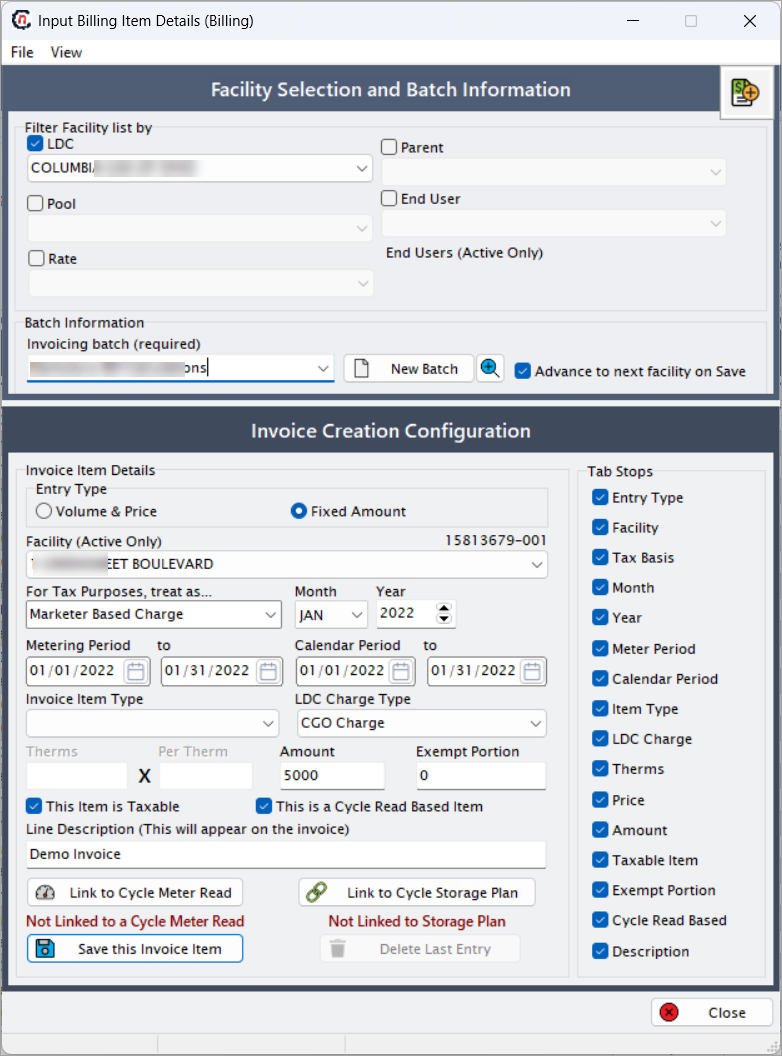
Once the details are saved, the new item appears in the Review item details section for further review.
Example scenario
A billing analyst, Maria, is responsible for validating monthly invoices generated for all LDC managed by her team. For the October 2025 billing cycle, she needs to review and verify invoice items for the LDC ABC Gas, ensuring that only finalized and valid transactions are included before releasing the invoices to customers.
To achieve this, Maria applies the following filter criteria on the Invoice item review screen:
- Delivery Month/Year: October 2025
-
LDC: ABC Gas
-
Checkboxes:
- Exclude voided: To ensure that voided or canceled transactions do not appear in the results.
- Exclude reversals: To omit any reversal entries that were created to offset previous incorrect transactions.
-
Charge type filters:
- Rate based LDC charges: To view rate-based charges tied to actual consumption rates or tariff-based pricing.
- Fixed fee: To include fixed recurring charges such as service fees or administrative fees.
Once she clicks Load invoice items, the system retrieves all valid invoice line items matching her criteria. Each line item includes details such as:
- Customer account and facility
- Delivery date and associated LDC contract
- Charge type and corresponding rate
- Tax components applied (if any)
- Total charge amount
Maria then systematically reviews the data for accuracy by cross-verifying:
- Whether the rates align with the current tariff configurations for ABC Gas.
- Whether fixed fees are applied only to eligible customers and not duplicated.
- Whether tax calculations (state, county, and local) are consistent with the configured tax rules.
If any discrepancies are found (for example, a missing rate-based charge or incorrect tax computation), she flags the record for correction before invoice generation.
Finally, after completing her review and confirming that all charges are accurate and valid, Maria proceeds to generate and approve the final invoices for the October 2025 cycle.
What’s next
Once invoice items are reviewed:
- Analysts can make corrections to missing or inaccurate billing data.
- Proceed to Invoice generation or Billing summary report to finalize invoices.
- Export validated data for audit or financial reconciliation.
Summary
The Review invoice item batch details screen in nGenue provides a centralized platform to review, validate, and correct billing data before finalization.
By using this screen, users can:
- Ensure accuracy and consistency across all billing records.
- Identify and correct missing or incorrect charges early.
- Maintain compliance with billing rules and tax regulations.
- Improve transparency and streamline the invoice approval process.
Regular review of invoice item details helps improve data accuracy, enhance customer trust, and support efficient billing operations.