Manually input meter reads
The Manually Input Meter Reads screen is used to capture, review, and manage manual meter read volumes for facilities when automated meter data is unavailable, delayed, or requires correction. This screen allows users to directly enter raw and converted meter volumes for specific date ranges, ensuring continuity in usage calculations, load profiling, billing, and settlement processes.
This screen is primarily used by users to ensure accurate daily and period-based consumption data when system-generated or imported reads are incomplete or unavailable.
The Manually Input Meter Reads screen enables users to:
- Manually enter meter read volumes for facilities and accounts
- Review and validate existing manual meter read records
- Distinguish estimated versus actual meter reads
- Control posting of meter reads for downstream usage calculations
- Support billing, forecasting, and reconciliation workflows
Prerequisites
Before working with the Manually Input Meter Reads screen, ensure the following prerequisites are met:
- The user has add or modify permissions for the Manually Input Meter Reads screen.
- The LDC is configured and active in nGenue.
- Facilities and accounts are configured and associated with the LDC.
- Meter configurations exist for the facilities.
- Billing and usage periods are open for data entry.
Procedure to manually input meter reads
Step 1: Navigate to the Manually Input Meter Reads screen
- Log in to the nGenue application.
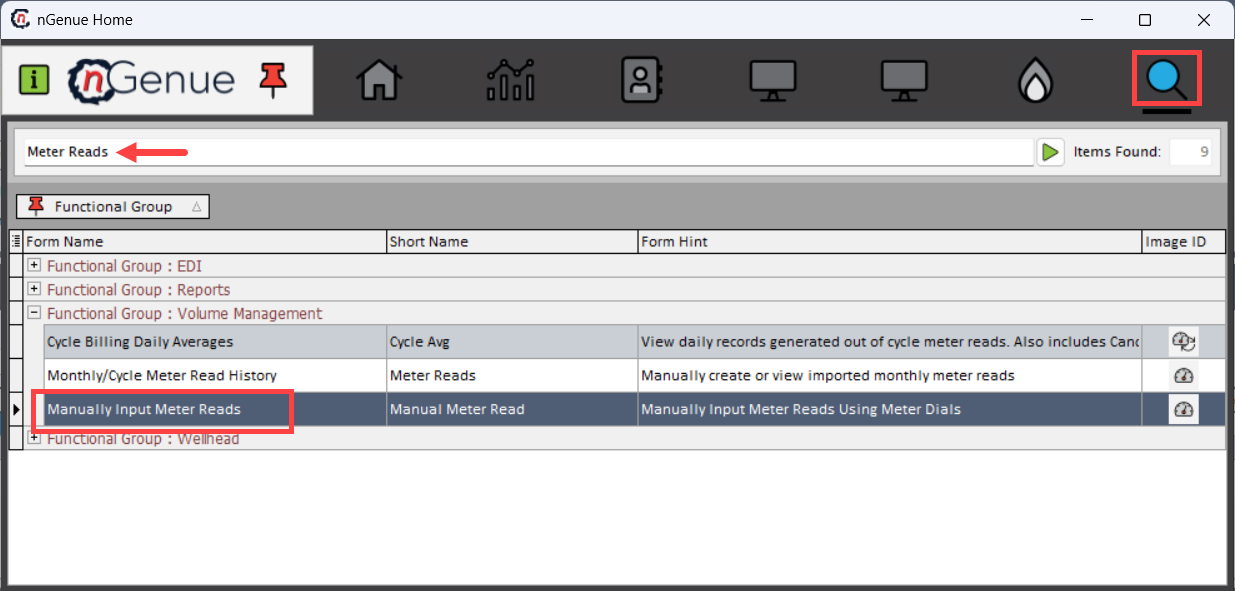
- Click the Search icon and enter Meter Reads in the search bar.
-
Double-click Manually Input Meter Reads to open the Manually Input Meter Reads (Volume Management) screen.
-
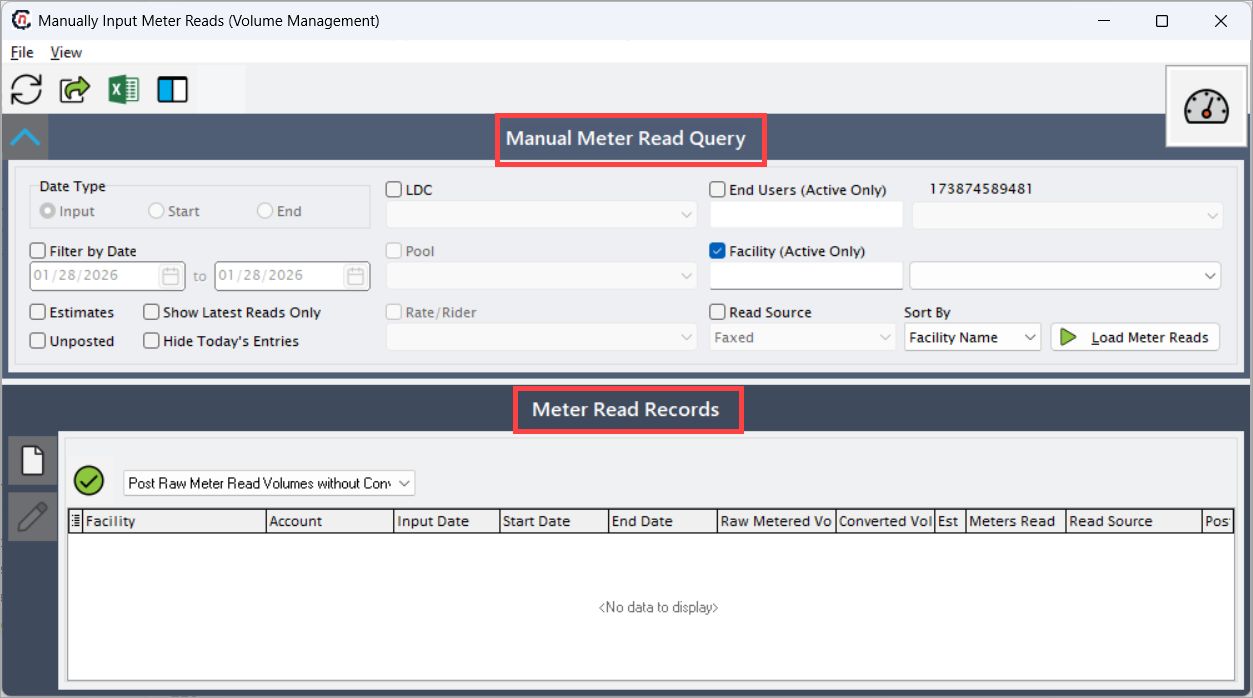
The screen is divided into two primary sections:
- Manual Meter Read Query: This section filters and retrieves meter read records.
- Meter Read Records: This section displays all meter reads matching the selected query criteria. Each row represents a single meter read record.
Step 2: Define manual meter read query criteria
Use the Manual Meter Read Query section to filter and retrieve meter read records.
| Fields | Description |
|---|---|
| Date Type | Select whether the query is based on Input Date, Start Date, or End Date. This controls how date filters are applied to meter reads. |
| Filter by Date | Enable and enter a start and end date to restrict meter reads to a specific date range. |
| LDC | Select the Local Distribution Company associated with the meter reads. |
| Pool | Filter meter reads by pool, if applicable. |
| End Users (Active Only) | Limits results to active end users only. |
| Facility (Active Only) | Limits results to active facilities only. |
| Rate / Rider | Filters meter reads based on the associated rate or rider configuration. |
| Read Source | Identifies the origin of the meter read (for example, Faxed, Manual, Imported). |
| Estimates | Include estimated meter reads in the results. |
| Show Latest Reads Only | Displays only the most recent meter read per facility and account. |
| Unposted | Displays meter reads that have not yet been posted to downstream processes. |
| Hide Today’s Entries | Excludes meter reads entered on the current system date. |
| Sort By | Determines how meter read records are ordered in the results grid. |
After selecting the required criteria, click Load Meter Reads to retrieve the matching records.
Step 3: Review meter read records
The Meter Read Records section displays all meter reads matching the selected query criteria. Each row represents a single meter read record.
| Fields | Description |
|---|---|
| Facility | Identifies the facility for which the meter read was recorded. |
| Account | Displays the customer or account associated with the facility. |
| Input Date | Date on which the meter read was entered into the system. |
| Start Date | Beginning date of the meter read period. |
| End Date | Ending date of the meter read period. |
| Raw Metered Volume | Original volume captured directly from the meter before conversion. |
| Converted Volume | Volume converted using configured conversion factors and units. |
| Est | Indicates whether the meter read is estimated (Y) or actual (N). |
| Meters Read | Number of physical meters included in the read. |
| Read Source | Source of the meter read data (manual, faxed, imported, etc.). |
| Post | Indicates whether the meter read has been posted to downstream usage calculations. |
This grid provides full visibility into the data used for usage, load profile, and billing calculations.
Step 4: Add a new manual meter read
To manually enter a new meter read:
- Click the Add New Record icon.
-
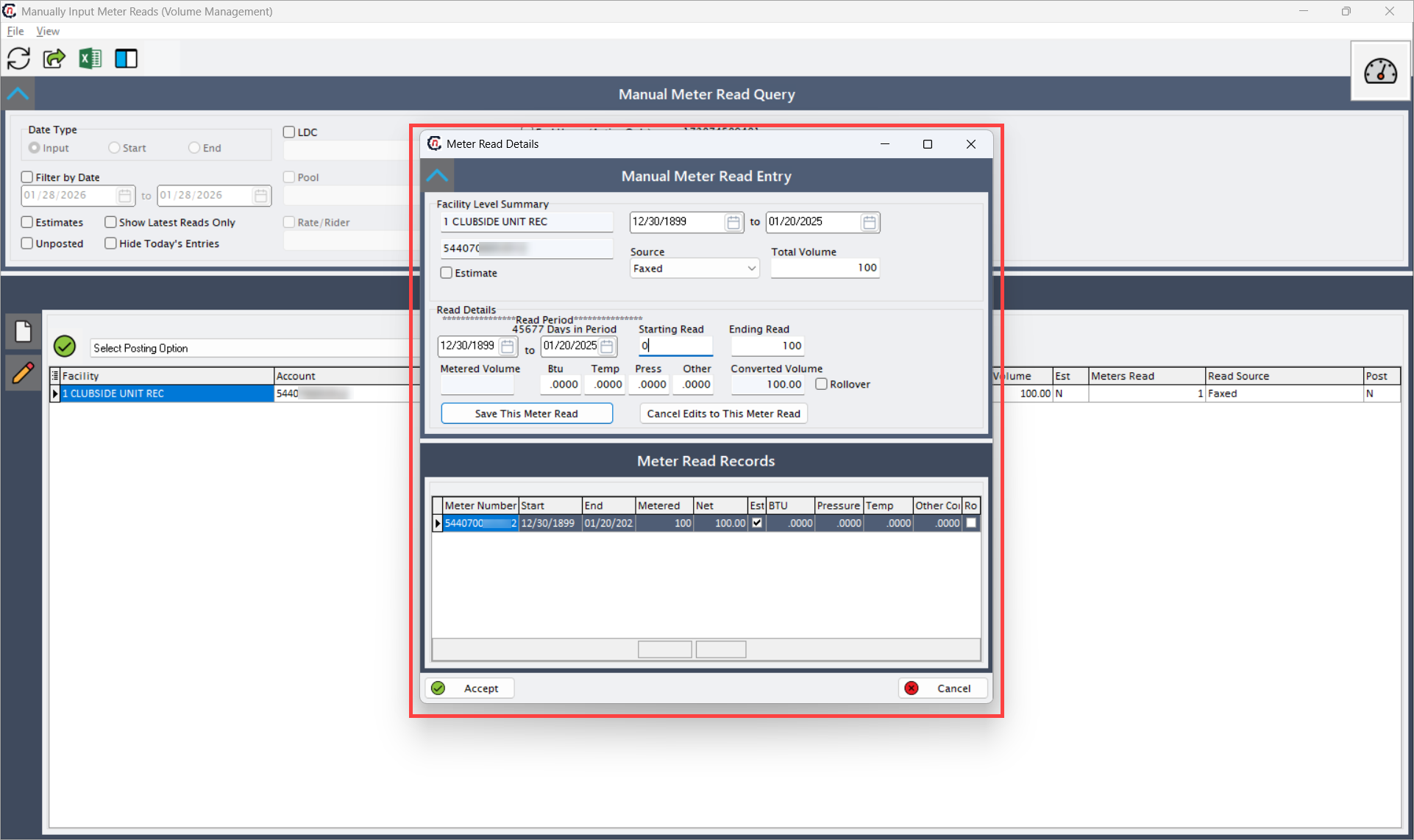
Enter the required meter read details:
Fields Description Facility Select the facility for which the meter read is being entered. Account Select the account associated with the facility. Input Date Enter the date the meter read is recorded in the system. Start Date Enter the start date of the meter read period. End Date Enter the end date of the meter read period. Raw Metered Volume Enter the measured volume from the physical meter. Converted Volume Review or enter the converted volume calculated using system rules. Estimated Indicate whether the meter read is estimated or actual. Read Source Select the source of the meter read data. 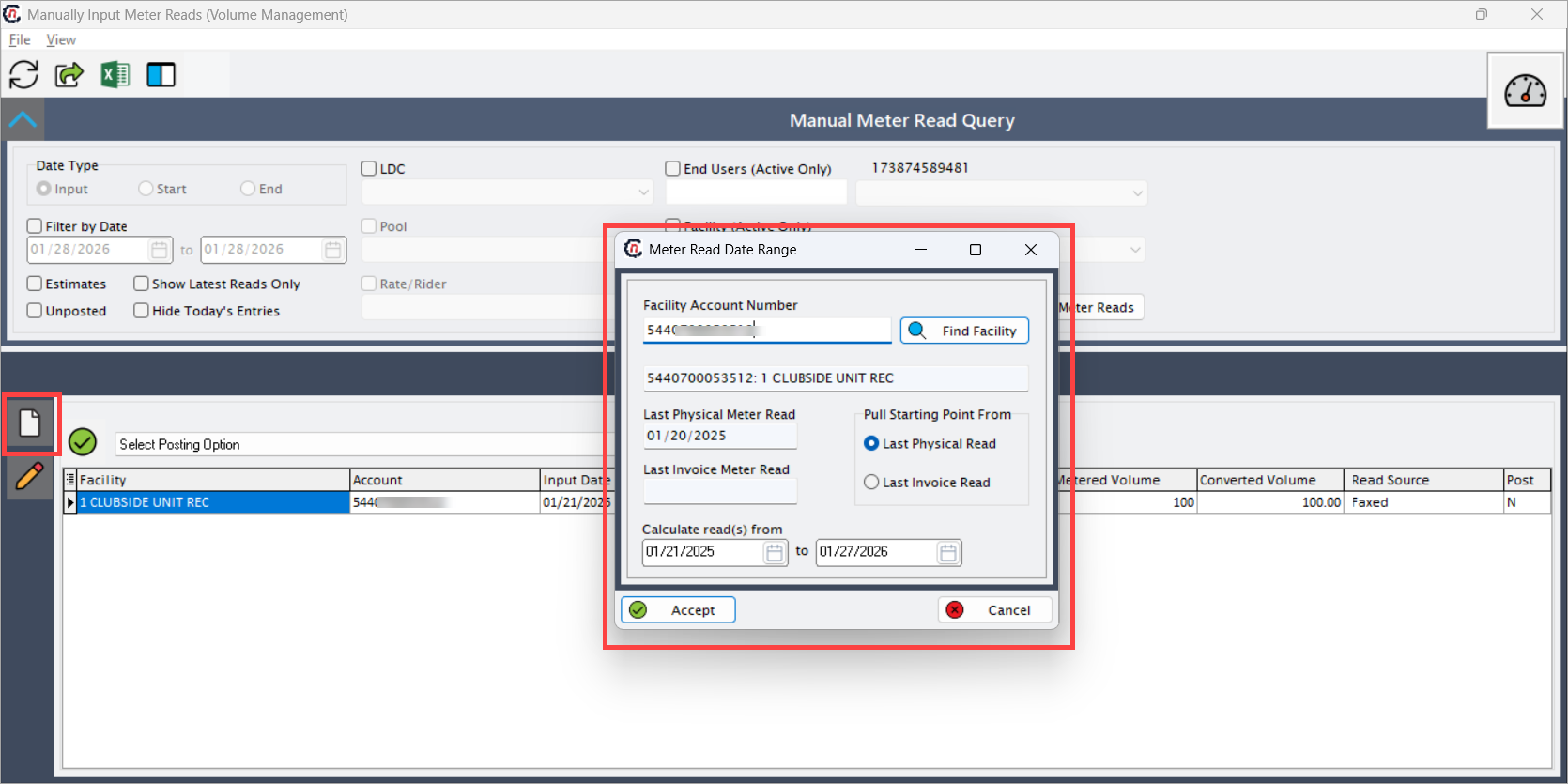
-
Click Save to store the meter read record.
Step 5: Post meter reads
- Select one or more meter read records from the grid.
-
Choose a Posting Option from the dropdown. The available options determine how and where the entered meter read volumes are posted for downstream processing:
- Post Converted Volume to Override Column: Posts the converted volume into the Override column. This option is typically used when manual reads must explicitly override system-calculated or imported usage values for the selected period.
- Post Converted Volume to Average Period Column: Posts the converted volume to the Average Period column, allowing the volume to be used in period-based averaging logic for usage, load profiling, and billing calculations.
- Post Converted Volume to Metered Column: Posts the converted volume directly to the Metered column, treating the value as the official metered consumption for the selected date range.
- Post Raw Meter Read Volumes with Conversion Factors: Posts the raw metered volume and applies the configured conversion factors (such as pressure, temperature, and unit conversions) during downstream usage calculations.
- Post Raw Meter Read Volumes without Conversion Factors: Posts the raw metered volume exactly as entered, without applying any conversion factors. This option is typically used when conversion is handled externally or is not required.
- Post Converted Volume to Projected Column: Posts the converted volume to the Projected column, allowing the value to be used for forecasting, projections, and forward-looking analysis without impacting actual metered or billed usage.
-
Click Post to make the meter reads available for downstream processes such as:
- Usage calculation
- Load profile generation
- Billing and settlement
Key points
- Manual meter reads are used when automated or imported data is unavailable or requires correction.
- Accurate start and end dates are critical for correct usage calculations.
- Estimated reads should be clearly identified for audit and reconciliation.
- Meter reads must be posted before they are used in billing and load profiling.
- This screen directly impacts usage, forecasting, and financial settlement accuracy.
Summary
The Manually Input Meter Reads screen provides a controlled and auditable mechanism to capture meter read data when automated sources are unavailable or insufficient. By enabling accurate entry, validation, and posting of meter reads, this screen ensures continuity across usage calculation, load profiling, billing, and settlement workflows within nGenue.