Calculate load profile
The Calculate Load Profile screen is used to generate or recalculate daily load profile volumes for facilities and end users within an LDC. Load profiles represent the daily distribution of estimated annual or seasonal gas usage and are critical for cycle billing, forecasting, nominations, storage targeting, and settlement processes.
This screen allows users to recalculate load profiles using system-defined calculation methods, apply overrides where necessary, and update related downstream values such as base load, annual estimates, and storage targets.
The Calculate Load Profile process is primarily used by volume management, billing, forecasting, and settlement teams to ensure that estimated daily usage values remain accurate, consistent, and aligned with operational and regulatory requirements.
Prerequisites
Before using the Calculate Load Profile screen, ensure the following prerequisites are met:
- The user has add or modify permissions for the Calculate Load Profile screen.
- The LDC is configured and active in nGenue.
- Facilities and end users are created and mapped to the LDC.
- Facility-level load profile calculation methods are configured.
- Annual estimates or historical usage data exist for the facilities.
- Billing cycles and peak/off-peak definitions are configured (if applicable).
Procedure to calculate load profile
Step 1: Navigate to the Calculate Load Profile screen
- Log in to the nGenue application.
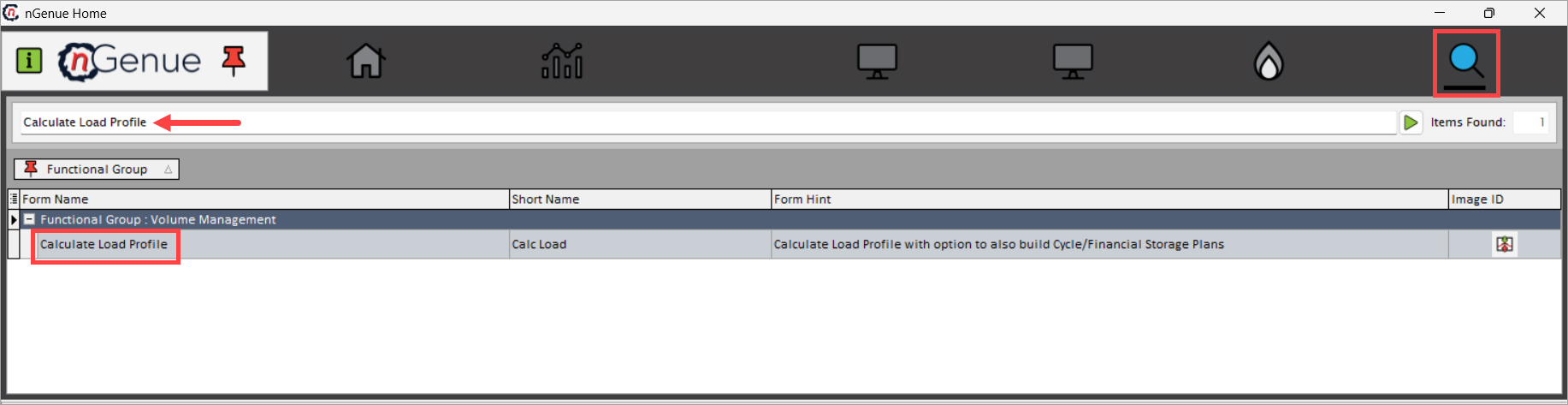
- Click the Search icon and enter Calculate Load Profile in the search bar.
-
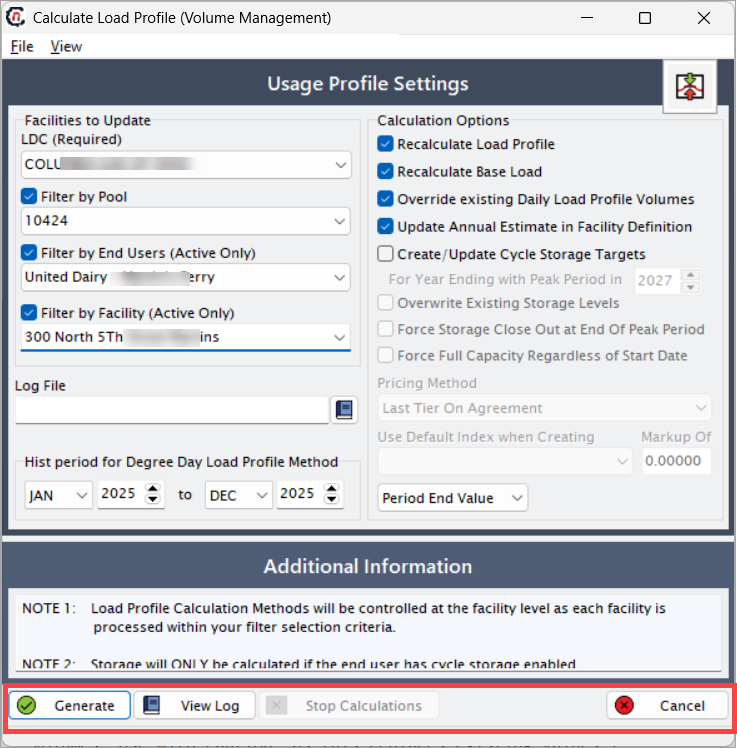
Double-click Calculate Load Profile to open the Calculate Load Profile (Volume Management) screen.
-
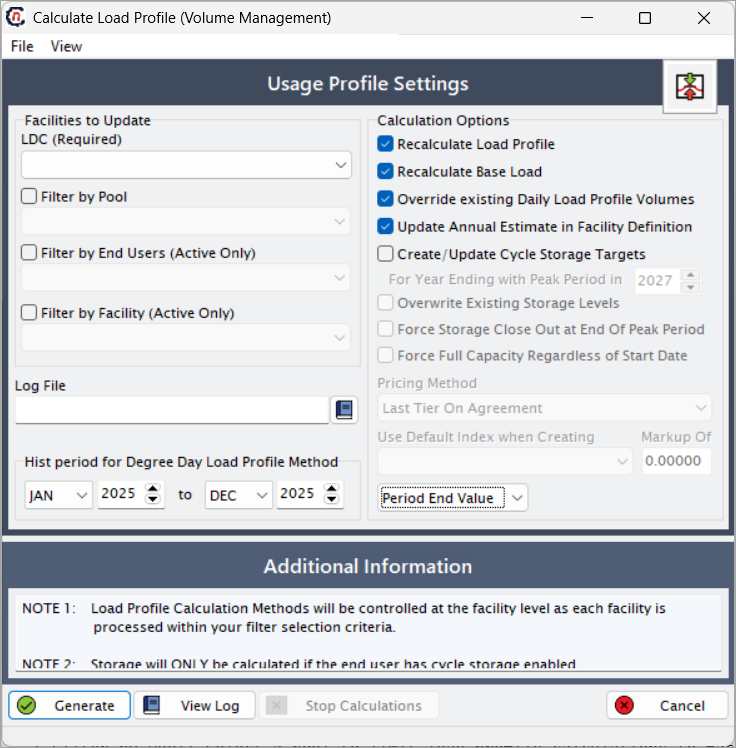
The screen is divided into the following sections:
-
Facilities to Update: This section defines the scope of the load profile calculation. It allows you to select the LDC and optionally narrow the calculation to specific pools, facilities, or end users. The selections made here determine which facilities are included in the load profile recalculation process. Only active facilities and end users are considered when the corresponding filters are applied.
-
Calculation Options: This section controls how load profiles are calculated and applied. It includes options to recalculate daily load profiles, base loads, and annual estimates, as well as to override existing calculated values. Additional options allow you to update storage targets, enforce storage closeouts, apply pricing logic, and control how capacity and storage rules are applied during the calculation. These settings directly influence downstream billing, forecasting, and storage planning results.
-
Historical Period for Degree Day Load Profile Method: This section is used when facilities are configured to use the Degree Day load profile calculation method. It defines the historical date range that the system uses as a weather reference to distribute usage seasonally. You can also control how the system derives values when historical data is incomplete by selecting whether to use the period-end value, average, high, or low. This ensures consistent and predictable profile generation for weather-sensitive customers.
-
Additional Information and Actions: This section provides execution controls and supporting information for the calculation process. It includes the ability to specify a log file, initiate or stop the calculation, and review processing results. The Generate, View Log, and Stop Calculations actions allow users to monitor calculation progress, identify issues, and validate successful completion before proceeding with downstream operational or billing activities.
-
Step 2: Select facilities to update
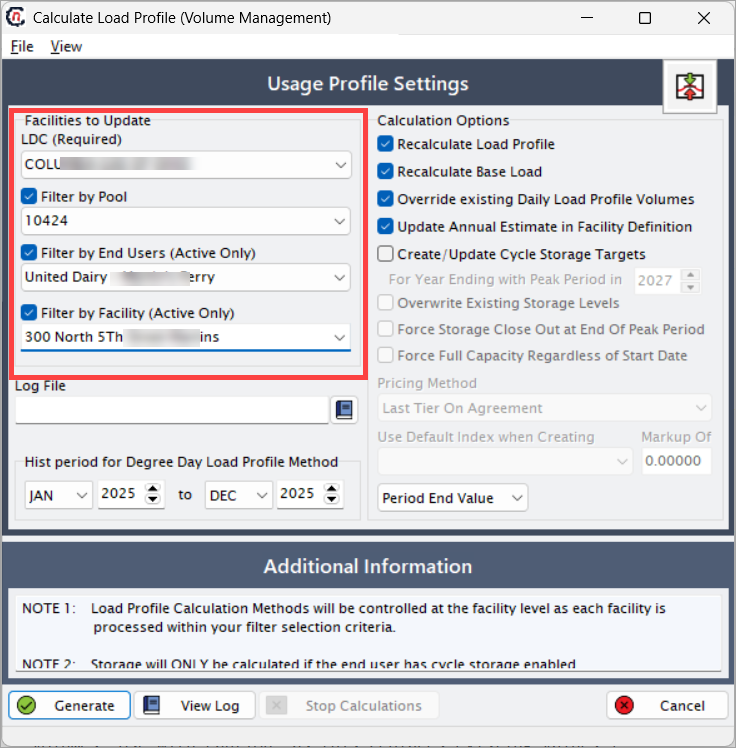
The Facilities to Update section defines which facilities and end users will be included in the load profile calculation.
| Fields | Description |
|---|---|
| LDC (Required) | Select the Local Distribution Company for which load profiles should be calculated. This field is mandatory and controls all downstream selections. |
| Filter by Pool | Select a pool to limit load profile calculations to facilities and end users associated with the selected pool. Leave blank to include all pools under the LDC. |
| Filter by End Users (Active Only) | Select one or more active end users to limit load profile calculations to specific customers. Inactive end users are excluded. |
| Filter by Facility (Active Only) | Select one or more active facilities to limit calculations to specific service locations. This is commonly used for targeted recalculation or troubleshooting. |
Step 3: Configure calculation options
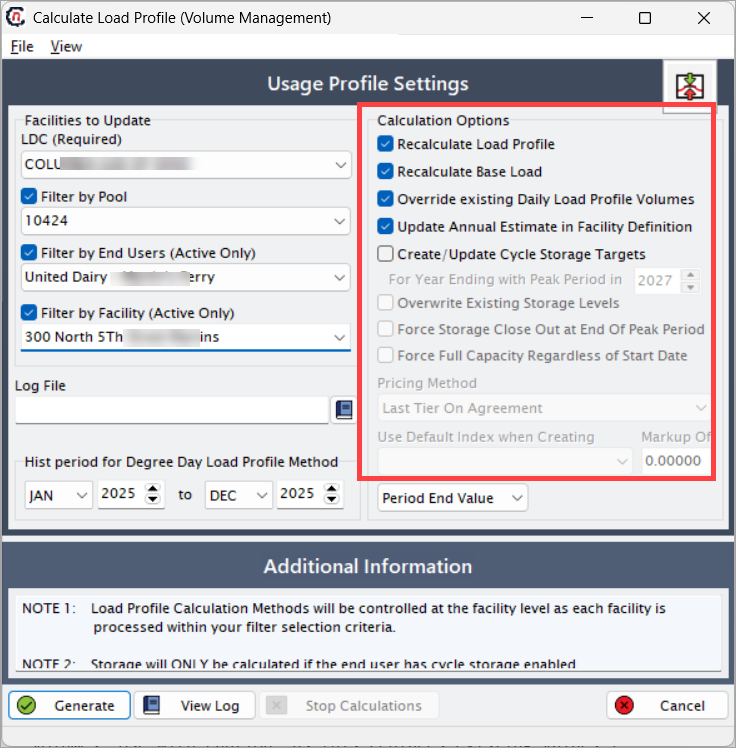
The Calculation Options section controls how load profiles are generated, recalculated, and applied.
| Fields | Description |
|---|---|
| Recalculate Load Profile | Select this option to regenerate daily load profile volumes for the selected facilities based on configured calculation methods. |
| Recalculate Base Load | Select this option to recalculate the facility base load component used in daily profile distribution. Base load represents non-weather-sensitive usage. |
| Override Existing Daily Load Profile Volumes | Select this option to overwrite any previously calculated daily load profile volumes. Use with caution, as this replaces existing values. |
| Update Annual Estimate in Facility Definition | Select this option to update the facility’s annual estimated usage based on the newly calculated load profile results. |
| Create / Update Cycle Storage Targets | Select this option to generate or update cycle storage targets if the end user has cycle storage enabled. |
| Override Existing Storage Levels | Select this option to overwrite existing storage target values with newly calculated values. |
| Force Storage Close Out at End of Peak Period | Select this option to force storage balances to close out at the end of the configured peak period, regardless of existing balances. |
| Force Full Capacity Regardless of Start Date | Select this option to force facilities to use full configured capacity even if service started mid-period. |
| Pricing Method | Displays the pricing method applied during calculation, typically driven by contract or facility configuration. |
| Use Default Index when Creating Markup | Applies the default pricing index when creating markup values during calculation. |
| Markup % | Enter the markup percentage to be applied when generating pricing-related estimates. |
Step 4: Define historical period for degree day load profile method
This section applies only to facilities using the Degree Day load profile calculation method.
| Fields | Description |
|---|---|
| Hist period for Degree Day Load Profile Method | Select the start and end months and years used as historical reference for degree day calculations. This historical data drives weather normalization and seasonal distribution. |
| Period End Value | Select how values are derived for the period end when historical data is incomplete. |
| Average | Uses the average of available historical values. |
| High | Uses the highest observed historical value. |
| Low | Uses the lowest observed historical value. |
Step 5: Generate load profiles
- Review all selected filters and calculation options carefully.
- Click Generate to start the load profile calculation process.
- The system processes each facility independently based on its configured load profile method.
- Calculation progress and messages are written to the log file.
Screen actions
| Actions | Description |
|---|---|
| Generate | Executes the load profile calculation using the selected filters and options. |
| View Log | Opens the calculation log file, displaying detailed processing messages, warnings, and errors. |
| Stop Calculations | Stops the calculation process if it is currently running. |
| Cancel | Closes the screen without executing or saving changes. |
Important notes
- Load profile calculation methods are controlled at the facility level.
- Each facility is processed independently based on its configuration.
- Storage targets are calculated only if cycle storage is enabled for the end user.
- Overriding existing values should be performed cautiously and typically during controlled billing cycles.
- Calculation logs should always be reviewed after execution.
Key points
- Load profiles drive daily estimated usage across billing, forecasting, and settlement.
- Accurate configuration at the facility level is critical.
- Override options directly impact downstream billing and storage calculations.
- Degree Day methods rely heavily on historical period selection.
- This process is foundational to cycle billing accuracy.
Summary
The Calculate Load Profile screen is a core volume management function that ensures daily estimated gas usage values are accurate, consistent, and aligned with operational rules. By providing flexible filtering, robust calculation options, and transparent logging, this screen supports reliable billing, forecasting, storage planning, and settlement workflows across nGenue.