EDI exports
EDI export is the process of generating outbound EDI files that must be delivered to utilities/LDCs. These files contain enrollment, usage, billing and other potential data formatted as per utility-specific EDI standards. EDI exports are performed when transactional data such as enrollment or drops, usage data or meter reads, billing information needs to be communicated to the utility.
Prerequisites
Before working on the EDI exports (EDI) screen, ensure the following prerequisites are met:
- Ensure the nGenue application is installed and use valid login credentials to log into the application.
- Configure the user permissions including User type, Security user, Security group, Security assign user, and Security assign permissions in their respective screens to enable access to the EDI exports (EDI) screen and to execute EDI export routines.
- Ensure LDC, Facilities, End user accounts are properly configured and active.
Procedure to export EDI routines
- Log in to the nGenue application.
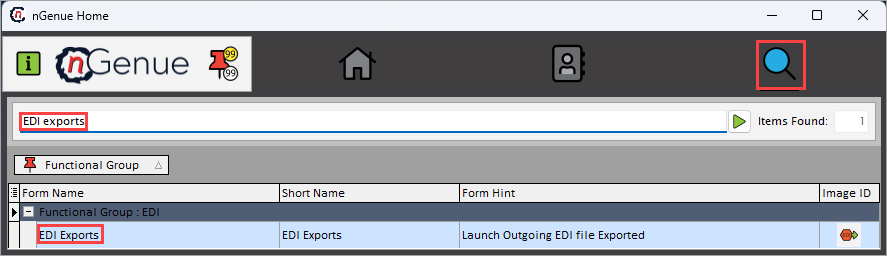
- Click the Search icon and enter EDI export in the search bar.
-
Double-click the EDI exports from the search results to open respective screen.
-
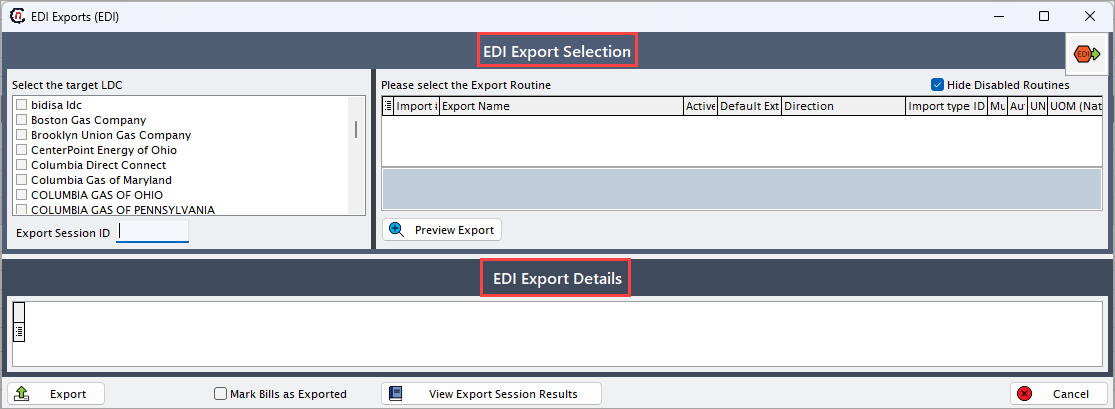
EDI exports (EDI) screen has two sections:
- EDI export selection: Displays list of LDC associated with the export file and the list of export routines related to the chosen LDC.
-
EDI details: Provides detailed information for the selected export routine.
-
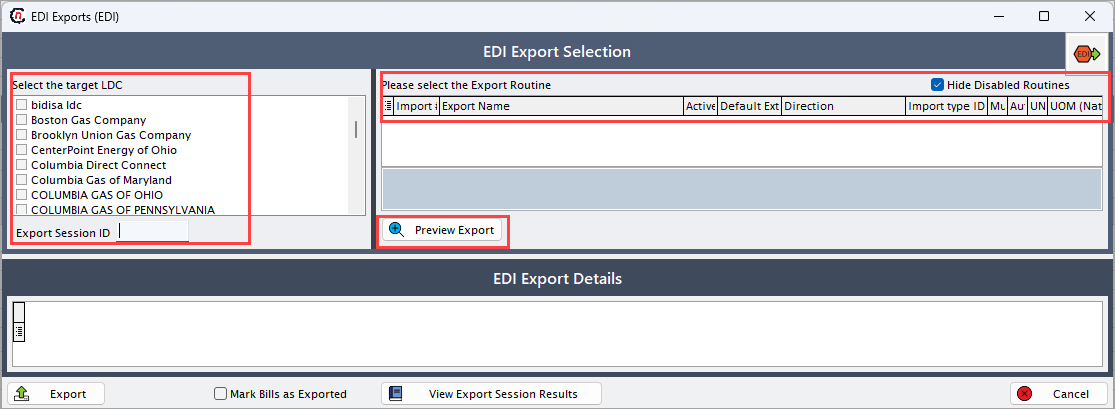
Select each LDC related to the export file and provide Export session ID which will be automatically populated upon utility selection.
- Select Hide disabled routines checkbox to remove inactive routines from the list.
-
Following are the details of export routines provided in the column fields in the EDI export routine selection.
Fields Description Import # It is a system-assigned identifier for the export routine. Export name Specifies the name of the export routine that determines the type of file generated. Active Indicates whether the export routine is enabled for use. Default ext Specifies the default file extension used when generating the export file. Direction Identifies the file direction (always “Export” for outbound files). Multi - LDC Indicates whether the routine supports multiple utilities in a single file. Auto - name Specifies whether filenames are auto-generated based on naming rules. Long name Specifies the detailed descriptive name of the export routine. Import type ID Internal identifier linking this routine to an EDI transaction type. UNC Specifies whether UNC format rules apply. Select folder Indicates the folder where the export file will be written. UOM (Native) Specifies the system’s internal unit of measure. UOM (export as) Specifies the unit of measure used in the exported file, if conversion is required. -
From the displayed routines, select the export routine, click Preview export to view the selected export routine.
-
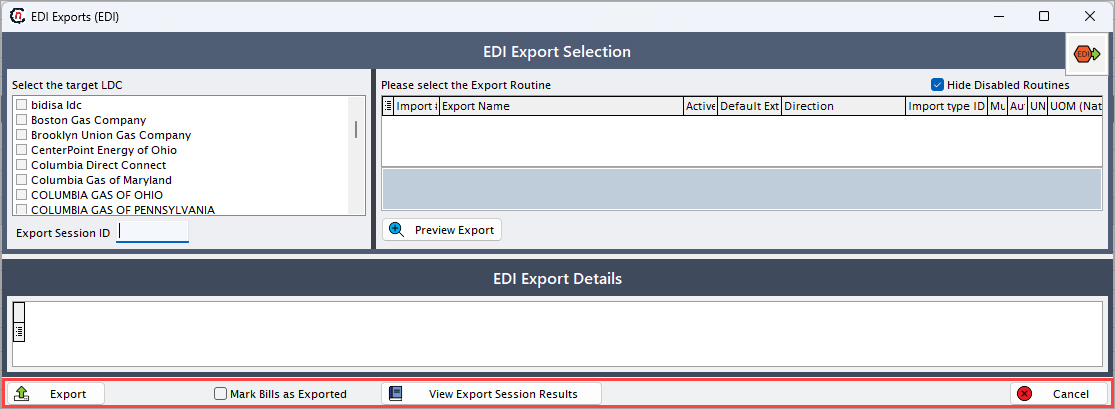
Click Export to process the outbound EDI file.
- Select the Mark bills as exported checkbox to tag billing transactions as completed once the file is created.
- Click View export session results to open the EDI session history screen to view the export details.
-
Click Cancel to close the EDI exports screen.
Summary
EDI exports generate outbound files for utilities, ensuring compliance with market requirements and supporting ongoing customer and billing operations. Accurate EDI exports maintain compliance with utility regulations and prevent processing delays.