View and manage commission details
The View commission details screen provides a comprehensive interface to review all commission records and settlements associated with sales transactions. Commission details include calculated amounts, transaction references, payees, and related billing data. This screen is used to validate calculated commissions, check pending or paid amounts, and confirm that commissions are accurately reflected in the General Ledger (GL) and billing system.
Commission details can be viewed and managed once commissions are calculated and reconciled with billing, and invoices. It also helps to verify the settlements for internal or external consultants, sales representatives.
Prerequisites
Before working on the View commission details (commissions) screen, ensure the following prerequisites are met:
- Ensure the nGenue application is installed and use valid login credentials to log into the application.
- User permissions: Configure the user permissions including User type, Security user, Security group, Security assign user, and Security assign permissions in their respective screens to enable access to the View commission details (commissions) screen.
- Ensure the Local Distribution Company (LDC), Pool, End user, Sales rep, Retail consultant must be configured.
- Relevant Billing and Invoices must be generated.
- Ensure that Sales commission parameters and commission rules are properly configured. Additionally commissions must have been calculated.
Procedure to view commission details
Step 1: Navigate to View commission details screen
- Log in to the nGenue application.
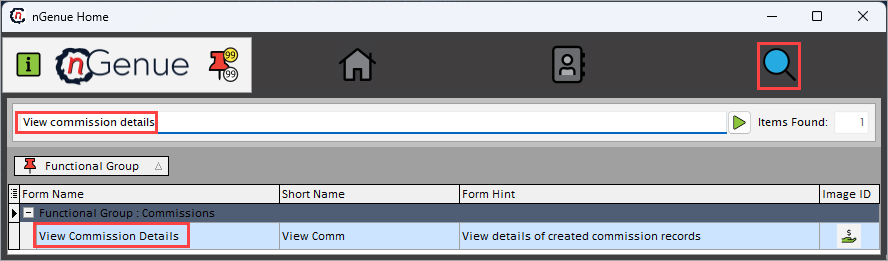
- Click the Search icon and enter Calculate commissions in the search bar.
-
Double-click View commission details to open the respective screen.
-
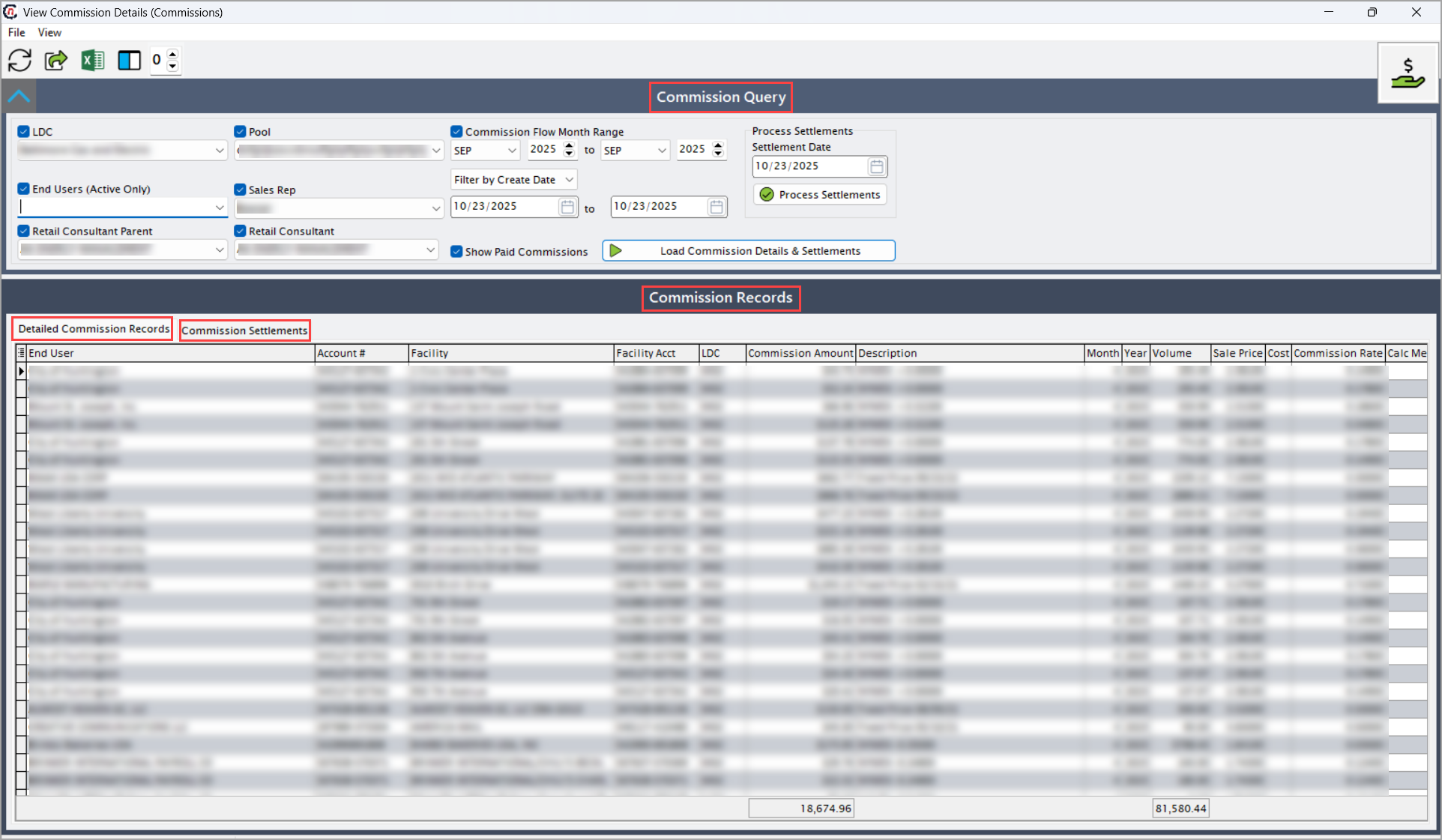
The View commission details (commissions) screen consists of two sections:
- Commission query: This section provides filters to fetch the commission detail records and settlements entries related to the selected parameters.
-
Commission records: This section displays detailed commission information and commission settlement data after executing the query.
- Detailed commission records: This tab provides line-level details for each commission transaction.
-
Commission settlements: This tab shows processed settlements related to the commissions.
Step 2: Load commission details
-
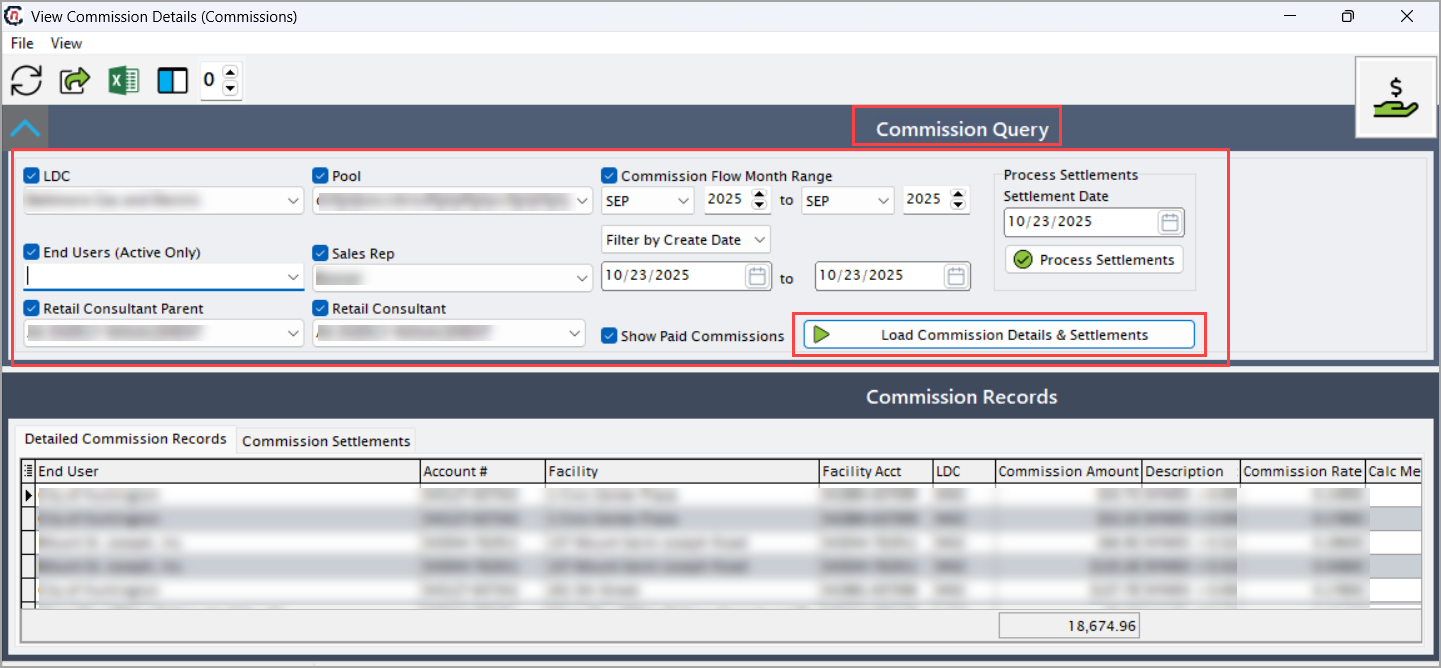
Enable and select the following fields in the Commission query section before loading data:
Fields Description LDC Select a Local Distribution Company to filter commission records. Only commissions associated with the selected LDC will display. Pool Select a pool to narrow commission calculations to specific customer groups. End users (Active only) Select the end user to filter for active accounts only, preventing historical or inactive accounts from appearing. Sales rep Select the sales representative to display commission records tied to that specific sales representatives. It is configured in LDC representative screen which is accessible from LDC configuration screen. Retail consultant parent Select the retail consultant parent to filter for parent consultant associated with commissions. Retail consultant Select the retail consultant to filter for individual consultants to review their calculated commissions. Commission flow month range Specify the month(s) for which commission records need to be displayed. Show paid commissions Select this checkbox to include commissions that have already been paid. -
Click Load commission details and settlements to display all detailed commission records.
-
After completing the query, the Detailed commission records tab displays line-level information for each commission entry, as listed in the table below:
Field Name Description End user account # Specifies the account number for the end user. Facility Specifies physical facility associated with the end user account. Facility acct Specifies the account number for the specific facility. LDC Specifies the LDC serving the facility. Commission amount Indicates the total commission calculated for the transaction or period. Description Provides the description or details of the transaction. Month Specifies the transaction month. Year Specifies the transaction year. Volume Indicates the measured quantity of gas sold or billed. Sale price Indicates the price per unit sold to the end user. Cost Indicates the total cost incurred. Commission rate Indicates the rate used to calculate the commission. Calc method Indicates the method or formula used to calculate the commission. Calc Notes Provide the notes or comments related to the commission calculation. Date Calculated Specifies the date the commission was calculated. Billing Item Desc Provide the description of the billed item. Billed Price Indicates the price charged to the end user for the billed item. Billed Volume Indicates the billed quantity or usage amount. Exp To GL Indicates whether the commission has been exported to the General Ledger. Export Date Specifies the date when the record was exported to the General Ledger. Commission Setup ID It is identifier linking to the commission setup configuration. Commission ID It is a unique identifier for the commission record. Price ID It is an identifier for the pricing record used in calculations. Marketier ID It is an identifier for the associated tier. EU ID It is a unique identifier for the end user. Representative ID It is a unique identifier for the representative or salesperson. Hedge ID It is a unique identifier linking to a hedge or risk management position. Period ID It is a unique identifier for the billing or commission period. Commission Source Indicate the origin or source system of the commission data. Facility ID Unique identifier for the facility. LDC ID Identifier for the LDC. Account ID Unique identifier for the account record. On Hold Indicates if the commission is on hold. Unpaid Inv # Invoice number associated with unpaid transactions. Release Mon Release month for payment or posting. Release Yr Release year for payment or posting. Release DateTime Timestamp of when the commission was released. Item ID Unique identifier for the billed or commission item. Cal Start Dt Start date for the calculation period. Cal End Dt End date for the calculation period. End User Abbrev Abbreviation or short name for the end user. Pool Pool or group associated with the account or LDC. Item Cal Start Start date of the item’s calculation period. Item Cal End End date of the item’s calculation period. Agmt Start Agreement start date. Agmt End Agreement end date. Payee Entity or individual receiving the commission payment. Tier Desc Description of the commission tier. Tier # Numeric identifier for the commission tier. Year-Mon Str Combined year-month string. Outside Conslt ID Identifier for an external consultant involved. Parent Outside Conslt Parent consultant or firm linked to the outside consultant. End User Account Account number or identifier for the end user. End User Name Full name of the end user or customer. Settlement ID Identifier for the settlement record. Total Amount Total amount associated with the transaction or settlement. Recipient Addr Address of the payee or recipient. Due Dt Due date for the commission or invoice. Statement # Statement number related to the commission or payment. Ref Payee Type ID Reference identifier for the payee type. Employee ID Identifier for the employee linked to the commission. Is Reversed Indicates whether the commission record has been reversed. Original Commission ID Identifier of the original commission record if reversed or adjusted. 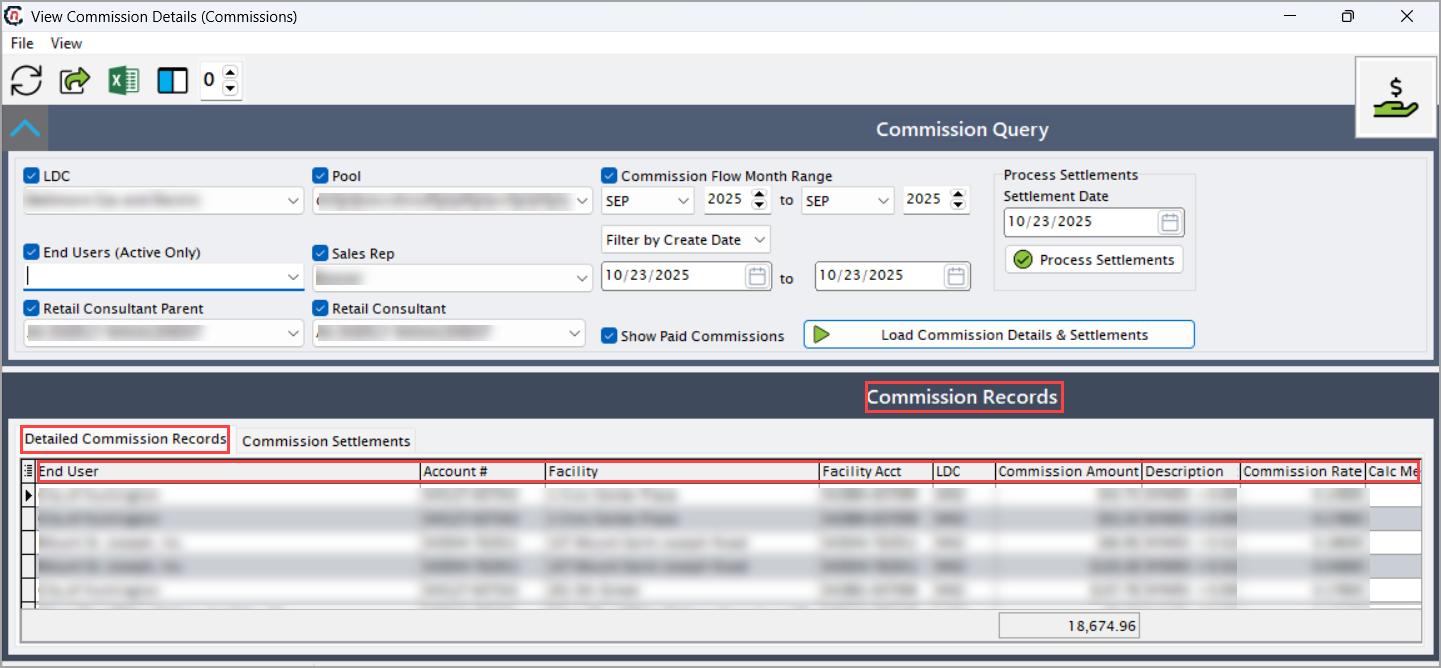
Step 3: Process settlements
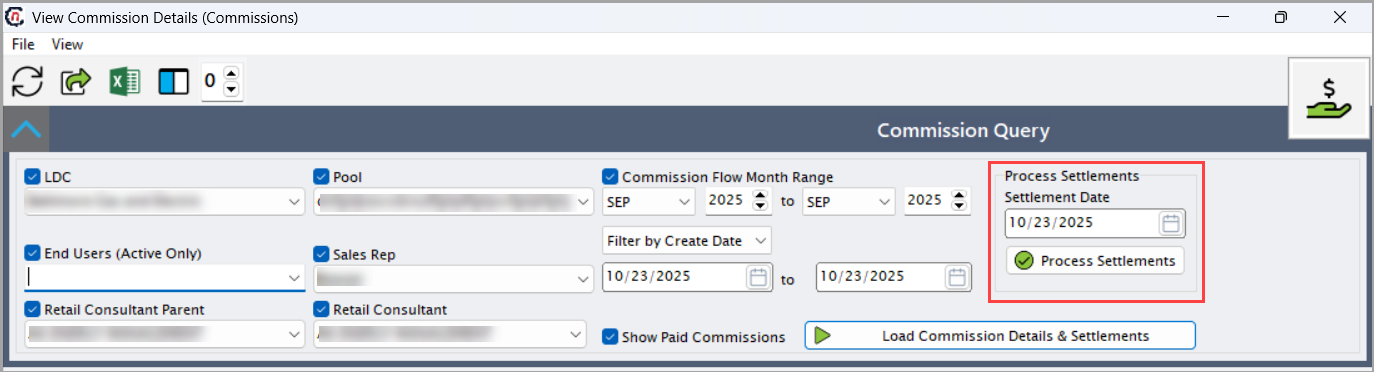
- After loading the commission details, select the desired commission records from the displayed results. Specify the Settlement date, then click Process settlement to initiate settlement processing for the selected records.
-
Once processed, the system generates corresponding settlement entries, which are displayed in the Commission Settlements tab for review, verification, and tracking of commission payments.
-
Click Load commission details and settlements to refresh the tab and view the processed settlement records in the Commission settlements tab.
The Commission settlements tab displays line-level information for each processed payment record, as listed in the table below:
Field Name Description Settlement ID Unique identifier for the settlement record. Payee The individual or entity receiving payment. Broker The broker associated with the settlement or transaction. Settlement Status Current status of the settlement (e.g., Pending, Paid, Posted). Total Amount The total amount included in the settlement. Payment Info Details or notes about the payment method or transaction. Recipient Addr Address of the payee or payment recipient. PO # Purchase order number related to the settlement. Paid Amount The amount that has been paid to the payee. Due Dt The date payment is due. Paid Dt The date payment was made. Created On The date the settlement record was created. Created By The user or system that created the record. Sent Dt The date the settlement was sent or distributed. EFT Account ID Identifier for the electronic funds transfer account used. Document Path File path or link to the settlement document. GL Month The accounting month in which the settlement is posted to the general ledger. GL Year The accounting year for the settlement posting. Settlement Source The origin or system source of the settlement data. Volume The total quantity (e.g., energy units) associated with the settlement. Commodity charge The charge or cost associated with the commodity portion of the transaction. Broker Commission Amount The commission amount paid to the broker. 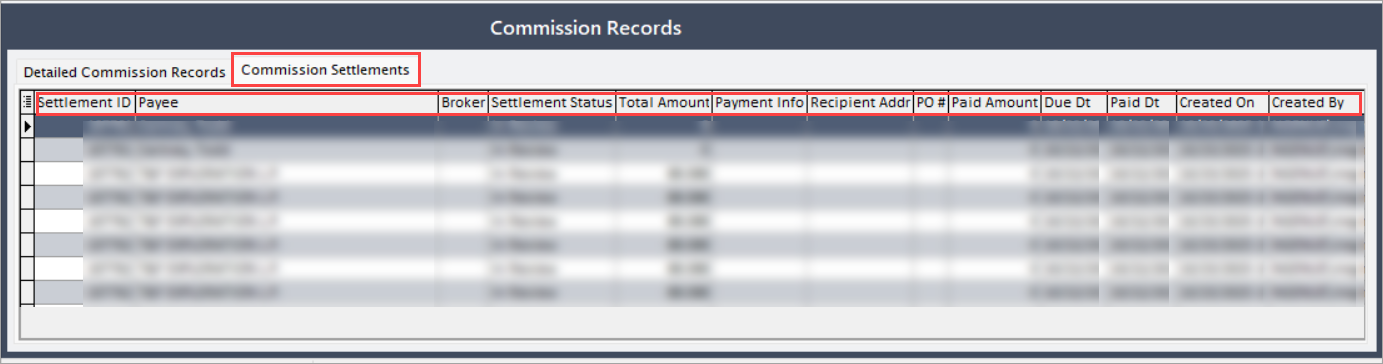
Summary
The View commission details screen consolidates all commission calculations and settlements in one interface, enabling accurate review and reconciliation. It ensures transparency, confirms payments and holds, and provides audit-ready records. By reviewing both detailed commission records and settlements, users can verify that commissions are properly calculated, recorded, and exported to the General Ledger.